
Save competitor ads to a folder
Save any ad to a folder in Library, then find it again under Saved. Tracking competitors has no screen yet.
#What it is
Save an ad you like to one of your folders. Saved ads sit in Library > Saved next to ads from Discover and your own creations.
#Who can use it
Everyone, on Free and Pro. Folders work the same on both plans.
#Cost
Free, no credits.
#Where to find it
Use Save on any ad tile in Library > Spy, or Save in the opened ad. Your folders are under Library > Saved.
#Buttons and controls
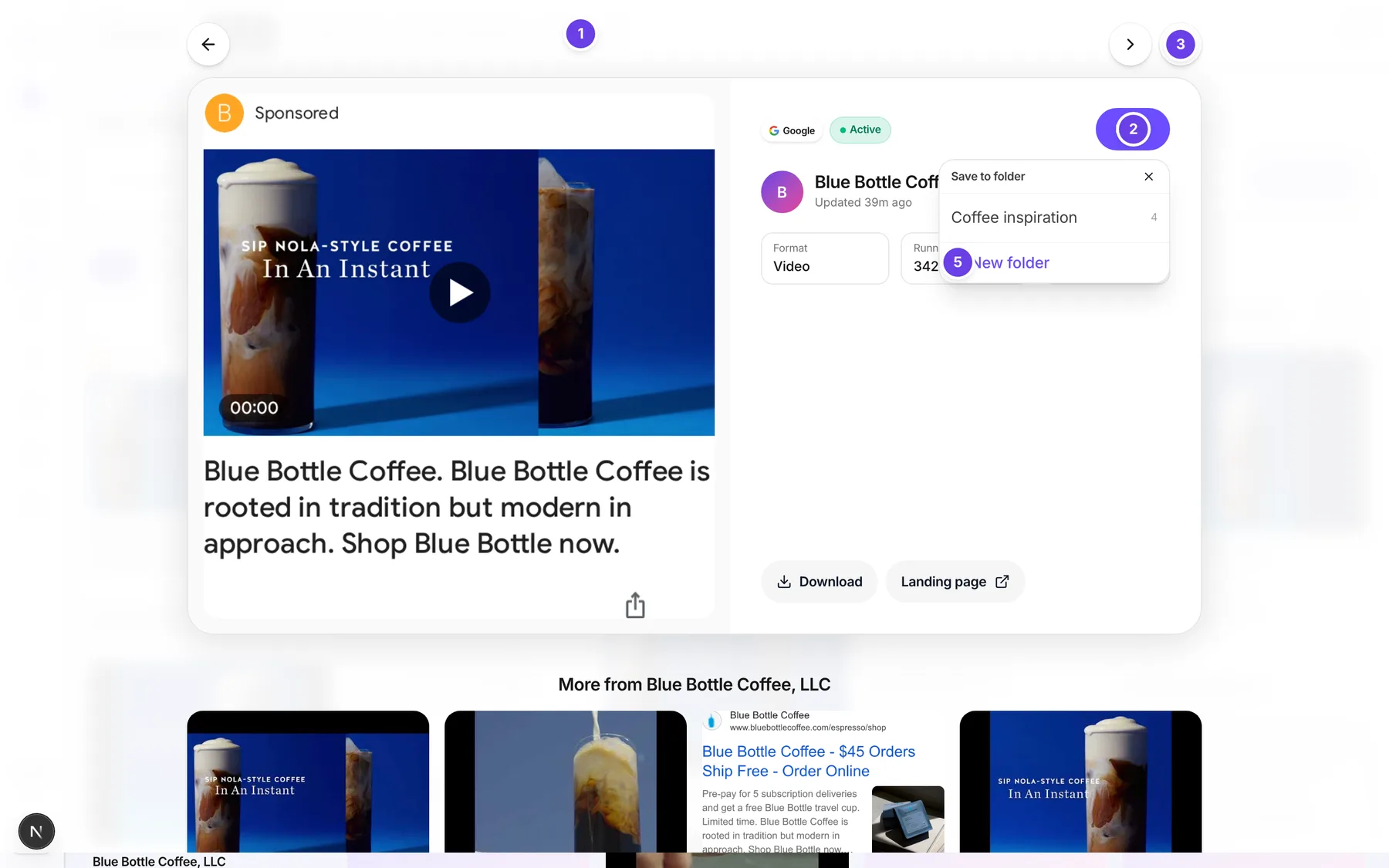
| # | Name in the app | What it does | Plan |
|---|---|---|---|
| 1 | Save | On a tile or in the opened ad. Opens the folder menu. The aria label is Save to folder. After saving it says Saved. | Both |
| 2 | Save to folder | The title of the menu. | Both |
| 3 | Close | The X in the menu. Closes it. | Both |
| 4 | Your folders | Each folder is a button with its name and how many items it holds. Choose one to save into it. | Both |
| 5 | New folder | At the bottom of the menu. Opens a name box. | Both |
| 6 | Folder name | The box for a new folder name. | Both |
| 7 | Save | In the new folder row. Creates the folder and saves the ad into it. | Both |
#How to save an ad
- Find an ad in Library > Spy.
- Choose Save on the tile, or open the ad and choose Save.
- Choose a folder from the list.
- The menu shows Saved to and the folder name, then closes by itself.
#How to save an ad into a new folder
- Choose Save on the ad.
- Choose New folder.
- Type a name in Folder name.
- Choose Save, or press Enter. The folder is made and the ad goes into it.
#How to find a saved ad again
- Open Library.
- Choose Saved.
- Open the folder.
#Options explained
What a folder keeps. A saved ad is kept as a snapshot. It keeps the picture and copy as they were when you saved it.
Saving the same ad twice. If the ad is already in that folder, the app treats it as saved. You do not see an error.
Tracking competitors. The Spy screen has no button to track a competitor today. Use Recent searches to come back to a search, and run the search again to refresh the ads.
#Limits
- A folder name is up to 60 characters.
- The menu loads your folders the first time you open it.
#When something goes wrong
| Message in the app | What it means | What to do |
|---|---|---|
| Could not load folders. | Your folder list did not load. | Close the menu and open it again. |
| Could not create folder. | The new folder was not made. | Check the name and try again. |
| Could not save. | The ad was not saved. | Try again. |
| That folder no longer exists. | The folder was deleted while the menu was open. | Pick another folder or make a new one. |
| No folders yet. | You have no folders. | Choose New folder. |
#Questions
#Can I track a competitor so I get new ads automatically?
Not from the Spy screen today. There is no tracking control in the app. You can search the brand again at any time.
#Are saved ads private to me?
They are saved in your workspace's folders.
#Do saved ads change when the competitor changes the ad?
No. The folder keeps the snapshot from the moment you saved it.
#Is there a limit on folders?
The app does not show one. Each folder name is limited in length.
#Where do saved ads show up?
In Library > Saved, inside the folder you chose. See Save and organise.
Last checked against the app on . View as Markdown