
Read your Ad Spy results
Understand ad tiles, ad copy, carousels, how long an ad has run, and how to filter and reopen past searches.
#What it is
Results appear as a grid of ad tiles. Open a tile to read the ad copy, see every slide of a carousel, and see how long the ad has been running.
Without a search, the grid shows ads that are already stored. Reading and filtering never uses credits.
#Who can use it
Everyone, on Free and Pro. Browsing stored ads is open to both plans.
#Cost
Free, no credits. Opening ads, filtering, refreshing the list and reopening past searches never use credits.
#Where to find it
Open Library, then the Spy tab. Results show under the search bar after a search, or the stored ads show when you open the tab.
#Buttons and controls
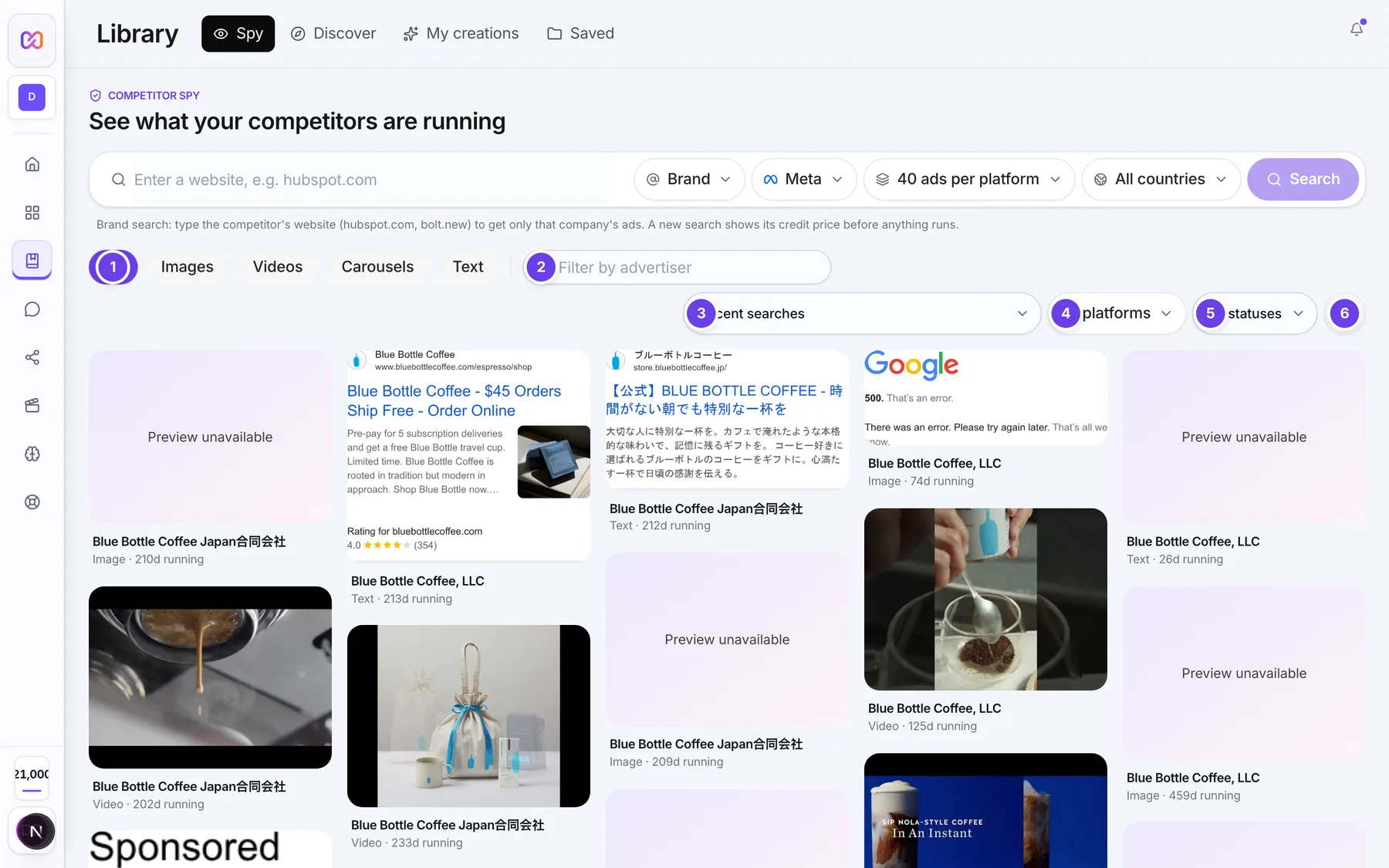
| # | Name in the app | What it does | Plan |
|---|---|---|---|
| 1 | All | Shows every format. Next to it: Images, Videos, Carousels and Text show only that format. | Both |
| 2 | Filter stored advertisers | Type part of an advertiser name to narrow the stored ads. | Both |
| 3 | Recent searches | Pick one of your past searches to see only its ads. The first choice is Recent searches (or No recent searches if there are none). | Both |
| 4 | Platform filter | Shows All platforms at first. Choose Meta, Google or LinkedIn to show only those ads. | Both |
| 5 | Status | Shows All statuses at first. Choose Active for ads still running or Ended for ads that stopped. | Both |
| 6 | Refresh | Reloads the list. | Both |
| Back to all ads | Appears when you are looking at one search. Takes you back to the full list. | Both | |
| Results per platform | A short list under the search bar after a search. It says how many ads each platform gave, or why one came back short. | Both | |
| 7 | Save | On each ad tile. Saves the ad to a folder. See Save an ad. | Both |
| 8 | Open landing page | On a tile, bottom right. Opens the ad's own page in a new tab. Shows only when the ad has a link. | Both |
| Back | In the opened ad. Closes it and returns to the grid. | Both | |
| Previous | In the opened ad. Shows the previous ad in the grid. | Both | |
| Next | In the opened ad. Shows the next ad in the grid. | Both | |
| Close | In the opened ad. Closes it. | Both | |
| Previous slide | In an opened carousel. Shows the previous slide. | Both | |
| Next slide | In an opened carousel. Shows the next slide. | Both | |
| Go to slide | The small dots under a carousel. Jump to one slide. | Both | |
| Download | In the opened ad. Downloads the image. Shows only for ads that have an image. | Both | |
| Watch on YouTube | In the opened ad. Opens the video on YouTube. Shows only for Google video ads. | Both | |
| Landing page | In the opened ad. Opens the ad's page in a new tab. | Both |
#How to open an ad
- Run a search, or open the Spy tab to see stored ads.
- Choose a tile.
- Read the panel on the right: platform, Active or Ended, the advertiser name and Updated time.
- Read the facts: Format, Running, Started and Countries.
- Read Ad copy for the headline, the body text and the CTA.
- Choose Next or Previous to move through the grid, or Back to close.
#How to see how long an ad has run
- Open the ad.
- Look at Running. It shows the number of days.
- Look at Started for the date it began.
#How to use the filters
- Choose a format chip such as Videos.
- Choose a platform in the platform filter.
- Set Status to Active to hide ads that already stopped.
- Type an advertiser in Filter by advertiser.
#How to go back to an earlier search
- Open Recent searches.
- Choose a search. The line shows the words you searched, the platform, how many ads it found and how long ago.
- Choose Back to all ads when you want the full list again.
#Options explained
Active and Ended. Active ads were still running when last seen. An ad that has not been seen for 14 days counts as taken down.
Tile labels.
| Label | What it means |
|---|---|
| Active | The ad is still running. |
| 1/3 (with a stack icon) | A carousel. The number is how many slides it has. |
| Carousel, then a slide count | A carousel with that many slides. |
| 12d running | The ad has run for that many days. |
| Used in 4 ads | Several ads share this same picture, so they are shown as one tile. |
| similar preview | The original picture is gone, so a similar picture is shown. |
Creatives and ads. The count above the grid can read "24 creatives (31 ads)". Several ads can use one picture, so one tile may stand for more than one ad.
Results per platform. Each line reads like "Meta: 24 ads" or "Google: searching". A platform that came back short gives a reason, for example "busy right now, try again in a few minutes" or "no ads found for this brand".
#Limits
- The grid loads 24 tiles at a time and keeps loading as you scroll.
- A search shows up to 200 ads, and pages of 24 tiles.
- The Recent searches list holds your last 20 searches.
#When something goes wrong
| Message in the app | What it means | What to do |
|---|---|---|
| The Spy database is empty | There are no stored ads to show yet. | Search a competitor to add the first results. |
| No ads found | Your search matched nothing. | Try a broader brand or keyword. Empty searches cost 0 credits. |
| No matching ads are running right now. The search was completed and counted. | The search worked but nobody is running matching ads. | Try another brand, keyword or country. |
| Preview unavailable | The picture could not be loaded. | Open the ad. Try Landing page. |
| This ad is a video, but only a poster frame is available. | The video file is gone and only a still is left. | Use Landing page to see the ad. |
| Something went wrong. Try again. | A search or load failed without a clear reason. | Try again. |
#Questions
#Why are there fewer tiles than ads?
Several ads can use the same picture. They are merged into one tile and the tile says "Used in" with a count.
#How do I know an ad is still live?
Look for the Active badge on the tile or in the opened ad.
#Why does a picture show "similar preview"?
The original picture has expired. A similar picture stands in. The ad text is still the real copy.
#What does a carousel show?
Every slide. Use Previous slide, Next slide or the dots to move through them.
#Does opening an ad cost anything?
No. Reading ads never uses credits.
Last checked against the app on . View as Markdown