
Use and resize the chat panel
Talk to Infinall AI in the panel next to the canvas, resize it, hide it, and find your earlier messages.
#What it is
The chat panel sits on the right of the canvas. You type what you want and the results land on the canvas. It also holds the conversation for this project, so you can scroll back to earlier messages.
#Who can use it
Everyone. Free and Pro accounts get the same panel. Sending messages needs the Editor role or higher on a team. Resizing and hiding the panel are just for your own screen.
#Cost
Mixed. Resizing, hiding, scrolling history and copying text are free. Sending a message can use credits, and making or editing pictures uses credits. You see the exact price before you confirm. Going back to an older version from chat is free.
#Where to find it
Open Projects, then click a Studio project. The panel is on the right. Below the panel's name you see the project type and how many items it holds.
#Buttons and controls
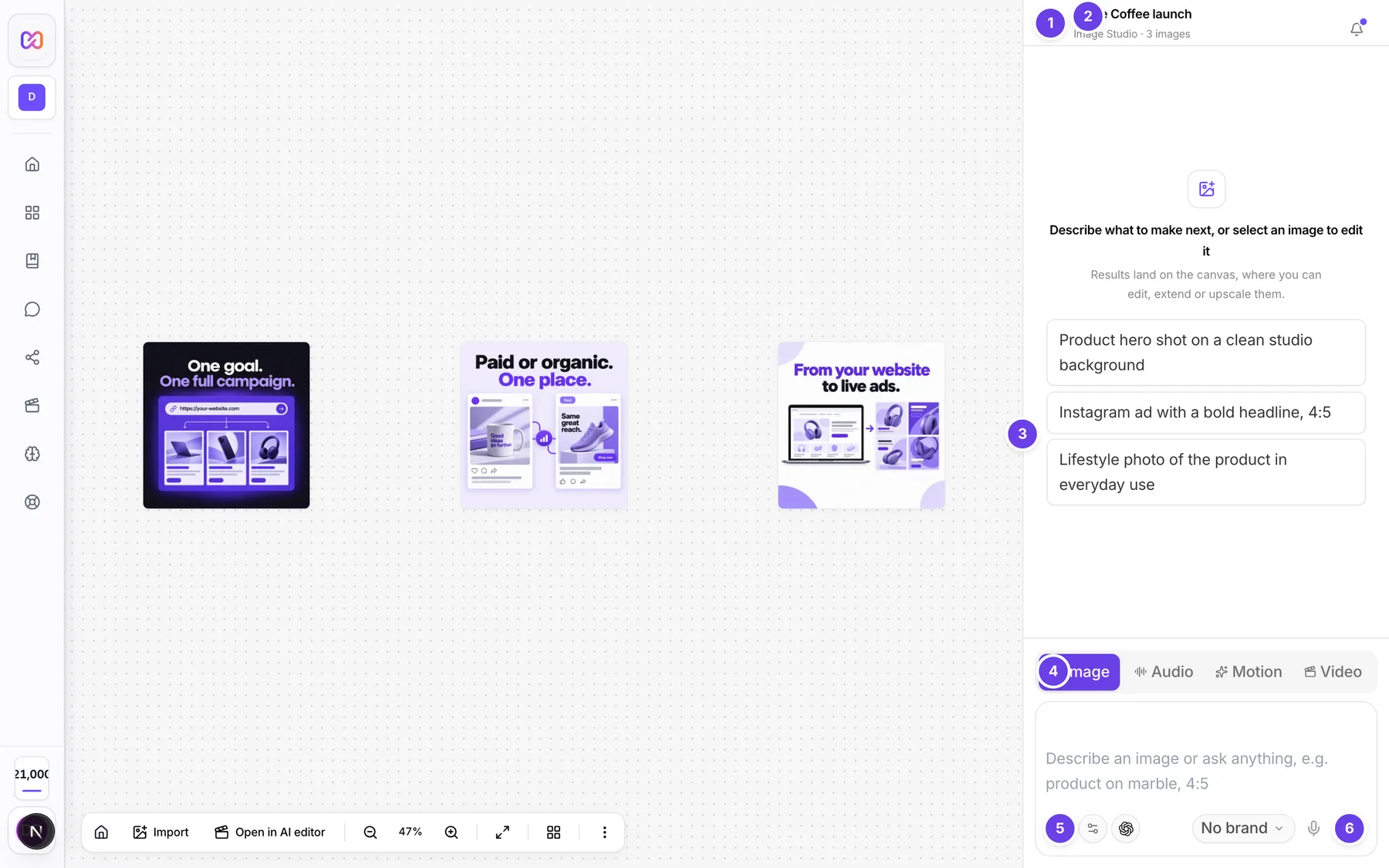
| # | Name in the app | What it does | Plan |
|---|---|---|---|
| 1 | Hide sidebar | Collapses the panel so the canvas gets the full width. Desktop only. | Both |
| 2 | Click to rename | The project name at the top. Click it to rename the project. See rename and delete. | Both |
| 3 | Resize chat panel | A thin handle on the panel's left edge. Drag it to change the width. | Both |
| 4 | What to make | Switch at the bottom: Image, Audio, Motion or Video. It sets what the box below makes. | Both |
| 5 | Attach a reference image for the AI to use (not added to the canvas) | The paperclip in the prompt box. Adds a reference picture for the AI. It is not placed on the canvas. | Both |
| 6 | Send | Sends your message. You can also press Enter. Shift + Enter starts a new line. | Both |
| Show chat panel | A slim tab on the right edge of the canvas. Shows only while the panel is hidden. Brings it back. | Both | |
| Back to editor | Phones only. Switches from the panel back to the canvas. | Both | |
| Open chat | Phones only. A round button on the canvas that opens the panel. | Both | |
| Copy | Under a message. Copies its text. It says Copied for a moment. | Both | |
| Edit & resend | Under your own message. Puts the text back in the box so you can change it and send again. | Both | |
| Reuse prompt | Under a result. Puts the prompt that made it back in the box. | Both | |
| Retry | Under a failed reply. Tries the request again. | Both | |
| Locate on canvas | On a picture inside a message. Selects that picture on the canvas and centres it. | Both |
#How to resize the panel
- Point at the panel's left edge until the cursor changes.
- Drag left to make it wider, or right to make it narrower.
- To go back to the standard width, double-click the edge, or focus it and press Enter.
Your width is remembered for your account on this browser.
You can also use the keyboard. Focus Resize chat panel, then press the Left arrow to widen, the Right arrow to narrow, Home for the narrowest width, End for the widest. Hold Shift with an arrow for a bigger step.
#How to hide and show the panel
- Click Hide sidebar at the top left of the panel.
- To bring it back, click Show sidebar in the canvas dock, or the slim Show chat panel tab on the right edge.
On a phone, the canvas and the panel take turns. Click Open chat to see the panel and Back to editor to return.
#How to find earlier messages
- Open the project. The conversation loads on its own.
- Scroll up in the panel.
Messages are saved with the project. Reload the page or come back tomorrow and they are there.
#Options explained
What to make chooses the kind of thing the box creates. Image, Audio, Motion and Video all use this same panel and the same canvas. A project opens in the mode it was made in.
Prompt box hints change with what you are doing. With nothing selected it asks you to describe an image. With one image selected it says Describe a change to this image.... With several selected it says how many images one edit will apply to.
Empty panel: a new project shows Describe your first image and three ready-made ideas. Click one to fill the box. A project that already has items shows Describe what to make next, or select an image to edit it.
Panel width can be set from 320 to 560 pixels. The standard width is 380 pixels. On a narrow window the widest allowed width is smaller, so the canvas keeps room.
#Limits
- Resize range: 320 to 560 pixels, standard 380.
- Arrow keys move the edge 16 pixels. With Shift they move 64 pixels.
- When you reopen a project, the newest 500 messages load.
#When something goes wrong
| Message in the app | What it means | What to do |
|---|---|---|
| Image Studio isn't available yet. It's coming soon. | Image Studio is not switched on for your account. | Check back later. |
| The image service refused this for safety reasons. Nothing was charged. | The request was blocked by safety checks. | Reword the request. |
| Insufficient credits. Purchase more to continue. | Your balance is too low. | Add credits, see your credit balance. |
| I hit a snag reaching the AI. Please try again. | The reply did not come through. | Click Retry. |
#Questions
#Is my chat history saved?
Yes. It is saved with the project. When you reopen it, the newest 500 messages load.
#Can I clear the history?
The panel has no clear button. Delete the project to remove everything in it.
#Why did my panel width reset?
The width is kept per account in your browser. A different browser, or cleared site data, starts at the standard width. Double-clicking the edge also resets it.
#Is the panel the same for Image, Motion and Audio?
Yes. One panel, one canvas. Use What to make to switch.
#Does it cost credits to hide or resize the panel?
No. Only the things you make cost credits, and you see the price first.
Last checked against the app on . View as Markdown