
Templates and recipes
What starting points the AI Editor really shows today: size cards, text style tiles and colour looks, plus how to edit or remove a recipe already on a clip.
#What it is
The AI Editor has pieces of code for a template gallery, a template browser, a "Save as Template" window and a set of built-in "recipes" (ready-made looks such as a letterbox, a glitch or a lower third). Only one part of that is on screen today: the Applied section that lets you change or remove a recipe that is already on a clip. This page says plainly what you can and cannot do.
#Who can use it
Everyone. The app does not check your plan for any of this, so Free and Pro are the same. On a team, changing a clip needs the Editor role or higher.
#Cost
Free, no credits. Nothing on this page calls the paid AI.
#Where to find it
- Starting sizes: the welcome screen. Click AI Editor in the left menu. See open the editor.
- Text style tiles: in Editor sections, choose Text. See text and captions.
- Colour looks: in Editor sections, choose AI Gen, then Colour looks. See colour grading.
- Recipes on a clip: click a video or image clip, open the Effects view of the inspector, and look for Applied. The section only shows when the clip already has a recipe or an effect.
#Buttons and controls
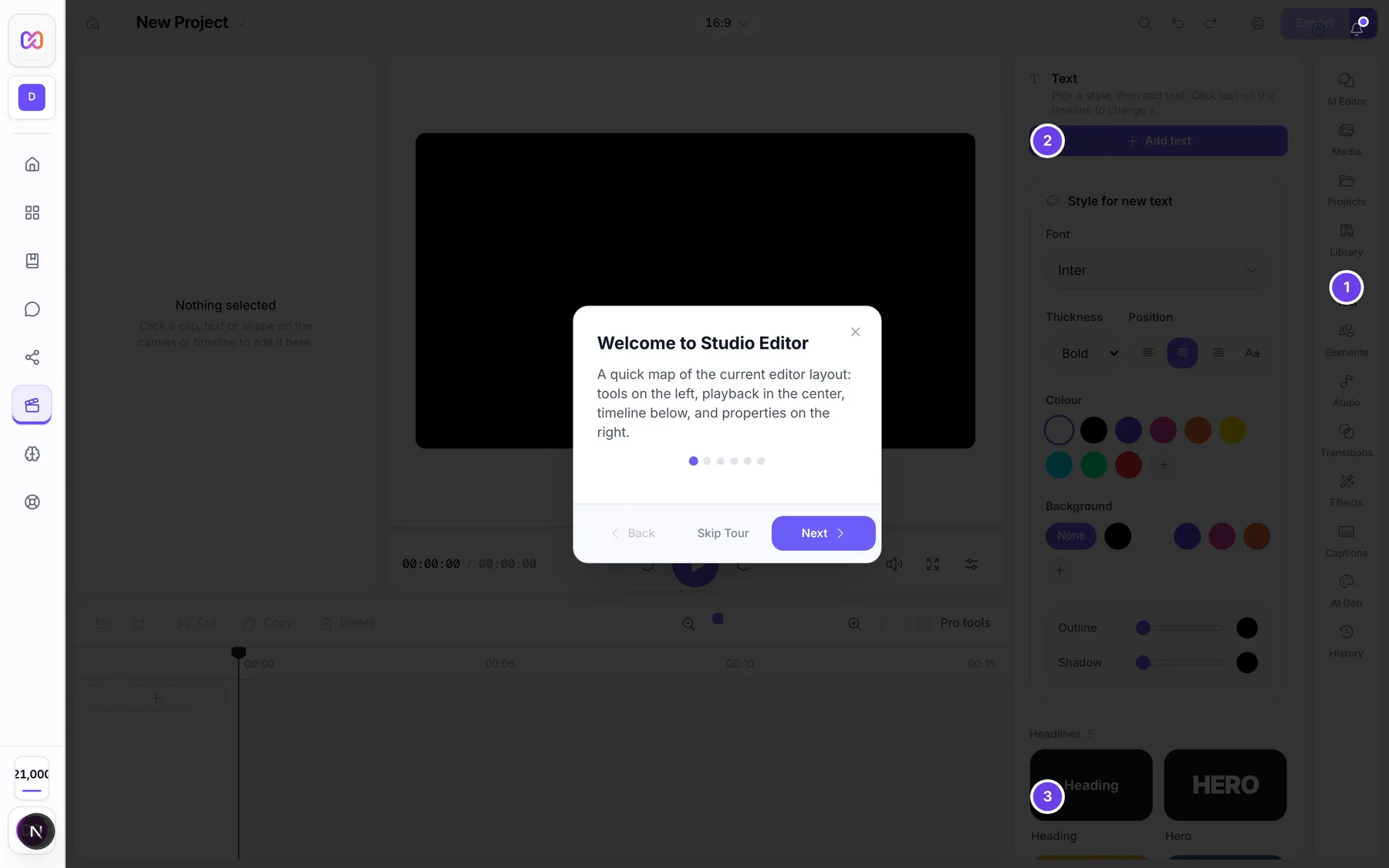
The numbered rows are the closest thing the editor shows to ready-made templates: the text style tiles in the screenshot.
| # | Name in the app | What it does | Plan |
|---|---|---|---|
| 1 | Text | The button in Editor sections that opens the Text panel. | Both |
| 2 | Add text | Adds plain text to the timeline at the playhead. | Both |
| 3 | Add Heading text | One of the style tiles. A tile adds a ready-styled text clip at the playhead. The other tiles are named the same way, for example Add Lower Third text. | Both |
The Applied section, in the Effects view of the inspector. Its controls show only for a clip that already has a recipe, so they are not numbered.
| # | Name in the app | What it does | Plan |
|---|---|---|---|
| Applied (N) | The section title. N counts the recipes and the plain effects on the clip. It starts open. | Both | |
| Recipe name | The name of the recipe, with its category under it. Dashes in the category are shown as spaces, for example "text effects". | Both | |
| Edit | Opens that recipe's controls. It shows only when the recipe has controls. | Both | |
| Remove recipe | A bin button. Takes the recipe off the clip. | Both | |
| Reset | Inside the opened controls. Puts the controls back to the values the recipe was applied with. | Both | |
| Update | Inside the opened controls. Saves your changes to the clip. | Both |
Plain effects listed below the recipes show only their name and an On or Off tag.
#How to change a recipe on a clip
- Click the clip on the timeline. It must be a video or an image.
- Open the Effects view of the inspector and find Applied.
- On the recipe, click Edit.
- Change the controls. See Options explained.
- Click Update. You see "Recipe updated" with the recipe name.
- To go back to where you started, click Reset, then Update.
#How to remove a recipe
- Click the clip and open Applied in the Effects view.
- Click Remove recipe on the recipe.
- If it cannot be removed you see "Could not remove recipe".
To take back a change, press Ctrl+Z (Command+Z on a Mac) or click Undo in the top bar.
#How to start from a size
- Open the welcome screen and stay on New video.
- Click a platform card such as TikTok or YouTube, or click Custom or Empty canvas.
- The editor opens with an empty timeline at that size.
#Options explained
Controls inside a recipe. Each recipe has its own list. A control is one of five kinds.
| Kind | How it looks |
|---|---|
| Number | A slider with the value beside its name, for example Grain or Bar Opacity. |
| Toggle | A switch. |
| Select | A drop-down list of named choices. |
| Color | A colour swatch with a box for the colour code, for example #000000. |
| Text | A single line of text. |
Recipe categories. A recipe belongs to one of these: cinema, glitch, retro, social, branding, color, overlay, text effects, transitions, ads, or app UI demos. This is the word you see under the recipe name.
What a recipe is. A recipe is a bundle of effects and overlays added to your clip in one go. An overlay can be a bar, a frame, a text or a shape on its own row. When you remove the recipe, the pieces it added go with it.
What is not on screen today. The following exist in the editor code but are not reachable from any button, tab or menu, so this page does not give steps for them.
| Feature | Status |
|---|---|
| Template gallery on the welcome screen | Not shown. The welcome screen has only the New video and My projects tabs. |
| Template browser with categories and Use This Template | Not shown. |
| Template variables panel and Apply Template | Not shown. |
| Save as Template and its cloud or local choice | Not shown. |
| A button that applies a built-in recipe to a clip | Not shown. Recipes can only be edited or removed once a clip already has one. |
Other ready-made starters. These are real and on screen: platform size cards on the welcome screen, Text style tiles, Colour looks in AI Gen, and effects and transitions. See the links in Where to find it.
#Limits
- Applied only shows for a video or image clip.
- Edit only shows for a recipe that has at least one control.
- A recipe works on a video or an image clip, not on text, shapes or sound.
- There is no number you need to watch. Nothing here has a size or time limit.
#When something goes wrong
| Message in the app | What it means | What to do |
|---|---|---|
| Recipe unavailable | The recipe is no longer in the editor's built-in set. The line says "This recipe definition is no longer available." | Remove the recipe from the clip. |
| Could not update recipe | The new values could not be saved. The line says "The recipe controls could not be saved for this clip." | Click Update again. Check the clip is not locked. |
| Could not remove recipe | The recipe could not be taken off. The line says "The recipe could not be removed from this clip." | Try again, or press Undo. |
#Questions
#Can I save my project as a template?
Not from the editor today. The code for Save as Template exists, but no button opens it. To reuse a project, open it from My projects and keep working. See projects, history and undo.
#Is there a template gallery?
Not on screen. The welcome screen shows size cards and your projects. The empty My projects list says "Your projects will appear here. Start a new project or use a template to get going." The words "use a template" point at something the editor does not show.
#Where did my recipe come from, if there is no button for it?
A recipe is on a clip only if the project already carried it. You cannot add a new recipe yourself right now. You can still edit it with Edit and Update, or take it off with Remove recipe.
#Is the word recipe used in the app?
Yes, in four places: the Remove recipe button, and the messages "Recipe updated", "Recipe unavailable" and "Could not update recipe". The section itself is called Applied.
#What are the ready-made text styles then?
The Text panel has tiles in four groups. See text and captions. They are the closest thing to a template you can use today.
#Does any of this cost credits?
No. Recipes, text tiles, size cards and colour looks all run in your browser and are free.
Last checked against the app on . View as Markdown