
Your first five minutes
Add a brand, make one image, make one motion video and download it. A short walkthrough with links to the detailed pages.
#What it is
A short walkthrough for your first session. You add your brand, make one image, make one motion video and download your work. Each step points to the page with the full detail.
#Who can use it
Everyone. Every step, including the motion video in step 3, is open on Free and Pro.
#Cost
Adding a brand and downloading are free. Making an image and making a motion video use credits. You see the exact price before you confirm. A new account starts with 1,000 credits.
#Where to find it
Everything starts on Home. Sign in first. See Create an account and sign in.
#Buttons and controls
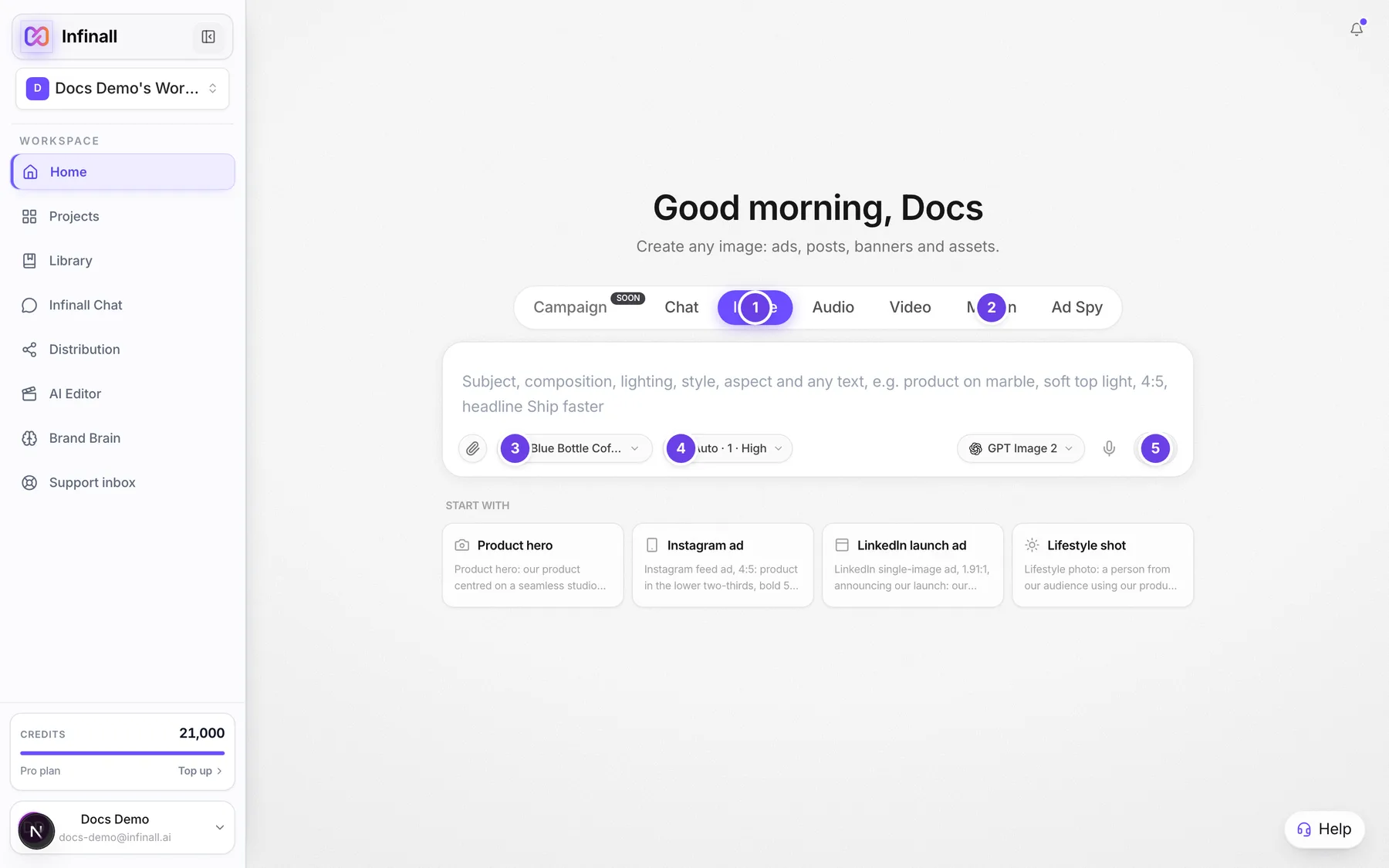
| # | Name in the app | What it does | Plan |
|---|---|---|---|
| 1 | Image | The mode tab for step 2. | Both |
| 2 | Motion | The mode tab for step 3. | Both |
| 3 | Select brand | The Brand chip. Opens the list where you add a brand. | Both |
| 4 | Image settings | Quality, Aspect ratio and Generations. | Both |
| 5 | Start campaign | The round arrow that sends your request. | Both |
| Analyze | Reads your website when you add a brand. | Both | |
| Download | On an image or video on the canvas. | Both |
#How to add your brand
- On Home, click the Select brand chip.
- Choose Add brand.
- Type your website address and click Analyze.
- Wait while Infinall reads your site. A progress screen shows three steps: URL verified, Site capture and Brand intelligence.
- Answer the short questions, or choose Skip on any you want to leave out.
- Review what Infinall found and confirm it. You see "Brand Brain saved" when it is done.
A first-time account may see a box titled "Build your first Brand Brain" instead. Paste your website there and click Analyze. No website? Choose Skip, I don't have a website. A brand is optional for images and motion.
More detail: the Brand Brain section.
#How to make your first image
- On Home, choose the Image tab.
- Click the brand chip and pick your brand, or No brand.
- Click a card under Start with, such as Product hero, or type your own description.
- Press Enter or click Start campaign.
- Your project opens on the canvas. Check the price, confirm if asked and wait for the image.
You can change the look first with Image settings: Quality (Low, Medium or High), Aspect ratio and Generations (1 to 4 images).
#How to make your first motion video
- On Home, choose the Motion tab.
- Pick a brand if you like.
- Pick a shape with the aspect buttons: Auto, 16:9, 1:1, 9:16 or 4:5.
- Click a card under Start with, such as Product reveal, or type your own description.
- Choose Standard, Pro or Max in the model chip beside the send button. Pro is the default.
- Press Enter or click Start campaign.
- Your project opens. Watch the progress while the video is built.
When it is ready, the video plays on the canvas. If a Video ready card shows with Export MP4, click Export MP4 to render the file.
#How to download your work
- Open the project from Projects in the sidebar.
- On an image, click the three dots (Image actions) and choose Download.
- On a finished motion video, click the download icon on the video, or open its menu and choose Download.
For every export option, see the Studio section.
#Options explained
Your path. Brand first, then image, then motion. The brand makes the next two match your site. You can do them in any order.
Credits. The Credits card at the bottom of the sidebar counts down as you spend.
#Limits
- Image generations per request: up to 4.
- Reference images on Home: up to 6.
- A free account starts with 1,000 credits.
#When something goes wrong
| Message in the app | What it means | What to do |
|---|---|---|
| Add a short description to name your image project. | The box is empty. | Type a description or click a Start with card. |
| Add a short description for your motion project. | The box is empty. | Type a description or click a Start with card. |
| Insufficient credits. Purchase more to continue. | Your balance is too low. | On Pro, buy a credit pack. On Free, wait for the 1st or upgrade. |
| Failed to create image project. | The project could not be created. | Try again in a moment. |
#Questions
#Do I have to add a brand first?
No. Images and motion work without one. A brand helps results match your website.
#How long does Brand Brain take?
The progress screen waits up to 6 minutes. Most sites finish sooner.
#Will I see the price first?
Yes. Every action that uses credits shows its exact price before you confirm.
#Where do I find what I made?
In Projects in the sidebar.
#What next?
Try the other tabs on Home: Audio, Chat and Ad Spy. See The Home screen.
Last checked against the app on . View as Markdown