
Lead forms and leads
Create a lead form on your ad account, read the leads it collects, export them, and set the rule that decides which leads count as customers.
#What it is
A lead form is the form people fill in on your ad without leaving Facebook, Instagram or LinkedIn. This page covers making the form, reading the leads that arrive, exporting them, and the customer rule that marks which leads are a good fit.
#Who can use it
Free and Pro accounts can open the Leads tab and set a customer rule.
Making a lead form needs a connected ad account, and connecting accounts is Pro only. Free accounts see: "Connecting accounts is a Pro feature. Upgrade to Pro to connect your social and ad accounts."
Lead forms work on Meta and LinkedIn only. Google and TikTok ads cannot run the Get leads goal. Viewers in a workspace can read leads but cannot create a form, and the app says "Your workspace role does not permit this action (write)."
#Cost
Free, no credits. Making a form, reading leads and exporting them never use credits. A live ad that uses the form does use credits, see Paid ads from the Social Hub.
#Where to find it
- Leads and lead forms: Distribution, then Ads, then Leads. Use the Leads and Lead forms switch at the top.
- The customer rule: Distribution, then Ads, then Budget, then the Which leads are good? section.
- You can also make a form while writing an ad. Choose Get leads on step 1 of the ad composer, then Create a lead form here.
#Buttons and controls
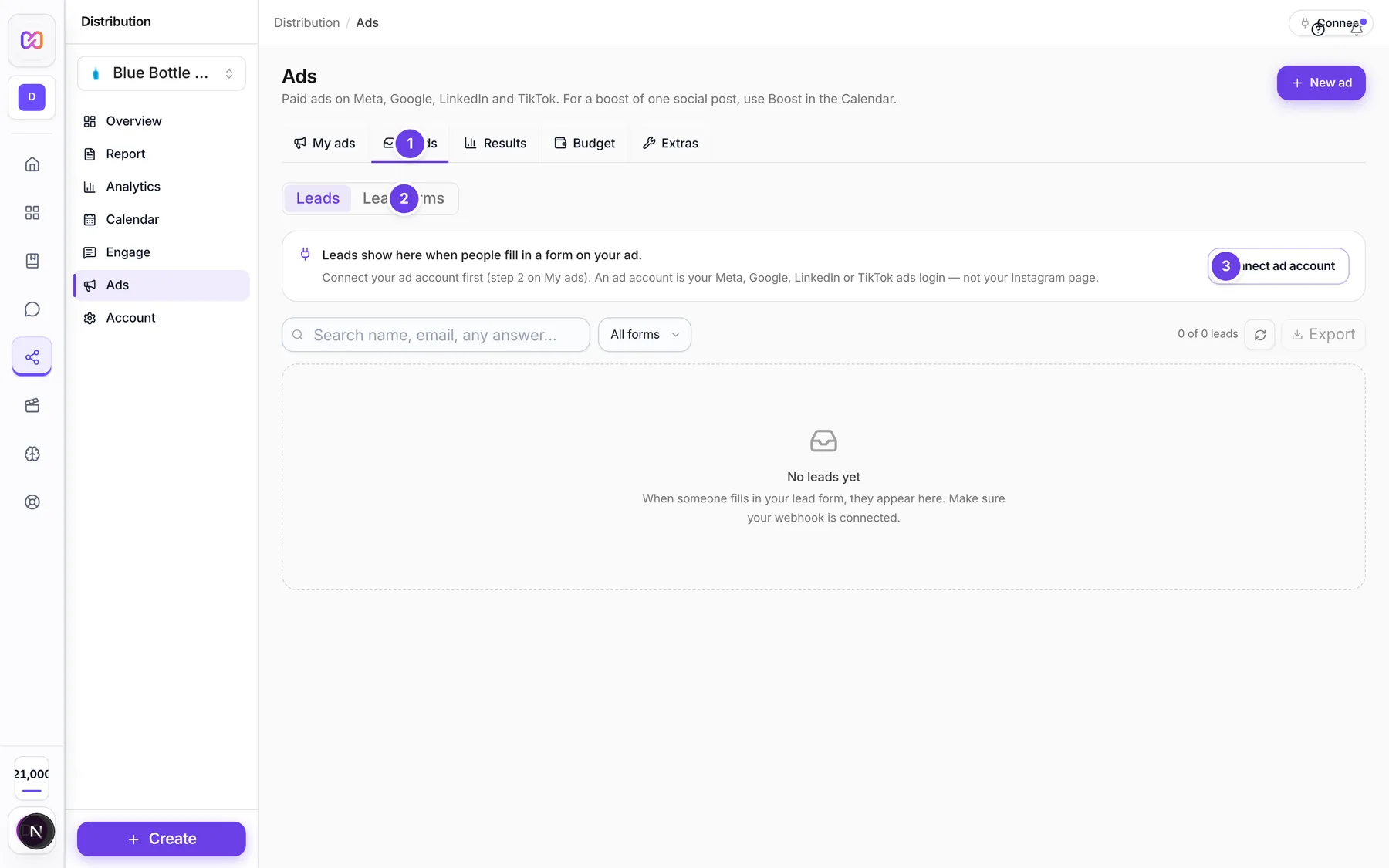
| # | Name in the app | What it does | Plan |
|---|---|---|---|
| 1 | Leads | Shows the leads inbox. | Both |
| 2 | Lead forms | Shows your forms. The label adds the count, for example "Lead forms (2)". | Both |
| 3 | Connect ad account | Shows when no ad account is connected. Opens Account settings. | Pro |
| Search leads | The search box in the inbox. It searches names, emails, any answer, form names and IDs. | Both | |
| Filter by form | Narrows the inbox to one form. The first choice is All forms. | Both | |
| Export | Downloads the leads you see as a CSV file. | Both | |
| Create form | Opens the form builder. | Pro | |
| Create your first form | Same as Create form. Shows when you have no forms. | Pro | |
| Copy form ID | In a form's side panel. Copies the form ID. | Pro | |
| Export CSV | In a form's side panel. Downloads that form's leads. Shows when the form has leads. | Pro | |
| Save and apply | Saves the customer rule and checks past leads against it. | Both | |
| Re-evaluate leads | Checks every lead again against the saved rule. | Both |
#How to read your leads
- Open Distribution, then Ads, then Leads.
- Choose a lead on the left. The right side shows the full submission.
- Read Submitted answers for what they typed. Customer qualification shows work email, ICP fit and the reason. Attribution shows the ad, the source, the form and the time.
- Choose Export to download the leads you see as a CSV file. The file has the columns Received at, Form, Form ID, Lead ID, Ad ID and Source, then one column per answer.
New leads show a purple pill, "1 new lead" or "N new leads". The inbox checks for new leads about every 30 seconds while the tab is visible. The most recent 200 leads are listed.
#How to create a lead form
- Connect your ad account. See Ad accounts.
- Open Distribution, then Ads, then Leads, then Lead forms.
- Choose Create form.
- Type a Form name.
- Paste your Privacy policy link. It must be public and start with https://.
- Choose the Questions. Full name, Email address and Phone number are ready made. Custom question lets you type your own. Add options to a custom question to make it multiple choice.
- Set the Thank-you message.
- Choose Create form. The form is created on your Facebook Page or LinkedIn Company Page. The app says "created. Attach it to an ad to start collecting leads."
Then make an ad with the goal Get leads and pick the form. A Get leads boost can also use it, see Boost a post.
#How to set your customer rule
- Open Distribution, then Ads, then Budget.
- Scroll to Which leads are good?.
- Pick a template or choose Start from scratch.
- Type a Rule name. A name is required.
- Set Match. All required conditions means every condition must be true. Any required condition means one is enough.
- Choose Add condition to add a test. Choose Add blocked value to add something that always disqualifies a lead, for example a job title with "student".
- Choose Save and apply. Past leads are checked again straight away.
#Options explained
Form questions.
| Choice | What it adds |
|---|---|
| Full name | A name field. On Meta it is filled in from the person's profile. |
| Email address | An email field. On Meta it is filled in from the profile. |
| Phone number | A phone field. On Meta it is filled in from the profile. |
| Custom question | Your own question, text or multiple choice. |
On LinkedIn, name, email and phone are plain text fields, not filled in from the profile.
More options. The Show more options link reveals: Thank-you body text, Thank-you CTA link, Privacy policy link label, a Cover photo URL (Meta only) and Higher-intent mode (review step). Higher-intent mode adds a "Review your info" page. You get fewer leads, but each person clicked through.
Meta terms. Your Facebook Page must accept Meta's Lead Generation terms once before the ad can run. The form builder links to them.
Customer rule templates.
| Template | What it checks |
|---|---|
| Work email leads | The person used a company email, not a consumer mailbox. |
| B2B SaaS marketer | A work email, plus a marketing, growth, demand gen, performance, paid media or acquisition job title. Students and interns are blocked. |
| Marketing decision maker | A work email, plus a seniority such as manager, head, director, VP, founder, chief or CMO. |
| Agency buyer | A work email, plus a company type answer that mentions agency, consultancy or freelance. |
| Start from scratch | An empty rule you build yourself. |
Condition fields. Email domain, Email type, Job title, Seniority, Company size, Geography, Source platform and Lead-form answer. For a Lead-form answer you also type the Form field key.
Condition tests. contains, equals, does not contain, is one of, is not one of, is present. Type several values separated by commas.
Lead chips. Each lead shows Paid ad or Organic, the form name, Work email or Consumer email, and ICP fit, Not ICP fit or Not evaluated. A lead is Not evaluated until a rule has been saved.
#Limits
- Questions per form: up to 15 on Meta and up to 3 on LinkedIn.
- Form name: 100 characters. Thank-you message: 60 characters. Thank-you body: 200 characters. Privacy link label: 50 characters.
- Cover photo: a direct JPEG or PNG link, up to 5 MB.
- The inbox lists up to 200 recent leads.
- One active customer rule applies to the whole workspace.
#When something goes wrong
| Message in the app | What it means | What to do |
|---|---|---|
| Give the form a name. | The form has no name. | Type a Form name. |
| A privacy policy link is required (https://yoursite.com/privacy). | The privacy link is empty. | Paste a public link. |
| The privacy policy link must start with https:// | The link is not valid. | Use a full link that starts with https://. |
| No form id in the response. Check the privacy policy link and try again. | The platform did not create the form. | Check the link and try again. |
| Could not create the form. | The form was not created. | Try again. |
| Could not load lead forms. | The forms list did not load. | Choose the refresh button. |
| Couldn't load your forms. | The same problem inside the ad composer. | Choose Try again or Create a new form. |
| Could not load leads. | The inbox did not load. | Choose the refresh button. |
| Give this rule a name. | You tried to save a rule with no name. | Type a Rule name. |
| Customer rule saved. Historical leads were re-evaluated. | The rule is saved. | Nothing to do. |
| Could not save the customer rule. | The save failed. | Try again. |
| Could not re-evaluate leads. | The check failed. | Try again. |
| No leads match "..." | Your search matches nothing. | Clear the search. |
#Questions
#Why do I see "Not evaluated" on my leads?
You have not saved a customer rule yet, or the lead arrived before it. Save a rule in Budget, under Which leads are good?. Choose Re-evaluate leads to check older leads.
#Where do leads come from?
Leads arrive when someone submits a form attached to your ad. They show up in the Leads inbox. To send them to your own tools as they arrive, use the webhook setup in Account settings.
#Can I make a lead form without an ad account?
No. A lead form is made on your ad account. You can still write an ad with the goal Get leads as a draft. You pick or create the form after you connect.
#Does the form have a public link?
No. Meta and LinkedIn forms only open inside an ad. Copy form ID gives you the ID so you can attach the form in Ads Manager or Campaign Manager.
#Does a Google or TikTok ad collect leads?
Not through a lead form. The Get leads goal is only offered on Meta and LinkedIn.
Last checked against the app on . View as Markdown