
Resize, grade, restyle and relight an image
Use Resize (Crop, Fit, AI Extend), Grade, Style and Lighting in the edit toolbar. Resize and Grade are free. The rest use credits.
#What it is
These toolbar tools change the whole picture instead of one marked area. Resize changes the size, Grade changes the colours, Style copies the look of another image, and Lighting relights the scene.
#Who can use it
Everyone. The app does not check your plan for these tools, so Free and Pro get the same options. They run on the default image engine, which is open to both plans. On a team, editing needs the Editor role or higher.
#Cost
Mixed.
- Free, no credits: Resize with Crop or Fit, and Grade. They show a Free pill.
- Uses credits. You see the exact price before you confirm: AI Extend (inside Resize), Style, Lighting and Variations. Each one shows a pill such as 1 AI image with an approximate price next to it. Nothing is charged if the edit fails.
Style, Lighting and AI Extend make one image each. They have no Quality choice. They run at high quality.
#Where to find it
Select an image on the canvas and choose Edit on it. In the toolbar named Image editing tools, choose Resize (shortcut R), Grade, Style, Lighting or Variations. The panel opens under the toolbar. The result is a new image next to the old one.
#Buttons and controls
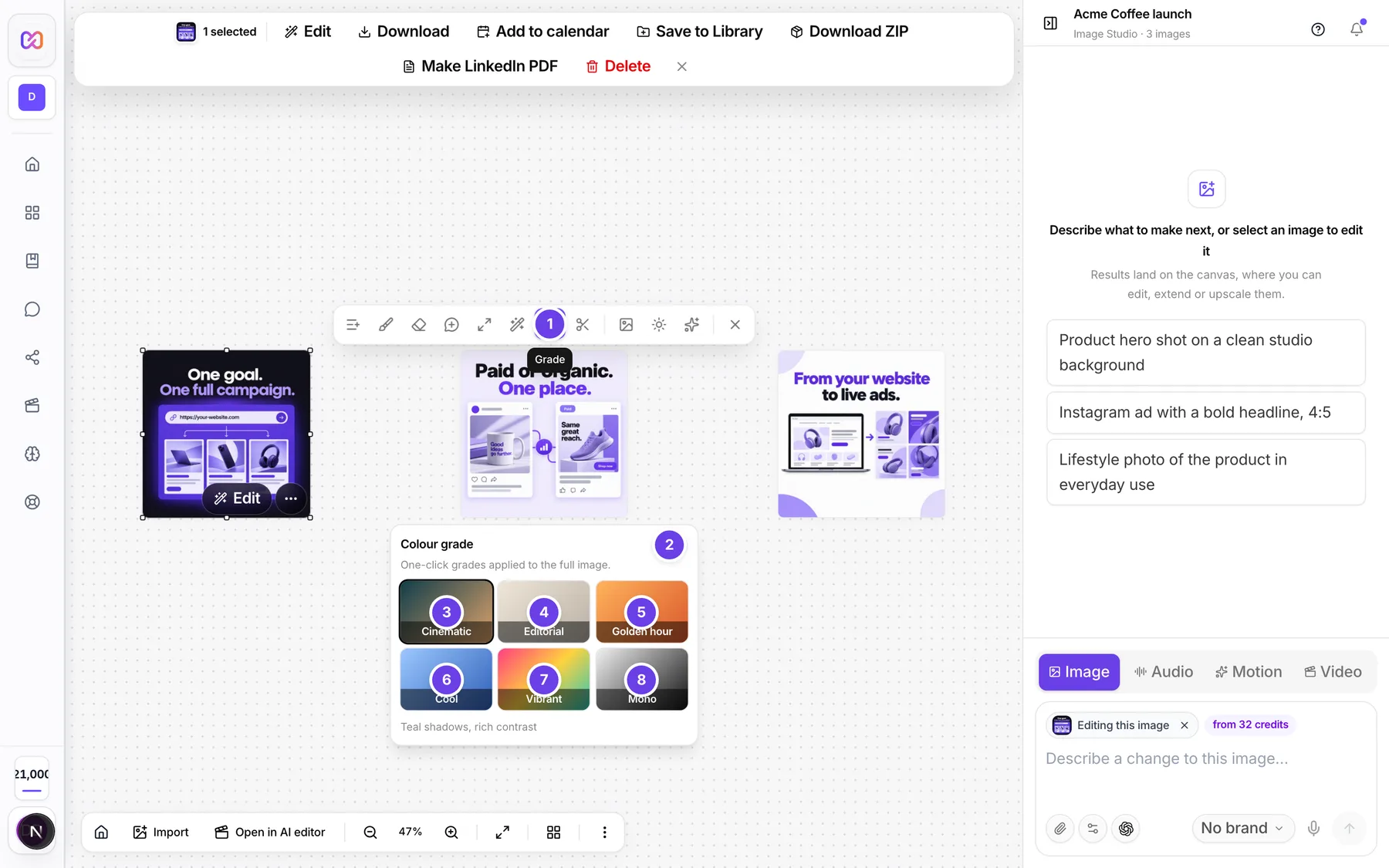
The Grade panel is shown here. It is the one with the most one-click choices.
| # | Name in the app | What it does | Plan |
|---|---|---|---|
| 1 | Grade | Opens the Colour grade panel. | Both |
| 2 | Free | A pill on the panel. It tells you Grade costs nothing. | Both |
| 3 | Cinematic | Teal shadows, rich contrast. Applies at once. | Both |
| 4 | Editorial | Soft, airy, muted. Applies at once. | Both |
| 5 | Golden hour | Warm sunlit glow. Applies at once. | Both |
| 6 | Cool | Crisp blue daylight. Applies at once. | Both |
| 7 | Vibrant | Punchy social colour. Applies at once. | Both |
| 8 | Mono | Black and white, high contrast. Applies at once. | Both |
| Resize | Opens the Resize panel. Shortcut: R. | Both | |
| Resize mode | The row of three choices: Crop, Fit and AI Extend. | Both | |
| Resize width | The W box. Starts at the image width. | Both | |
| Resize height | The H box. Starts at the image height. | Both | |
| Apply | Runs Crop or Fit. Shows a Free tag. | Both | |
| Size preset | In AI Extend: the choices 1:1, 16:9, 9:16 and 4:5, under Target aspect. | Both | |
| What should fill the new area? | In AI Extend: the optional prompt box, under Prompt (optional). | Both | |
| Extend to W x H | In AI Extend: the button. The size shows in the label, for example Extend to 1536 x 864. | Both | |
| Style | Opens the Style transfer panel. | Both | |
| Style reference asset | In Style: a row of small pictures from this project. Pick one. | Both | |
| Apply the reference style | In Style: the optional instruction box, under Instruction (optional). | Both | |
| Apply style | In Style: runs the transfer. It reads Pick a reference image until you pick one. | Both | |
| Lighting | Opens the Lighting panel. | Both | |
| Light from | Left, Front, Right, Top or Back. | Both | |
| Intensity | Soft, Medium or Dramatic. | Both | |
| Warmth | Cool, Neutral or Warm. | Both | |
| Relight image | Runs the relight. Shows the price pill. | Both | |
| Variations | Opens the Variations panel. See number of images. | Both |
#How to grade an image
- Select the image and choose Edit.
- Choose Grade.
- Choose one of the six presets. The grade is applied right away. There is no Apply button.
- The graded picture appears as a new image. The old one stays.
#How to crop or fit an image to a size
- Select the image, choose Edit, then Resize.
- Choose Crop or Fit in Resize mode.
- Type the size in Resize width and Resize height.
- Choose Apply.
Crop fills the whole new size and cuts off what does not fit. It keeps the busiest part of the picture, such as a logo or a headline, and not always the centre. Fit keeps the whole picture inside the new size and leaves the spare area empty (see-through).
#How to extend an image with AI
- Select the image, choose Edit, then Resize.
- Choose AI Extend.
- Under Target aspect, choose 1:1, 16:9, 9:16 or 4:5. The panel shows the old size and the new size, for example 1024 x 1024 to 1536 x 864.
- Optional: type what should fill the new area in What should fill the new area?
- Check the price pill, then choose the Extend to button.
AI Extend adds new picture around the edges. Your original picture stays as it is in the middle.
#How to copy the look of another image
- Make or upload a second image in the same project. The panel only offers images from this project.
- Select the image you want to change, choose Edit, then Style.
- Pick a picture in Reference image.
- Optional: add a note in Instruction (optional).
- Check the price pill, then choose Apply style.
The result keeps your composition and takes the palette, lighting and mood of the reference.
#How to relight an image
- Select the image, choose Edit, then Lighting.
- Choose Light from, Intensity and Warmth. They start on Front, Medium and Neutral.
- Check the price pill, then choose Relight image.
Composition, subjects and text stay the same. Only the light changes.
#Options explained
Crop and Fit. Both are exact and free. They do not use the AI and they do not add new content.
AI Extend presets. The four presets are 1:1, 16:9, 9:16 and 4:5. The app picks the new size for you. If the choice would not make the picture bigger, the app grows it a little in one direction so there is new area to fill.
Grade presets. Cinematic, Editorial, Golden hour, Cool, Vibrant and Mono. Each one is applied to the full image.
Style reference. You can only pick from the finished images in this project. To use an outside picture, upload it to the project first.
Lighting. Back is a rim light from behind. Dramatic is strong light. Cool leans blue and Warm leans golden.
Variations. Makes 2, 3 or 4 close alternatives of the image, with the same subject and brand, for A/B tests. See number of images.
#Limits
- Crop and Fit accept a width and height from 64 to 4,096 pixels. A number outside that is moved to the nearest allowed value.
- The AI Extend prompt can be up to 1,000 characters.
- The Style instruction can be up to 1,000 characters.
- One edit request can cost at most 100 credits.
- Variations makes 2 to 4 images.
- You can send up to 8 edits against one image in a short time.
#When something goes wrong
| Message in the app | What it means | What to do |
|---|---|---|
| Pick a bigger target | The full message says the target must be larger than the image in at least one direction. Extend to is greyed out. | Choose another Target aspect. |
| Pick a reference image first. | You tried Style with no reference. | Pick a picture in Reference image. |
| Generate or upload another image in this project to use it as a style reference. | This project has no other finished image to use. | Make or upload another image first. |
| Style reference asset not found in this workspace. | The reference image was deleted. | Pick another reference. |
| Parent image asset not found in this workspace/project. | The image you are editing was deleted. | Refresh the canvas and select an image that still exists. |
| Too many edits queued against this image in a short time | You sent edits faster than they finish. | Wait for the earlier edits to finish. |
| That model is Pro-only. Upgrade to use it. | The engine is Pro only. These tools use the default engine, so you should not see this. | Try again, and contact support if it stays. |
| The image service refused this for safety reasons. Nothing was charged. | The safety system refused the edit. | Change your prompt or instruction. |
| Couldn't edit this image. | The edit failed and the app has no more detail. Nothing is charged. | Try again. |
#Questions
#Which of these tools are free?
Crop, Fit and Grade. AI Extend, Style, Lighting and Variations use credits. You see the price before you run them.
#Is Grade different from Lighting?
Yes. Grade changes colour only, in one click, and is free. Lighting asks the AI to relight the scene, so it uses credits. See what is free.
#What is the difference between Fit and AI Extend?
Fit shrinks the picture to sit inside the new size and leaves empty space. AI Extend fills the new area with picture that matches your image.
#Can I use any picture as the Style reference?
Only a finished image in the same project. Upload the picture to the project first if you need an outside one.
#Can I undo a grade or a resize?
Yes. Every tool makes a new image and keeps the old one. See versions.
#Why does Resize change my image to a PNG with see-through edges?
Fit leaves the spare area empty, so the result keeps see-through pixels. Use Crop if you want the whole frame filled.
Last checked against the app on . View as Markdown