
Make a motion video
Write a prompt, pick a brand, shape, length and quality level, and send it. Every control in the Motion box, explained.
#What it is
The Motion box is where you describe a video and choose how it should look. You pick a brand, a shape, a length and a quality level, then send the prompt.
#Who can use it
Everyone. Free and Pro accounts get the same controls. All three quality levels, Standard, Pro and Max, can be picked on both plans.
#Cost
Uses credits. Motion is charged on what the video uses, so longer videos cost more. The quality menu shows an estimate for each level and a note that the price is usage based. Before work starts, the app holds 10 credits from your balance. When the video ends you pay for what it used and the rest goes back. See Price before you confirm.
#Where to find it
In a Studio project, open the What to make switch above the prompt box and choose Motion. On Home, choose the Motion tab. Home sends you to a new Studio project with your prompt, shape and quality level already set.
#Buttons and controls
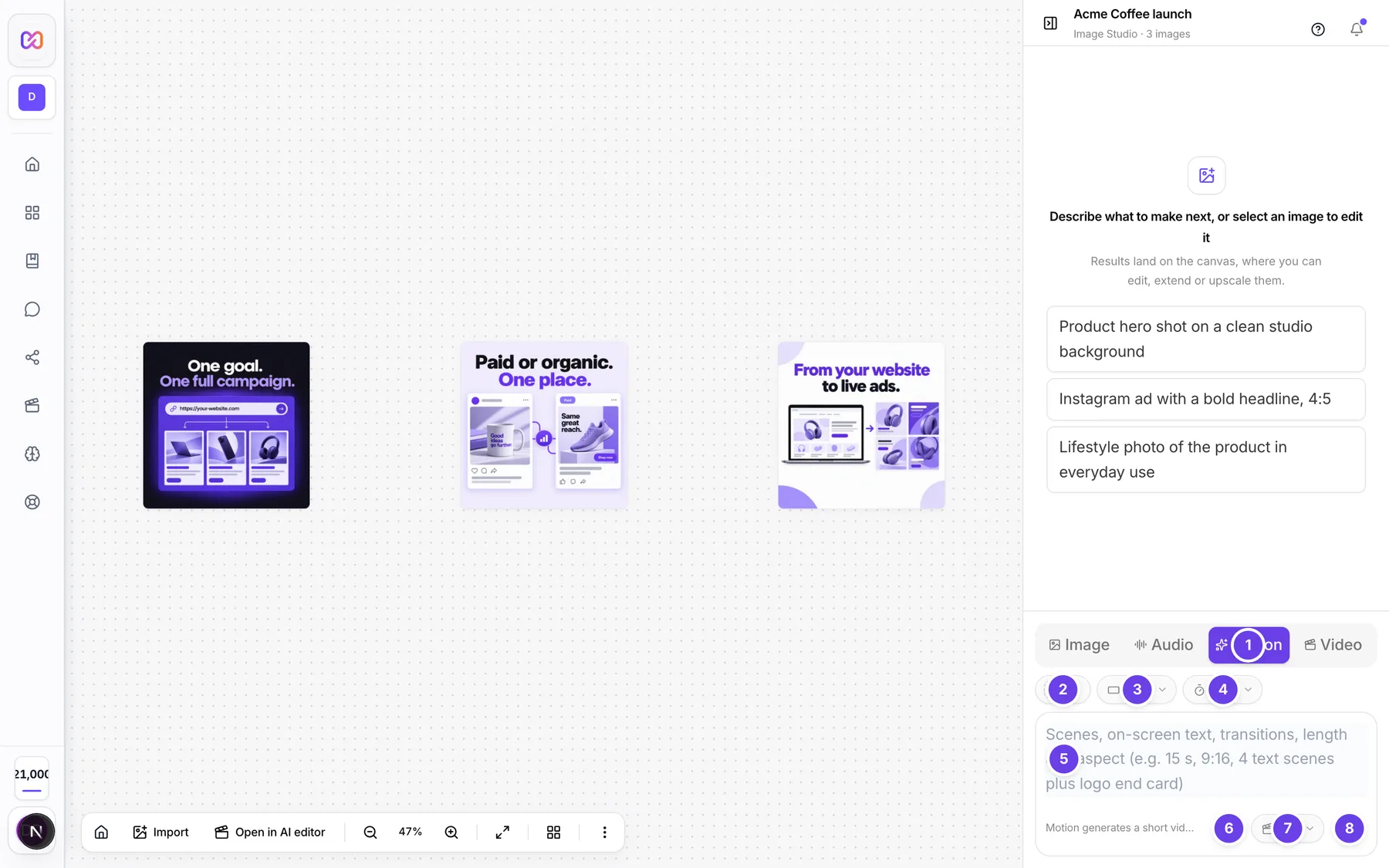
| # | Name in the app | What it does | Plan |
|---|---|---|---|
| 1 | Motion | The tab in What to make that switches the box to motion videos. | Both |
| 2 | Select brand | The brand chip. It shows No brand until you pick one. Choose Add brand or Manage all from its menu. | Both |
| 3 | Aspect ratio: Auto | Menu for the shape of the video. The label shows the current choice, Auto by default. | Both |
| 4 | Length: Auto | Menu for how long the video runs. The label shows the current choice, Auto by default. | Both |
| 5 | Scenes, on-screen text, transitions, length and aspect (e.g. 15 s, 9:16, 4 text scenes plus logo end card) | The prompt box. Enter sends. Shift and Enter start a new line. | Both |
| 6 | Voice typing | Speak your prompt instead of typing it. Click again to stop. | Both |
| 7 | Motion model: Pro | The quality menu: Standard, Pro or Max. The label shows the current level, Pro by default. | Both |
| 8 | Generate motion video | Sends the prompt. It shows a spinner while the box is busy. | Both |
| Product reveal, Promo, Logo sting, Ad bumper | Four Start with cards under the box on Home. Each fills in a ready-made prompt. | Both | |
| Auto, 16:9, 1:1, 9:16, 4:5 | On Home the shape is a row of buttons next to the brand chip, not a menu. | Both |
#How to make a motion video in a Studio project
- Open a Studio project and choose Motion in What to make.
- Optional: open Select brand and pick a brand.
- Optional: open Aspect ratio: Auto and pick a shape.
- Optional: open Length: Auto and pick how long it should run.
- Optional: open Motion model: Pro and pick Standard, Pro or Max.
- Type your prompt. Name the scenes, the words on screen and the transitions.
- Click Generate motion video.
- Follow the build on the canvas and in the chat. See Watch it being made.
#How to start a motion video from Home
- On Home, choose the Motion tab.
- Optional: pick a brand and one of Auto, 16:9, 1:1, 9:16 or 4:5.
- Optional: open Motion model: Pro and choose a quality level.
- Type your prompt, or click a Start with card: Product reveal, Promo, Logo sting or Ad bumper.
- Send it. A new Studio project opens and the video starts on its own.
#Options explained
Aspect ratio
| Value | What it is for |
|---|---|
| Auto | Infinall AI reads the shape from your prompt. A ratio such as 9:16, or words such as vertical, story, reel, square or landscape, decide it. With no clue it uses 16:9. |
| 16:9 | Wide video, for websites, presentations and YouTube. |
| 1:1 | Square video, for feed posts. |
| 9:16 | Tall full-screen video, for stories and reels. |
| 4:5 | Slightly tall video, for Instagram and Meta feeds. |
Length
| Value | What it does |
|---|---|
| Auto | The length comes from your prompt. Say "15 s" or "10-second" in the prompt to set it. |
| 10s, 15s, 20s, 30s, 45s, 60s | Asks for that length. |
Motion model (quality level)
| Value | Tip in the menu | What it is for |
|---|---|---|
| Standard | Fast, great quality | Quick drafts and simple videos. Lowest estimate. |
| Pro | Best reasoning (default) | The default. Better planning for busier videos. |
| Max | Most capable | The most careful result. Highest estimate. |
The menu shows an estimated range for each level and this note: "Usage based: you pay for what the video uses. Longer videos cost more."
Brand. With a brand picked, the video can use its name, colours, logo, tagline and approved claims. The brand needs a confirmed version. See Use your brand.
#Limits
- Length runs from 10 to 60 seconds when you pick it yourself.
- The box is locked from the moment you send until the video has finished building, so you cannot send a second prompt in the meantime.
- A prompt cannot be empty. Generate motion video stays grey until you type.
#When something goes wrong
| Message in the app | What it means | What to do |
|---|---|---|
| Add a short description for your motion project. | You sent from Home with an empty box. | Type a prompt or click a Start with card. |
| Failed to create motion project. | Home could not open a new Studio project. | Try again. |
| Couldn't make that motion video. | The video could not start or finish. This includes a balance that is too low to start. | Check Settings > Credits, then send again. Open the activity card to see which step stopped. |
| Answered. | Your message was not read as a video brief, so no video was made. | Write it as a video brief: scenes, words on screen, length. |
#Questions
#Which quality level should I choose?
Start with Pro, the default. Use Standard for quick tries. Use Max when the video matters most. All three are open on Free and Pro.
#Why does the card not appear right away?
It does appear at once. A card lands on the canvas as soon as you send, and its stage text shows Starting... until the plan is ready.
#Can I pick the length in the prompt instead?
Yes. Leave Length on Auto and write "15 s" in the prompt. You can also set a shape the same way, for example "9:16".
#Is the price exact?
No. Motion is charged on usage, so you see an estimate in the quality menu. The final charge is in Settings > Credits, and the chat says how many credits the video used when it finishes.
#Can I make two videos at once?
No. The box is locked while a video builds. Send the next prompt when the first one is ready.
#Does the prompt box remember my words?
After a successful send the box clears. If the send fails, your words stay so you can try again.
Last checked against the app on . View as Markdown