
Manage your contacts
See everyone who has messaged you, add a contact by hand, import a list from CSV, and keep tags and notes.
#What it is
The Contacts tab is your address book for people who message you. People appear on their own when they message a connected account. You can also add a contact by hand or import a list.
#Who can use it
Free and Pro accounts both can open the Contacts tab and add or import contacts. The code does not lock it to a plan.
People only appear on their own after they message a connected account. Connecting an account is Pro only. Without one, the tab says "No connected accounts", and you can still add contacts by hand.
#Cost
Free, no credits. Adding, importing, searching and deleting contacts never uses credits.
#Where to find it
Open Distribution, then Engage, then the Contacts tab. The address is /distribution/engage?tab=contacts. The old Contacts link goes to the same place.
#Buttons and controls
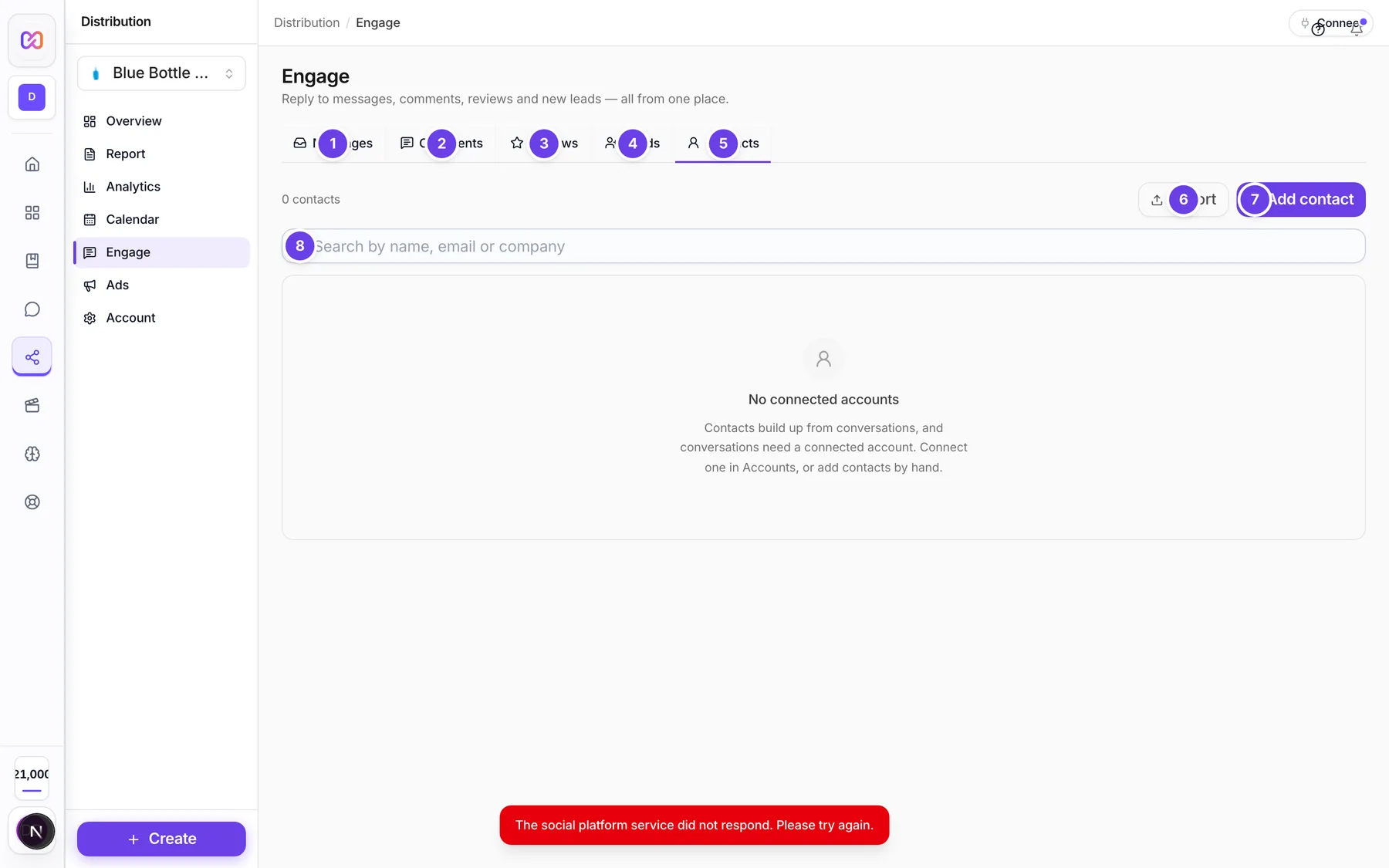
| # | Name in the app | What it does | Plan |
|---|---|---|---|
| 1 | Messages | Opens the Messages tab. See Reply to messages in the inbox. | Both |
| 2 | Comments | Opens the Comments tab. | Both |
| 3 | Reviews | Opens the Reviews tab. | Both |
| 4 | Leads | Opens the Leads tab. See Lead forms. | Both |
| 5 | Contacts | The tab for your contacts. | Both |
| 6 | Import | Opens the Import contacts window. | Both |
| 7 | Add contact | Opens the Add contact window. | Both |
| 8 | Search by name, email or company | Finds contacts as you type. The box is labelled Search contacts for screen readers. | Both |
| Clear search | Empties the search box. Shows when the box has text. | Both | |
| Filter by tag | Shows All tags or one tag. Shows once at least one contact has a tag. | Both | |
| Filter by platform | Shows All platforms or one platform. Shows once contacts have a platform. | Both | |
| Name | The table column with the name and the email, handle or company. Choose a row to open the contact. | Both | |
| Platform | The table column with the platform each contact came from. | Both | |
| Tags | The table column with up to three tags and a "+" count for the rest. Hidden on small screens. | Both | |
| Last message | How long ago they last messaged you. Hidden on small screens. | Both | |
| Sent | How many messages you sent them. Hidden on small screens. | Both | |
| Load more | Shows the next contacts. Shows when there are more. | Both | |
| Close contact | Closes the contact sheet on a phone. | Both | |
| Delete contact | Removes the contact entry after you confirm. | Both |
The contact panel opens beside the table when you choose a row. It shows the tags, Messages sent, Messages received, Last received, Subscribed, Company, the Channels the contact used, and Notes. The app has no button to edit a contact after it is created.
#The Add contact window
| Name in the app | What it does |
|---|---|
| Name * | The only required field. |
| Optional. Must look like an email address. | |
| Company | Optional. |
| Tags (comma separated) | Optional. For example "vip, leads". |
| Notes | Optional free text. |
| Link to account (optional) | Optional. Shows only when you have a connected account. Links the contact to that account. |
| Their handle on that platform | Shows after you pick an account. The contact's handle, for example @jane_cooper. |
| Add contact | Saves the contact. |
| Close | Closes the window without saving. |
#The Import contacts window
| Name in the app | What it does |
|---|---|
| Paste the template | Fills the box with an example row you can edit. |
| CSV to import | The box where you paste your rows. |
| Attach to account (optional, for handle imports) | Optional. Shows only when you have a connected account. |
| Import | Imports the rows. |
| Close | Closes the window without importing. |
#How to add a contact
- Open Distribution, then Engage, then Contacts.
- Choose Add contact.
- Type a name in Name *. Fill in the other fields if you want.
- Choose Add contact in the window.
A message "Added" and the name confirms it. If you leave the name empty you see "A contact needs a name."
#How to import contacts from a CSV
- Open Contacts and choose Import.
- Choose Paste the template to see the format.
- Replace the example with your own rows, one contact per line, in this order: name, email, company, tags, notes.
- Put a pipe, the | sign, between tags in the same row. For example
vip|lead. - Choose Import in the window.
A message tells you how many rows were imported, skipped and failed. A first line that starts with the word "name" is treated as a header and is ignored. Rows with no name are skipped. Rows the system already has, such as duplicates, are skipped too.
You paste text into the box. The app does not take a file upload.
#How to find a contact
- Type a name, email or company into Search by name, email or company.
- Narrow the list with Filter by tag or Filter by platform.
#How to delete a contact
- Choose the contact's row.
- Choose Delete contact and confirm.
Only the contact entry is removed. Their conversation history stays.
#Options explained
Where contacts come from. Contacts appear on their own when someone messages a connected account, and you can add or import more. A contact can have several channels, one for each platform they used.
Tags. Short labels you choose, such as "vip". They show in the table and in the tag filter. In the Add contact window they are comma separated. In an import they are separated with |.
Notes. Free text about the person. Notes show in the contact panel.
Subscribed. Shows "Yes" or "No" in the contact panel.
Counts. The line at the top reads "contact" or "contacts" with the total, and the table loads 50 at a time.
#Limits
- An import can hold up to 1,000 rows per batch. Split bigger lists.
- Notes can hold up to 4,000 characters.
- A contact can have up to 20 tags, and each tag can be up to 40 characters.
- The table shows 50 contacts at a time. Choose Load more for the next ones.
#When something goes wrong
| Message in the app | What it means | What to do |
|---|---|---|
| A contact needs a name. | You left Name empty. | Type a name. |
| That email address is not valid. | The email does not look like an address. | Fix it or clear the field. |
| Paste some rows first. | The import box is empty. | Paste rows or choose Paste the template. |
| No contact rows found. Expected: name,email,company,tags,notes. | The import text had no usable rows. | Use the order name, email, company, tags, notes. |
| Import is capped at 1000 rows per batch. Split the file and import again. | You pasted too many rows. | Import in smaller batches. |
| Notes are capped at 4000 characters. | Your notes are too long. | Shorten them. |
| At most 20 tags per contact. | You added too many tags. | Remove some tags. |
| Tags are capped at 40 characters. | A tag is too long. | Shorten the tag. |
| Tags cannot be empty. | One of your tags is blank. | Remove the extra comma. |
| Connected account not found for this brand | The account you linked is not connected. | Pick another account or none. |
| Contact not found | The contact is gone or is not yours. | Refresh the tab. |
| Could not load contacts | The list did not load. | Try again in a moment. |
| No contacts match these filters | Your search or filters hide everyone. | Clear the search or filter. |
#Questions
#Why is my contact list empty?
Contacts appear when someone messages a connected account. With none connected, the tab says "No connected accounts". You can still add contacts by hand or import a list.
#Can I edit a contact after I add it?
The app does not show an edit button. You can delete a contact and add it again.
#What happens to the conversation when I delete a contact?
It stays. Only the contact entry is removed.
#What format does the import use?
Plain text, one contact per line: name, email, company, tags, notes. Separate tags with |. You paste it into the box.
#Do contacts cost credits?
No. Contacts are free.
#Where are the people who filled in my ad lead forms?
On the Leads tab, next to Contacts. See Lead forms.
Last checked against the app on . View as Markdown