
Connect your apps
Connect HubSpot, Notion, Gmail and thousands of other apps so Infinall can use your real data, or add any MCP server by its address.
#What it is
A connector links Infinall to another app, so chat can use your real data and take actions in that app. You pick an app from a directory, or add any MCP server by its web address. Each connector gives Infinall a set of tools it can call while it works on your requests.
#Who can use it
Everyone. The code puts no plan limit on connectors. Free and Pro accounts see the same screen.
#Cost
Free, no credits. Connecting, pausing and removing apps never uses credits. The chat replies that use a connector follow the normal chat cost.
#Where to find it
Open Settings, then Connectors (under Customize). You can also search the Settings menu for "mcp", "integrations", "apps", "connect" or "tools". The same list is in the chat, under Customize.
#Buttons and controls
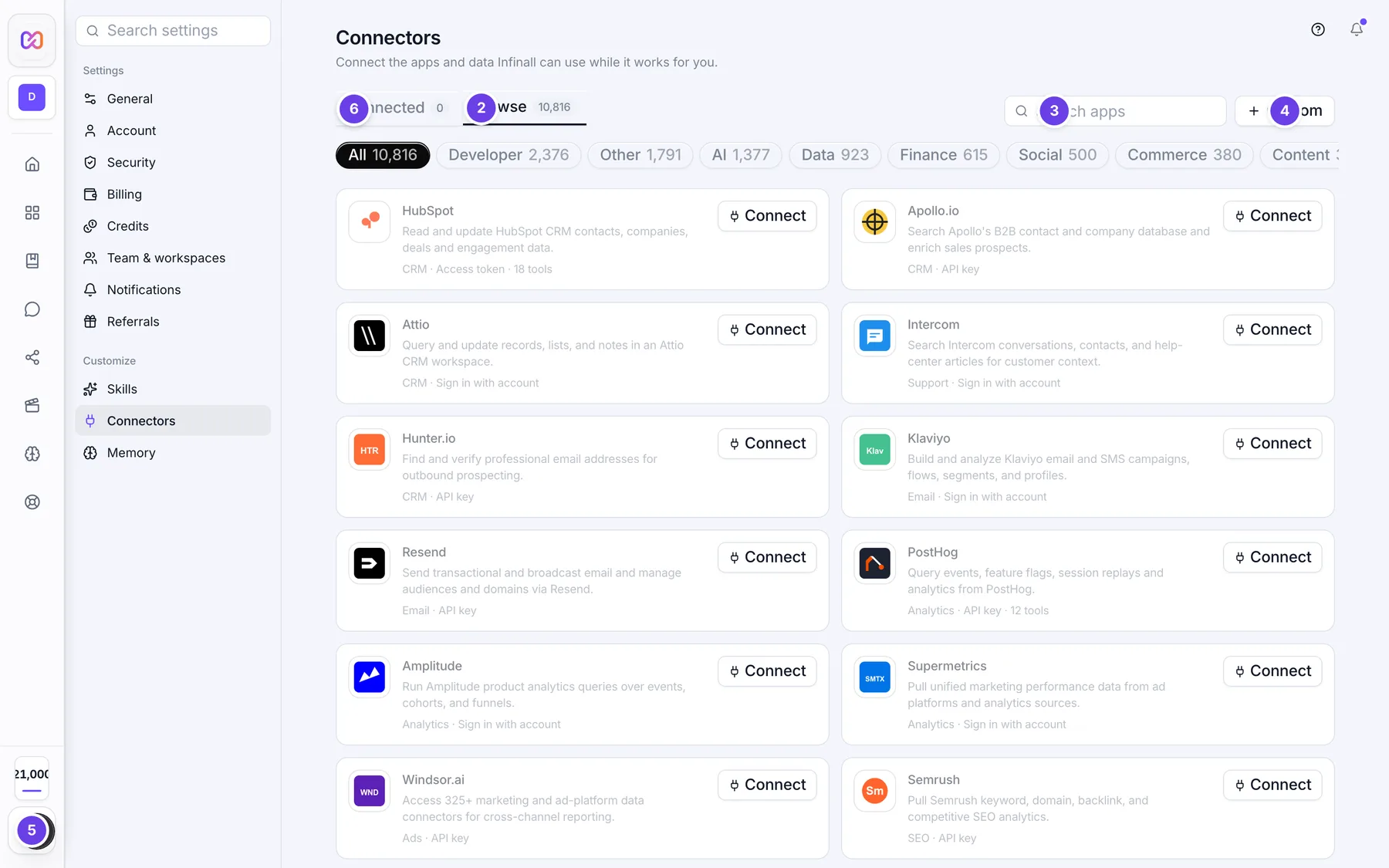
The screenshot shows the Browse tab. The screen itself opens on the Connected tab, where your own apps live.
| # | Name in the app | What it does | Plan |
|---|---|---|---|
| 1 | Connected | Tab. Lists the apps you have connected. A number shows how many. This tab opens first. | Both |
| 2 | Browse | Tab. The directory of apps you can connect. A number shows how many apps there are. | Both |
| 3 | Search apps | A search box. On the Connected tab it reads "Search connected apps" and searches your own list. | Both |
| 4 | Custom | Opens Add custom connector, where you connect any MCP server by its address. | Both |
| 5 | All | A filter chip above the directory. It shows every app. The chips next to it each show one category, with a count. | Both |
| 6 | Connect | On an app card. Opens the connect window for that app. | Both |
| 7 | Show more | At the bottom of the directory. Loads the next apps. It shows how many are left. | Both |
| Connected (with a tick) | Replaces Connect on an app you already added. | Both | |
| Browse apps | On the Connected tab when you have nothing connected yet. Takes you to the Browse tab. | Both | |
| Use (app name) | A switch on each connected app. Off pauses it. | Both | |
| Remove (app name) | A bin on each connected app. Removes it. | Both | |
| Retry | On a connected app that is not connected. Tries again. | Both | |
| (number) tools | Under a connected app. Opens or closes the list of its tools. | Both |
In the connect window:
| Name in the app | What it does |
|---|---|
| Sign in to (app name) | Opens a small window where you sign in to that app and approve access. Shows for apps that support account sign-in. |
| Use an API key instead | Switches the window to a key box. Shows when an app supports both sign-in and a key. |
| Sign in with your (app name) account instead | Goes back to sign-in. Shows in the key box when the app supports sign-in. |
| Name | Custom connector only. The name shown in your list. |
| MCP server URL | Custom connector only. The https address of the server. |
| Access token (optional) | Custom connector only. A token or a full header the server needs. For a directory app this box is named after the key the app needs, or reads "API key". |
| Setup guide | A link in the window. Opens the app's own setup page. Shows when the app has one. |
| Connect | Connects. It reads "Connecting..." while it works. |
| Cancel | Closes the window. |
| Close | The cross at the top right of the window. |
#How to connect an app
- Open Settings, then Connectors.
- Click the Browse tab. Type a name in Search apps, or click a category chip.
- Click Connect on the app.
- If the window says Sign in to the app, click it. A window opens. Sign in there and approve access. Infinall never sees your password.
- If the window asks for a key, paste it in the box and click Connect.
- When it works, you land on the Connected tab with a note such as "(app name) connected" and the number of tools.
You have 15 minutes to finish the sign-in. After that the link expires and you start again.
#How to add a custom connector
- Open Settings, then Connectors.
- Click Custom.
- Type a Name.
- Paste the address in MCP server URL. It must start with https://.
- If the server needs a token, paste it in Access token (optional).
- Click Connect.
#How to pause or remove a connector
- Open Settings, then Connectors, then the Connected tab.
- To pause, switch off Use (app name). The row says it is paused and that Infinall will not use it until you turn it on.
- To remove, click Remove (app name). The note "Connector removed." shows.
#How to see what a connector can do
- On the Connected tab, click "(number) tools" under the app.
- The list shows each tool name with a short description. Click it again to close it.
#How to fix a connector that is not connected
- On the Connected tab, find the app. Its row shows a red message instead of a tool count.
- Click Retry.
- If it keeps failing, remove it and connect it again with a fresh key or sign-in.
#Options explained
How an app signs in. Each card in the directory shows its category, how it signs in and its tool count.
| Shown on the card | What it means |
|---|---|
| No sign-in needed | The app needs no key. Just click Connect. |
| API key | You paste a key from that app. |
| Access token | You paste a token from that app. |
| Sign in with account | You sign in to that app in a pop-up window and approve access. |
Connected, Paused, or red. On the Connected tab each row shows one of three lines. "Connected" with the tool count means it works. "Paused" means you switched it off. A red line is the reason it could not connect.
#Limits
- Infinall reads at most 40 tools from each connector.
- The directory loads 60 apps at a time. Show more loads the next batch.
- A connector name is cut to 80 characters.
- A sign-in link lasts 15 minutes.
- Custom connectors must use an https address.
- Only connect apps you trust. The window warns you that Infinall can use any tool a connector exposes while working on your requests.
#When something goes wrong
| Message in the app | What it means | What to do |
|---|---|---|
| The MCP server URL must start with https:// | The address you typed in a custom connector is not https. | Use the https address of the server. |
| Please provide a valid public web URL. | The address is not a public web address. | Check the address. Local and private addresses are not accepted. |
| The server rejected your API key or token. Check that it is correct and has full access. | The app turned down the key you gave. | Paste a fresh key with full access and connect again. |
| This connector needs you to sign in or add an API key. | The app needs sign-in or a key and you gave none. | Sign in, or paste a key. |
| No MCP server was found at that URL. | Nothing answered at that address. | Check the address in the app's setup guide. |
| That URL is not an MCP endpoint. Check the server URL in the setup guide. | The address is a web page, not an MCP server. | Use the server address from the setup guide. |
| Could not reach that server. Check the URL. | The address could not be found. | Check for typos, then try again. |
| The server did not respond in time. Try again. | The app took too long to answer. | Click Retry later. |
| The connector's server had an error. Try again in a moment. | The app's own server failed. | Wait a moment, then click Retry. |
| Could not connect to this server. Check the URL and your key. | The connection failed for another reason. | Check the address and key, then click Retry. |
| This connector does not support account sign-in. Use an API key instead. | You asked to sign in to an app that only works with a key. | Click Use an API key instead. |
| This app needs a pre-registered OAuth client. Use an API key or contact support. | The app cannot be signed in to from here. | Use an API key, or contact support. |
| This sign-in link expired. Please try connecting again. | You took too long to finish signing in. | Click Connect again and finish within the time. |
| This tool needs you to sign in to the connector (or add an API key) before it can be used. | A tool call was turned down for sign-in. | Reconnect the app, then ask again. |
| No apps match your search. | Nothing in the directory matches what you typed. | Try a shorter word or clear the box. |
| No connected apps match your search. | None of your apps match what you typed. | Clear the search box. |
#Questions
#Do I need to know what MCP is?
No. For apps in the directory you just click Connect. MCP is only needed for Custom, where you add a server by its address.
#Does Infinall see my password?
No. When you sign in, you do it in the app's own window. Keys you paste are stored privately for your account.
#Can I use a connector only some of the time?
Yes. Switch off Use (app name) to pause it. Switch it on again when you want it back.
#Does a connector slow down or cost chat?
Connecting is free. Chat replies that use a connector follow the normal chat cost, which you see before you confirm.
#Why does an app show fewer tools than the app really has?
Infinall reads at most 40 tools from each connector.
#What happens if I connect the same app twice?
The second connect replaces the first one for the same address. It also switches the connector back on if you had paused it.
Last checked against the app on . View as Markdown