
Music and sound effects
Describe the music or the sound you want and get a track on your canvas. Plan the music for free, make tracks and effects on Pro, then mix.
#What it is
The Music group in Audio lets you plan music, make a background track, make a short jingle and make single sound effects such as a whoosh or a click. Everything lands on your canvas, where you can mix a track under a voiceover.
#Who can use it
- Music brief is on Free and Pro. It writes a text plan, not sound.
- Music track, Jingle and Sound effect are Pro only. On Free they show a Pro badge, and choosing one opens an upgrade prompt. The backend checks your plan too. Accounts on a trial get the Pro audio features.
- Song with vocals and Music from visual show Soon and cannot be picked yet.
- Export and Mix with music on a finished take are free for everyone.
#Cost
Uses credits. Music track, Jingle and Sound effect are charged by their length, and credits are held first and any unused part is returned. A Music brief also costs credits. Export and Mix are free. You see what each take cost on its card. See Price before you confirm.
#Where to find it
On Home, choose the Audio tab, open the mode chip and look under Music. The same chip is on the Studio canvas when the composer is on Audio.
#Buttons and controls
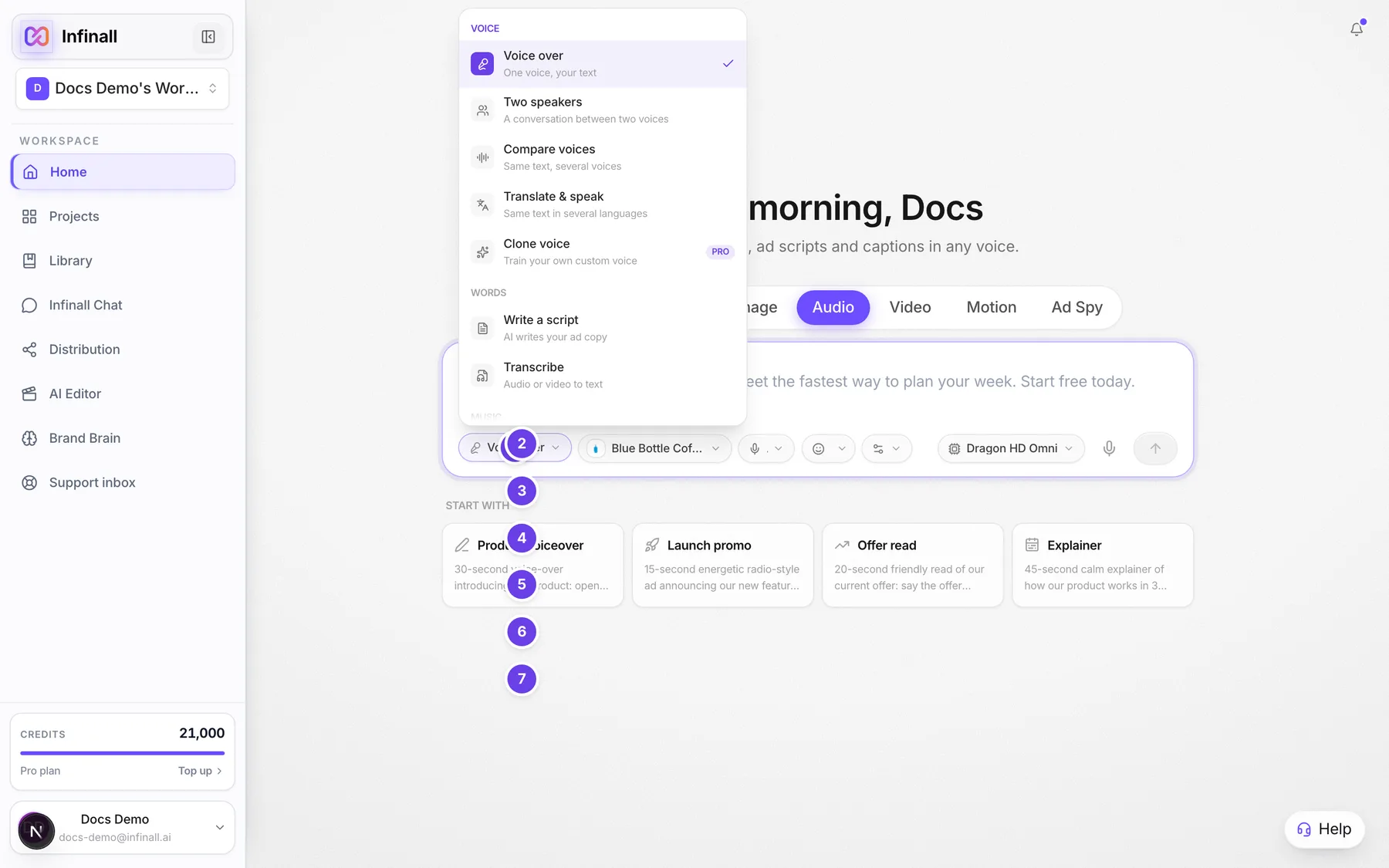
| # | Name in the app | What it does | Plan |
|---|---|---|---|
| 1 | Voice over | The mode chip. Open it to see all modes, then pick one from the Music group. | Both |
| 2 | Music brief | "Describe music, get a plan." Writes a plan for your background music as text. | Both |
| 3 | Music track | "Generate a background track." Makes a music audio track. | Pro |
| 4 | Jingle | "Short branded jingle." Makes a short branded music track. | Pro |
| 5 | Song with vocals | "Full song from lyrics." Shows Soon. Tooltip: "Vocal music isn't available yet." | Both |
| 6 | Music from visual | "Upload image/video, get music." Shows Soon. Tooltip: "Music from a visual isn't available yet." | Both |
| 7 | Sound effect | "Whoosh, click, crowd, rain..." Makes one sound effect. | Pro |
| Brand: (your brand name) | The brand chip. With no brand picked it is named Select brand. Once a brand is picked it shows the brand name. Adds the brand's mood to a music brief, a music track or a jingle. | Both | |
| Start campaign | The send arrow. On the Studio canvas it is named Generate audio. | Both | |
| Pro (badge) | Shows beside a mode that needs Pro. | Pro | |
| Soon (badge) | Shows beside a mode that is not built yet. | Both | |
| Play, Download | On a finished music or sound take. | Both | |
| Export | Under a finished take. Free. Saves loudness-matched files for platforms. | Both | |
| Mix with music | Under a finished voice take. Free. Lays the voice over a music track on your canvas. | Both |
#How to plan music with a brief (Free)
- Open the mode chip and choose Music brief.
- In the Brief box, describe the music. The box shows an example: a 30 second warm lo-fi bed, 80 BPM, no vocals, for a calm product demo.
- Send it.
- A Music brief card appears on the canvas. Copy it, or use it to brief a composer or to write your Music track prompt.
#How to make a music track (Pro)
- Open the mode chip and choose Music track.
- In the Prompt box, describe the sound: style, instruments, speed, whether it has vocals. The example is "upbeat festive pop with brass and hand claps, 120 BPM, no vocals, for a sale ad".
- Optional: pick a brand in the brand chip so the track follows its mood.
- Send it. A player appears on the canvas. Press Play to listen.
#How to make a jingle (Pro)
- Open the mode chip and choose Jingle.
- In the Idea box, describe it, for example "playful 3-note jingle, bright and short, ends on a confident final note".
- Send it.
#How to make a sound effect (Pro)
- Open the mode chip and choose Sound effect.
- In Describe it, say what you want. The example is "1 s soft whoosh, left to right, for a slide transition".
- Send it.
#How to mix a voice over music
- Make a voice take and a music take on the same canvas.
- Under the voice take, choose Mix with music. A panel called Mix this voice over a track opens.
- Under Background track, pick the music or sound take.
- Under How much the track drops under the voice, choose Light, Standard, Strong or Very strong.
- Choose Create mix. A new mixed take lands on the canvas. It is as long as the voice.
#How to export a take for a platform
- Under a finished take, choose Export. The panel is called Export for platforms.
- Tick one or more platforms.
- Choose Export. Each platform's file appears as a download link, with its loudness target in LUFS.
#Options explained
Music length. From the composer, a Music track is 30 seconds long and a Jingle is 15 seconds long. The length is not a setting you can change in the composer. A Sound effect has no length control either. Describe the length in your words, for example "1 s soft whoosh".
Mix levels. Light lowers the music by 6 dB under the voice, Standard by 12 dB, Strong by 18 dB and Very strong by 24 dB. Standard is picked first.
Platforms for export. YouTube, Meta (FB/IG), TikTok, LinkedIn and Broadcast (EBU R128). Each is set to that platform's loudness so it does not turn your ad up or down. Exports are delivered as MP3 files.
Brand mood. A picked brand adds its name and tone to a music brief, a music track and a jingle as mood guidance. A brand with no confirmed version cannot be used. Pick No brand or confirm it first. See Use your brand.
#Limits
- A music prompt can be up to 2,000 characters.
- A sound effect description can be up to 500 characters.
- A music brief can be up to 2,000 characters.
- Mixing needs another audio take on the same canvas. If there is none, the panel says "There's no other audio on this canvas to mix with."
#When something goes wrong
| Message in the app | What it means | What to do |
|---|---|---|
| Premium voices, music, sound effects, voice changer, noise removal, voice cloning and dubbing are Pro features. Upgrade to Pro to use them. | You tried a Pro mode on a Free account. | Upgrade to Pro, or use Music brief, which is free. |
| Generation failed. No credits were charged. | The track or sound did not finish. | Try again. You were not charged. |
| Export isn't available on this server yet. Download the original instead. | Export is not available right now. | Use Download on the take. |
| No export could be produced. | None of the platform files could be made. | Try again with fewer platforms. |
| Only a finished audio take can be exported. This one is still processing or failed. | The take is not ready. | Wait for it to finish, or make it again. |
| Mix failed. | The mix could not be built. | Try again. Check both takes are finished audio. |
| The voice take is not a finished audio file. | The voice you picked to mix is text or failed. | Pick a finished voice take. |
| The music track is not a finished audio file. | The background take you picked is text or failed. | Pick a finished music take. |
| Insufficient credits. Purchase more to continue. | Your balance is too low. | See Your credit balance. |
#Questions
#Is there a free way to get music?
You can plan it for free with Music brief, which gives you a written plan. The sound itself (Music track, Jingle, Sound effect) is Pro.
#Do I pay if a track fails?
No. The credits held for it are returned.
#Can I use the music commercially?
Generated audio can be used commercially by the account that generated it.
#Can I make a song with vocals?
Not yet. Song with vocals and Music from visual show Soon and cannot be picked.
#Can I change how long a Music track is?
Not in the composer. A Music track and a Jingle each come out at a set length. Describe what you want in the prompt, and trim or mix on the canvas.
#Does mixing cost credits?
No. Mixing a voice over music is free. So is export.
Last checked against the app on . View as Markdown