
Rename and delete
Rename a project, remove an image or a whole project, and what can and cannot be brought back.
#What it is
You can change a project's name, remove one image, or remove the whole project. Renaming is quick and safe. Deleting an image cannot be undone, so the app always asks you first.
#Who can use it
Everyone. Free and Pro accounts have the same controls. On a team, renaming and deleting need the Editor role or higher.
#Cost
Free, no credits. Renaming and deleting never use credits, and deleting does not give credits back.
#Where to find it
Open Projects, then click a Studio project. The name is at the top of the chat panel. The delete options are in the Canvas actions menu at the bottom left of the canvas, and in the menu on each image.
#Buttons and controls
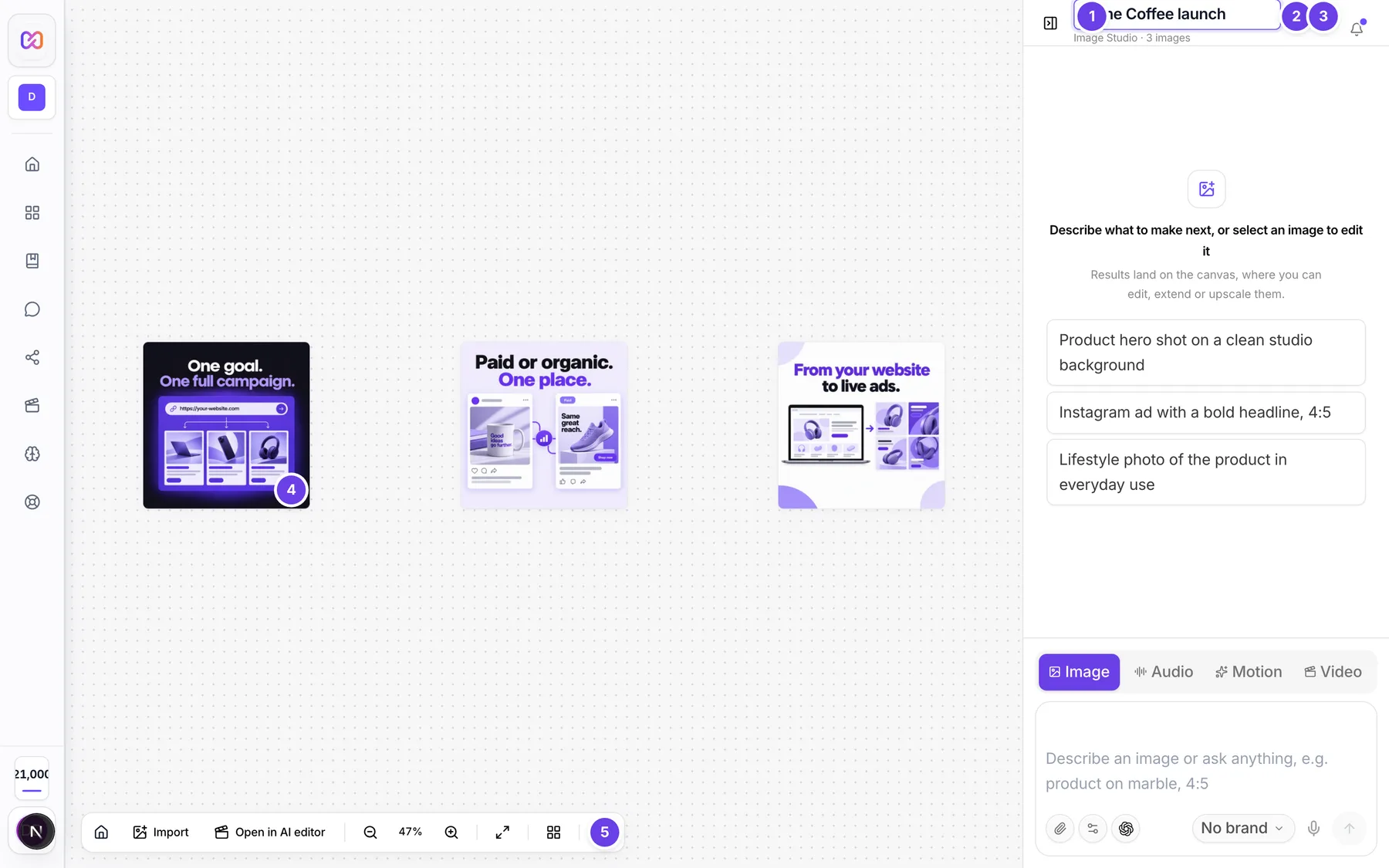
| # | Name in the app | What it does | Plan |
|---|---|---|---|
| 1 | Click to rename | The project name at the top of the chat panel. Click it to type a new name. | Both |
| 2 | Save title | The tick next to the name box. Saves the new name. | Both |
| 3 | Cancel rename | The X next to the name box. Throws the change away. | Both |
| 4 | Image actions | The button on an image. Its menu has Delete. | Both |
| 5 | Canvas actions | The three-dot button in the canvas dock. Its menu has Delete project. | Both |
| Delete project | In Canvas actions, in red, last in the list. Opens a confirm step. | Both | |
| Delete | The red button in a confirm step. Does the delete. | Both | |
| Cancel | Closes a confirm step and keeps everything. | Both | |
| Delete this image? | The question on a picture after you choose Delete in its menu. It adds This can't be undone. | Both | |
| Delete {n}? | In the selection bar, after you click Delete once. | Both | |
| Remove video from canvas | The bin on a video card. | Both |
#How to rename a project
- Open the project.
- Click the name at the top of the chat panel.
- Type the new name.
- Press Enter, click Save title, or click anywhere else. Press Esc or click Cancel rename to keep the old name.
The name updates at once. While it saves you see saving... next to it.
#How to delete one image
- Click Image actions on the picture, or right-click it.
- Click Delete.
- The picture dims and asks Delete this image? and says This can't be undone.
- Click Delete to confirm, or Cancel.
The picture is removed from the project for good. Download it first if you may need it, see download and export.
#How to remove several items from the canvas
- Select the items.
- Click Delete in the selection bar. The button changes to Delete {n}? and turns red.
- Click it again to confirm. Change the selection or click Clear selection to cancel.
This removes the items from the canvas on your screen. It does not run the permanent delete that Delete on a single image does. To remove an image from the project for good, delete it from its own menu.
#How to delete a whole project
- Open the project.
- Click Canvas actions in the dock.
- Click Delete project.
- Click Delete to confirm, or Cancel.
- You are taken to Home.
The project no longer shows in your Projects list.
#Options explained
What a delete removes.
- Delete on one image: the image is removed for good.
- Delete project: the project is removed from your workspace. The app has no screen to bring it back.
- Delete in the selection bar, Remove video from canvas and the motion card's Delete bin: they take the item off the canvas on your screen.
Rename details. Extra spaces are squeezed to one. An empty name is ignored and the old name stays. If saving fails, the old name comes back.
Name length. Up to 255 characters.
#Limits
- Project names can be up to 255 characters.
- There is no limit on how many images or projects you can delete.
#When something goes wrong
| Message in the app | What it means | What to do |
|---|---|---|
| Couldn't delete this project. Please try again. | The project delete did not go through. You stay on the project. | Try again. |
| Image project not found | The project was already removed, or it is in a different workspace. | Go Home and open a project from the list. |
| Image project has changed since your last read | Someone saved the project before you. A rename can fail with this. | Reload the project and rename again. |
| Your workspace role does not permit this action (write). | Your role on the team is Viewer. | Ask an owner for the Editor role. |
#Questions
#Can I undo a delete?
No. Delete this image? says it cannot be undone, and the app has no screen to restore a deleted project. Download what you need first.
#Does deleting give my credits back?
No. Credits used to make something are not returned when you delete it.
#Can I rename a project from the Projects list?
No. Rename it on the canvas, in the chat panel header.
#Why did my deleted image come back after a reload?
You probably used Delete in the selection bar. It only takes the item off the canvas on your screen. Delete the image from its own Image actions menu to remove it for good.
#Why did my rename go back to the old name?
The save failed, so the app put the old name back. Check that you are an Editor, then try again.
#Does the keyboard Delete key remove selected items?
No. Use the Delete button.
Last checked against the app on . View as Markdown