
Move around the canvas
Pan, zoom, fit, select and move items on the studio canvas, with every mouse action and shortcut.
#What it is
The canvas is the big board where everything you make appears. Image, Motion and Audio all use the same canvas, so the moves on this page work for all of them. You pan, zoom, select and drag items around, and the board remembers where you put images.
#Who can use it
Everyone. Free and Pro accounts have the same canvas. On a team, the Viewer role can look at the canvas. Moving items, importing and deleting need the Editor role or higher.
#Cost
Free, no credits. Panning, zooming, selecting, moving, fitting and importing never use credits. Things you start from the canvas, such as an edit, show their price before you confirm.
#Where to find it
Open Projects in the left menu, then click a Studio project. The canvas fills the left side of the screen. The chat panel is on the right, see the chat panel.
#Buttons and controls
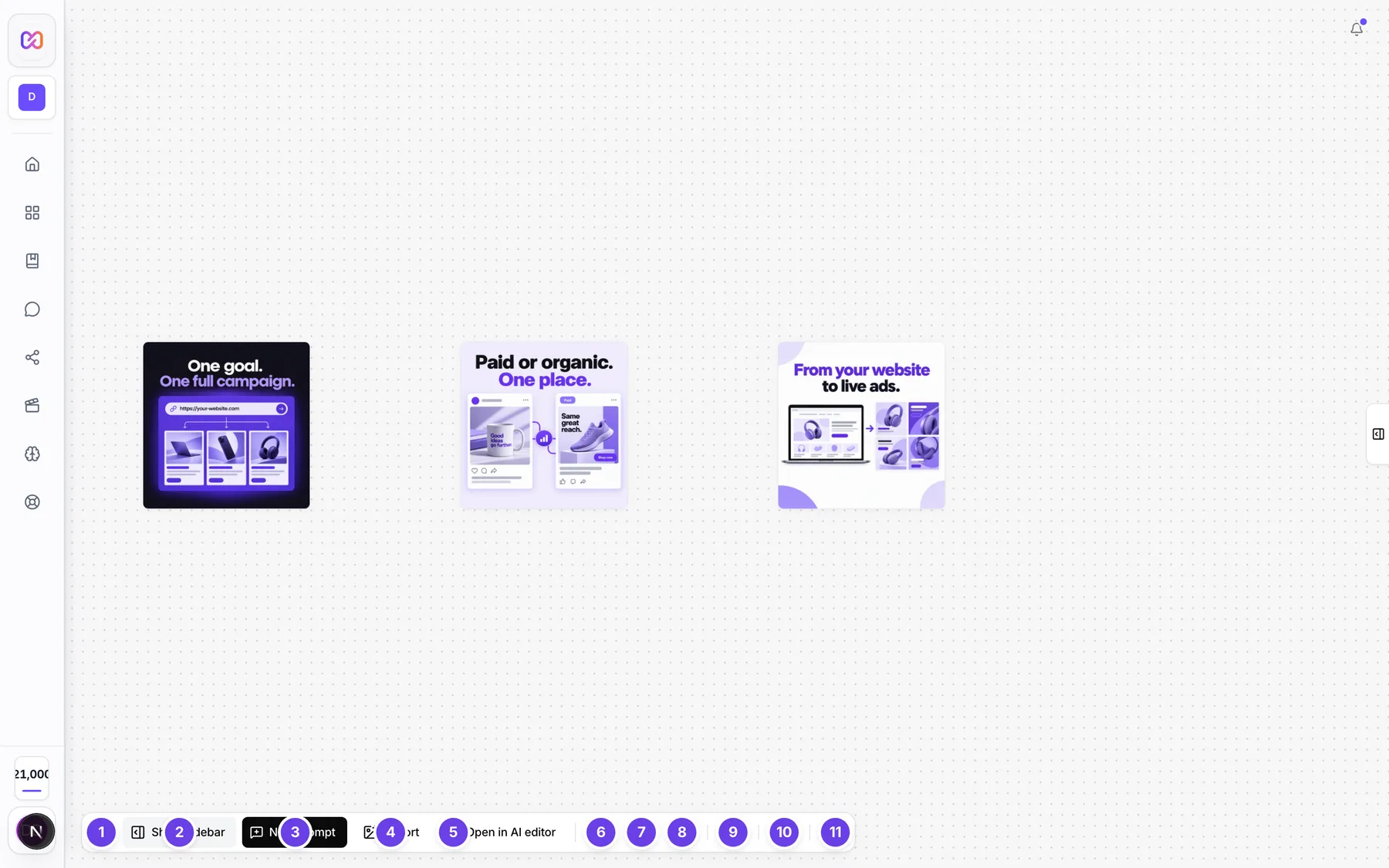
The bar along the bottom left is the canvas dock.
| # | Name in the app | What it does | Plan |
|---|---|---|---|
| 1 | Home | Goes to your Home screen. | Both |
| 2 | Show sidebar | Brings the chat panel back. Shows only while the panel is hidden. | Both |
| 3 | New prompt | Opens the chat panel and puts the cursor in the prompt box. Shows only while the panel is hidden. | Both |
| 4 | Import image to canvas | Adds a picture from your computer as a new item on the canvas. On a wide window the button also says Import. | Both |
| 5 | Open in AI editor | Opens this project in the AI Editor and sends every picture, sound and video to its media bin. Nothing is generated or charged. | Both |
| 6 | Zoom out | Zooms out a step. | Both |
| 7 | Zoom level (for example 100%) | Shows the current zoom. | Both |
| 8 | Zoom in | Zooms in a step. | Both |
| 9 | Fit to content | Frames everything on the canvas in view. | Both |
| 10 | Reset layout | Opens a Reset layout? question. Confirm clears every position you set by hand and puts items back in the automatic layout. Cancel closes it. | Both |
| 11 | Canvas actions | Opens the Canvas menu. See Options explained. | Both |
| Open chat panel | A small button that shows in place of Show sidebar on narrow screens (phones). | Both | |
| {n} selected | A bar at the top of the canvas. Shows when something is selected. | Both | |
| Edit | In the selection bar (the Selection actions bar that shows when you select items), only when one image is selected. Opens the edit toolbar on it. | Both | |
| Batch edit | In the selection bar, when several images are selected. Applies one instruction to all of them. The button shows the price before you click. | Both | |
| Download | In the selection bar. Downloads each selected item. | Both | |
| Delete | In the selection bar. See rename and delete. | Both | |
| Clear selection | The X in the selection bar. Clears the selection. | Both |
#How to move around
- Drag on empty canvas to pan. On a phone or tablet, drag with one finger.
- Scroll the mouse wheel to zoom toward the pointer. On a phone, pinch with two fingers.
- Click Fit to content to see everything again.
- Click Zoom in or Zoom out for fixed steps. The number between them shows your zoom.
The first time a project opens, the canvas frames your items for you.
#How to select and move items
- Click an item to select it. A selected item comes to the front.
- To select more, hold Shift (or Ctrl, or Cmd on a Mac) and click other items. Click a selected item again with the key held to take it out.
- Or hold Shift (Ctrl, Cmd) and drag on empty canvas. A dashed box appears, and everything it touches is selected. Anything already selected stays selected.
- Drag any selected item to move them all together. Selected items keep their distance from each other.
- Click an empty spot to clear the selection.
Only finished items can be selected. An item that is still being made cannot.
#How to group items
There is no group button and no named groups. To work on several items as one, select them and use the selection bar. A selection moves as a group when you drag it.
#Keyboard and mouse shortcuts
| Action | Windows and Linux | Mac |
|---|---|---|
| Pan the canvas | Drag empty canvas | Drag empty canvas |
| Zoom to the pointer | Scroll wheel | Scroll wheel |
| Zoom faster (trackpad pinch) | Ctrl + scroll | Cmd + scroll |
| Add or remove one item from the selection | Shift or Ctrl + click | Shift or Cmd + click |
| Box select | Shift or Ctrl + drag on empty canvas | Shift or Cmd + drag on empty canvas |
| Select every finished item | Ctrl + A | Cmd + A |
| Clear the selection | Esc | Esc |
| Close the edit toolbar | Esc | Esc |
| Close a menu or the reset question | Esc | Esc |
| Open the edit toolbar on an image | Double-click the image | Double-click the image |
| Open the image menu | Right-click the image | Right-click the image |
These keys do nothing while you are typing in a box, such as the prompt or a comment.
#Options explained
Canvas actions menu:
- Upload image: same as Import image to canvas.
- Open in AI editor: same as the dock button.
- Zoom in, Zoom out: one step.
- Zoom to fit: same as Fit to content.
- Zoom to 100%: sets normal size and puts the canvas back at its starting point.
- Delete project: asks you to confirm, then removes the whole project. See rename and delete.
Image menu (the button named Image actions on a picture, or right-click):
- Edit: opens the edit toolbar. The tools are covered in the Image section.
- Duplicate: puts a copy next to the picture. The copy lives on this canvas only until you leave. It is not saved to the project.
- Download: saves the picture, see download and export.
- Copy prompt: copies the words used to make it.
- Use this version: see versions.
- Add to calendar, Save to Library, Download ZIP, Make LinkedIn PDF: in the dropdown, see download and export.
- Delete: see rename and delete.
Edited tag and arrows: a picture made by editing another one shows an Edited tag. An arrow runs from the original to the edit.
Resize handles: when you point at or select a picture, drag a corner or edge to change its size on the canvas. The shape stays the same. This only changes how big it looks on the board.
Position memory: when you drag a saved image, its new place is saved with the project. Duplicates and items still being made are not saved.
#Limits
- Zoom goes from 0.1 to 4 times normal size.
- An imported picture can be up to 10. JPEG, PNG and WebP work.
#When something goes wrong
| Message in the app | What it means | What to do |
|---|---|---|
| Image project not found | The project was removed, or it belongs to a different workspace. | Go Home and open it from the Projects list. |
| Couldn't load this project | The canvas failed to load. | Click the retry button on the screen. |
| Upload exceeds | The picture is bigger than the limit. | Use a smaller picture. |
| Unsupported image format | The file is not JPEG, PNG or WebP. | Convert it and import it again. |
| Not a decodable image | The file cannot be read as a picture. | Use a different file. |
| Couldn't open the AI editor. Please try again. | Open in AI editor failed. | Try again. |
#Questions
#Why can I not select an item?
Only finished items can be selected. Wait for it to finish.
#Does Delete or Backspace remove the selected items?
No. Those keys do nothing on the canvas. Use Delete in the selection bar, or the image menu.
#Do my positions save?
Yes for saved images. Drag one and its place is saved. Reset layout clears all of them.
#Does the canvas work on a phone?
Yes. Drag with one finger to pan and pinch to zoom. The chat panel and the canvas take turns on a small screen. Use Open chat panel and Back to editor to switch.
#Do the letters E, B, X, C and R in the edit toolbar work as shortcuts?
They show on the tool tips, but the app has no key handler for them yet. Click the tool instead.
#Is the canvas the same for Image, Motion and Audio?
Yes. They share one canvas. Pan, zoom, select and fit work the same.
Last checked against the app on . View as Markdown