
Save and organise in Library folders
Save ads and images to folders, rename and delete folders, select items to download or schedule, and see what you made.
#What it is
Folders keep the ads and images you want to come back to. Saved lists your folders. My creations lists the images, videos and audio you made in Infinall.
#Who can use it
Everyone, on Free and Pro.
#Cost
Free, no credits.
#Where to find it
Open Library, then Saved for folders, or My creations for your own work.
#Buttons and controls
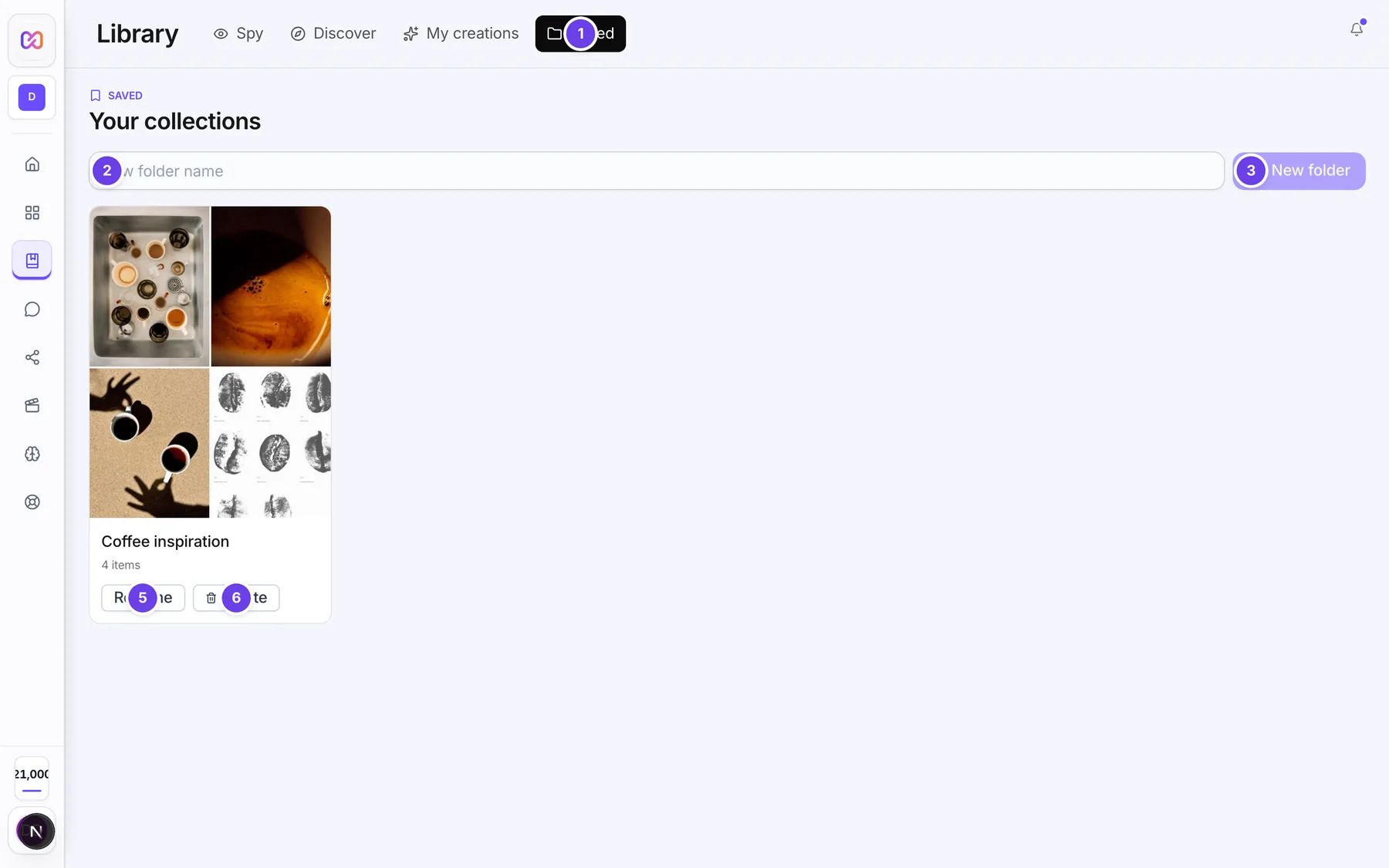
| # | Name in the app | What it does | Plan |
|---|---|---|---|
| 1 | Saved | The tab that lists your folders. The page is titled Your collections. | Both |
| 2 | New folder name | The box for a new folder name. Press Enter to create it. | Both |
| 3 | New folder | Creates the folder. Greyed out until you type a name. | Both |
| 4 | (folder tile) | A square showing up to 4 thumbnails. Choose it, or the folder name, to open the folder. | Both |
| 5 | Rename | Asks for a new folder name. | Both |
| 6 | Delete | Deletes the folder after you confirm. | Both |
| Saved folders | Inside a folder, with a back arrow. Goes back to the list. | Both | |
| Select | Inside a folder that has items. Lets you tick several. Changes to Done. | Both | |
| Select all | In select mode. Ticks every item. Changes to Clear. | Both | |
| Add to calendar | In select mode. Puts the picked items on a post. | Both | |
| Download ZIP | In select mode. Downloads the picked items in one file. | Both | |
| Make LinkedIn PDF | In select mode. Makes a PDF for LinkedIn from the picked items. | Both | |
| Remove from folder | In select mode. Asks you to confirm, then removes the picked items. Disabled until you pick some. | Both | |
| Remove | Top right of an item when you are not selecting. Removes that one item. | Both |
#How to save to a folder
- Open an item in Spy or Discover, or find its tile.
- Choose Save. The menu title is Save to folder.
- Choose one of your folders. Each shows how many items it has.
- The menu says Saved to and the folder name, then closes.
#How to make a folder while saving
- Choose Save on an item.
- Choose New folder.
- Type a name in Folder name.
- Choose Save. The folder is made and the item goes in.
#How to make a folder without saving anything
- Open Library, then Saved.
- Type a name in New folder name.
- Choose New folder.
#How to rename or delete a folder
- Open Library, then Saved.
- Choose Rename on the folder and type the new name.
- Or choose Delete and confirm. The question reads "Delete this folder? Everything in it will be removed. This cannot be undone."
#How to take items out of a folder
- Open the folder.
- To remove one item, choose Remove on its tile.
- To remove several, choose Select, tick the items, then choose Remove from folder.
- Choose the red Remove ... from folder? button to confirm.
#How to save your own creations to a folder
- Open Library, then My creations.
- Choose the kind: All, Images, Videos or Audio.
- Tick the tiles you want. A bar shows how many are selected.
- Choose Save to Library.
- Pick a folder, or type a New folder name and choose New folder.
#Options explained
My creations. Shows what you made in Infinall. Next to the kinds you can choose Load more at the bottom. Nothing shows until you make something in the studio.
What the selection bar offers. In My creations: Add to calendar, Save to Library, Download, Download ZIP, Make LinkedIn PDF and Clear selection. Inside a folder: Add to calendar, Download ZIP and Make LinkedIn PDF, plus Remove from folder.
Saving twice. If the item is already in that folder, the app counts it as saved. You do not see an error.
What gets saved. A saved ad or image keeps its picture and details as they were when you saved it.
#Limits
- A folder name is 1 to 60 characters.
- One save of several items takes up to 50 items.
- One removal of several items takes up to 200 items.
- My creations loads 40 items at a time.
#When something goes wrong
| Message in the app | What it means | What to do |
|---|---|---|
| Could not load folders. | The folder list did not load. | Close the menu and open it again. |
| Could not create folder. | The folder was not made. | Check the name and try again. |
| Could not save. | The item was not saved. | Try again. |
| That folder no longer exists. | The folder was deleted. | Pick another folder. |
| No folders yet. | You have no folders. | Choose New folder. |
| No folders yet. Create one above or save an item from Discover. | The Saved page is empty. | Make a folder or save an item. |
| This folder is empty. | The folder has no items. | Save items into it. |
| Something went wrong. Please try again. | A general failure, for example a name that is too long. | Check the name and try again. |
| Nothing here yet. What you make in the studio shows up here. | My creations is empty. | Make something in the studio. |
#Questions
#How many folders can I make?
The app shows no limit on folders. Each name is limited in length.
#Does deleting a folder delete the originals?
It removes the folder and everything saved in it. Your own creations in the studio are not deleted.
#Can I save a competitor ad?
Yes. Use Save on any ad in Spy. See Save competitor ads.
#Why can I not rename with a long name?
A folder name is limited in length. Use a shorter name.
#Where do I download a whole folder?
Open it, choose Select, then Select all, then Download ZIP.
Last checked against the app on . View as Markdown