
Best time to post
See which days and hours got the most engagement on your account, and when your messages arrive, so you can pick better times to post.
#What it is
Two small charts help you choose when to post. Best time to post shows which days and hours your posts got the most engagement. Busiest hours shows when your direct messages arrive.
#Who can use it
Both charts are open to Free and Pro accounts. They need a connected account with some history. Without one, the Analytics screen asks you to connect an account first. Connecting a new account is Pro, see Connect social accounts.
#Cost
Free, no credits.
#Where to find it
- Best time to post: open Distribution > Analytics, then the Posts tab. Scroll to the card called Best time to post.
- Busiest hours: open Distribution > Analytics, then the Messages tab.
#Buttons and controls
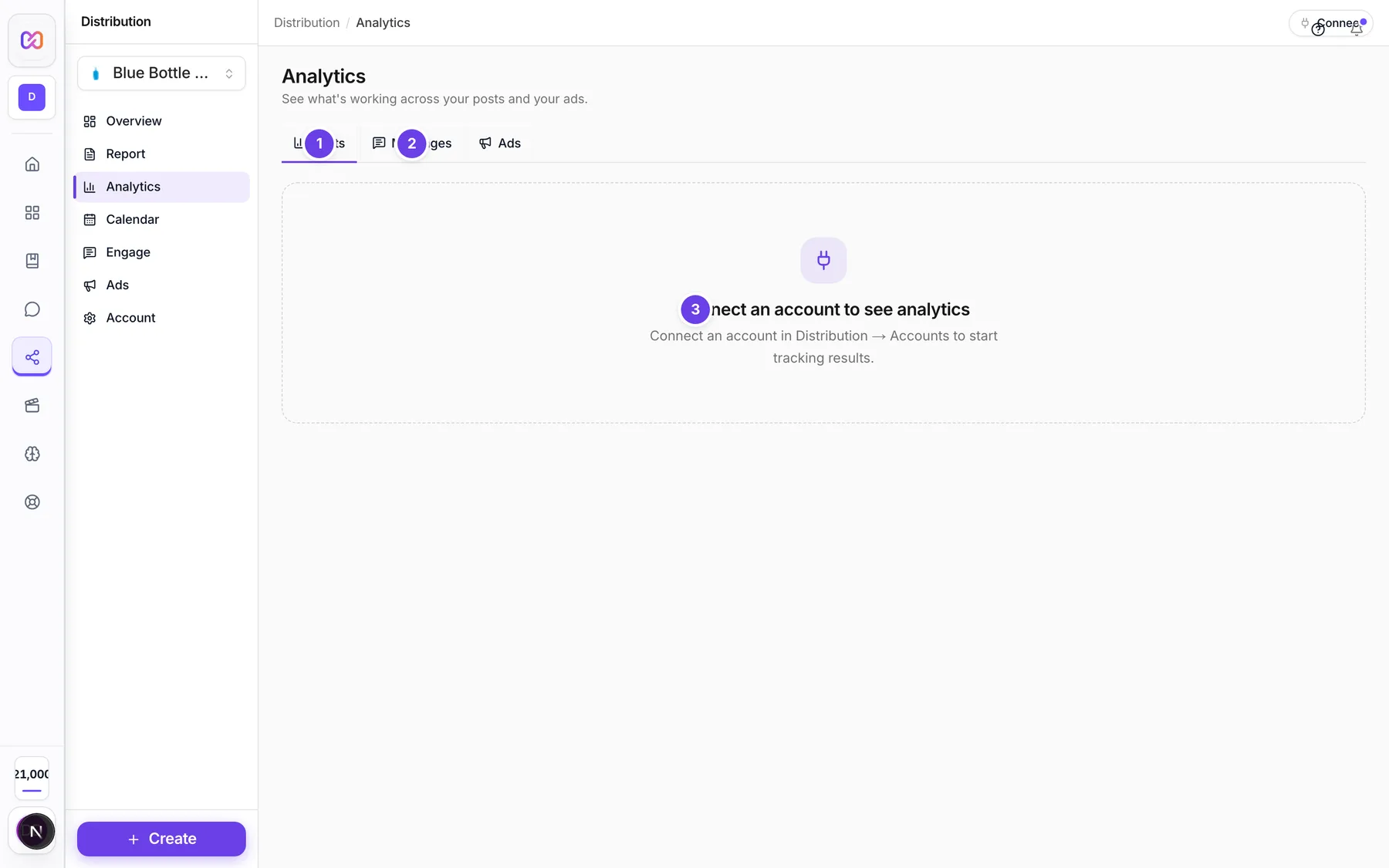
| # | Name in the app | What it does | Plan |
|---|---|---|---|
| 1 | Posts | The Analytics tab that holds the best time chart. | Both |
| 2 | Messages | The Analytics tab that holds the busiest hours chart. | Both |
| All platforms | Shows once an account is connected. Filters the Posts tab to one platform. Connected platforms are listed first. | Both | |
| Date range | A group of buttons: 7D, 15D, 30D, 60D, 90D, 6M and 1Y. | Both | |
| Download CSV | Saves the Posts numbers as a file. | Both | |
| Refresh | Loads the numbers again. | Both | |
| Best time to post | The card with the grid. Its line says "UTC . based on your account history". | Both | |
| Best: | A row of up to three green tags, such as "Tue 9am". The number after the dot is the average engagement. | Both | |
| Busiest hours | The card with the message grid on the Messages tab. Its line says "When messages arrive . UTC". | Both | |
| 3 | Connect an account to see analytics | Shown instead of the charts when no account is connected. | Both |
#How to find your best time to post
- Open Distribution > Analytics. The Posts tab opens first.
- Pick the platform in All platforms, or leave it on all.
- Scroll to Best time to post.
- Look for the darkest green boxes. Each box is a three hour block on one day.
- Read the Best: tags for your top three slots.
- Open Calendar, click New post and pick the date and time in When.
#How to see when your messages arrive
- Open Distribution > Analytics.
- Click the Messages tab.
- Find Busiest hours. Darker boxes mean more messages arrived in that block.
#Options explained
Reading the grid. Days run down the side from Mon to Sun. Hours run across in steps of three hours, from 12am. A darker green box means a higher average engagement for posts made in that block. A grey box means nothing to show.
Time zone. Both charts are in UTC, not your local time. The calendar uses your brand's time zone, so convert before you schedule.
Where the numbers come from. The best times are worked out from your own account history. A new account has too little history, so the card says "Not enough posts yet to find a pattern." The same goes for messages: "Not enough messages yet to show a pattern."
Next free slot. When you add something to the calendar from the Library or Image Studio and leave the date empty, Infinall saves a draft at the next free time slot. It tries 10:00, 13:00 and 18:00 in your brand's time zone, and skips times that already have a post. This does not use your best time chart.
#Limits
- The charts use the date range you pick, from 7 days up to a year.
- Slots are grouped in three hour blocks.
#When something goes wrong
| Message in the app | What it means | What to do |
|---|---|---|
| Connect an account to see analytics | No account is connected. | Open Account > Accounts and connect one. |
| Not enough posts yet to find a pattern. | Your account has too little history. | Keep posting and check again later. |
| Not enough messages yet to show a pattern. | Not enough messages arrived. | Check again later. |
| Could not load analytics. | The numbers did not load. | Click Refresh. |
#Questions
#Is this telling me the best time for my audience?
It shows when your own past posts did best. It is a guide, not a promise. Try a few of the top slots and compare.
#Why are the times different from my calendar?
The charts are in UTC. Your calendar shows your brand's time zone. Add or subtract the difference.
#Can I see best times for one platform?
Yes. Pick it in All platforms on the Posts tab.
#Why is the card empty?
Your account has not posted enough yet, or no account is connected.
Last checked against the app on . View as Markdown