
Upload your files: logo and brand
How your logo, colours and words reach a motion video today, through your brand and your prompt.
#What it is
The Motion box has no attach button today, so you cannot add files straight into a motion video. Your logo, colours, name, tagline and approved claims come in through your brand. Everything else comes from your prompt.
#Who can use it
Everyone. The brand chip works the same on Free and Pro.
#Cost
Free, no credits. Picking a brand and adding it to a video costs nothing by itself. The video uses credits as usual, see Make a motion video.
#Where to find it
In the Motion box, the brand chip is the first control on the row above the prompt. It reads No brand until you pick one. On Home, it is the first control beside the shape buttons.
#Buttons and controls
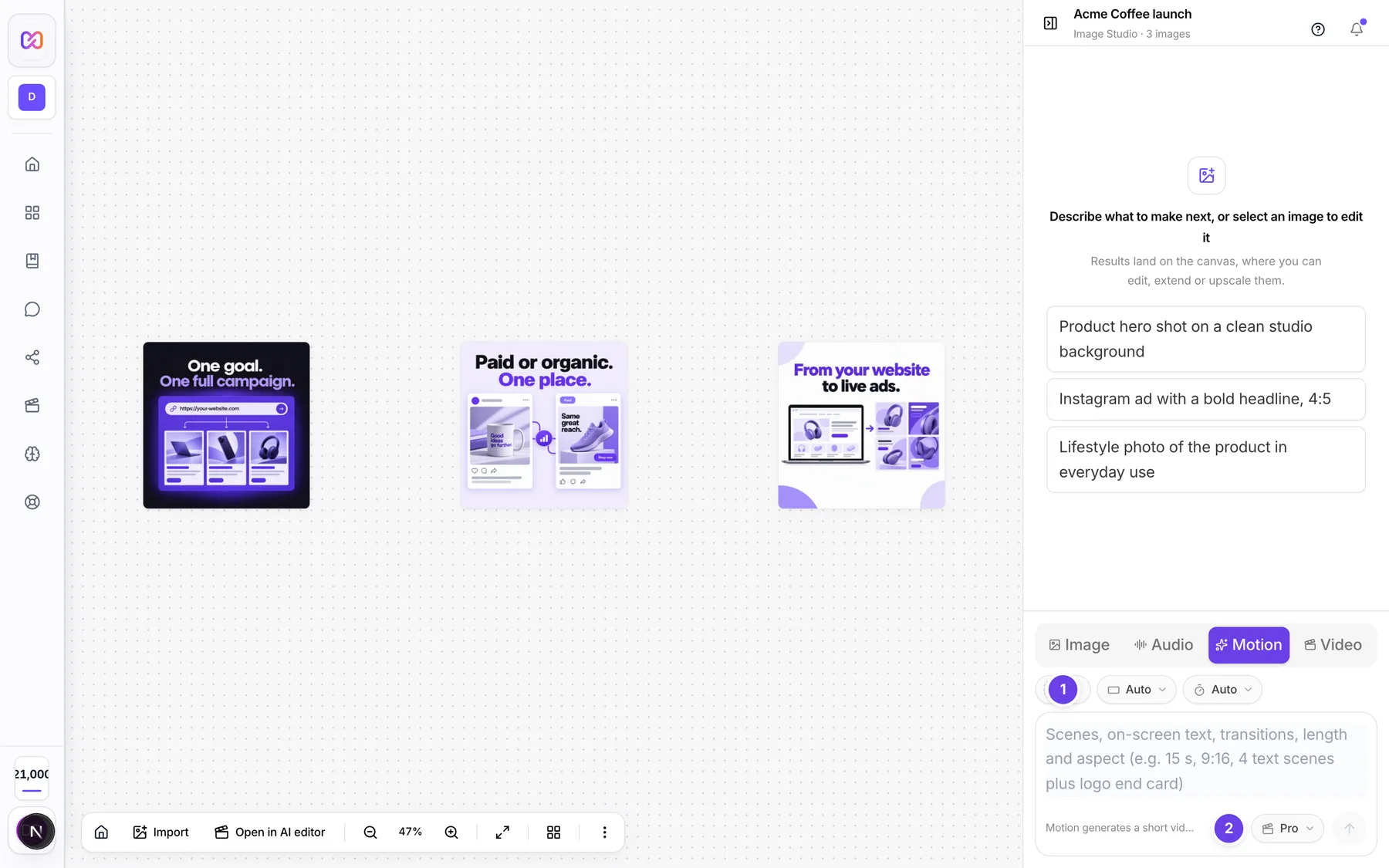
| # | Name in the app | What it does | Plan |
|---|---|---|---|
| 1 | Select brand | The brand chip. Opens a menu of your brands. The chip shows No brand or the brand name. | Both |
| No brand | A choice in the menu. The video uses no brand. | Both | |
| Add brand | A choice in the menu. Starts a new brand from your website. | Both | |
| Manage all | A choice in the menu. Opens your brands. | Both | |
| 2 | Voice typing | Speak your prompt instead of typing. | Both |
#How to use your brand in a video
- In a Studio project, choose Motion in What to make.
- Click Select brand and pick your brand.
- Write the prompt. For example: "10 s, 16:9, logo builds in, tagline fades in under it."
- Click Generate motion video.
#Options explained
What a brand brings. The video can use the brand name, its colours, its logo, its tagline and its approved claims. The logo can close the video as an end card.
Which version. The newest confirmed version of the brand is used. A brand with no confirmed version cannot be used. Confirm it first or choose No brand. See Use your brand.
Everything else goes in the prompt. Write down the words, the order of scenes and the feel you want. The prompt box is the only other input.
#Limits
- One brand is used per video.
- The brand chip is locked while a prompt is being sent.
#When something goes wrong
| Message in the app | What it means | What to do |
|---|---|---|
| Couldn't make that motion video. | The video did not start. A brand with no confirmed version is one possible cause. | Confirm the brand, or choose No brand, then send again. |
| No brands yet | The brand menu is empty. | Choose Add brand and add your website. |
#Questions
#Can I upload my own logo into a motion video?
Not in the Motion box today. Save your logo in your brand and pick that brand. The logo is used from there.
#Can I upload footage, music, documents or screenshots?
There is no attach button in the Motion box right now. Describe what you need in the prompt. For sound, see Music and voice.
#Does the paperclip on Home work for Motion?
No. The paperclip on Home is for Image mode only. It does not show in Motion.
#Do I have to use a brand?
No. Motion works with No brand. A brand just makes colours, logo and words match your site.
#Can I change the brand after a video is made?
Pick another brand and send a new prompt. See Change a video.
Last checked against the app on . View as Markdown