
Versions and the history of an item
See how an image was edited from the one before it, and go back to an older version for free.
#What it is
Every edit makes a new image and keeps the old one. The canvas shows each edit next to the picture it came from, joined by an arrow. You can make any older version the newest again, and that costs nothing.
#Who can use it
Everyone. Free and Pro accounts have the same history. On a team, going back to a version needs the Editor role or higher.
#Cost
Free, no credits. Use this version copies the older picture. It does not call the AI and does not hold or charge credits. The edits that made the versions may have used credits, but going back never does.
#Where to find it
Open a Studio project. Each image has a button named Image actions at its bottom right. You can also right-click an image. Use this version is in that menu.
#Buttons and controls
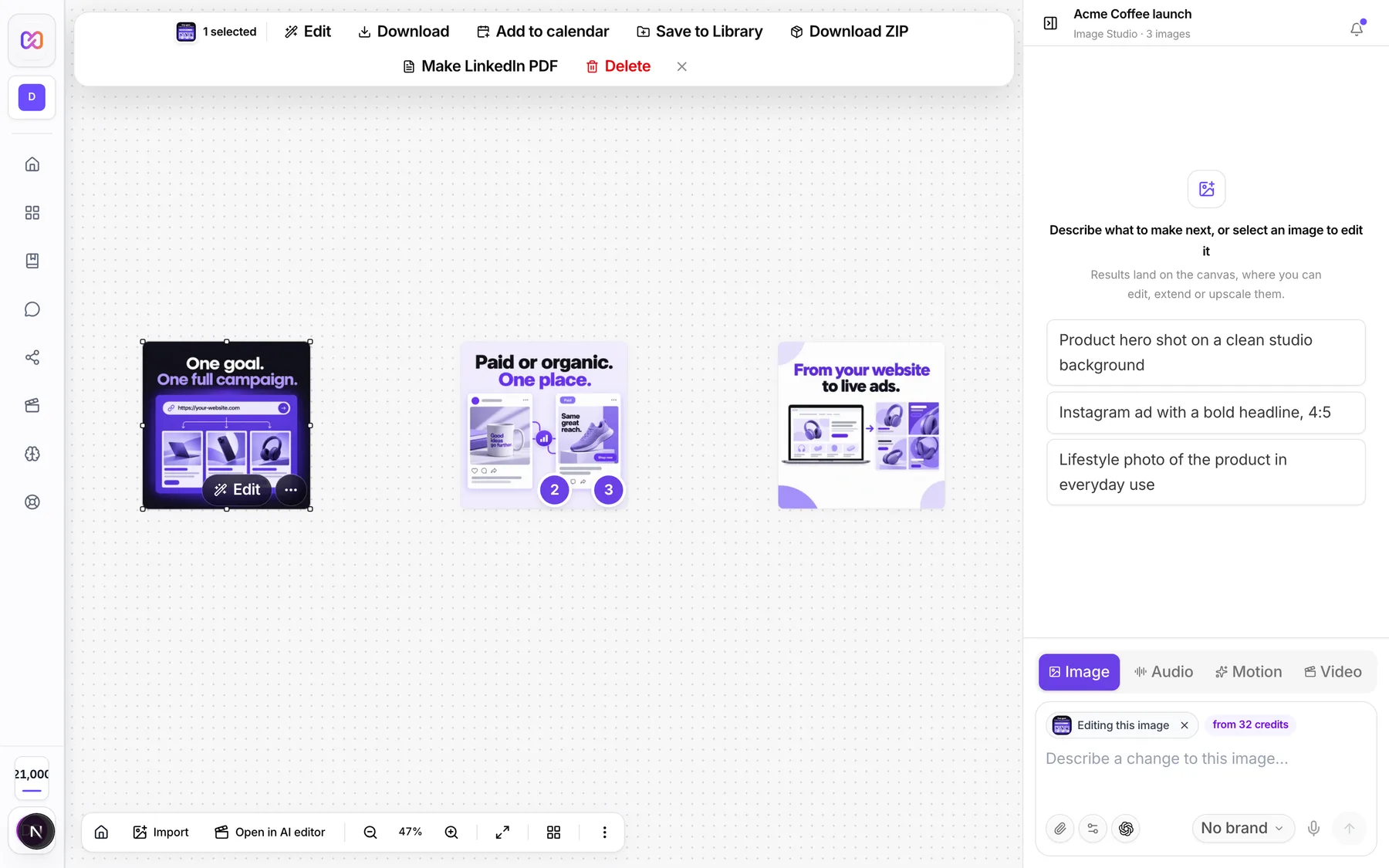
| # | Name in the app | What it does | Plan |
|---|---|---|---|
| 1 | Edited | A small tag above a picture that was made by editing another one. | Both |
| 2 | Edit | On the image. Opens the edit toolbar. | Both |
| 3 | Image actions | Opens the image menu. | Both |
| 4 | Use this version | In the image menu. Makes a copy of this picture the newest version. | Both |
| Locate on canvas | In a chat message. Selects the picture and centres it. | Both |
#How to see where an image came from
- Open the project and click Fit to content to see the whole board.
- Look for the Edited tag. It marks a picture made by editing another one.
- Follow the arrow back to the original. The arrowhead points at the edit.
Original images have no tag and no arrow pointing at them.
#How to go back to an older version
- Find the older picture on the canvas.
- Click Image actions on it, or right-click it.
- Click Use this version.
- A new picture appears on the canvas. It is an exact copy of the older one, drawn under its source like an edit. It is now the newest version.
Nothing is removed. The versions after the old one stay on the canvas, so you can still get to them.
#How to go back by chat
- Open the chat panel.
- Write something like "go back to the original".
- Infinall AI makes the copy and the reply says Restored, free.
If you only want one part back, such as a logo, and want to keep the later changes, say that instead. That is an edit, and it uses credits. You see the price first.
#Options explained
Use this version is not an undo button. It adds a new copy at the front. The old one is still there.
The history of an item is the chain of Edited tags and arrows. Duplicating an image with Duplicate does not make a version. A duplicate lives on the canvas only until you leave.
Project versions are a separate thing. The app also keeps a numbered list of saved project snapshots in the background. It keeps the newest 20 and clears older ones. There is no screen for it in the studio.
#Limits
- A saved project keeps its newest 20 project versions.
- Going back to a version has no limit and costs nothing.
#When something goes wrong
| Message in the app | What it means | What to do |
|---|---|---|
| Could not restore this version. Please try again. | The copy did not finish. | Try again. Nothing was charged. |
| Could not read that version. Please try again. | The stored picture could not be loaded. | Try again. Nothing was charged. |
| Image version not found in this project. | That version is gone, or it is not in this project. | Pick a version that is still on the canvas. |
#Questions
#Does going back to a version cost credits?
No. It is a plain copy.
#Does it delete the newer versions?
No. They stay on the canvas. The copy is added as one more picture.
#Is there a list of all versions of one image?
Not as a list. The canvas shows them as pictures joined by arrows.
#How many versions are kept?
Every picture stays on the canvas until you delete it. The background snapshots of a project keep the newest 20.
#Can I use an older version if I deleted it?
No. A deleted picture is gone for good, see rename and delete.
Last checked against the app on . View as Markdown