
Number of images and variations
Make 1 to 4 images from one prompt, 2 to 4 variations of an image, or edit many images at once.
#What it is
You can ask for several pictures at once. Generations makes more than one image from one prompt. Variations makes alternatives of an image you already have. Batch edit applies one change to many images.
#Who can use it
Everyone. Free and Pro have the same counts. On a team, this needs the Editor role or higher.
#Cost
Uses credits, charged for each image that is made. More images cost more. Edits and variations show an approximate price before you send. If an image in a send fails, that image is not charged.
#Where to find it
- Generations: open Image settings in the composer.
- Variations: select an image, choose Edit, then Variations in the toolbar.
- Batch edit: select two or more images on the canvas. A bar at the top of the canvas shows Batch edit.
#Buttons and controls
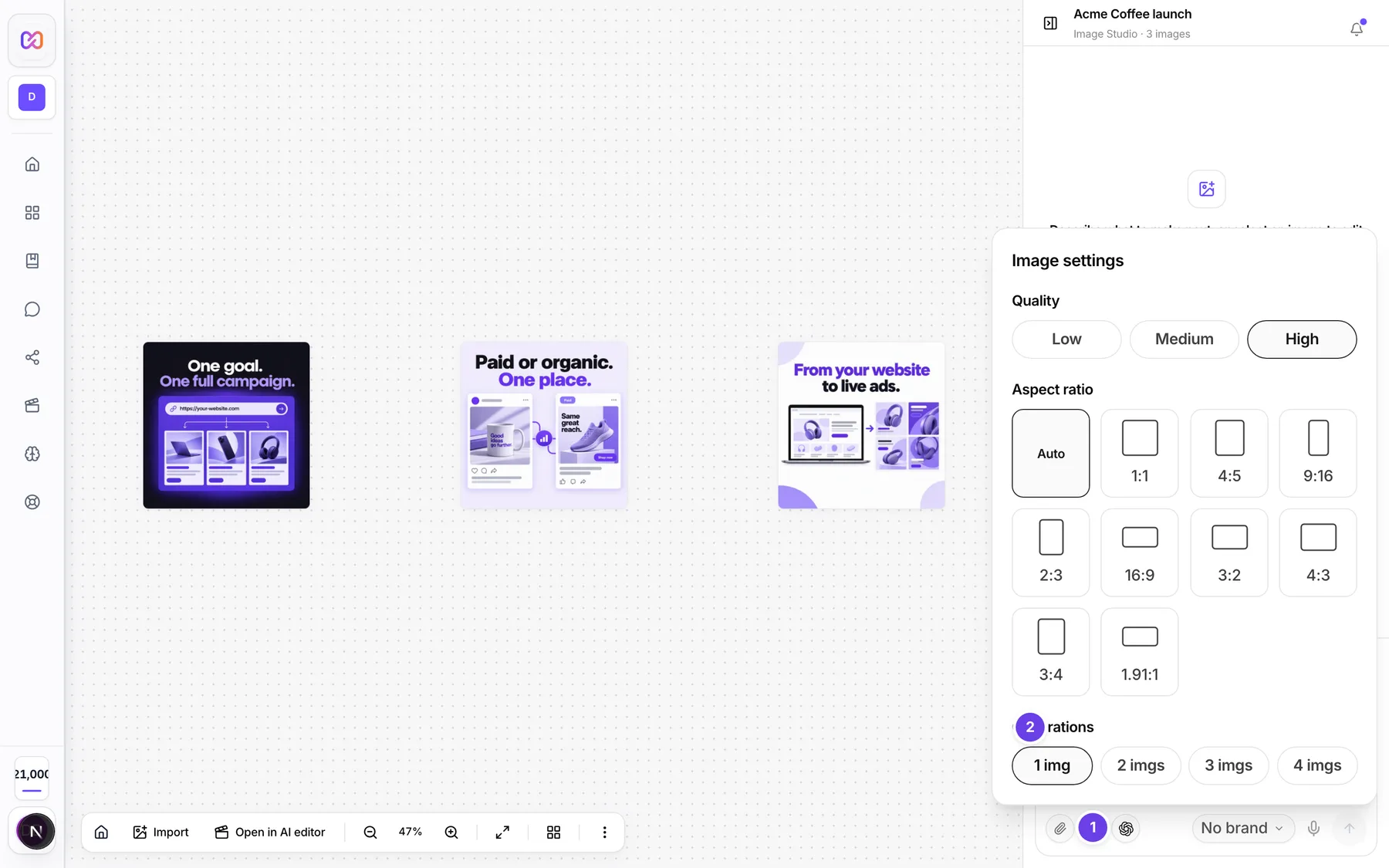
| # | Name in the app | What it does | Plan |
|---|---|---|---|
| 1 | Image settings | Opens the settings panel. | Both |
| 2 | Generations | The row of counts for new images: 1, 2, 3 or 4. In the Studio panel the buttons read 1 img, 2 imgs, 3 imgs and 4 imgs. | Both |
| Variations | A tool in the edit toolbar. Makes alternatives of the selected image. | Both | |
| Variations count | A row of 2, 3 and 4 in the Variations panel. | Both | |
| Generate 2 variations | The button in the Variations panel. The number follows your choice, for example Generate 3 variations. | Both | |
| Batch edit | In the selection bar when several images are selected. The button shows the price before you click. | Both | |
| Cancel batch edit | The X on the chip above the prompt box. The chip says Batch edit and the number of images. | Both |
#How to make several images from one prompt
- Open Image settings.
- Under Generations, choose 2, 3 or 4.
- Send your prompt. Each image appears on the canvas as it finishes.
#How to make variations of an image
- Select the image and choose Edit.
- Choose Variations in the toolbar.
- Under How many, choose 2, 3 or 4.
- Check the price pill at the top of the panel, then choose Generate with your number, for example Generate 3 variations.
Variations are subtle versions of the same picture, with the same subject and brand, for A/B testing.
#How to edit many images at once
- Select two or more images on the canvas.
- In the selection bar, choose Batch edit.
- Describe one change in the prompt box. The placeholder says Describe one edit for all N images, with the real count.
- Send. Each image gets the same change and makes its own new version.
#Options explained
Generations goes from 1 to 4. It starts on 1.
Variations goes from 2 to 4 for one image. Each variation is charged as one image.
Batch edit works on up to 20 images at once. Batch edit always runs at High quality, so the only way to lower the price is to pick fewer images.
#Limits
- Generations: up to 4 images per send.
- Variations: 2 to 4 per image.
- Batch edit: up to 20 images at once.
- One edit request can cost at most 100 credits. A count button that would go past this is greyed out.
#When something goes wrong
| Message in the app | What it means | What to do |
|---|---|---|
| This batch could cost up to N credits (N images at N credits each). One request can cost at most 100 credits. | The batch passes the limit for one request. The numbers in the message are real for your batch. | Pick fewer images. |
| Over the 100 credit limit at this quality | A variations count is greyed out because it passes the limit. | Choose a lower quality or a lower count. |
| n must be an integer between 1 and 4. | A count outside 1 to 4 reached the server. This is rare. | Choose 1, 2, 3 or 4 in Generations. |
| Insufficient credits. Purchase more to continue. | Your balance is too low. | Add credits, or make fewer images. |
#Questions
#Do I pay for all the images if one fails?
No. You pay only for images that were made. An image that fails is not charged.
#Are variations the same as generations?
No. Generations makes new pictures from a prompt. Variations makes close alternatives of one picture you already have.
#Can I make more than four at a time?
Not from one prompt. Send again for more. Batch edit is the exception: it works on up to 20 existing images.
#Where does Batch edit show up?
Select one image and the edit toolbar opens. Select several and the selection bar offers Batch edit, Download and Delete. See move around the canvas.
Last checked against the app on . View as Markdown