
Answer comments and Google reviews
Reply to comments on your posts and to Google Business reviews, and draft review replies with Infinall AI.
#What it is
The Comments tab lists your posts that have comments, and lets you reply, like and hide. The Reviews tab lists your Google Business reviews, and lets you reply publicly, with a draft from Infinall AI if you want one.
#Who can use it
Free and Pro accounts both see both tabs. Nothing in them is locked to a plan.
You need a connected account for anything to show up. Connecting an account is Pro only. Without one, each tab shows a prompt to connect.
- Comments show for connected Instagram, Facebook, LinkedIn, YouTube, Threads and TikTok accounts.
- Reviews show only for a connected Google Business account.
On a team, only people with a role that can edit can reply, like or hide. The Viewer role can read.
#Cost
Mixed. Reading, replying, liking and hiding are free, no credits.
The Draft with AI button on a review uses credits. The credits charged show in a message when the draft is ready. If the draft fails, you are not charged.
#Where to find it
Open Distribution, then Engage. Choose the Comments tab for comments or the Reviews tab for Google reviews. The addresses are /distribution/engage?tab=comments and /distribution/engage?tab=reviews. Old links to comments and reviews go to the same place.
#Buttons and controls
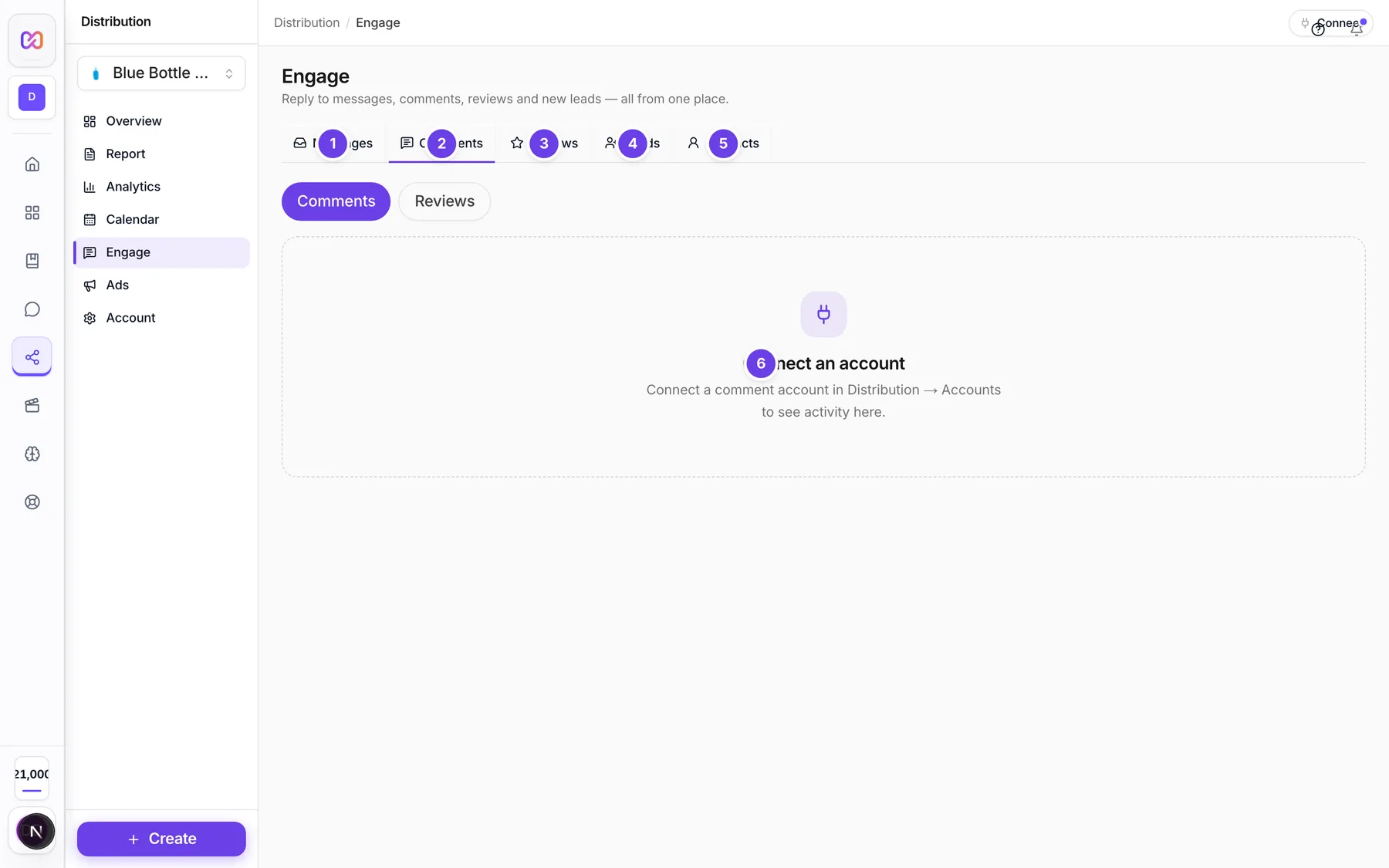
| # | Name in the app | What it does | Plan |
|---|---|---|---|
| 1 | Messages | Opens the Messages tab. See Reply to messages in the inbox. | Both |
| 2 | Comments | The tab for comments on your posts. | Both |
| 3 | Reviews | The tab for Google Business reviews. | Both |
| 4 | Leads | Opens the Leads tab. See Lead forms. | Both |
| 5 | Contacts | Opens the Contacts tab. See Contacts. | Both |
| 6 | Connect an account | What the Comments tab shows when no account that supports comments is connected. | Both |
| Comments (pill under the tabs) | Inside the Comments tab, switches to the posts and comments list. | Both | |
| Reviews (pill under the tabs) | Inside the Comments tab, shows a simple list of reviews. The Reviews tab above has more controls. | Both | |
| Posts with comments | The list of your posts that have comments. Each shows its text and a comment count. | Both | |
| Like | Likes a comment. Shows only when the platform allows it. | Both | |
| Hide | Hides a comment from other people. After that the button says Show. Shows only when the platform allows it. | Both | |
| Reply (on a comment) | Starts a reply to that comment. | Both | |
| Cancel | Drops the reply you started. | Both | |
| Write a reply... | The box where you type your reply to a post or a comment. Press Enter to send. | Both | |
| Connect Google Business | What the Reviews tab shows when no Google Business account is connected. | Both | |
| Filter by rating | Reviews tab only. Chooses 1-3 stars (needs attention), All ratings or 4-5 stars. | Both | |
| Filter by reply status | Reviews tab only. Chooses Unanswered, Replied or All replies. | Both | |
| Reply (on a review) | Opens a box to write a public reply. | Both | |
| Edit reply | Opens your existing reply so you can change it. Shows once a review has a reply. | Both | |
| Draft with AI | Asks Infinall AI to write a reply to that review. | Both, uses credits | |
| Cancel (the X button) | Closes the reply box without sending. | Both | |
| Send reply | Posts the reply. You confirm first. | Both |
#How to reply to a comment
- Open Distribution, then Engage, then Comments.
- Choose a post under Posts with comments.
- Find the comment. Choose Reply beside it. A line "Replying to comment" shows above the box.
- Type in Write a reply... and press Enter, or choose the send button.
If you do not choose Reply on a comment first, your text is posted as a new comment on the post.
#How to like or hide a comment
- Open a post under Posts with comments.
- Choose Like to like a comment, or Hide to hide it.
A hidden comment shows "Hidden from others". Choose Show to bring it back.
#How to reply to a review
- Open Distribution, then Engage, then Reviews.
- By default you see 1 to 3 star reviews that have no reply. Change Filter by rating and Filter by reply status to see others.
- Choose Reply on a review.
- Type your reply, or choose Draft with AI and edit the text.
- Choose Send reply. A message asks you to confirm. Reviews are public, so check the text before you confirm.
To change a reply you already sent, choose Edit reply, change the text, and send it again.
#How to get an AI draft for a review
- Choose Reply on a review that has no reply yet.
- Choose Draft with AI.
- Wait for the draft. It fills the reply box, and a message shows the credits charged.
- Edit it, then choose Send reply.
Infinall AI reads the review and your brand details. It thanks the reviewer, does not argue, does not invent offers or refunds, and invites them to continue in a direct message if there is something to fix. A review that already has a reply cannot get a new draft.
#Options explained
Rating filter. 1-3 stars (needs attention) is the default, so you see the reviews that cost you customers first. 4-5 stars is for thanking happy customers. All ratings shows everything.
Reply status filter. Unanswered is the default. Replied shows reviews you have answered. All replies shows both.
Average rating. When you have reviews, the top shows the average with a star, and how many Google Business accounts are connected.
Reviews list. Each review shows the reviewer's name, the stars, their text, and your reply under it as "Your reply:".
#Limits
- A reply to a comment holds up to 500 characters.
- A reply to a review holds up to 500 characters.
- You can ask for up to 10 review drafts per minute.
- The review list uses the first connected Google Business account for replies.
#When something goes wrong
| Message in the app | What it means | What to do |
|---|---|---|
| Connect a comment account in Distribution > Accounts to see activity here. | No account that supports comments is connected. | Connect one. See Connect social accounts. |
| Connect Google Business | No Google Business account is connected, so there are no reviews. | Connect one in Distribution, Accounts. |
| No commented posts yet. | None of your posts has comments yet. | Nothing. They show up when people comment. |
| No reviews match these filters | Your filters hide every review. | Widen the filters. |
| Could not load posts. | The post list did not load. | Open the tab again in a moment. |
| Could not send reply. | The platform did not accept your reply. | Try again. |
| Could not draft a reply. You were not charged. | The AI draft failed. | Try again, or write the reply yourself. |
| This review already has a reply. Suggest an edit instead of a new reply. | You asked for a new draft on a review that already has a reply. | Use Edit reply. |
| Review not found | The review is no longer in the recent list. | Refresh the tab. |
| Insufficient credits | Your balance is too low for the AI draft. | Add credits. See Price before you confirm. |
| Your workspace role does not permit this action (write). | Your team role cannot reply or hide. | Ask the workspace owner for the Editor role. |
| The social platform service did not respond. Please try again. | The platform did not answer. | Try again in a moment. |
#Questions
#Why do these tabs ask me to connect an account?
Comments and reviews come from your connected accounts. A new or demo account has none, so you see the connect prompt. Connecting an account is Pro only.
#Which platforms show comments?
Instagram, Facebook, LinkedIn, YouTube, Threads and TikTok.
#Which platforms show reviews?
Google Business only.
#Do I pay for replies?
No. Replies, likes and hides are free. Only Draft with AI on a review uses credits.
#Can Infinall AI write a reply to a comment?
Not in this tab. AI drafts are available for reviews, and for direct messages in Reply to messages in the inbox.
#Can I take back a review reply?
You can change it with Edit reply. The app has no button to delete a reply.
Last checked against the app on . View as Markdown