
Edit an image by describing the change
Select an image and say what to change, or write numbered steps in the Edit tool. See the price first.
#What it is
You tell Infinall AI what to change and it makes a new version of the picture. The old picture stays, so you can always go back, see versions.
#Who can use it
Everyone. Free and Pro both edit by describing. On a team, editing needs the Editor role or higher. Engines marked Pro are locked on Free.
#Cost
Uses credits. You see the exact price before you confirm: a price chip shows next to Apply in the Edit tool, and next to your prompt in the chat panel. It is written like ~32 credits, and the charge is per image the edit actually makes. Nothing is charged if the edit fails.
#Where to find it
- Chat panel: click an image so the Editing this image chip shows, then describe the change in the prompt box.
- Edit tool: select an image and click Edit on it, or open the Image actions menu and choose Edit.
- Home: after an image, the Image composer shows a card named Continue editing this image.
#Buttons and controls
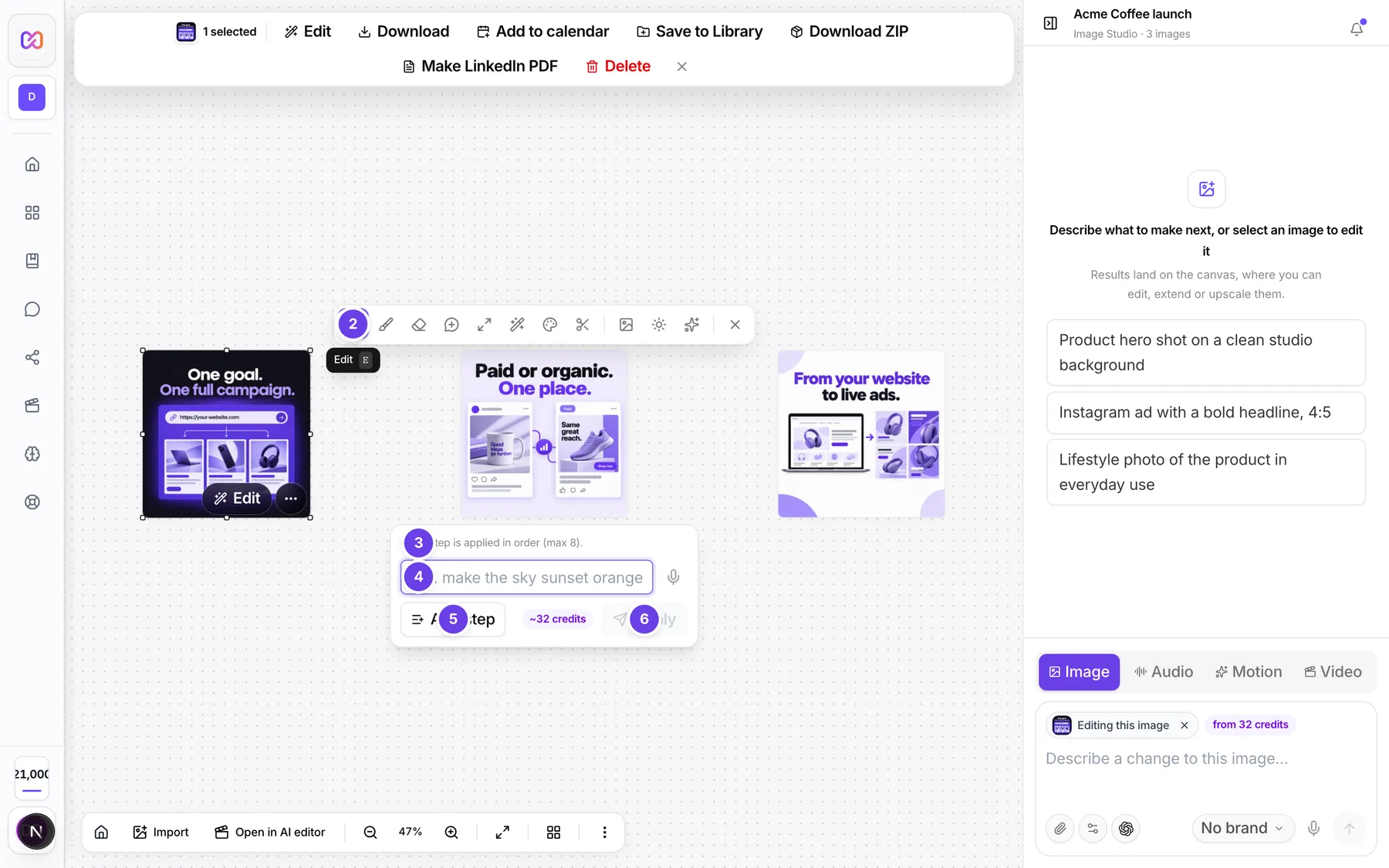
| # | Name in the app | What it does | Plan |
|---|---|---|---|
| 1 | Image editing tools | The toolbar under the selected image. Edit is the first tool. | Both |
| 2 | Edit | Opens the step editor. Keyboard shortcut: E. | Both |
| 3 | Each step is applied in order (max 8). | The hint line at the top of the step editor. | Both |
| 4 | e.g. make the sky sunset orange | The first step box. Later boxes read Step 2, Step 3 and so on. Press Enter to apply. | Both |
| 5 | Add step | Adds another step box. It is disabled at the maximum. | Both |
| 6 | Apply | Runs every step in order. Shows a price chip beside it. | Both |
| Remove step 2 | The X beside a step box. Shows once you have more than one step. The number follows the step. | Both | |
| Editing this image | A chip above the chat prompt box while an image is the target. | Both | |
| Stop editing this image | The X on that chip. The next prompt makes a new image. | Both | |
| Dismiss error | The X on a red message in the toolbar. | Both | |
| Continue editing this image | On Home. A card for your last image. Click it and your next prompt edits that image. | Both | |
| Hide this suggestion | On Home. The X on that card. | Both |
#How to edit with the Edit tool
- Select the image and click Edit.
- Type the first change in the first box, for example "make the sky sunset orange".
- Optional: choose Add step for more changes. Each box is one step.
- Read the price chip next to Apply.
- Choose Apply. The new version appears next to the old one, joined by an arrow.
#How to edit from the chat panel
- Click the image on the canvas. The Editing this image chip shows above the prompt box and the placeholder reads Describe a change to this image...
- Type the change.
- Choose Send.
A message in the chat panel goes to the studio assistant first. Its reply is charged by the words it reads and writes, on top of the edit price, so the chip reads "from" the edit price.
#How to edit the last image from Home
- Make an image on Home.
- Choose Continue editing this image.
- Write the change and send it. The studio edits that image.
#Options explained
Steps. One edit can hold several steps. They run in order. Write each as its own short instruction.
Price chip. It turns red and reads (over the limit) when one request would cost more than the cap. Choose fewer images or a lower quality.
Go back. Every edit keeps the old version. In the Image actions menu, choose Use this version to make an older picture the newest. That is free.
Quality. Full-image edits start on High. See quality levels.
#Limits
- One edit holds up to 8 steps.
- If you queue more than 8 steps against one image in a short time, extra steps are refused until earlier ones finish.
- One edit request can cost at most 100 credits.
#When something goes wrong
| Message in the app | What it means | What to do |
|---|---|---|
| An edit may request at most 8 steps; got N. | You wrote more steps than the limit. | Split the work into smaller edits. |
| Too many edit steps | The toolbar refuses more than the step limit. The full message adds that you should keep it to 8 or fewer. | Remove steps. |
| Too many edits queued against this image in a short time | You sent steps faster than they finish. The full message names the ceiling of 8 steps. | Wait for the earlier edits to finish. |
| This batch could cost up to N credits (N images at N credits each). One request can cost at most 100 credits. | The edit passes the limit for one request. | Pick fewer images or a lower quality. |
| The image service refused this for safety reasons. Nothing was charged. | The safety system refused the edit. | Reword it. |
| Couldn't edit this image. | The edit failed and the app has no more detail. | Try again. |
| Parent image asset not found in this workspace/project. | The image you are editing was deleted. | Refresh the canvas and select an image that still exists. |
| Could not read the parent image for editing. | The source picture could not be loaded. | Try again in a moment. |
| That model is Pro-only. Upgrade to use it. | You are on Free and the engine is Pro only. | Pick another engine or upgrade. |
#Questions
#Does editing replace my picture?
No. Every edit makes a new picture and keeps the old one. See versions.
#Can I see the price first?
Yes. The price chip shows next to Apply. Free edit tools, such as Resize, show a Free pill.
#What is the difference between the Edit tool and the brush tools?
Edit changes the whole picture from your words. Markup, Erase and Comment change one area. See edit a selected area.
#Can I edit many images at once?
Yes. Select several and choose Batch edit. See number of images.
#Why does my chat message cost a little more than the chip?
A chat message goes to the studio assistant first, and its reply is charged too. That is why the chip says "from".
Last checked against the app on . View as Markdown