
Read your analytics and reports
See results for your posts, messages and ads, ask the AI analyst about them, and get a daily, weekly or monthly report by email or Slack.
#What it is
Analytics shows how your posts, your messages and your ads are doing, with an AI analyst you can ask questions. Report is a separate page that sums up a day, a week or a month in plain words, tells you what to fix, and can arrive by email or Slack.
The Analytics page has three tabs: Posts, Messages and Ads. Numbers for posts and messages are read from your connected accounts when you open the page. Nothing is faked: a source that is not connected says so and asks you to connect.
#Who can use it
Free and Pro accounts both see Analytics and Report. The code has no plan check on either page.
Numbers only appear for accounts you have connected. Connecting accounts is a Pro feature, so a Free account with nothing connected sees the connect prompts instead of numbers. See Connect your social accounts.
The AI analyst spends credits, so on a team it needs a role that can spend credits. Viewer and Commenter roles cannot use it.
#Cost
Mixed. Reading Analytics and Report, changing the date range, downloading CSV files, printing the PDF, and sending a report to your email or Slack are free, no credits.
The AI analyst uses credits for each answer. The app does not show a price before you ask. After each answer it shows the credits charged in a line under the chat. One answer never costs more than 10 credits. If the analyst cannot answer, you are not charged. See Price before you confirm for how credit prices work elsewhere in the app.
#Where to find it
Open Distribution, then Analytics. The address is /distribution/results. Choose the Posts, Messages or Ads tab. The tab shows in the address as ?tab=posts, ?tab=messages or ?tab=ads.
For the weekly report page, open Distribution, then Report. The address is /distribution/report.
The best time to post heatmap sits inside the Posts tab. It has its own page: Best time to post.
Pick the brand in the brand switcher at the top of the left menu first. All numbers belong to the brand you picked.
#Buttons and controls
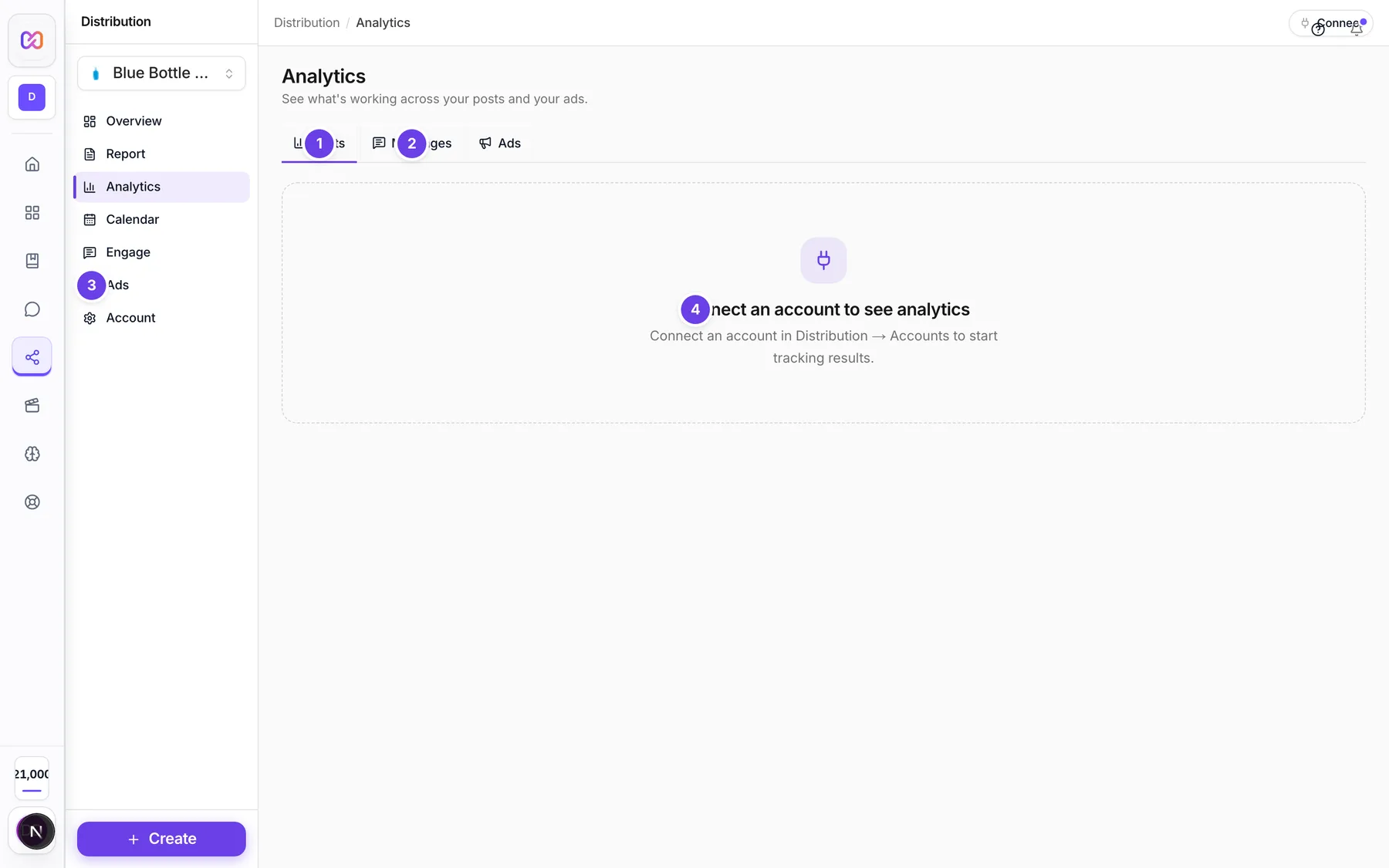
The first rows are what you see on Analytics when no account is connected. The rows without a number show only when you have connected accounts.
| # | Name in the app | What it does | Plan |
|---|---|---|---|
| 1 | Posts | Tab for results of your published posts. | Both |
| 2 | Messages | Tab for message volume and reply times. | Both |
| 3 | Ads | Tab for spend, clicks and results from your ad accounts. | Both |
| 4 | Connect an account to see analytics | The prompt on the Posts tab when no social account is connected. On the Ads tab the prompt reads No ad account connected, with a Connect an ad account button. | Both |
| All platforms | Posts tab. Filters every number to one connected platform. Platforms you have not connected show Connect, or Soon if they are not available yet. | Both | |
| 7D, 15D, 30D, 60D, 90D, 6M, 1Y | Posts and Messages tabs. The date range. | Both | |
| Download CSV | Posts tab. Saves the posts in the range as a CSV file. Greyed out when there are no posts. | Both | |
| Refresh | Reloads the numbers. | Both | |
| Engagement rate, Reach, Impressions, Followers, Posts, Best post | Posts tab. The top tiles. Arrows show the change against the period before. | Both | |
| Metric | A list on the chart named after your pick, for example Likes over time. Choose Likes, Comments, Shares, Saves, Views, Impressions, Reach or Clicks. | Both | |
| Engagement rate | Part of the Engagement over time card. Tick metric buttons to compare them. | Both | |
| Write a report | In the AI analyst box. Writes a short report in markdown from the numbers on the page. | Both | |
| What performed best? | A suggested question under AI analyst. The others are Which format should I post more?, When should I post? and Write a monthly summary. | Both | |
| Ask | The send button next to the question box. Enter also sends. Shift and Enter makes a new line. | Both | |
| Dismiss | Closes the line that shows the credits charged. | Both | |
| Received, Sent, Read, Failed, Conversations, Median response | Messages tab. The top tiles. | Both | |
| Last 7 days, Last 30 days, Last 90 days, Custom | Ads tab. The date range, with From and To boxes for Custom. | Both | |
| Refresh results | Ads tab. Reloads ad results. | Both | |
| Download results as CSV | Ads tab. Saves the campaign table. | Both | |
| By ad, By launch week | Ads tab. Switch between best and tired ads, and groups of ads by launch week. | Both |
On the Report page:
| Name in the app | What it does |
|---|---|
| Daily, Weekly, Monthly | Picks the period. Daily compares yesterday with the day before. Weekly and Monthly compare with the period before. |
| Earlier, Report day, Later | Steps back to an older period, or pick a day. The newest day you can choose is yesterday. |
| Refresh | Builds the report again. |
| Opens your browser print window with an A4 version of the report. | |
| In one line | The headline sentence for the period. |
| Posts published, Unread messages, New leads, Scheduled next 2 days | Quick tiles. |
| What to fix | Up to a handful of steps, each a link to where you fix it. It says Nothing to fix when all is well. |
| What happened | A few plain sentences about the change. |
| Posts, Ads | Sections with metric tiles, your top post, your best ad and ads that spent money with no leads. |
| Get this report automatically | The delivery box. See below. |
| How often, On, At, Send to, Time zone | Delivery settings. |
| Also email | Extra email addresses. |
| Slack incoming-webhook link | Where a Slack report goes. |
| Save | Saves delivery settings. |
| Send it now | Sends the report for the period you are viewing, right away. |
| Client branding | Opens branding for the PDF. |
#How to read your post results
- Open Distribution, then Analytics. You land on Posts.
- Choose All platforms to narrow the numbers to one platform.
- Pick a range such as 30D.
- Read the top tiles, then the charts and tables below. Top performing posts lists every post in the range. Click a column heading to sort.
- Choose Download CSV to take the posts into a spreadsheet.
#How to ask the AI analyst
- On the Posts tab, scroll to AI analyst. It uses only the numbers on the page for the platform and range you picked.
- Type a question, or choose one of the suggestions.
- Press Enter or choose Ask.
- Read the answer. The line under the chat shows the credits charged, the platform and the range.
- For a full summary, choose Write a report instead.
#How to get a report by email or Slack
- Open Distribution, then Report.
- In Get this report automatically, choose How often: Every day, Every week, Every month or Off. For Every week, choose the day in On.
- Choose the hour in At, and your Time zone, for example
Asia/Kolkata. - Choose Send to: Email, Slack, Email and Slack or Nowhere (off).
- For email, add up to 10 extra addresses in Also email, separated by commas. You always get it at your account email.
- For Slack, paste the incoming-webhook link. In Slack, go to Apps, then Incoming Webhooks, add one to a channel and copy the link.
- Choose Save. The box shows when the next report goes out.
- To test, choose Send it now. A message tells you where it was sent.
#How to put a client's branding on the PDF
- On the Report page, choose Client branding.
- Tick Put my client's brand on the PDF.
- Fill in Brand name, Logo link (an https link to an image), a Colour and a Footer note. Tick Hide "Made with Infinall" if you want it gone.
- Choose Save branding.
- Choose PDF at the top of the page to print or save the report.
#Options explained
Posts tab. The tiles show engagement rate, reach, impressions, followers, post count and your best post. Charts show posts over time, a metric you pick over time, and engagement over time. Other cards show content format, platform breakdown, your top posts, posting frequency against engagement, and how engagement builds up after a post goes out. Best time to post is the heatmap, explained on its own page. Times in it are UTC.
LinkedIn. LinkedIn shares totals for your whole profile, not post by post. They count in the charts and totals, but the posts tables only list posts with their own numbers.
Messages tab. Counts of messages received, sent, read and failed, how many conversations, and your median reply time. Cards show messages over time, messages per platform, response time, top accounts by volume, the busiest hours (UTC) and your most active conversations.
Ads tab. A health strip above the results shows Pacing, Learning phase, Delivery, Frequency and Leads. Tiles show Spend, People reached, Clicks, Click rate, Cost per 1,000 views and Results, followed by a By campaign table. Best and tired ads shows which ads bring results for the least money and which have gone stale.
Report period. Daily is yesterday against the day before. Weekly is the last week against the week before. Monthly is the last month against the month before.
Delivery defaults. Until you save settings, a brand that has a connected account gets a daily email at 9 on the 24 hour clock. The report checks every hour for reports that are due.
Ads weekly email. Separate from the Report page, accounts with a connected ad account also get a weekly ads report email on Friday at hour 17 (24 hour clock) in the workspace time zone. The Report page has no setting for it.
#Limits
- The AI analyst question box takes up to 600 characters.
- The analyst sees the last 6 messages of the chat for context.
- One analyst answer is charged at most 10 credits.
- Extra report recipients: up to 10 addresses.
- The report shows up to 6 sentences under What happened and up to 5 steps under What to fix.
- Brand name on the PDF: up to 80 characters. Footer note: up to 300 characters.
- The Ads tab campaign table shows the first 50 campaigns.
- You cannot pick a report day later than yesterday.
#When something goes wrong
| Message in the app | What it means | What to do |
|---|---|---|
| Connect an account to see analytics | No social account is connected for this brand. | Connect one under Account, then Accounts. |
| No ad account connected | No ad account is connected, so the Ads tab has nothing to show. | Choose Connect an ad account. |
| Connect an account first (the message goes on to say there is no data to analyse yet) | You asked the analyst with nothing connected. | Connect an account first. |
| Ask a question first. | The question box was empty. | Type a question. |
| Could not load analytics. | The Posts tab could not load. | Choose Refresh. |
| Could not load inbox analytics. | The Messages tab could not load. | Choose Refresh. |
| Could not load results. | The Ads tab could not load. | Choose Refresh results. |
| Analytics temporarily unavailable. | The data source did not answer. | Try again in a few minutes. |
| Some figures could not be loaded. What is shown is still accurate. | Part of the data is still loading from the platform. | Refresh later. |
| The analyst could not answer right now. You were not charged. | The AI analyst failed. | Ask again. |
| Could not answer right now. | The analyst call failed on your screen. | Your question is put back in the box. Ask again. |
| Insufficient credits | Your balance is too low for an analyst answer. | Add credits. See Credit balance. |
| Couldn't build the report. Try again. | The Report page could not load. | Choose Try again. |
| Couldn't load delivery settings. | The delivery box could not load. | Reload the page. |
| Couldn't save. Check the fields and try again. | A delivery setting is not valid. | Check the fields and save again. |
| Add a Slack link first, or choose email only. | You picked Slack with no link saved. | Paste a Slack link, or choose Email. |
| Paste a Slack incoming-webhook link (starts with https://hooks.slack.com/services/). | The link is not a Slack webhook link. | Copy the link from Slack again. |
| Up to 10 extra email addresses. | You listed too many extra recipients. | Remove some addresses. |
| That time zone is not recognised. | The time zone name is wrong. | Use a name like Asia/Kolkata. |
| Couldn't send the report. | Send it now failed. | Check your delivery settings and try again. |
| Colour must be a hex value like #6B3FE7. | The branding colour is not valid. | Use a six digit hex colour. |
| The logo must be an https image link. | The logo link is not https. | Use an https link to an image. |
| Couldn't save branding. | Branding did not save. | Try again. |
#Questions
#Where is the weekly report?
On the Report page, not on Analytics. Choose Weekly at the top to see the last week. Use Get this report automatically to have it sent every week.
#Why are my numbers empty?
Analytics reads from connected accounts. With nothing connected you see connect prompts instead of numbers.
#Does the AI analyst make things up?
It is told to use only the numbers on the page and to say what is missing when the data cannot answer. It uses the platform and range you picked, so check the line above the chat.
#What does the AI analyst cost?
Each answer is charged after it is written, and the amount shows under the chat. One answer is never more than 10 credits. A failed answer is free.
#Can I send the report to a client?
Yes. Add their address in Also email, and use Client branding for the PDF. The PDF opens in your browser print window, so you can save it as a file.
#Why can I not pick today on the Report page?
The newest day you can choose is yesterday, so the report covers complete days.
#Where is the best time to post?
It is a heatmap in the Posts tab. See Best time to post.
Last checked against the app on . View as Markdown