
Edit a selected area
Brush or click an area, then change it, erase it, pin a note on it or remove the background.
#What it is
These tools change only part of an image. You mark the area with a brush, or click an object and let Infinall outline it, and then say what to do there.
#Who can use it
Everyone. Free and Pro both use Markup, Erase, Comment and Remove BG. On a team, editing needs the Editor role or higher.
#Cost
Mixed. Markup, Erase, Comment pins and Remove BG use credits. You see the exact price before you confirm, in a chip next to Apply or Send All. Outlining an object with Auto-select is free. A comment pin that only recolours something with one clear colour can be free, and its chip reads Free to a few credits. Nothing is charged if the edit fails.
#Where to find it
Select an image on the canvas and choose Edit on it. The toolbar named Image editing tools opens under the image. The tools are Markup, Erase, Comment and Remove BG. The shortcuts are B for Markup, X for Erase and C for Comment.
#Buttons and controls
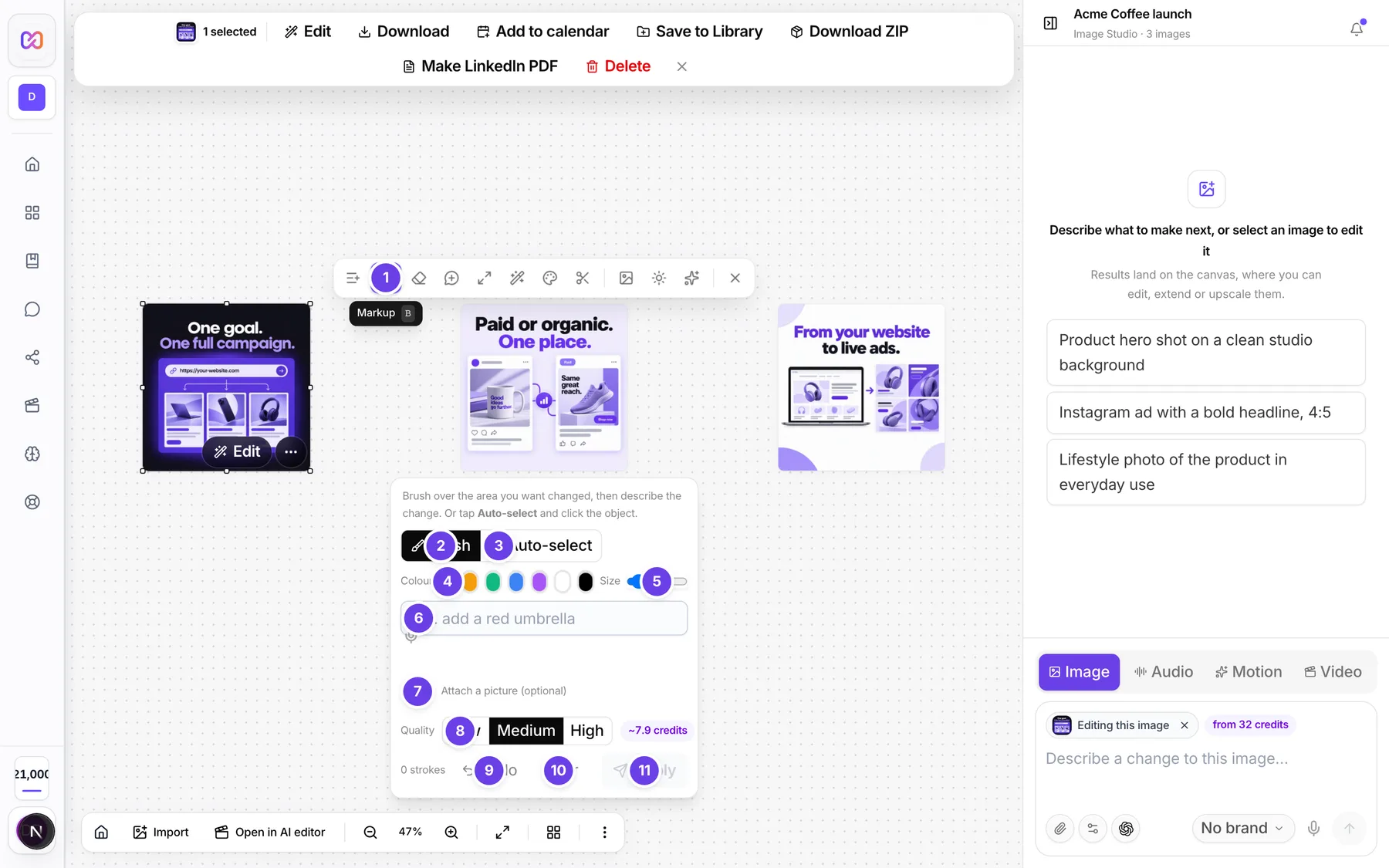
The Markup panel is shown here.
| # | Name in the app | What it does | Plan |
|---|---|---|---|
| 1 | Markup | Opens the Markup panel. Shortcut: B. | Both |
| 2 | Brush | The brush mode of the Selection mode switch. You paint the area. | Both |
| 3 | Auto-select | The auto mode. You click an object and Infinall outlines it. | Both |
| 4 | Colour | A row of seven colour dots for the brush. | Both |
| 5 | Brush size | A slider for how wide the brush is. | Both |
| 6 | e.g. add a red umbrella | The prompt box. Say what should happen in the marked area. | Both |
| 7 | Attach a picture to this edit | Adds a picture to the edit, for example a logo to place. | Both |
| 8 | Quality | Low, Medium or High for this edit. Starts on Medium. | Both |
| 9 | Undo last stroke | Takes back the last brush stroke. | Both |
| 10 | Clear | Removes all strokes. | Both |
| 11 | Apply | Runs the edit. Shows the price chip. | Both |
| Erase | Opens the Erase panel. Shortcut: X. It has Erase brush size and Undo last erase stroke. | Both | |
| Comment | Opens the Comment panel. Shortcut: C. | Both | |
| Remove BG | Opens the Remove BG panel with Quality and Apply. | Both | |
| Selection ready | A tag after Auto-select finds an object. | Both | |
| reset | Beside Selection ready. Clears the outline. | Both | |
| N strokes | A count of brush strokes in the panel. | Both |
#How to change a part of an image with Markup
- Select the image, choose Edit, then Markup.
- Mark the area. Brush over it, or choose Auto-select and click the object.
- Type what should happen, for example "add a red umbrella".
- Optional: choose Attach a picture to this edit, change Quality, or pick a Colour.
- Read the price chip and choose Apply.
#How to outline an object with Auto-select
- In Markup or Erase, choose Auto-select.
- Click the object. Infinall outlines it and shows Selection ready.
- To remove a part from the outline, hold Alt or Shift and click that part.
- To start over, choose reset, or choose Brush to paint by hand.
#How to erase something
- Select the image, choose Edit, then Erase.
- Brush over it, or use Auto-select.
- Choose Apply. Infinall rebuilds the background where the object was. It does not add new objects, people or text.
#How to drop pins with Comment
- Choose Comment.
- Click the image to drop a pin. A small box opens.
- Type a note in Add a note..., then choose Done. Delete removes the pin.
- Add more pins if you like. The panel shows how many steps are pending, or No pending steps.
- Choose Send All. Each pin with a note runs as one step.
For a pin, Infinall first finds the object under it. While it works you see Finding the object..., then Object selected. If you would rather edit a round area, choose Use a circle and move the Edit area size slider.
#How to remove a background
- Select the image, choose Edit, then Remove BG.
- Choose a Quality and check the price.
- Choose Apply. The panel says it removes the background and keeps the main subject.
#Options explained
Brush or Auto-select. The brush paints by hand. Auto-select outlines an object in one click. When an outline is ready, brush strokes are ignored until you choose reset.
Brush sizes. The Markup brush goes from 2 to 40. The Erase brush goes from 4 to 80.
Order of Send All. Pins run first, then erases, then Markup.
Quality. Markup, Erase, Comment pins and Remove BG start on Medium. See quality levels.
Remove BG result. It can return a plain white background instead of see-through pixels, and very light subjects can lose some detail.
#Limits
- Send All runs up to 8 steps at once.
- One edit request can cost at most 100 credits.
- A comment pin or Markup edit can carry up to 6 attached pictures.
#When something goes wrong
| Message in the app | What it means | What to do |
|---|---|---|
| No confident selection | Auto-select could not find a clear object. The full message suggests another point or the brush. | Click a different point, or use Brush. |
| Coordinates out of image bounds. | The click was outside the picture. | Click inside the image. |
| Auto-select needs an image with native dimensions. | The image has not finished loading. | Wait a moment and try again. |
| Auto-select failed | Auto-select could not run. The full message says it falls back to the brush. | Use Brush. |
| Too many steps (N). Cap is 8. | You have more pending pins and strokes than Send All allows. | Remove some, or run them in two rounds. |
| Could not upload that picture. | The attached picture failed to upload. | Try again with a JPEG, PNG or WebP. |
| The image service refused this for safety reasons. Nothing was charged. | The safety system refused the edit. | Change the request. |
| Couldn't edit this image. | The edit failed. | Try again. Nothing is charged. |
#Questions
#Is Auto-select free?
Yes. Outlining an object does not use credits. The edit you run on it does.
#Why is my Remove BG result white and not see-through?
Remove BG can return a plain white background. Very light subjects can also lose some detail.
#Can I undo a stroke?
Yes. Choose Undo last stroke, or Undo last erase stroke in Erase. Clear removes them all. Esc clears a selection.
#Can the edit change the rest of the picture?
Markup, Erase and Remove BG are meant to change only your area. A Comment pin with no outline changes the scene based on its note, so describe it clearly.
#How do I go back?
Every edit keeps the old version. Choose Use this version from the Image actions menu. See versions.
Last checked against the app on . View as Markdown