
Import media into the editor
Add videos, photos and sounds to the Media panel by upload, drag and drop, screen recording, your other projects, the Library or Open in AI editor.
#What it is
The Media panel is where your files live for one editor project. You bring videos, photos and sounds in here, then drag them onto the timeline. Files you add are saved with the project.
#Who can use it
Everyone. The app does not check your plan for importing, recording, or copying files from other projects, so Free and Pro get the same options. On a team, adding files needs the Editor role or higher. A Viewer can look but cannot add or remove files.
#Cost
Free, no credits. Uploading, recording, and copying files from your Projects, the Library or Image Studio never use credits. Open in AI editor does not generate or charge anything.
#Where to find it
Open the editor and start or open a project. See open the editor. On the narrow strip at the far right, choose Media. The panel opens next to the preview. It is the section that opens first.
The same strip also has Projects and Library, which bring in files from elsewhere in Infinall.
#Buttons and controls
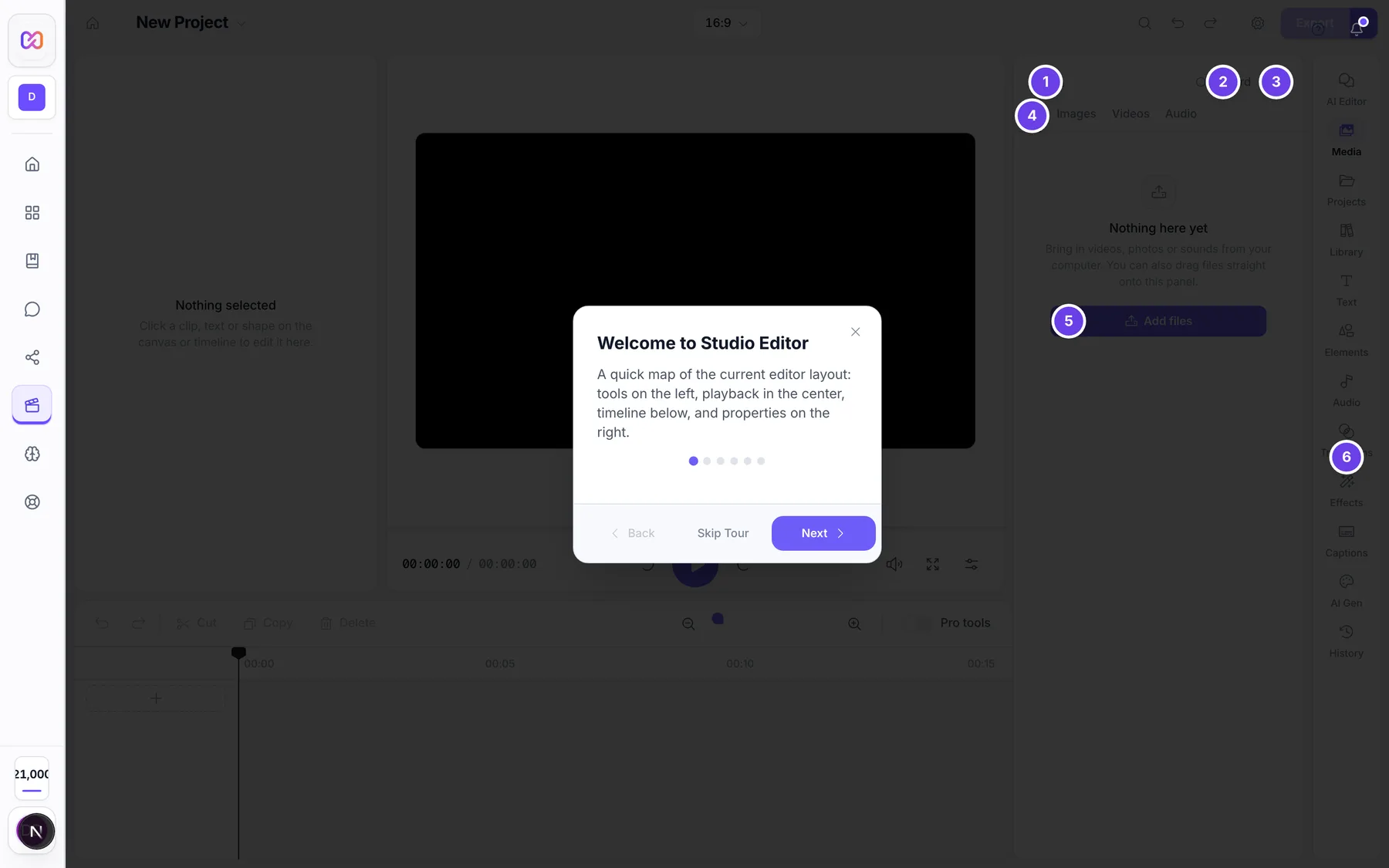
| # | Name in the app | What it does | Plan |
|---|---|---|---|
| 1 | Media | The panel heading. | Both |
| 2 | Record | Opens the Screen Recording window. Its tooltip reads "Record your screen or camera". | Both |
| 3 | Sort by name A to Z | Sorts the files by name. Click again for Sort by name Z to A, then again for Turn off sorting. | Both |
| 4 | Kind of media | Four tabs: All, Images, Videos and Audio. | Both |
| 5 | Add files | Shows in the empty panel, under Nothing here yet. It opens your computer's file picker. You can pick many files at once. | Both |
| 6 | Editor sections | The strip at the far right. Choose Media, Projects or Library here. | Both |
| Upload | A dashed tile that opens the file picker. It shows as the first tile once the project has files. | Both | |
| Drop to add | A label that shows over the panel while you drag files onto it. Drop to import them. | Both | |
| Add to video | A round plus button on a file when you hover it. It puts the file on the timeline. Double-click or drag does the same. | Both | |
| Change this picture with AI | On a hovered photo. Opens Edit image with AI. | Both | |
| Remove from project | On a hovered file. Removes it from the media bin. | Both | |
| Add | On a touch screen only. A button under each file that does the same as Add to video. | Both | |
| File missing | A tag on a file whose original is gone. The hover button reads Find file. | Both | |
| Find files | In the warning that reads "N files are missing". Pick the folder that holds them. | Both | |
| Show missing | In the same warning. Shows only the missing files. It turns into Show all. | Both | |
| Smoother preview | A box under the gallery when you select a video. Makes a lighter copy for smooth playback. | Both |
Each tile also shows a chip for the kind (Video, Sound or Photo) and, for video and audio, the length.
#How to upload files
- Choose Media on the section strip.
- Click Add files if the panel is empty, or the Upload tile if it already has files.
- Pick one or more files in your computer's file picker.
- Watch the panel. It shows Importing media... and then the name and count, for example "Importing clip.mp4 (1/3)...".
- When it finishes you see File added, or the number of files added.
#How to add files by drag and drop
- Drag files from your computer onto the Media panel.
- When Drop to add shows, let go.
#How to put a file on the timeline
- Hover the file and click Add to video, or double-click it, or drag it onto a track.
- If this is the first video on an empty timeline and its shape differs from your project, a window titled This video is a different shape asks you to pick. Choose Keep my project shape or Use the video's shape.
#How to record your screen or camera
- In the Media panel, click Record.
- In Screen Recording, pick a Resolution and a Frame Rate.
- Switch System Audio and Microphone on or off.
- To record your camera too, switch Webcam recording on and pick a Webcam Resolution.
- Click Start Recording. Your browser asks for permission. Then a countdown of 3 seconds runs.
- While you record, use the floating controls: Pause recording, Resume recording, Stop recording, Cancel recording and Minimize controls.
- Click Stop recording. The recording is added to the Media panel as Screen_ followed by a time stamp. The camera video is a separate file named Webcam_ followed by a time stamp, so you can place it on its own track.
#How to use files from your other projects
- Choose Projects on the section strip.
- Search with Search your projects, or use the Kind of project chips: All, Campaign, Studio and Editor.
- Click a project. Use All projects to go back.
- Pick All, Images, Videos or Audio, then tick the files you want.
- Click Add to editor. The button shows the number you ticked, and Clear unticks them.
- The files are copied into this project and the panel switches to Media.
#How to use files from the Library
- Choose Library on the section strip.
- Type in Search the Library, or open a folder under Saved folders.
- Tick the pictures and videos you want and click Add to editor.
#How to send a Studio project into the editor
- Open a project in Image Studio.
- On the canvas toolbar, click Open in AI editor. On smaller screens only its icon shows.
- The editor opens with that project. A small card at the bottom left reads Adding from the studio: 1 of 5, with the names of the files in progress.
- Keep editing while it runs. Click Cancel to stop. When it finishes, click Close (the x) on the card.
Each Studio project gets one editor project. Opening it again adds only the files the editor does not have yet, so nothing is copied twice. The files go into the Media panel, never straight onto the timeline.
#Options explained
Supported files. The file picker accepts video, audio and images.
| Kind | Formats the editor reads directly |
|---|---|
| Video | MP4, WebM, MOV and MKV |
| Audio | MP3, WAV, OGG, AAC, FLAC and WebM audio |
| Images | JPG, PNG, WebP and GIF |
Some other video formats are converted for you when you import them. If that fails, you see Unsupported format with the list of formats.
Recording options.
| Setting | Choices |
|---|---|
| Resolution | 720p HD, 1080p Full HD, 1440p QHD, 4K Ultra HD |
| Frame Rate | 30 fps, 60 fps |
| System Audio | On or off. Only works in Chrome and Edge. |
| Microphone | On or off |
| Webcam Resolution | 480p, 720p, 1080p. Only shows when Webcam recording is on. |
Smoother preview. If a video is heavy, select it and use the Smoother preview box. Choose Preview quality: Up to 540p (Faster), Up to 720p (Balanced) or Up to 1080p (Clearer). Click Create preview proxy. When it is ready, switch between Original and Proxy. Remove cached proxy deletes it. Exports always use your original video. The box shows Recommended for very large videos.
Where the files are kept. Each file is kept in your browser and also uploaded to your account in the background, so it is still there when you reopen the project on another day or another computer.
#Limits
- One file can be up to 500 MB. The server refuses a bigger upload.
- A preview proxy cache holds up to 256 MB in your browser tab.
- Before copying a Studio video of 50 MB or more, the editor checks that your browser has free space for it.
- Open in AI editor copies 2 files at a time, oldest first.
- Recording starts after a countdown of 3 seconds.
#When something goes wrong
| Message in the app | What it means | What to do |
|---|---|---|
| Could not add (file name) | The file was refused. The reason shows under it. | Read the reason, fix the file and add it again. |
| Could not add (number) files | Several files were refused. The first reason shows under it. | Check the first reason. Others may have the same cause. |
| Unsupported format | The file type is not supported. The full text lists MP4, WebM, MOV, MP3, WAV, AAC, JPG, PNG and WebP. | Convert the file to one of those and try again. |
| This AVIF image is not supported by your browser. Save it as JPEG or PNG and try again. | Your browser cannot read AVIF. | Save the picture as JPEG or PNG. |
| Browser storage is full | Your browser could not keep a local copy. The file is still kept on the server. | Free some space in the browser, or keep the original file. |
| This file is not saved anywhere durable | The file could not be kept locally or uploaded. | Keep the original file and add it again. |
| Recording failed | The recorder captured no video. The text reads No video data was captured. Please try again. | Record again. |
| Screen recording not supported | Your browser cannot record the screen. The text reads Your browser doesn't support screen recording. Please use Chrome, Edge, or Firefox. | Use one of those browsers. |
| Recording Error | The recorder stopped with an error. The reason shows under it. | Allow screen access in your browser, then try again. |
| No project is open | You tried to add files from Projects or Library with no project open. The full text reads Open or start a video first, then add files to it. | Start or open a project, then try again. |
| Your projects could not load | The list in Projects failed to load. | Click Try again. |
| That studio project was not found. | Open in AI editor could not find the Studio project. | Open the project in Image Studio again and retry. |
| Couldn't add the studio files | The copy from Image Studio failed. | Try Open in AI editor again. It only copies files that are still missing. |
| Couldn't open the AI editor. Please try again. | Image Studio could not make or find the editor project. | Click Open in AI editor again. |
#Questions
#Is there a file size limit?
Yes. One file can be up to 500 MB. The limit is checked when the file is uploaded to your account. The editor does not show a message for a refused upload. A bigger file can still appear in the Media panel for the session, but it may be missing when you open the project on another computer. Keep each file under the limit, or compress it first.
#Does importing cost credits?
No. Uploading, recording, and copying files from other projects are free. See price before you confirm for tools that do use credits.
#Do my files stay after I close the tab?
Yes. They are saved with the project, in your browser and in your account. If a file's original is missing, it shows File missing and you can use Find files to point the editor at the folder.
#Can I use pictures from Image Studio?
Yes. Use Open in AI editor on the Studio canvas, or choose Projects in the editor and pick the Studio project. See download and export for taking files out of Studio.
#Why is a video choppy in the preview?
Large videos can be heavy for your computer. Select the video and use Smoother preview. It only changes the preview. Your export still uses the original.
#Can I record just my camera?
The recorder always captures the screen. Switch Webcam recording on to also record your camera as a second file.
Last checked against the app on . View as Markdown