
Use your brand in Image, Video, Motion, Audio and Chat
Pick a brand with the brand chip in a composer so Infinall AI uses your logo, colours, voice and claims in that work.
#What it is
The brand chip is a small button in each composer. You pick a brand, and Infinall AI uses that brand's details in what it makes, so you do not have to describe your brand in every prompt.
#Who can use it
Everyone, on Free and Pro. The brand chip itself is not gated by plan. Whether the tool you use it in is available on your plan follows that tool's own rules.
Only brands with a confirmed version appear in the list. A brand you have not confirmed yet cannot be picked.
#Cost
Free, no credits. Choosing a brand costs nothing. The tool you are using charges its normal price, and it shows you the price before you confirm.
#Where to find it
- Image, Video, Motion and Audio: the brand chip sits in the composer on Home. In the studio it sits with the other controls for the project.
- Chat: the Brand Brain pill sits next to the plus button in the message box.
#Buttons and controls
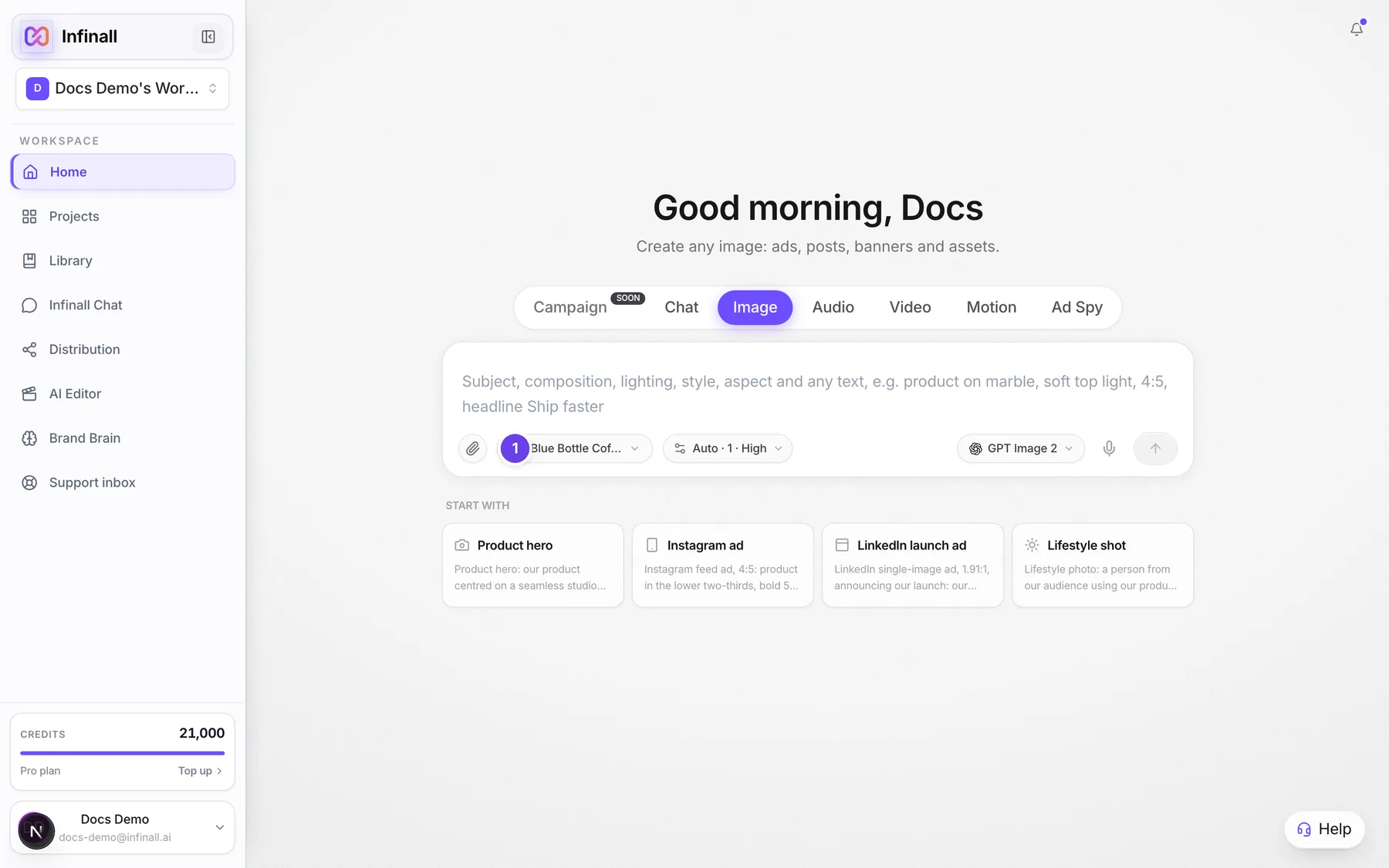
| # | Name in the app | What it does | Plan |
|---|---|---|---|
| 1 | Select brand | The brand chip when no brand is picked. Opens the brand list. In Chat this pill is called Brand Brain. | Both |
| 2 | Brand: (name) | The brand chip once a brand is picked. It shows the logo and name. On a narrow screen it shows the logo only. In the Image studio it reads Change brand (currently the name**)**. | Both |
| 3 | Search | Filters the list by name or website. The list opens in a Switch brand panel, and on a phone it slides up from the bottom. | Both |
| 4 | No brand | Clears the brand. Shows at the top of the list in Image, Video, Motion and Audio. In Chat it is called No Brand Brain. | Both |
| 5 | Brands | The list of your brands, one row per brand. Click one to pick it. Hover a row to see a live preview of the site. | Both |
| 6 | Add brand | Opens the add-a-brand step on Home. | Both |
| 7 | Manage all | On Home it opens a Brand Brain window where you can search, edit and hide brands. In the studio and Chat it opens the Brand Brain screen. | Both |
#How to use a brand
- Open the composer for the tool you want: Image, Video, Motion, Audio or Chat.
- Choose Select brand (the brand chip).
- Click your brand in the list. A tick shows the active one.
- Write your prompt and send as usual.
To stop using a brand, open the chip again and choose No brand. In Chat choose No Brand Brain.
In the studio, the brand you pick is saved on that project, so it stays when you come back. In Chat, the brand is saved on that chat.
#What each tool takes from your brand
Each tool reads the latest confirmed version of the brand.
- Image: your brand name and one-liner, voice and tone words, colours, positioning, tagline and words to avoid, and your first audience profile. If your prompt asks for your logo, Infinall AI is given your real logo file so it does not invent one.
- Video: your colours and the claims you have approved in your Brand Brain.
- Motion: your name, colours, logo, tagline and approved claims.
- Audio: your brand name and how to say it (from pronunciation overrides), tone, audience and approved claims, used when you ask for a script to be written. Music and jingle briefs also take a mood line from your brand. Text you type yourself is always spoken exactly as typed.
- Chat: your brand details are added as background for that chat's replies, and your real logo is attached when the chat makes images.
Anything you left empty in your Brand Brain is simply skipped.
#Options explained
Hidden brands. If you hid a brand from the Brand Brain list on Home, it still shows in every brand chip. Hiding only changes that one list. See Hide and restore a brand.
No brand. Image, Audio, Motion and Chat all work with no brand. Only a full campaign needs one, and Campaign docs are coming soon.
#Limits
- Only brands with at least one confirmed version can be picked.
- A brand outside your workspace cannot be used.
#When something goes wrong
| Message in the app | What it means | What to do |
|---|---|---|
| Couldn't change brand. | The studio could not save your brand pick on the project. | Pick the brand again. |
| This Brand Brain has no confirmed version yet. Confirm it first or choose No brand. | The brand you picked has never been confirmed. | Open Brand Brain, review the brand and choose Confirm, or choose No brand. |
| Brand Brain could not be loaded | Chat could not load the brand you picked. | Pick the brand again. |
| No brands yet | You have no brands to pick. | Choose Add brand. |
| Loading brands... | The list is still loading. | Wait a moment. |
| No brands found | Nothing matches your search. | Try a different name or website. |
| Preview unavailable | The live site preview in the list could not load. | You can still pick the brand. |
#Questions
#Do I need a brand to use these tools?
No. You can choose No brand in Image, Video, Motion, Audio and Chat.
#Why is my brand missing from the list?
Only brands with a confirmed version are listed. Confirm the brand on the Brand Brain screen first. Also check you are in the right workspace, because each workspace has its own brands.
#Does the brand change my images exactly?
It guides them. The tool is told your brand details, but results still depend on your prompt.
#Will it use my logo?
When your prompt asks for your logo, Image uses your real logo file. Motion uses your logo as part of the brand. Chat attaches your real logo when it makes images.
#Does my choice carry over between tools?
Each project and each chat remembers its own brand. Picking a brand in one place does not change the others.
#If I edit my brand, do old projects change?
Tools use the latest confirmed version, so new work picks up your changes after you confirm.
Last checked against the app on . View as Markdown