
Comments and pins on an image
Drop pins on an image, write a note on each, and send them all as edits in one go.
#What it is
The Comment tool lets you click on an image to drop a pin and write what should change at that spot. Each pin with a note becomes one edit. Send All runs every pin in one go and puts the results on the canvas as new versions.
#Who can use it
Everyone. The Comment tool is the same on Free and Pro. On a team, sending edits needs the Editor role or higher. A Viewer can look at the canvas but cannot send edits.
#Cost
Mixed. Dropping pins and writing notes is free. Send All makes new pictures and uses credits, one step per pin with a note. You see the exact price before you confirm. Some simple colour changes can be free, and the price shows Free to before the amount when that applies.
#Where to find it
Open a Studio project and select an image. Click Edit on the image, or double-click it. The edit toolbar opens above the image. Click Comment in it.
#Buttons and controls
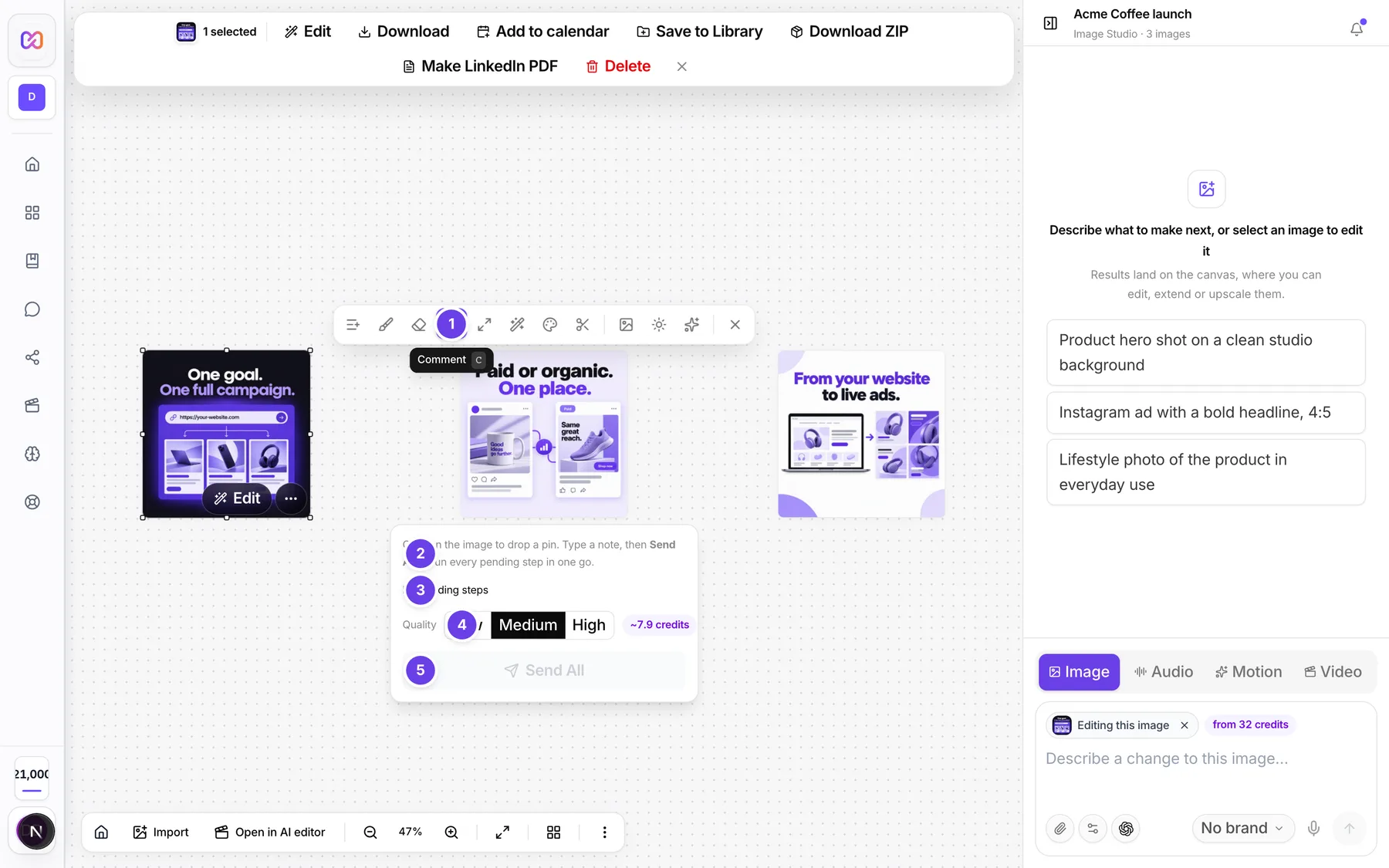
| # | Name in the app | What it does | Plan |
|---|---|---|---|
| 1 | Comment | Turns on pin mode in the edit toolbar. | Both |
| 2 | Click on the image to drop a pin. | The hint at the top of the Comment panel. Click anywhere on the image to put a pin there. | Both |
| 3 | No pending steps | Shows how many pins are waiting. It reads {n} steps pending once there are pins with notes. | Both |
| 4 | Quality | Switch with Low, Medium and High. Sets the quality of each result. | Both |
| 5 | Send All | Runs every pending step in one go. It is turned off until there is something to send. | Both |
| Add a note... | The box that opens when you drop a pin. Type what should change. | Both | |
| Attach a picture to this note | Adds a reference picture to one pin. | Both | |
| Done | The tick in the pin box. Closes the box and keeps the note. | Both | |
| Delete | The bin in the pin box. Removes the pin. | Both | |
| Edit area size | A slider named Area in the pin box. Sets how big the circle around the pin is. | Both | |
| Use a circle | Shows when Infinall AI picked an object under the pin. Switches to a plain circle instead. | Both | |
| Dismiss error | Closes a red message in the panel. | Both |
#How to drop pins and send them
- Select an image and click Edit on it.
- Click Comment.
- Click on the image where you want a change. A pin appears and a note box opens.
- Type the change in Add a note..., for example "make this mug red".
- Press Enter or click Done. The pin turns yellow and shows the start of your note.
- Add more pins the same way. Click a pin to change its note.
- Choose Low, Medium or High under Quality.
- Check the price in the panel, then click Send All.
The results arrive on the canvas as new images, joined to the original by arrows. See versions.
#How to change or remove a pin
- Click the pin. Its note box opens.
- Edit the words, or click Delete to remove the pin.
- Click Done when finished.
If you leave a pin with no words and click Done or press Esc, the pin is removed. An empty pin does not count and is not charged.
#Options explained
Order of steps. Send All runs comment pins first, then erase marks, then markup. All of them are counted together.
Pin area. Under a pin Infinall AI tries to find the object you clicked on. While it looks you see Finding the object.... When it finds one you see Object selected. If it cannot, it uses a circle, and the Area slider changes the circle size. Click Use a circle to ignore the object and use the circle.
Pin colours. A pin with a note is yellow. A pin with no note is white with a plus sign. The pin you are editing is black.
Quality has three levels: Low, Medium and High. Higher quality costs more. The panel shows the total at the chosen level.
Pins are not saved. They live on the canvas while you work. They are not stored with the project. If you leave the page before Send All, they are gone.
#Limits
- One Send All can run at most 8 steps. Each pin with a note is one step.
- A pin can carry reference pictures. An edit can use at most 6 extra pictures.
- Each reference picture can be up to 10.
- One request can cost at most 100 credits. A bigger one is refused before anything is charged.
#When something goes wrong
| Message in the app | What it means | What to do |
|---|---|---|
| Queue has {n} steps but the cap is 8. Remove some pins/masks before submitting. | You have more steps than one Send All can run. | Delete some pins, send, then add the rest. |
| An edit can use at most 6 extra pictures. | Too many reference pictures on the edit. | Remove some pictures. |
| The image service refused this for safety reasons. Nothing was charged. | The request was blocked by safety checks. | Reword the notes. |
| Insufficient credits. Purchase more to continue. | Your balance is too low. | Add credits, see your credit balance. |
| Parent image asset not found in this workspace/project. | The picture you are editing was deleted. | Refresh the canvas and pick a picture that still exists. |
#Questions
#Do pins cost credits?
Dropping a pin is free. Send All costs credits for each pin that has a note. The price shows before you confirm.
#Can a pin with no note change my image?
No. Only pins with words are sent, and only those are charged.
#Are these the same as comments from clients?
No. Pins are your own edit instructions on the canvas. Comments from reviewers belong to a shared campaign, see share and review.
#Do my teammates see my pins?
No. Pins stay on your screen and are not saved to the project.
#Does the keyboard letter C open the Comment tool?
The tool tip shows C, but the app has no key handler for it yet. Click Comment in the toolbar.
Last checked against the app on . View as Markdown