
Browse real ads in Discover
Search a library of real ad and design images and videos by topic, type or niche, then open one to download, save or clone it.
#What it is
Discover is a large collection of real ad and design images and videos. You search it, filter it, and open any item to see it full size.
#Who can use it
Everyone. Free and Pro get the same Discover search, folders, My creations and Clone. The code has no plan check on any of it.
#Cost
Free, no credits. Searching, opening, downloading and saving never use credits.
#Where to find it
Open Library in the sidebar, then choose the Discover tab. Spy is the first tab and opens by default.
#Buttons and controls
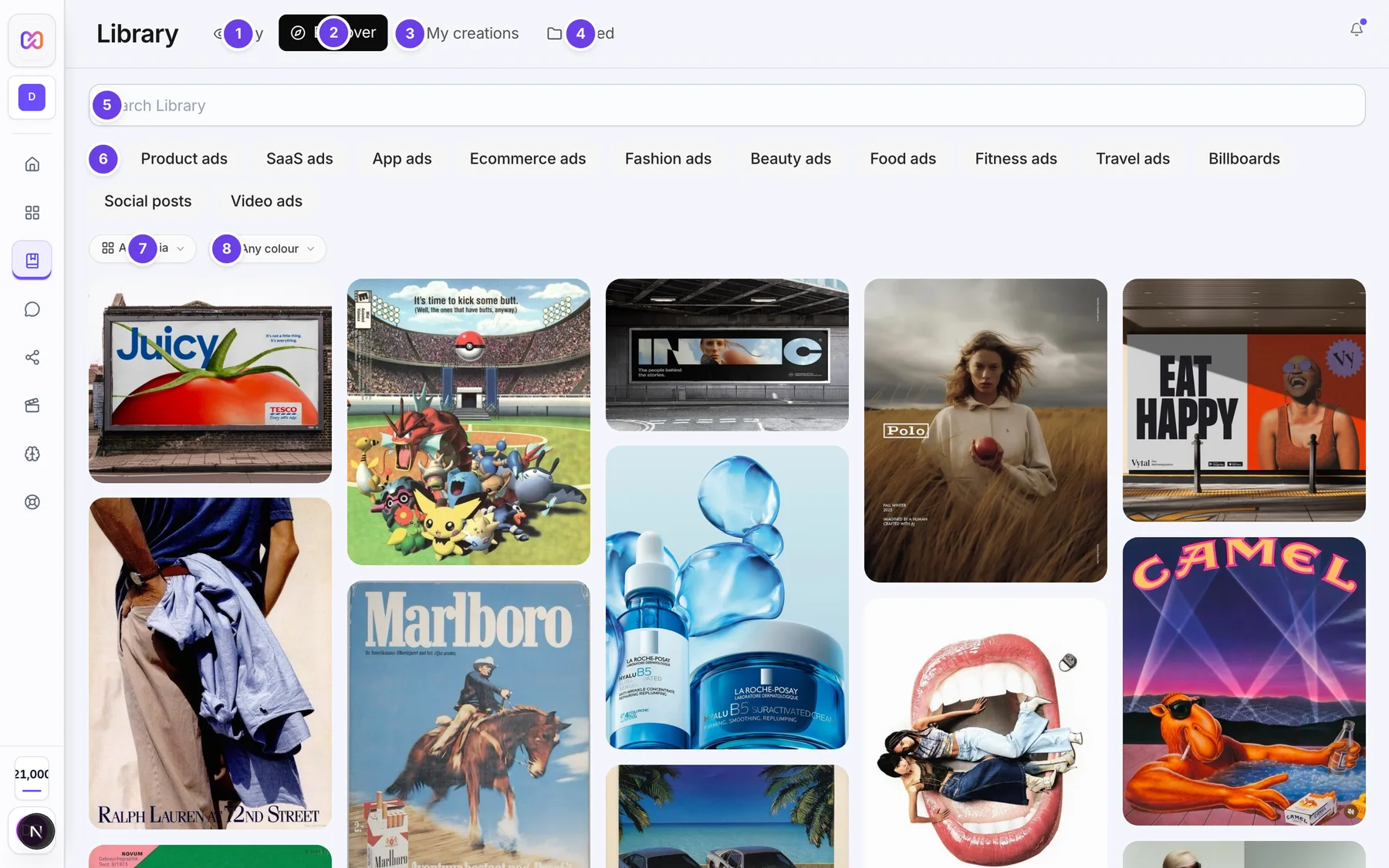
| # | Name in the app | What it does | Plan |
|---|---|---|---|
| 1 | Spy | Tab for competitor ads. See Search ads. | Both |
| 2 | Discover | This tab. | Both |
| 3 | My creations | Tab for what you made. | Both |
| 4 | Saved | Tab for your folders. | Both |
| 5 | Search Library | The search box. Results update shortly after you stop typing. | Both |
| Clear search | The X inside the search box. Empties it. Shows only when there is text. | Both | |
| 6 | Ideas | A row of 12 chips that fill the search for you: Product ads, SaaS ads, App ads, Ecommerce ads, Fashion ads, Beauty ads, Food ads, Fitness ads, Travel ads, Billboards, Social posts and Video ads. | Both |
| 7 | All media | Choose All media, Images or Videos. | Both |
| 8 | Any colour | A colour menu. See the note under Options. | Both |
| 9 | Save | On each tile, top right. Saves the item to a folder. | Both |
| 10 | Download | On each tile, bottom right. Downloads the file. | Both |
| Back | In an opened item. Closes it. | Both | |
| Previous | In an opened item. Shows the previous item. | Both | |
| Next | In an opened item. Shows the next item. | Both | |
| Close | In an opened item. Closes it. | Both | |
| Clone to project | In an opened image. See Clone into Image. | Both | |
| Add to calendar | In an opened item. Puts it on a calendar post. | Both |
#How to search
- Open Library, then Discover.
- Type what you want in Search Library, for example a product type.
- Wait a moment. The grid updates by itself.
- Scroll down. More items load as you reach the bottom.
#How to use a niche chip
- Under the search box, find Ideas.
- Choose a chip, for example Food ads. It fills the search.
- Choose the same chip again to clear it.
#How to filter by media type
- Open the All media menu.
- Choose Images or Videos.
- Choose All media to see both again.
#How to open an item
- Choose a tile.
- The item opens full size. A video plays there.
- On the right you see Download, Save, the title if there is one, whether it is an Image or Video, its length and size, and Saved by.
- Scroll down for More like this, a grid of similar items.
- Use Previous and Next to move on, or Back to leave.
#Options explained
Ideas chips. Each chip is a ready-made search such as "food ad". They are shortcuts, not separate categories.
Colour menu. The list holds Black, White, Gray, Red, Orange, Yellow, Green, Blue, Purple, Pink, Brown and Beige. Colour filtering is not reliable yet, so rely on the search box and the media type to narrow results.
Saved by. The name of the person who shared the item. If they have a public page, the name is a link.
More like this. Items related to the search you came from, or to the item itself.
Video tiles. A video tile shows its length, and plays a preview when you hover.
Stored results. Searches are stored for 12 hours so repeats open fast. Items are kept for 30 days.
#Limits
- The search box takes up to 100 characters.
- Results stop after page 100.
- The search waits 400 milliseconds after you stop typing.
- Items open from stored results. If one has dropped out of storage, search for it again.
#When something goes wrong
| Message in the app | What it means | What to do |
|---|---|---|
| Library is busy, try again in a few minutes | Too many requests right now. | Wait and search again. |
| Library is temporarily unavailable | The collection cannot be reached. | Try again later. |
| Reload the search | The page of results you asked for has expired. | Search again. |
| Something went wrong. Please try again. | A general failure. | Try again. |
| No results for "your search" | Nothing matched. | Try a different search or a niche chip. |
| Nothing to show yet | The grid is empty with no search. | Type a search or choose a chip. |
| Try a different search or a niche chip above. | The hint shown with an empty result. | Change the search. |
| Download failed | The file could not be downloaded. | Try again. |
| Loading more... | More items are loading. | Wait. |
#Questions
#Are the ads real?
Yes. Discover is a collection of real ad and design images and videos.
#Does searching cost credits?
No. Discover is free for everyone.
#Can I use these images in my own ads?
Treat them as inspiration. Each item shows who shared it under Saved by. Check you have the right to reuse an item before you publish it.
#Is Discover different from Spy?
Yes. Discover is a general collection of images and videos. Spy shows what a named competitor is running right now. See Search a brand or keyword.
#Why does a colour choice not change my results?
Colour filtering is not reliable yet. Use the search box and the media type to narrow results.
#How do I keep one I like?
Choose Save and pick a folder. See Save and organise.
Last checked against the app on . View as Markdown