
Projects, autosave, history and undo
Start, reopen, rename and delete editor projects, see how autosave and recovery work, find your past AI chats, and undo or redo changes.
#What it is
Every AI Editor video is a project saved to your account. This page covers starting and reopening projects, how autosave and recovery work, the History section with your past AI chats, and undo and redo.
#Who can use it
Everyone. The app does not check your plan for projects, autosave or undo. On a team, projects belong to the workspace. Creating, renaming and deleting needs the Editor role or higher. A Viewer can open projects but not change them. A project from another workspace shows as not found.
#Cost
Free, no credits. Saving, reopening, deleting and undoing never use credits.
#Where to find it
- AI Editor in the left menu, then the My projects tab.
- Inside a project, the project name in the top bar opens the project switcher.
- Also inside a project, the History section on the right strip lists your past AI chats.
- Projects with the mode Editor also show on the Projects page. Click one to open it.
#Buttons and controls
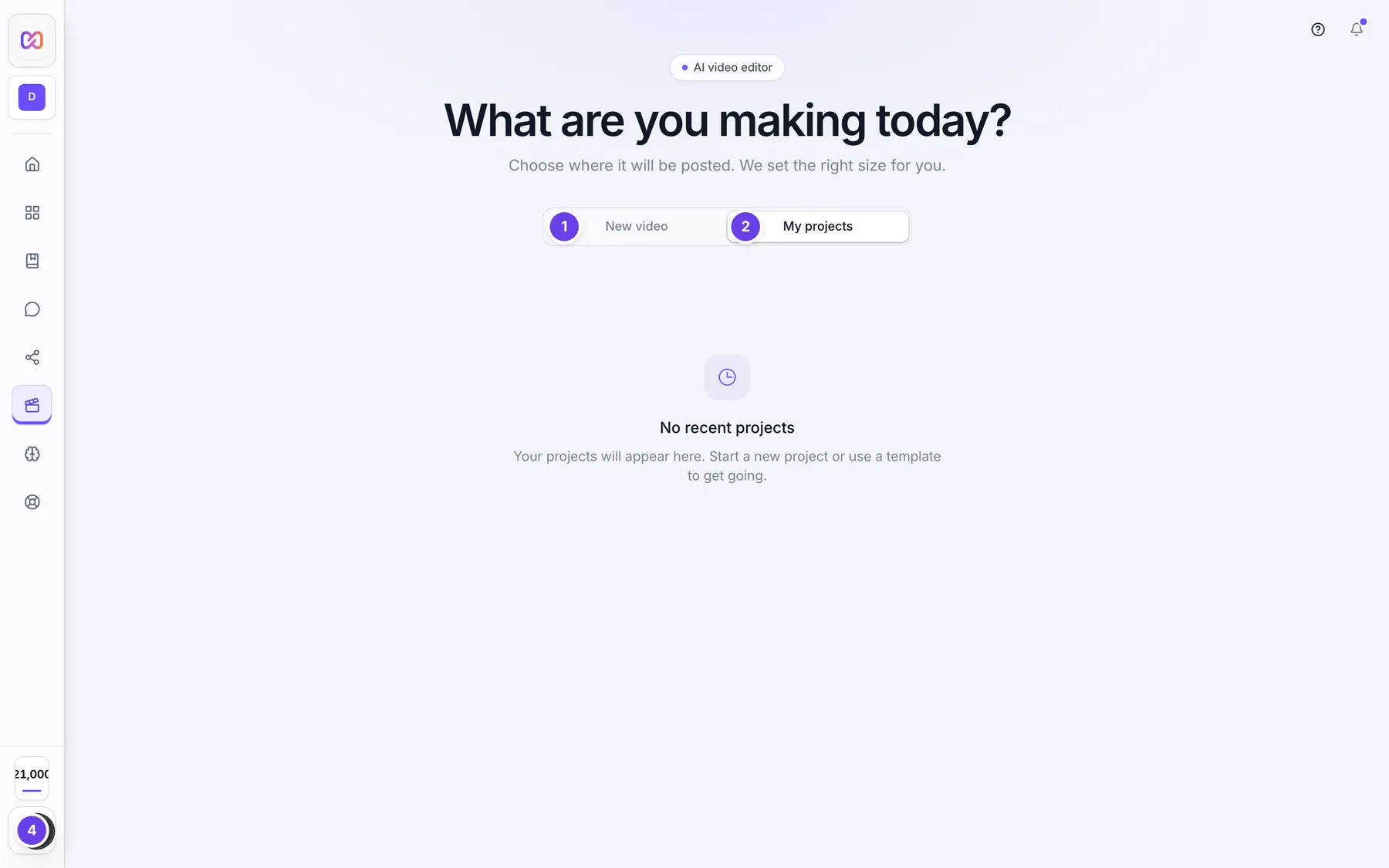
| # | Name in the app | What it does | Plan |
|---|---|---|---|
| 1 | New video | Tab with the size cards for a new project. See open the editor. | Both |
| 2 | My projects | Tab with your saved projects, newest first. | Both |
| 3 | Recent projects | The list heading. It shows the number of projects, for example (4). It shows when you have at least one project. | Both |
| 4 | Open (project name) | A card for one project with its name, when you last edited it, its length and its number of tracks. Click it to open the project. | Both |
| 5 | Delete project | A trash button in the corner of a card. It shows when you hover the card. It deletes the project at once. | Both |
| 6 | Saved automatically to your account. | A note under the list. | Both |
| No recent projects | Shows when you have no projects yet. | Both | |
| Couldn't load your projects | Shows if the list failed to load. Its button is Try again. | Both |
Inside a project:
| # | Name in the app | What it does | Plan |
|---|---|---|---|
| 1 | Back to home | Top bar. Goes to the welcome screen. Your project stays open. | Both |
| 2 | Project: (your project name) | Top bar. Opens the project switcher. The full name reads "Project: name. Click to switch projects." | Both |
| 3 | Undo | Top bar. Undoes your last change. | Both |
| 4 | Redo | Top bar. Brings back a change you undid. | Both |
| 5 | Settings | Top bar. Opens the settings window, where Auto-Save lives under General. | Both |
The project switcher window holds these:
| # | Name in the app | What it does | Plan |
|---|---|---|---|
| 1 | Current Project | Heading over the name of the open project. | Both |
| 2 | Rename project | A pencil next to the name. It turns the name into a box. | Both |
| 3 | Save project name | The check mark next to the box. Press Enter to save, or Esc to cancel. | Both |
| 4 | New Project | Starts a blank project. The card says Start fresh with a new canvas. | Both |
| 5 | Recent Projects | A list of other projects with Open (name) buttons. It only shows when your browser holds unsynced local saves. See the notes below. | Both |
#How to start a new project
- Open AI Editor from the left menu.
- On New video, pick a size card, Custom or Empty canvas.
- The project is created and saved as you work. See open the editor.
To start another project while you are inside one, open the project switcher and click New Project.
#How to reopen a project
- Open AI Editor from the left menu.
- Click My projects.
- Click the project card. The editor opens the newest copy of the project.
Other ways to reopen:
- Continue editing on the New video tab opens your last unfinished project. See open the editor.
- The Projects page opens an Editor project with one click.
- You can open an address of this form:
/ai-editor/editor?project=<project id>. The address of an open project always includes its id, so a reload, a restored tab or the browser's back button reopens the same project.
#How to rename a project
- Click the project name in the top bar.
- Click Rename project.
- Type the new name and press Enter, or click Save project name.
- Press Esc to cancel. An empty name is ignored.
#How to delete a project
- Go to AI Editor and click My projects.
- Hover the project card.
- Click Delete project.
The card disappears right away and the project is deleted from your account, along with the files you added to it. The app does not ask you to confirm and has no undo for this. If the delete fails, the card comes back.
#How autosave works
You do not press Save. The editor saves for you:
- A couple of seconds after each change, it saves a copy in your browser and then sends it to your account.
- When you switch to another tab or close the tab, it keeps a last copy so the latest edits survive.
- If the connection drops, a warning reads Saving to the cloud failed. Your edits stay in the tab and the editor keeps retrying. The warning goes away when a save works.
To change autosave, click Settings in the top bar, stay on General, and find Auto-Save. Enable auto-save turns it on or off. Save every sets how often the editor also saves on a timer, whatever you pick: 1 minute, 2 minutes, 5 minutes, 10 minutes, 15 minutes or 30 minutes. The default is 5 minutes. Saves after a change still happen within seconds while autosave is on.
The shortcut Ctrl+S (Command+S on a Mac) is different. It saves a copy of the project as a file on your computer and shows Project saved.
#How recovery works
If your browser holds work that never reached your account, for example after a crash or a long time offline, the editor shows a window when you open it.
- The window is titled Recover Your Work and says We found an unsaved project.
- Click Recover Project to bring back the newest save. The button turns into Recovering....
- Or click Start Fresh to ignore it.
- If there are more saves, click the line that reads "N older saves available" to see them and pick one.
- Click Clear all saved projects (the trash icon) to throw them all away.
Work that already reached your account never triggers this window. It opens from My projects instead. The window does not appear when you open a project by its address or start a new one.
#How to find your past AI chats
- Inside a project, click History on the right strip.
- The page is titled Past chats and says Open an old AI chat to keep going.
- Type in Search chats to filter. Click a chat to open it and keep going.
- Click New chat to start a fresh one.
- Click the trash button on a chat, named Delete (chat title), to remove it. It does not ask you to confirm.
The AI chat panel has the same list behind its Past chats button. It shows only the chats for the open project. It says Saved on this device, so chats stay in this browser.
If there are no chats you see No chats yet. After a search with no matches you see No chats match.
#How to undo and redo
- Click Undo or Redo in the top bar, or in the bar on the timeline.
- Press Ctrl+Z to undo, and Shift+Ctrl+Z to redo. On a Mac use Command instead of Ctrl.
- After the AI changes your video, a button named Undo what the AI just did shows in the chat header. It undoes the whole AI turn in one step. It disappears if you make another change first, so it never undoes the wrong thing.
Undo and redo are greyed out in the timeline bar when there is nothing to undo or redo.
#Options explained
Which copy opens. A project can exist in your account, in your browser's saved copy, and in a last-second copy. The editor opens the newest one. If your browser holds newer edits than your account, it opens them and sends them to your account right away.
Continue editing. It remembers one project: the last one you had open that has something on its timeline.
The History section. It lists AI chats, not changes to the video. Changes to the video are undone with Undo and Redo.
Recent Projects in the project switcher. It lists projects from your browser's local saves that did not reach your account. Since autosave normally sends your work to your account, this list is usually empty. To open any other project use Back to home, then My projects.
Dates on the cards. A card says Today, Yesterday, a number of days ago, a number of weeks ago, or a date.
#Limits
- Undo and redo keep up to 1,000 steps for the open project. Undo history is not kept after you close the project.
- My projects shows your 200 most recently edited projects.
- Autosave waits about 2 seconds after your last change before it saves, while Enable auto-save is on.
- Save every accepts from 1 to 30 minutes.
- Your browser keeps up to 3 local saves per project.
#When something goes wrong
| Message in the app | What it means | What to do |
|---|---|---|
| Project not found | The project was deleted, or it belongs to another workspace. The full text reads It may have been deleted, or it belongs to another workspace. Pick a project below. | Pick a project in My projects. |
| Couldn't open that project | The link opened but the project would not load. | Check your connection and try again. |
| Couldn't open your project | The Continue button failed. | Try again, or use My projects. |
| We couldn't find that project. | The address has no valid project id. | Open My projects and pick a project. |
| This project is empty. Nothing was saved in it yet. | A project was created but no edit was saved. | Start a new project. |
| Can't load your saved projects right now. Check your connection, then try again. | The server could not be reached. | Check your connection, then click Try again. |
| Something went wrong loading your projects. | The list failed for another reason. | Click Try again. |
| Couldn't show your recent projects | The list failed to draw. | Refresh the page. Your projects are saved to your account. |
| Saving to the cloud failed | A save could not reach your account. Your edits are still in this tab. | Check your connection. The editor keeps retrying. |
| Could not save project | The Ctrl+S file save failed. | Try again. |
#Questions
#Do I need to save my project?
No. Autosave sends your work to your account after your changes. Ctrl+S only makes a file copy on your computer.
#Can I get a deleted project back?
No. Delete project removes the project and its files at once and does not ask you to confirm. Hover carefully before you click.
#Will my project be there on another computer?
Yes. Projects are saved to your account. Open AI Editor, then My projects. Your past AI chats are different: they stay in the browser where you made them.
#Can I go back to an older version of my video?
Use Undo to step back through your changes, up to 1,000 steps while the project is open. The editor does not have a screen for browsing older saved versions.
#What happens if I close the tab in the middle of an edit?
The editor keeps a last copy when the tab is hidden or closed. The next time you open the editor, Continue editing or My projects opens the newest copy. If a copy never reached your account, the Recover Your Work window offers it.
#Why can't I rename or delete a project on the Projects page?
The Projects page opens Editor projects. Rename them with Rename project in the editor, and delete them from My projects in the editor. See find and open your projects.
Last checked against the app on . View as Markdown