
Open the AI Editor
Open the AI Editor on a computer, pick a video size on the welcome screen, and learn where every panel of the editor screen is.
#What it is
The AI Editor is a video editor that runs in your browser, inside Infinall. You pick a size for your video on a welcome screen, then edit on a timeline with a media panel, a preview, an inspector and an AI chat.
#Who can use it
Everyone. The app does not check your plan to open the editor, so Free and Pro see the same screens. On a team, creating or changing a project needs the Editor role or higher. A Viewer can look but not save changes.
The editor needs a computer. It will not open on a phone or a tablet. See the next sections for the exact rules.
#Cost
Free, no credits. Opening the editor, choosing a size, and starting a project never use credits. Some AI tools inside the editor are different. See AI tools.
#Where to find it
Click AI Editor in the left menu. It sits between Distribution and Brand Brain.
You can also open a saved project directly from the Projects page: projects with the mode Editor open in the AI Editor.
#Buttons and controls
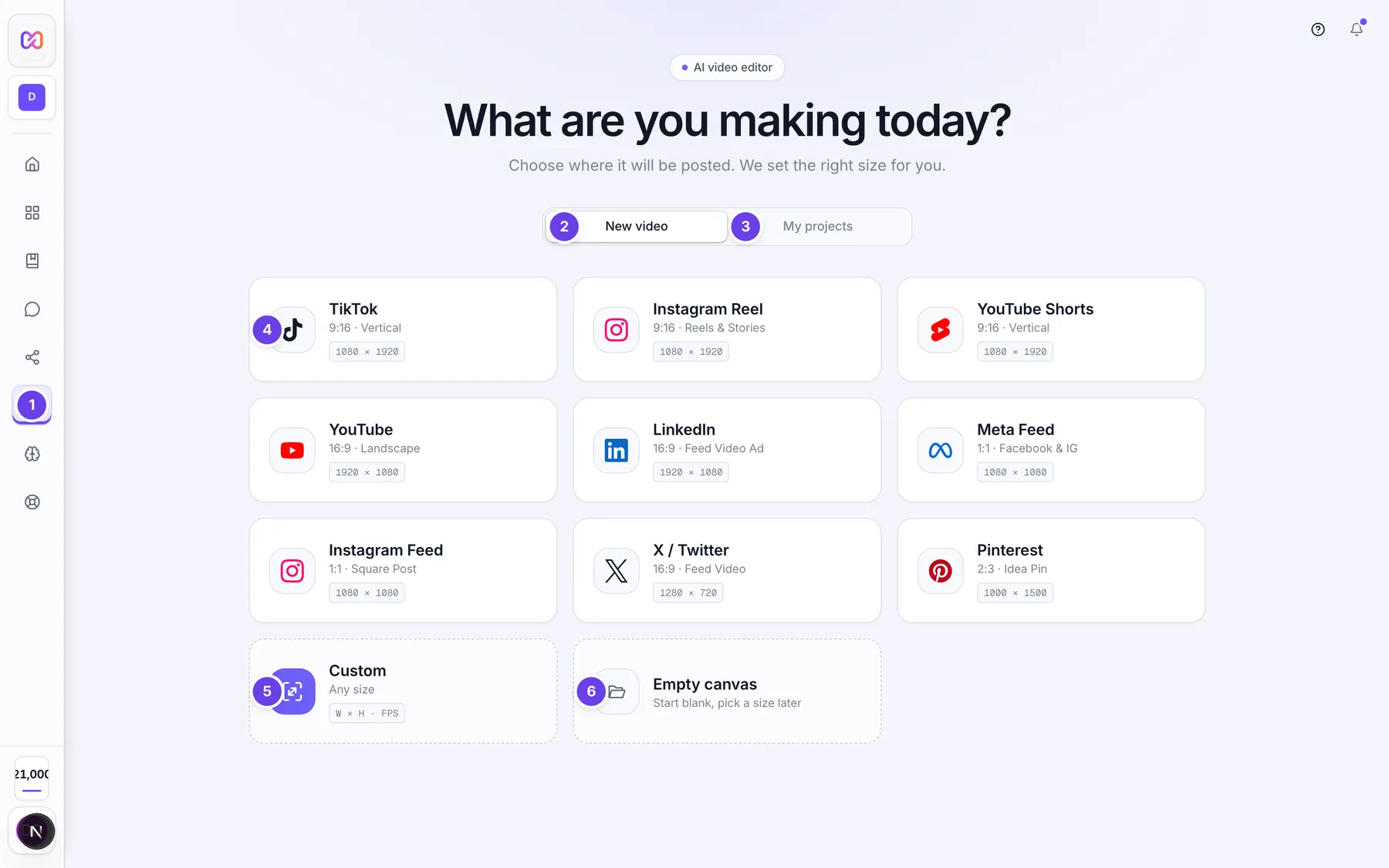
This is the welcome screen. It always comes first.
| # | Name in the app | What it does | Plan |
|---|---|---|---|
| 1 | AI Editor | The item in the left menu that opens the editor. | Both |
| 2 | New video | Tab that shows the size cards. It is the tab that opens first. | Both |
| 3 | My projects | Tab with your saved editor projects. See projects, history and undo. | Both |
| Continue editing | A card at the top of New video with your last unfinished project, its size and when you edited it. Its button reads Continue. It shows only when you have unfinished work. | Both | |
| 4 | TikTok | One of nine platform cards: TikTok, Instagram Reel, YouTube Shorts, YouTube, LinkedIn, Meta Feed, Instagram Feed, X / Twitter and Pinterest. Click one to start a project at that size. | Both |
| 5 | Custom | Opens the Custom size window. The card says Any size. | Both |
| 6 | Empty canvas | Starts a blank project at the default size. The card says Start blank, pick a size later. | Both |
| Create project | In the Custom size window. Starts the project. It is greyed out until width and height are valid. | Both | |
| Cancel | In the Custom size window. Closes it without making a project. | Both |
The heading on this screen reads What are you making today? and the line under it reads Choose where it will be posted. We set the right size for you.
#The editor screen
When a project opens you see the editor screen.
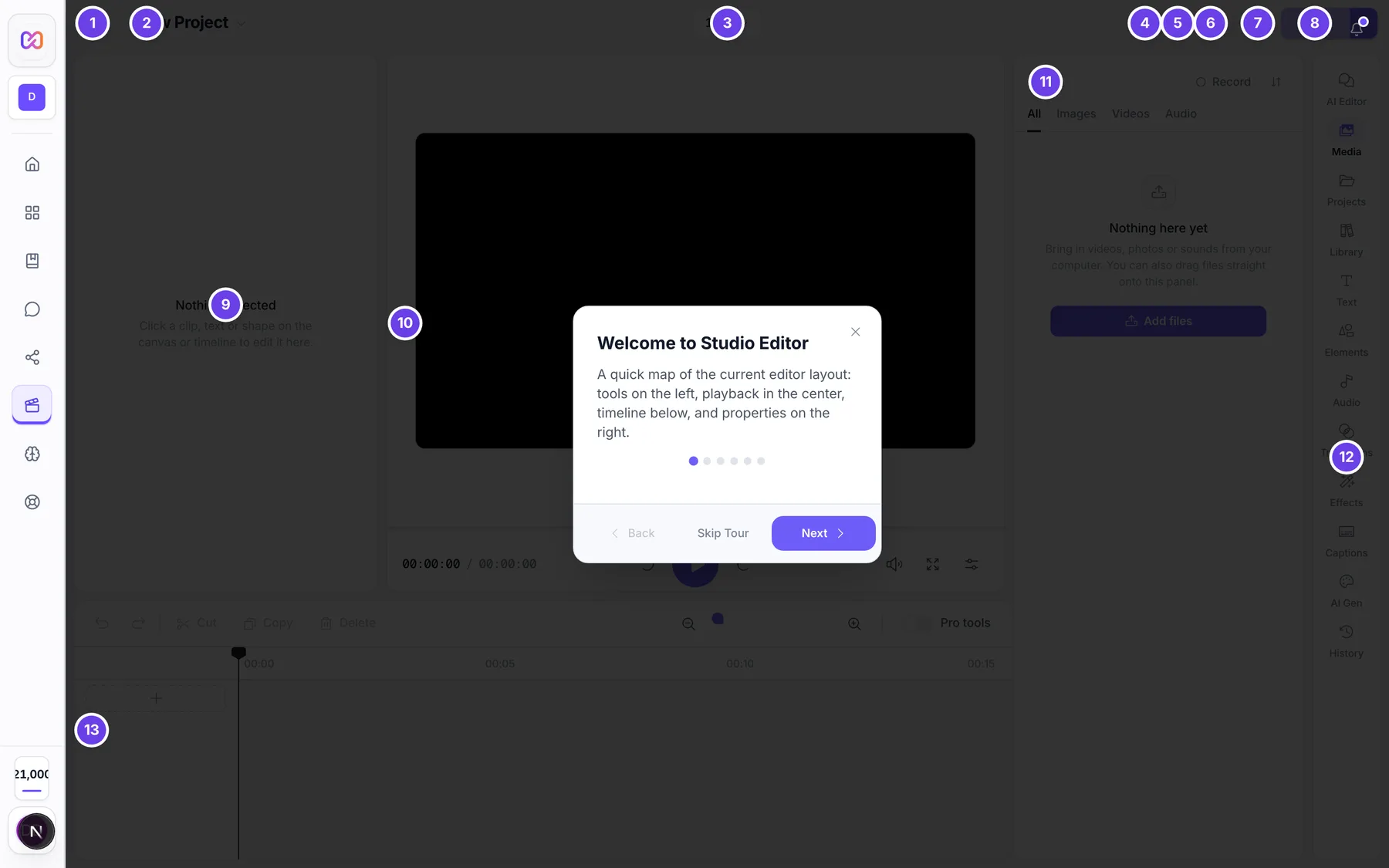
| # | Name in the app | What it does | Plan |
|---|---|---|---|
| 1 | Back to home | Top bar, far left. Goes back to the welcome screen. Your project stays open, and Esc takes you back to it. | Both |
| 2 | Project: (your project name) | Top bar. The project name with a small arrow. Opens the project switcher. | Both |
| 3 | Canvas shape: (for example 16:9) | Top bar, centre. Changes the shape of the video. Hidden on narrow screens. | Both |
| 4 | Search | Top bar. Opens a search box for tools and effects. | Both |
| 5 | Undo | Top bar. Undoes your last change. | Both |
| 6 | Redo | Top bar. Brings back what you undid. | Both |
| 7 | Settings | Top bar. Opens the editor settings. | Both |
| 8 | Export | Top bar, far right. Opens the export choices. It is greyed out until something is on the timeline. | Both |
| 9 | Nothing selected | The inspector, the left column. It shows the settings of the clip, text or shape you select. | Both |
| 10 | Preview canvas | The preview in the middle. It shows the current frame with the playback controls under it. | Both |
| 11 | Media | The media panel, to the right of the preview. Its content changes with the section you pick on the rail. | Both |
| 12 | Editor sections | The rail, the narrow strip at the far right. It picks what the panel next to it shows. | Both |
| 13 | Timeline | The timeline, the wide band along the bottom, under everything except the rail. | Both |
The AI chat is not a separate column. It is the AI Editor section on the rail, and it opens in the same panel as Media.
You can drag the dividers between the inspector, the preview, the panel and the timeline to change their sizes.
#How to open the editor
- Use a laptop or a desktop computer.
- Click AI Editor in the left menu.
- Wait for Getting your editor ready... to finish. This only shows if the editor has not loaded yet.
- On the welcome screen, pick a size card, Custom or Empty canvas.
#How to start a new video
- On the welcome screen, stay on New video.
- Click the card for the place you will post, for example TikTok or YouTube. The right size is set for you.
- The editor screen opens with an empty timeline.
- Bring in your files. See import media.
#How to make a video with your own size
- On the welcome screen, click Custom.
- Type a number in Width and in Height. Both are in pixels.
- Type a number in Frame rate. It is in frames per second.
- Click Create project.
#How to pick up where you left off
- Open the welcome screen.
- If you see Continue editing, click Continue. The editor opens the newest copy of that project.
- Or open the My projects tab and click a project.
#Options explained
The nine size cards. Each card starts a project at a size made for one place.
| Card | Shape | Size |
|---|---|---|
| TikTok | 9:16 Vertical | 1080 × 1920 |
| Instagram Reel | 9:16 Reels and Stories | 1080 × 1920 |
| YouTube Shorts | 9:16 Vertical | 1080 × 1920 |
| YouTube | 16:9 Landscape | 1920 × 1080 |
| 16:9 Feed Video Ad | 1920 × 1080 | |
| Meta Feed | 1:1 Facebook and Instagram | 1080 × 1080 |
| Instagram Feed | 1:1 Square Post | 1080 × 1080 |
| X / Twitter | 16:9 Feed Video | 1280 × 720 |
| 2:3 Idea Pin | 1000 × 1500 |
Empty canvas. A blank project at the default 16:9 size. You can change the shape later with Canvas shape.
Canvas shape menu. Choose 16:9, 9:16, 1:1, 4:5, 4:3 or 21:9. The names beside them are Landscape, Vertical, Square, Portrait, Standard and Cinematic.
The rail sections. Hover a section to see its hint.
| Section | Hint in the app |
|---|---|
| AI Editor | Tell the AI what to change |
| Media | Your videos, photos and sounds |
| Projects | Add files from your other projects |
| Library | Add pictures and videos from the Library |
| Text | Add words on top of your video |
| Elements | Shapes, stickers and emoji |
| Audio | Free music and sound effects |
| Transitions | Smooth changes between two clips |
| Effects | Looks and filters for the selected clip |
| Captions | Turn speech into subtitles automatically |
| AI Gen | Make voice-overs and pictures with AI |
| History | Your old AI chats |
Smaller screens. If the editor area is 1,100 pixels wide or less, the editor switches to a compact layout. It shows the preview on top and one panel below it. A strip at the bottom, named Editor workspace, switches the panel between Timeline, Media, Edit and AI. The Edit tab is the inspector.
First visit tour. The first time you open a project in a browser, a short tour points at the media panel, timeline, player and inspector. Use Next and Back, or Skip Tour. The last step button reads Get Started.
#Limits
- The editor needs a screen at least 1,024 pixels wide.
- The editor does not open on a device that only has a touch screen, or on a phone or tablet. A laptop with a touch screen and a trackpad or mouse is fine.
- The compact layout starts when the editor area is 1,100 pixels wide or less. The editor area is the part next to the left menu, so it is narrower than your browser window.
- Custom size accepts a width and height from 16 to 7,680 pixels and a frame rate from 1 to 120 frames per second.
#When something goes wrong
| Message in the app | What it means | What to do |
|---|---|---|
| The AI Editor works on a computer | Your device looks like a phone or a tablet, or your window is narrower than the minimum width. The page also shows Open infinall.ai on a laptop or desktop to edit videos. Your projects are saved and will be waiting there. | Open Infinall on a laptop or desktop and make the browser window wider. Click Back to Home to leave. |
| The editor couldn't start | The editor failed to load. | Click Try again. |
| Your browser needs an update | The browser lacks file access or canvas drawing. | Update your browser, or use a current one. |
| Project not found | You opened a link to a project that was deleted or belongs to another workspace. The full text reads It may have been deleted, or it belongs to another workspace. Pick a project below. | Pick another project in My projects. |
| Couldn't open that project | The project could not be loaded. | Check your connection and try again. |
| Couldn't open your project | The Continue button could not open the last project. | Try again, or open it from My projects. |
#Questions
#Can I use the AI Editor on my phone or tablet?
No. The editor shows The AI Editor works on a computer on phones and tablets, and the editor code is not loaded there. Your projects are saved to your account, so they wait for you on a computer.
#Why does the editor look cramped on a small laptop?
The editor area sits next to the left menu, so it is narrower than your window. When it is 1,100 pixels wide or less, you get the compact layout with the Timeline, Media, Edit and AI tabs. Make the window wider to get the full layout.
#Do I need Pro?
No. The app does not check your plan to open the editor or to start a project.
#Can I change the size after I pick a card?
Yes. Use Canvas shape in the top bar to switch between 16:9, 9:16, 1:1, 4:5, 4:3 and 21:9.
#Where is the AI chat?
On the rail, choose AI Editor. The chat opens in the panel next to the preview.
#Why does the welcome screen show every time?
When you open AI Editor from the left menu, the size screen always comes first. If you have unfinished work, Continue editing at the top reopens it in one click. A link to a saved project, such as one from the Projects page, opens that project directly.
Last checked against the app on . View as Markdown