
Social Hub overview
A tour of Distribution, the Social Hub where you plan posts, answer messages, run ads and read results for one brand at a time.
#What it is
Distribution is the Social Hub. It is one place to schedule posts, reply to messages and comments, run paid ads and see results. Everything you see is for the brand picked at the top of the left menu.
#Who can use it
Free and Pro accounts both open Distribution and use every screen in it. Nothing in the hub screens is locked to a plan.
Connecting a new social or ad account is a Pro feature. Without a connected account, posts become reminders instead of publishing by themselves, and the inbox, comments and analytics screens show a prompt to connect an account.
On a team, your workspace role decides what you can change. A view-only role can look but not send, schedule or spend.
#Cost
Free, no credits. Opening the hub, planning posts and reading results never uses credits. Credits only come into play when you connect an account after your free connections, or while an ad is live. The price is shown before you confirm, see Connect social accounts.
#Where to find it
Click Distribution in the main left menu. The hub has its own menu on the left (on a phone, tap the menu button at the top to open it).
#Buttons and controls
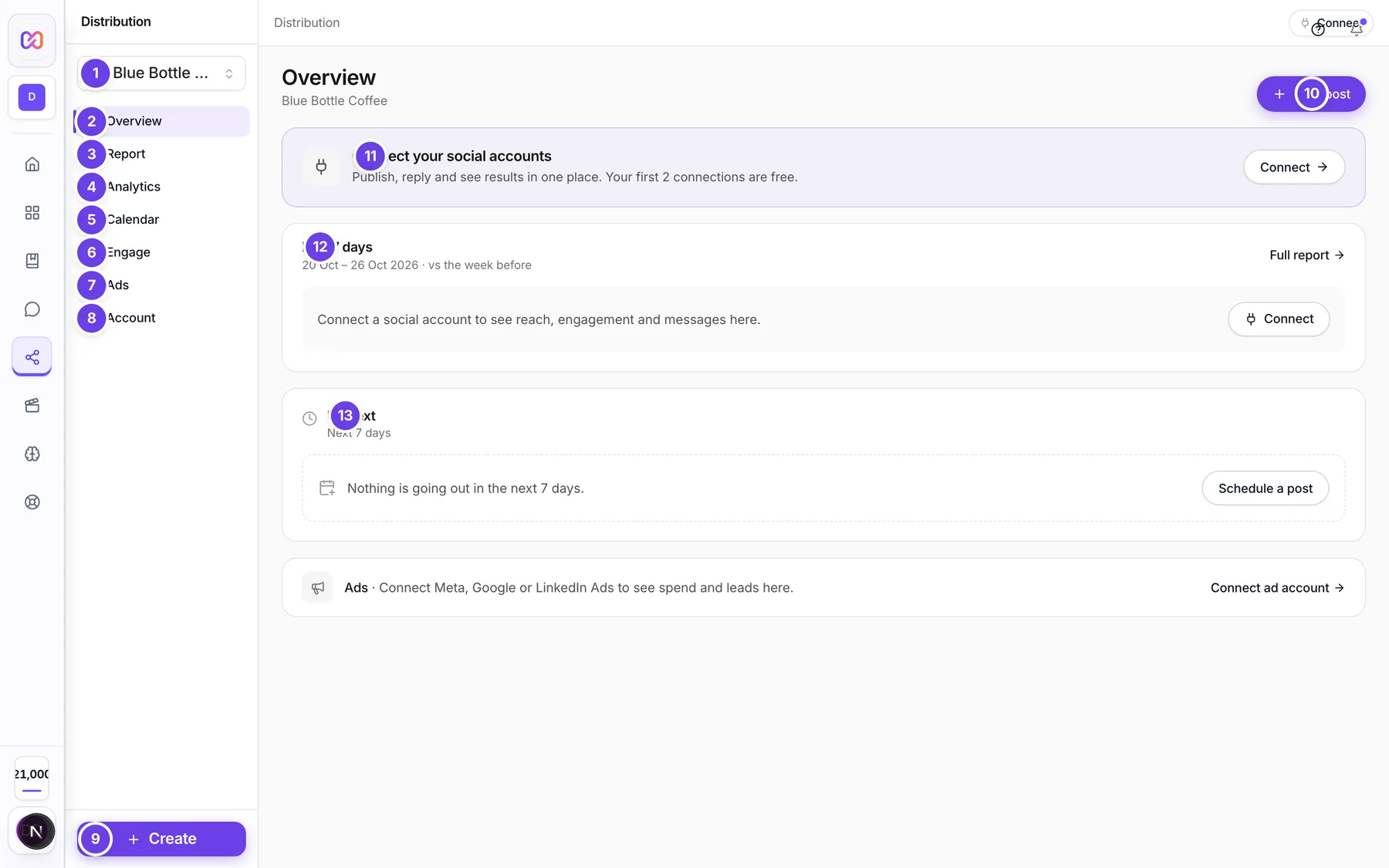
| # | Name in the app | What it does | Plan |
|---|---|---|---|
| 1 | Switch brand | The brand picker at the top of the hub menu. Everything in the hub changes to the brand you pick, and the app remembers your choice. | Both |
| 2 | Overview | The home screen of the hub, described below. | Both |
| 3 | Report | A written summary of how the week went. See Analytics and reports. | Both |
| 4 | Analytics | Charts for your posts, messages and ads. | Both |
| 5 | Calendar | Plan, schedule and publish posts. See Calendar and posts. | Both |
| 6 | Engage | Messages, Comments, Reviews, Leads and Contacts in one place. A red number on it counts unread messages. | Both |
| 7 | Ads | Your paid ads, leads, results and budget. See Paid ads. | Both |
| 8 | Account | Accounts, Automations, Broadcasts and Webhooks. | Both |
| 9 | Create | Opens a chooser with Social post and Ad campaign. It is greyed out until you have a brand. | Both |
| 10 | New post | On Overview: opens the post composer. | Both |
| 11 | Connect your social accounts | A banner on Overview that shows until you have connected an account. Its Connect button opens Account > Accounts. | Both |
| 12 | Last 7 days | A strip with People reached, Engagement, Messages and New leads. Full report opens the Report page. | Both |
| 13 | Up next | The posts going out in the next seven days. Schedule a post shows when there are none. | Both |
| Latest conversations | The newest direct messages. Shows only when you have messages. Inbox opens Engage > Messages. | Both | |
| Ads, last 7 days | A one line summary of spend, leads and your best ad. Before you connect an ad account it says to connect Meta, Google or LinkedIn Ads. | Both | |
| Connect / social accounts count | A pill at the top right. It says Connect when nothing is connected. Otherwise it shows how many accounts you have and a small amber dot if one needs attention. | Both | |
| (number) posts didn't publish | An amber box on Overview when a post failed or missed its time. It has Retry all and Open them, or Add media when a post needs an image or video. Account problems show here too, with Resume or Reconnect. | Both | |
| Start with a brand | Shows instead of the hub when you have no brand yet. Add your first brand takes you to Home. | Both |
#How to start in the hub
- Click Distribution.
- Pick your brand in Switch brand.
- Click Connect in the Connect your social accounts banner and connect a profile. See Connect social accounts.
- Click New post to write your first post.
#How to create something from anywhere in the hub
- Click Create in the hub menu.
- Choose Social post to open the composer, or Ad campaign to open the new ad form.
#Options explained
Engage tabs: Messages (direct messages from every connected account), Comments, Reviews (Google Business), Leads (people who filled in an ad lead form) and Contacts (everyone who has messaged you).
Analytics tabs: Posts, Messages and Ads.
Account tabs: Accounts (social profiles and ad accounts), Automations, Broadcasts and Webhooks.
Brand: the hub works on one brand at a time. If you have no brand, add one first. See Brand Brain in the docs.
#Limits
- Calendar views load at most 400 days at a time.
- The Up next card lists the next seven days and shows the first five posts.
#When something goes wrong
| Message in the app | What it means | What to do |
|---|---|---|
| Couldn't load scheduled posts. Refresh to try again. | The Up next list could not load. | Refresh the page. |
| Couldn't load this week's numbers. Refresh to try again. | The Last 7 days strip could not load. | Refresh the page. |
| Connect a social account to see reach, engagement and messages here. | No account is connected, so there are no numbers yet. | Click Connect and add an account. |
| Nothing is going out in the next 7 days. | You have no scheduled post this week. | Click Schedule a post. |
#Questions
#Is the Social Hub the same as Distribution?
Yes. The menu item is called Distribution. People also call it the Social Hub.
#Do I need to connect accounts to use it?
No. You can plan and save posts without any account. To publish by themselves, posts need a connected account. Connecting is a Pro feature.
#Why is the Create button greyed out?
You have no brand yet. Add a brand first.
#Can I manage more than one brand?
Yes. Use Switch brand. Each brand has its own accounts, posts, messages and results.
#Where do my settings live?
In Account in the hub menu. See Settings and questions.
Last checked against the app on . View as Markdown