
Effects, transitions, adjustment layers and masks
Add effects and transitions to your clips, build adjustment layers, pick a blend mode and cut out part of a clip with a mask.
#What it is
Effects change how a clip looks. Transitions change how one clip turns into the next. An adjustment layer puts effects over every clip under it. A blend mode mixes a clip with the ones beneath it, and a mask shows only part of a clip.
#Who can use it
Everyone, on Free and Pro. The app does not check your plan for effects, transitions, adjustment layers, blend modes or masks. The AI Editor opens on a laptop or desktop.
#Cost
Free, no credits. These tools run on your computer.
#Where to find it
- Effects: in the left bar named Editor sections, choose Effects. Its hint says "Looks and filters for the selected clip".
- Transitions: in the same bar, choose Transitions. Its hint says "Smooth changes between two clips".
- On one clip: click a clip on the timeline. In the inspector, the Effects view has Video Effects, Masking and Adjustment Layers. The Motion view has Transitions. The Edit view has Blending.
#Buttons and controls
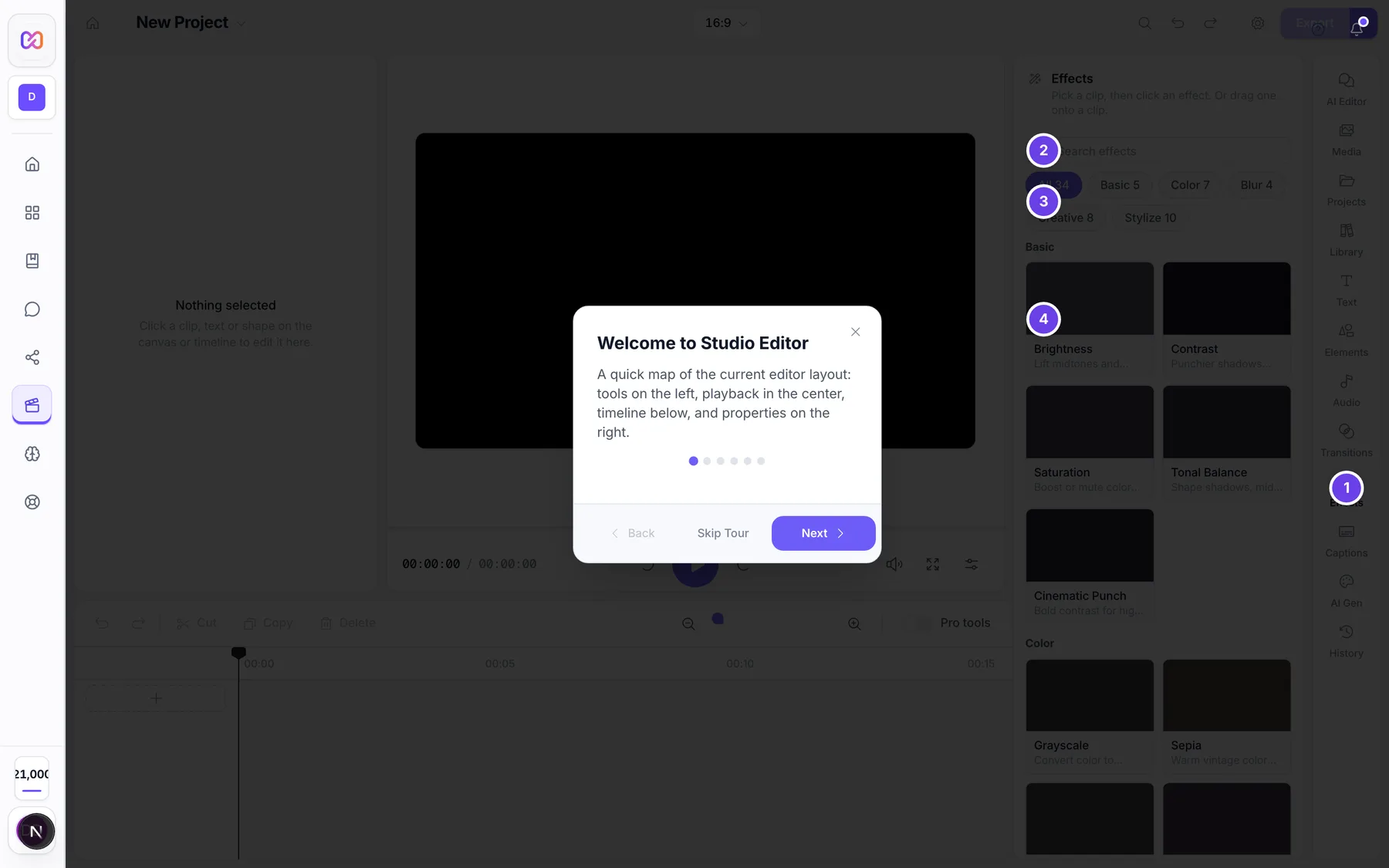
The Effects panel in the left bar:
| # | Name in the app | What it does | Plan |
|---|---|---|---|
| 1 | Effects | The tab in the Editor sections bar. | Both |
| 2 | Search effects | A search box. It looks at the name, the short description and the category. | Both |
| 3 | Effect categories | A row of buttons: All, Basic, Color, Blur, Creative, Stylize. Each shows how many effects it holds. | Both |
| 4 | Brightness | An effect card. Each card shows a preview, a name and a short description. Double-click to apply it to the selected clip, or drag it onto a clip. | Both |
The Transitions panel in the left bar:
| # | Name in the app | What it does | Plan |
|---|---|---|---|
| Search transitions | A search box. | Both | |
| Transition categories | All, Dissolves, Wipes, Movement, Stylized, each with a count. | Both | |
| Crossfade | A transition card. Hover to see it play. Double-click to apply it to the selected cut, or drag it onto the line between two clips. | Both |
Video Effects in the inspector (Effects view):
| # | Name in the app | What it does | Plan |
|---|---|---|---|
| Copy effect stack | Copies the whole list of effects on this clip. Off when there are none. | Both | |
| Paste effect stack | Adds the copied effects after the ones already on this clip. | Both | |
| Paste and replace effects | Replaces this clip's effects with the copied ones. | Both | |
| Clear effect stack | Removes every effect from this clip. | Both | |
| Add Effect | Opens a picker. It has two tabs, Effects and Shaders, each with a count. Search visual effects filters the effects. A card named Preview and add plus the effect name adds it. | Both | |
| Reorder (grip) | Drag the grip to change the order of effects. | Both | |
| Move up, Move down | Moves an effect one place in the list. | Both | |
| Disable effect, Enable effect | Turns one effect off and on without removing it. | Both | |
| Duplicate effect | Makes a copy of the effect. | Both | |
| Remove effect | Takes the effect off the clip. | Both |
Transitions in the inspector (Motion view, closed at first):
| # | Name in the app | What it does | Plan |
|---|---|---|---|
| Entry Animation, Exit Animation | Two rows of buttons. Each is named like Set entry animation to Fade. | Both | |
| Duration, Easing | Shown once a preset other than None is chosen. | Both | |
| Apply Entry/Exit Animations | Saves your entry and exit choices. | Both | |
| Single-Clip Transitions | Intro and outro for a clip: Intro Transition (from the project background into the clip) and Outro Transition (from the clip into the background). | Both | |
| Clip-to-Clip Transitions | Incoming Transition (from the previous clip) and Outgoing Transition (into the next clip). Shown when a clip is next to this one on the same row. | Both | |
| Transition Type | A grid of transition types. | Both | |
| Fade clip audio, Smooth transition audio | A switch. The first name is used for a single clip and the second between two clips. | Both | |
| Apply Transition, Remove Transition | Adds the transition, or removes it once it exists. | Both |
Blending in the inspector (Edit view, for video, image, text, shape and sticker clips):
| # | Name in the app | What it does | Plan |
|---|---|---|---|
| Blend mode | A list of blend modes. | Both | |
| Blend Opacity | A slider, shown when the mode is not Normal. | Both |
Adjustment Layers in the inspector (Effects view, closed at first):
| # | Name in the app | What it does | Plan |
|---|---|---|---|
| Add Adjustment Layer | Creates a layer on the clip's row. It starts where the clip starts and is as long as the clip. Off when no clip row is found. | Both | |
| Hide layer, Show layer | Turns a layer on and off. | Both | |
| Opacity, Start, Duration | Sliders for the layer. | Both | |
| Blend Mode | A list of blend modes for the layer. | Both | |
| + Brightness | A preset card. One for each adjustment effect. Adds that effect to the layer. | Both | |
| Disable (or Enable) and Remove | On each effect in the layer, named with the effect, for example Remove Blur effect. | Both | |
| Duplicate, Delete | Copy or delete the layer. | Both |
Masking in the inspector (Effects view, closed at first, for video and image clips):
| # | Name in the app | What it does | Plan |
|---|---|---|---|
| Rectangle, Ellipse, Polygon | Add a shape mask. | Both | |
| Add custom path mask | The Custom card. Adds a drawn mask with points you can edit. | Both | |
| Use another clip as a track matte | The Track Matte card. | Both | |
| Clear All | Deletes every mask on the clip. | Both | |
| Collapse mask, Expand mask | Opens or closes a mask's settings. | Both | |
| Mask Normal, Mask Inverted | Flips what is shown and what is hidden. | Both | |
| Duplicate Mask, Delete Mask | Copy or delete one mask. | Both | |
| Feathering, Expansion, Opacity | Sliders for a mask. | Both |
#How to add an effect
- Click a clip on the timeline.
- In Editor sections, choose Effects.
- Pick a category, or type in Search effects.
- Double-click an effect card. You see "Effect applied" with the effect name and clip count. You can also drag the card onto a clip.
If no clip is selected you see "No clip selected": drag the effect onto a clip, or select a clip and double-click.
#How to change or remove an effect
- Click the clip and open the Effects view of the inspector.
- Open Video Effects.
- Change an effect's sliders, move it with Move up and Move down, turn it off with Disable effect, or take it off with Remove effect.
- To use the same look on another clip, choose Copy effect stack, select the other clip, then choose Paste effect stack.
#How to add a transition between two clips
- Put the two clips side by side on the same row.
- Choose Transitions in Editor sections.
- Click one clip, or both clips together.
- Double-click a transition card. You see "Transition added". Or drag the card onto the line between the clips.
- Click the clip and open the Motion view, then Transitions, to change the length.
With one clip selected, the transition goes between it and the next clip. If it is the last clip, it goes between it and the previous clip. If it is the only clip, you get a transition at its end.
#How to set a transition's length
- Select a clip next to another clip and open Motion > Transitions.
- Under Clip-to-Clip Transitions, pick the Transition Type you want.
- Move the Duration slider.
- If the time is too long, a yellow note says "Insufficient handle frames. Maximum transition duration is" followed by the number of seconds. Lower the duration.
- Choose Apply Transition. To remove it, choose Remove Transition. You see "Transition Removed".
#How to add an adjustment layer
- Click a clip, open the Effects view and then Adjustment Layers.
- Choose Add Adjustment Layer. A layer named Adjustment 1 (and so on) appears and opens.
- Choose a preset card such as + Brightness or + Vignette, then set its slider.
- Set Start and Duration to cover the clips you want to change.
Everything under the layer on the timeline gets the effects. Delete the layer to undo it.
#How to set a blend mode
- Click a clip and open the Edit view of the inspector.
- Find Blending and choose a mode in Blend mode.
- Move Blend Opacity to mix the clip in.
#How to mask a clip
- Click a video or image clip, open the Effects view and then Masking.
- Choose Rectangle, Ellipse or Polygon.
- Open the mask with Expand mask and set Feathering, Expansion and Opacity.
- Choose Mask Normal to flip it to Mask Inverted and show the other part.
- For a freehand shape, choose Add custom path mask and change the points in Path points. Use Add path point to add one. Each point has an X and a Y in percent.
- To use another clip's shape, choose Use another clip as a track matte, pick the clip in Matte source, then choose a channel.
#Options explained
Effects in the Effects panel. There is a list of effects in five categories:
- Basic: Brightness, Contrast, Saturation, Tonal Balance, Cinematic Punch.
- Color: Grayscale, Sepia, Temperature, Tint, Hue, Golden Hour, Duotone.
- Blur: Blur, Motion Blur, Radial Blur, Soft Focus.
- Creative: Invert, Sharpen, Vignette, Film Grain, Retro Grain, Posterize, Fisheye, Wave Warp.
- Stylize: Drop Shadow, Glow, Chromatic Aberration, Chroma Key, Dream Bloom, RGB Split, VHS, Prism Split, Scanlines, Edge Glow.
The count on each category button tells you how many effects it holds. Each effect has its own sliders in Video Effects, such as Value, Amount, Radius, Angle, Intensity or Opacity. Add Effect also has a Shaders tab with extra looks.
Transitions in the Transitions panel. The panel has one card per transition and also several ready-made variants of the same type, so a category can hold more cards than the names below. The count on each category button tells you how many. The four categories and their main types:
- Dissolves: Crossfade, Dip to Black, Dip to White.
- Wipes: Wipe, Circle Reveal, Radial Wipe, Venetian Blinds, Diamond Reveal, Mosaic Reveal, Split.
- Movement: Slide, Push, Whip Pan, Spin, Flip, Page Turn.
- Stylized: Zoom, Blur Dissolve, Pixelate, Glitch Cut, Flash Cut, Film Burn, Ripple, Color Split.
Variants include Wipe Left, Right, Up and Down, Soft Wipe Left, Soft Wipe Right, Diagonal Wipe, Slide and Push in four directions, Whip Left, Right, Up and Down, Spin Clockwise and Spin Counterclockwise, Flip Horizontal and Vertical, Split Horizontal and Vertical, Page Turn Left and Right, Film Burn, Red Film Burn, Cool Light Leak, Linear Dissolve, Slow In Dissolve, Slow Out Dissolve, Zoom Top Left, Zoom Bottom Right and Punch Zoom.
A transition added from the panel is 1 second long. You can change that afterwards in Motion > Transitions.
Transition types in the inspector. The Transition Type grid in the inspector holds more types than the panel: Crossfade, Dip to Black, Dip to White, Wipe, Slide, Zoom, Push, Circle Reveal, Blur Dissolve, Whip Pan, Radial Wipe, Pixelate, Glitch Cut, Venetian Blinds, Diamond Reveal, Spin, Flip, Split Reveal, Flash Cut, Film Burn, Mosaic Reveal, Ripple, Page Turn and Color Split. Some types add a Parameters group. For example Softness for Wipe, Blur Strength for Blur Dissolve, Slices and Intensity for Glitch Cut, Slats for Venetian Blinds, Rotations for Spin, Tile Columns and Randomness for Mosaic Reveal, Amplitude and Waves for Ripple.
Entry and exit animation presets. None, Fade, Slide Left, Slide Right, Slide Up, Slide Down, Zoom In, Zoom Out, Rotate, Blur, Iris Circle, Iris Rect, Iris Diamond, Iris Star. Easing has Linear, Ease In, Ease Out and Ease In Out.
Handles and length. Between two clips the longest transition is twice the length of the shorter clip. On a single clip it is the length of that clip. The slider starts at 0.1 seconds. The entry and exit duration can be at most half the clip.
Blend modes on a clip. Normal, Multiply, Screen, Overlay, Darken, Lighten, Color Dodge, Color Burn, Hard Light, Soft Light, Difference, Exclusion. In an adjustment layer you also get Hue, Saturation, Color and Luminosity. There the list shows the group of each mode: Basic, Darken, Lighten, Contrast, Inversion and Component.
Adjustment layer presets. Brightness, Contrast, Saturation, Grayscale, Sepia, Invert, Hue Rotate, Blur, Sharpen, Vignette, Temperature, Tint, Film Grain. Each has its own slider, for example Rotation for Hue Rotate and Warm / Cool for Temperature.
Mask types. A mask can be a Shape Mask (Rectangle, Ellipse or Polygon), a Drawn Mask (from Add custom path mask) or a Track Matte (from another clip). A track matte has a Channel with three buttons: bounds, alpha and luminance. A drawn mask must keep at least 3 points, so Remove path point is off when it has that many.
Mask sliders. Feathering softens the edge, from 0 to 100 px. Expansion grows or shrinks the mask, from -100 to 100 px. Opacity goes from 0 to 100 percent.
Other sections in the Effects view. The same view also holds Applied, Background Removal, Particle Effects, Chroma Key (Green Screen), Motion Tracking, Green Screen, Picture-in-Picture, Nested Sequences and, for text, Text Behind Subject. Applied lists the recipes and effects already on the clip. Recipes are covered in templates and recipes.
#Limits
- Between two clips, the longest transition is twice the shorter clip. On a single clip, it is the clip's length.
- The transition slider has a lowest value of 0.1 second.
- A drawn mask keeps at least 3 points.
- Mask feathering goes up to 100 px, and expansion from -100 to 100 px.
#When something goes wrong
| Message in the app | What it means | What to do |
|---|---|---|
| No clip selected | You double-clicked an effect and no clip was selected. | Drag the effect onto a clip, or select a clip and double-click. |
| Effect could not be applied | The selected layers did not accept this effect. | Pick a video, image, text or shape clip. |
| Some layers were skipped | You selected many layers and some could not take the effect. | Check the ones that did not change. |
| Click a clip first | You double-clicked a transition and no clip was selected. | Click one clip, or two clips side by side. |
| These clips are not next to each other | The two selected clips are not neighbours on one row. | Pick two clips that sit side by side on the same row. |
| Transition failed | The transition could not be made or saved at this cut. | Check the clips and try again. |
| Clips must be adjacent to add a transition | There is a gap between the two clips. | Close the gap on the timeline. |
| Clips must be on the same track | The two clips are on different rows. | Move them to one row. |
| A second clip is required for clip-to-clip transitions | There is no next clip to blend with. | Add or move a clip next to this one. |
| Insufficient handle frames. Maximum transition duration is | The length is longer than the clips allow. | Lower Duration. |
| Transition duration exceeds clip length. Maximum duration is | The length is longer than the single clip. | Lower Duration. |
| Single-clip transitions are available for video and image clips. | The clip is another type. | Use a video or image clip. |
| No adjacent clips are available on this track. | There is no neighbour for a clip-to-clip transition. | Put another clip next to it. |
| No masks on this clip | The clip has no masks yet. | Click a shape to add one. |
#Questions
#Do effects change my original file?
No. Effects, masks and adjustment layers are stored on the clip in your project. Remove them any time.
#How do I use one look on many clips?
Put the look on an adjustment layer and stretch it over the clips. Or use Copy effect stack and Paste effect stack on each clip.
#Why can't I see my transition?
A transition needs two clips on the same row with no gap, or a single clip for an intro or outro. Check that the clips touch, then check the length in Motion > Transitions.
#What is the difference between a transition and an entry animation?
A transition blends a clip with its neighbour or the project background. An entry or exit animation moves, scales or fades just this clip.
#Can I mask with another clip?
Yes. Choose Use another clip as a track matte and pick the clip in Matte source.
#Can I apply an effect to text?
Yes. Video Effects and the Effects panel work for video, image, text, shape, SVG and sticker clips.
Last checked against the app on . View as Markdown