
Captions and transcription
Turn audio or video into text with Transcribe, and add timed captions to a video or sound clip in the AI Editor.
#What it is
There are two tools. Transcribe turns an audio or video file into text and keeps the timing of each line. Captions in the AI Editor listen to a clip on your timeline and add timed subtitles you can style and edit.
#Who can use it
Everyone, on Free and Pro. Neither tool is locked to a plan in the code. The AI Editor opens on a laptop or desktop. On a phone it shows "The AI Editor works on a computer."
#Cost
- Transcribe uses credits. It is charged by the length of the audio, and for a video it uses the audio track. You see what it cost on the result.
- Captions in the AI Editor run on your computer and your audio is not uploaded. Making subtitles from a clip is free in credits. The Let AI pick the look switch is a paid step, and its price is shown on the switch itself. Turn it off to stay free.
- Importing an SRT or VTT file is free.
#Where to find it
- Transcribe: on Home, choose the Audio tab, open the mode chip and pick Transcribe in the Words group ("Audio or video to text"). You can also use it from the Audio composer on the Studio canvas.
- Captions: open AI Editor in the sidebar, click a video or sound clip on the timeline, open the Effects view of the inspector (it has the AI controls), and open the section Local Auto-Captions.
#Buttons and controls
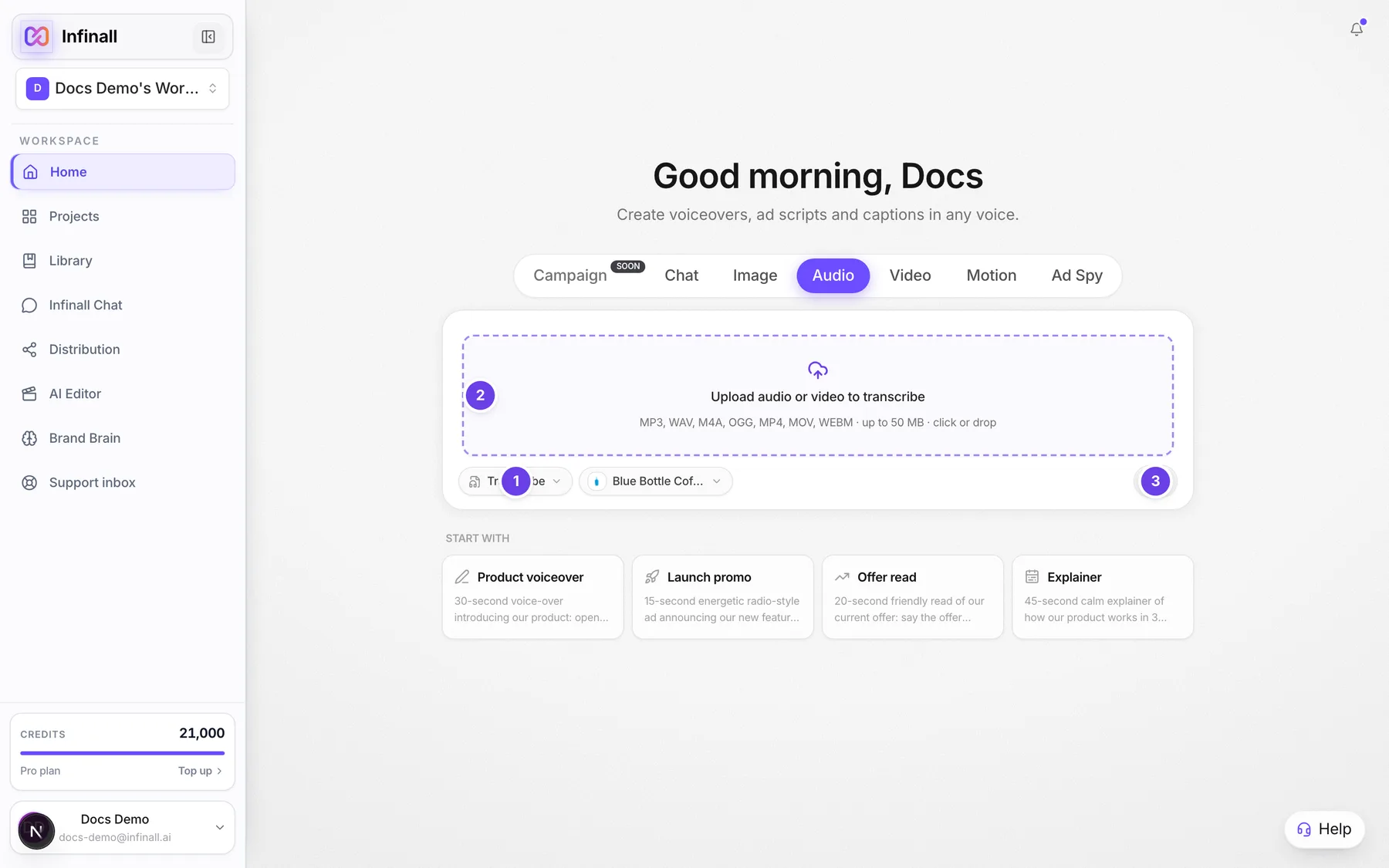
Transcribe, in the Audio composer:
| # | Name in the app | What it does | Plan |
|---|---|---|---|
| 1 | Transcribe | The mode chip, after you pick Transcribe. | Both |
| 2 | Upload audio or video to transcribe | The upload area. Click it or drop a file. It lists the file types and the size limit. | Both |
| 3 | Start campaign | The round arrow that sends the file. On the Studio canvas it is named Generate audio. | Both |
| Remove file | The X on a picked file, shown once you pick one. Takes the file out so you can pick another. | Both | |
| Copy | On the Transcript card on the canvas. Copies the text. | Both |
Captions, in the AI Editor, inside Local Auto-Captions. These controls are not numbered because the screenshot above shows Transcribe:
| # | Name in the app | What it does | Plan |
|---|---|---|---|
| Local Auto-Captions | The section title. It is closed at first, so open it. | Both | |
| Clip | Step one. Says "Click a video or sound clip on the timeline." until a clip is selected, then "Clip selected. Ready to listen." | Both | |
| Spoken language: English | Opens the list of spoken languages. The button name changes with the language you pick. | Both | |
| Let AI pick the look | A switch. When on, it places and styles the subtitles to suit your video. It is on at first. | Both | |
| Punch, Blaze, Wave, Clean, Pop, Bold | Six looks to pick from. Hover for what each is best for. | Both | |
| Make subtitles | Listens to the clip and makes the subtitles. While it works it reads Listening... with a percent. | Both | |
| Add subtitles to video | Appears after listening. Adds the subtitles to the timeline. The button shows the number, for example Add 12 subtitles to video. | Both | |
| Import SRT / VTT as Text | Opens a file picker for a subtitle file. Each caption becomes an editable text clip. | Both | |
| Editable Captions | A section below. Edit caption text, select captions, and split them into single lines. | Both | |
| Maximum words per caption | A list inside Editable Captions, and used when making subtitles. Picks how many words fit on one caption. | Both | |
| Make all single-line, Make selected single-line | Splits each caption into short timed clips, good for vertical video. | Both | |
| Select all, Clear selection | Picks or clears all captions in the list. | Both |
#How to transcribe a file
- On Home, choose the Audio tab.
- Open the mode chip and choose Transcribe.
- Click Upload audio or video to transcribe and pick a file, or drop one on it. A picked file shows its name, size and either "ready to transcribe" or, for video, "the audio track will be transcribed".
- Send it with the round arrow.
- A Transcript card appears on the canvas. Select the words, or press Copy.
Each line keeps its start and end time, so the transcript can be used as captions.
#How to add captions to a video in the AI Editor
- Open AI Editor and click a video or sound clip on the timeline.
- In the inspector, open the Effects view, then open Local Auto-Captions.
- Choose the spoken language with Spoken language.
- Leave Let AI pick the look on, or turn it off and pick one of the looks yourself.
- Choose Make subtitles and wait for the progress to finish.
- Read the list ("Here is what we heard. Check it, then add it to your video.") and choose Add subtitles to video.
- To tidy the text, open Editable Captions, edit any caption, and use Make all single-line if you want one short line at a time.
#How to import a subtitle file
- Select a clip, open Local Auto-Captions.
- Choose Import SRT / VTT as Text.
- Pick a
.srtor.vttfile. You see "Captions imported" when it works. Each cue becomes an editable text clip on the Captions track.
#Options explained
Spoken languages for captions. English, French, German, Spanish, Italian, Portuguese, Hindi, Japanese, Korean, Chinese, Russian, Turkish, Polish and Vietnamese.
Looks. Each look has a best use, shown when you hover: Punch for talking head and business, Blaze for gaming and entertainment, Wave for music and sing-along, Clean for professional and minimal, Pop for fun and energetic, Bold for viral and high impact.
Let AI pick the look. With the switch on, an "AI chose" note tells you where the captions were placed and which look was used, with a short reason. You can still tap another look. The switch only works for video clips.
Maximum words per caption. A list of 10 choices, starting at 2 words. It starts at 5 and you can change it any time.
Transcribe file types. Audio: MP3, WAV, M4A, OGG and WEBM. Video: MP4, MOV and WEBM.
#Limits
- Files for Transcribe can be up to 50 MB.
- The AI Editor needs a laptop or desktop.
#When something goes wrong
| Message in the app | What it means | What to do |
|---|---|---|
| Upload an audio file first. | Sent in a file mode with nothing picked. | Pick a file, then send. |
| That file type isn't supported. Upload audio (MP3, WAV, M4A, OGG) or video (MP4, MOV, WEBM). | The file is not a type Transcribe can read. | Convert it, or pick another file. |
That file is <n> MB. The limit is 50 MB. | The file is over the size limit. | Cut or compress it first. |
| That file is empty. | The file has no content. | Pick another file. |
| This is text, not audio, so it cannot be exported as a sound file. | You tried to export a transcript as sound. | Use Copy instead. |
| No speech was detected in the selected clip. | Captions could not hear speech. | Pick a clip with clear speech, or change Spoken language. |
| No speech was detected inside the selected clip. | The speech is outside the part of the clip you kept. | Widen the clip on the timeline, then try again. |
| The selected clip audio could not be decoded. | The audio in the clip could not be read. | Re-import the media and try again. |
| Reconnect the source media before creating captions. | The source file is no longer connected to the project. | Re-add the media, then try again. |
| Caption import failed | The subtitle file had no valid captions or could not be read. | Check that it is a valid .srt or .vtt file. |
| Insufficient credits. Purchase more to continue. | Your balance is too low for Transcribe. | See Your credit balance. |
#Questions
#Does Transcribe work on a video?
Yes. It reads the audio track of an MP4, MOV or WEBM file and gives you the text.
#Are the captions in the AI Editor private?
Yes. The panel says "Runs on your computer. Your audio is not uploaded."
#Are the timings kept?
Yes. Transcripts keep the start and end time of each line, so they can be used as captions.
#Can I use my own subtitle file?
Yes. Choose Import SRT / VTT as Text. Each cue becomes an editable text clip.
#Is Transcribe free?
No. It uses credits, charged by the length of the audio. Making captions in the AI Editor from a clip is free. Only the Let AI pick the look step has a credit price.
Last checked against the app on . View as Markdown