
Edit your brand sections
Change your logo, colours, fonts, voice, products, audience profiles, screenshots and every other part of a Brand Brain, then confirm.
#What it is
Every section of your Brand Brain can be edited by hand. You change a section in a form, save it, and then confirm to lock in a new version.
#Who can use it
Everyone, on Free and Pro. Editing, confirming and uploading screenshots need an Editor role or higher in the workspace. A Viewer can look but not change.
#Cost
Free, no credits.
#Where to find it
Open Brand Brain in the left menu, pick a brand in the list, pick a tab, then choose Edit at the top right. You can also go there from Home: open the brand chip in a composer, choose Manage all, hover a brand and choose its pencil.
#Buttons and controls
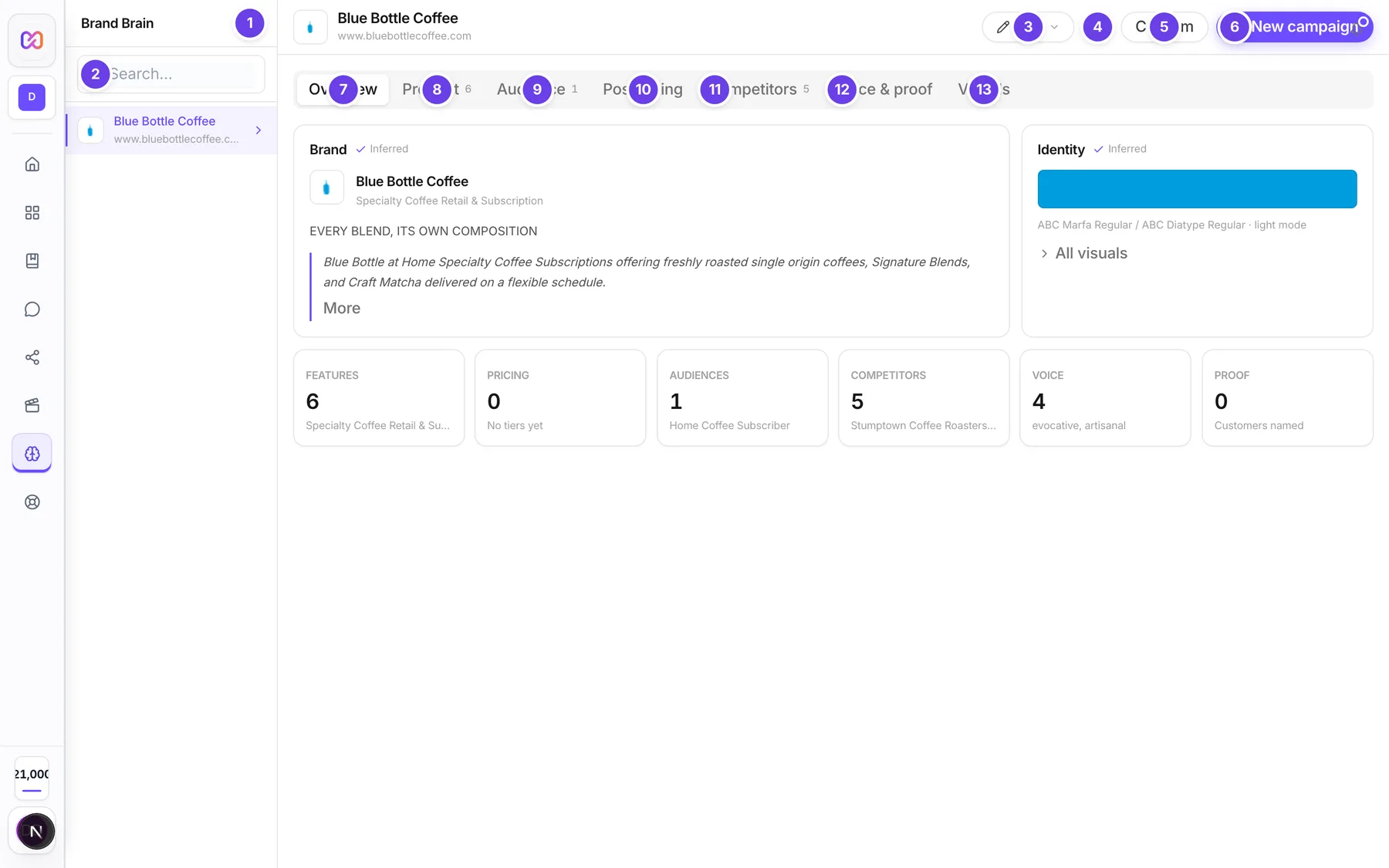
| # | Name in the app | What it does | Plan |
|---|---|---|---|
| 1 | Add brand | The plus button next to the Brand Brain heading. Opens Home, where you add a brand from the brand chip. | Both |
| 2 | Search brands | Filters the brand list by name or website. | Both |
| 3 | Edit | Edits the fields on the current tab. On tabs with more than one section it opens a small menu so you pick which section. | Both |
| 4 | Refresh brand data | Reloads this brand from the saved data. It does not read your website again. | Both |
| 5 | Confirm | Saves your current draft as a new version. | Both |
| 6 | New campaign | Opens Home with this brand selected. | Both |
| 7 | Overview | The first of the Brand Brain sections tabs. Shows brand, colours and a tile for each area, such as Proof (customers named). Click a tile to jump to its tab. | Both |
| 8 | Product | Features, pricing and stage. | Both |
| 9 | Audience | Ideal customer profiles. With more than one profile, the Audience profiles tabs switch between them. | Both |
| 10 | Positioning | Statement, value proposition, differentiators. | Both |
| 11 | Competitors | Competitor list. | Both |
| 12 | Voice & proof | Brand voice and social proof. | Both |
| 13 | Visuals | Visual identity and your product screenshots. Click a screenshot to open the Screenshot preview; use Previous and Next to move between them. | Both |
| All brands | A back arrow that shows only on a phone. Returns to the brand list. | Both |
Which sections each tab's Edit button opens:
| Tab | Edit opens |
|---|---|
| Overview | A menu: Brand & features or Visual identity |
| Product | A menu: Brand & features, Pricing or Stage |
| Audience | Audiences |
| Positioning | Positioning |
| Competitors | Competitors |
| Voice & proof | A menu: Voice or Social proof |
| Visuals | Visual identity |
Inside every editor:
| Name in the app | What it does |
|---|---|
| Close (the x) | Closes without saving. |
| Cancel | Closes without saving. |
| Save changes | Validates, saves and closes. Shows Saving... while it works. |
| + Add / Remove | Add or remove a row in a list. Some lists use names like + Add feature, + Add tier, + Add competitor, + Add ICP, + Add rating, + Add testimonial. |
#How to edit a section
- Open Brand Brain and pick your brand.
- Open the tab that holds the section.
- Choose Edit. If a menu opens, pick the section.
- Change the fields. Leave a list row completely empty to ignore it.
- Choose Save changes.
- Choose Confirm at the top right to lock in a new version.
Saving marks the field as You edited and protects it, so a later refresh does not overwrite it. Your edit is kept as a draft until you confirm. Saved versions are locked, so the next edit starts a fresh draft from the latest version.
#How to upload a product screenshot
- Open the Visuals tab.
- In Product visual library, choose Upload.
- Pick a JPEG, PNG or WebP image up to 10 MB.
- Wait for Uploading... to finish. The picture appears in the grid.
- Click a picture to preview it. Use the arrows or the arrow keys to move between pictures and Close preview or Esc to close.
Screenshots also fill in by themselves over time as you run campaigns. Uploaded screenshots are saved with the name Other.
#Options explained
Each heading below is one section, with the exact field names you see in its editor.
#Logo
Part of Visual identity. Logo (light) URL and Logo (dark) URL take the web address of a logo image. Wordmark fallback is the text shown when there is no logo. The editor shows a live preview strip with your logo and swatches.
#Colours
Part of Visual identity. Palette source picks where the colours come from: Scraped (read from your site, disabled if none was found), Trust, Energy, Clean or Custom.... The colour fields are Primary, Secondary, Accent, Background, Text primary and Text secondary (the swatches on the brand page label Background as Surface and Text primary as Ink), each a hex value like #RRGGBB with a color picker next to it. Choosing Custom... opens a Custom colours window where you pick colours and type a font in Custom font name. Typing a hex value switches the source to Custom. A warning shows if two colours are identical, and you can still save. If you picked a preset or custom colours, a refresh keeps them.
#Fonts and style
Part of Visual identity, under Typography & Style. Display font and Body font are dropdowns of common fonts with Other... for any name you type. Mono font and Border radius (for example 12px) are text fields. Color mode is Light, Dark or Unset. Pronunciation overrides is a list of how to say words, for example "Infinall = in-fin-all".
#Brand voice
Section Voice. Current tagline, Tagline source (Source observed or User provided), Tagline suggestions, Emoji usage, Voice preset, Paragraph style, Tone attributes, Personality traits, Preferred vocabulary, Words to avoid, Opening patterns, Closing patterns and Key messages. Each key message has a tag: Extracted, Normalized or Suggested.
Voice preset values: Technical Direct, Warm Professional, Bold Challenger, Storyteller, Data-Driven and Conversational.
#Products
Section Brand & features. Product name, Category, One-liner, Full description, How it works, Platforms and Features. Each feature has a name and an optional benefit. A feature needs a name if you give it a benefit.
#Pricing
Section Pricing. First pick Product type: SaaS, Ecommerce, App, Course or Creator tool. The form changes to fit:
- SaaS: Starting price, Model (Per seat, Flat, Usage based, Freemium), Annual option, Annual discount, free trial (Exists, Duration, Card required) and Tiers.
- Ecommerce: Price, Sale price, Shipping and Variants.
- App: Base price, One-time unlock, In-app purchases and Subscription tiers.
- Course: Single price, Cohort price and Bundle price.
- Creator tool: Free tier, Paid tier price and Newsletter pricing.
A tier needs a name.
#Audience profiles (ICPs)
Section Audiences. Each profile has Name, Company size, Industry, Preferred tone, Job titles, Pain points, Desired outcomes, Hangouts, Buying triggers and Objections. On the Audience tab, if you have more than one profile, pick one from the row of profile buttons. A profile needs a name.
#Product stage
Section Stage. Stage is Idea/Pre-launch, MVP/Beta, Early Traction, Growth or Mature. Team size is solo, 2-5, 5-20 or 20+. Marketing time per week is free text.
#Positioning
Section Positioning. Positioning statement, Value proposition, Differentiators, Alternative angles, What not to say and Old way vs new way. The editor notes that positioning is a draft.
#Competitors
Section Competitors. Each one has Name, URL, Category, Features, Missing features, Pricing, Comparison and Positioning claim. A competitor needs a name. Pricing is filled in for you from the competitor's own site and shows where it came from. Type your own price to replace it.
#Social proof
Section Social proof. Customer count, Demo video URL, Walkthrough URL (on the review screen these show as Demo video and Walkthrough links), Notable customers, Case studies, Press mentions, Review ratings (a source such as G2 and a rating) and Testimonials (quote, customer name and company). A testimonial needs a quote. A rating needs a source.
#Product screenshots
The Product visual library on the Visuals tab. See "How to upload a product screenshot" above.
#Limits
- A screenshot must be JPEG, PNG or WebP and up to 10 MB.
- Partly filled list rows block saving until you fix or empty them.
- Competitor pricing that was fetched is reused for 7 days.
#When something goes wrong
| Message in the app | What it means | What to do |
|---|---|---|
| Feature name is required when a benefit is provided. | A feature row has a benefit but no name. | Add the name or empty the row. |
| Tier name is required. | A pricing tier row has no name. | Add the name or remove the row. |
| ICP name is required. | A profile has details but no name. | Add a name. |
| Competitor name is required. | A competitor row has details but no name. | Add a name. |
| Testimonial quote is required. | A testimonial has no quote. | Add the quote. |
| Review source is required. | A rating has no source. | Add the source, for example G2. |
| No scraped palette is available to restore. | You chose Scraped but no palette was detected. | Pick a preset or Custom. |
| Couldn't save your changes. Please try again. | The save failed. The editor stays open. | Try Save changes again. |
| Couldn't load this brand. | The brand failed to load. | Choose Try again. |
| Upload a JPEG, PNG or WebP image. | The file type is not allowed. | Use JPEG, PNG or WebP. |
| Image is over 10 MB. | The screenshot is too big. | Use a smaller image. |
| Couldn't upload that screenshot. Try again. | The upload failed. | Try again. |
| Couldn't load screenshots. | The screenshot list failed to load. | Reload the page. |
| There are no changes to confirm. | You chose Confirm with no unsaved edits. | Make an edit first. |
#Questions
#Do my edits protect values from being overwritten?
Yes. Values you edit yourself are kept when the website is read again. Pricing marked TBD and social proof marked None yet also stay as you set them.
#Do I have to confirm after every edit?
Edits are saved as a draft right away. Confirm when you are happy, so tools use the new version. If you leave first, the draft is still there when you come back.
#Why can't I find an Edit button for fonts?
Fonts are part of Visual identity. Open the Visuals tab, or use the Edit menu on Overview, and choose Visual identity.
#Can I add my own product type?
No. The choices are SaaS, Ecommerce, App, Course and Creator tool.
#How many brands can I have?
The app does not show a brand limit on this screen. Do not rely on a number from a pricing table.
#Can I remove a screenshot?
The Brand Brain screen has Upload and preview only. There is no delete button for screenshots.
Last checked against the app on . View as Markdown