
Calendar and posts
Plan posts on a calendar, save a draft or schedule a post for a date, add images and video, and see which platforms post by themselves.
#What it is
The Calendar is where every post lives, from a first idea to a published post. You write the caption, add images or video, pick the platforms and choose a date. Platforms with a connected account post by themselves. For the rest, Infinall sends you a reminder.
#Who can use it
Free and Pro accounts both use the Calendar. Nothing here is locked to a plan.
To have a post publish by itself, the platform needs a connected account, and connecting an account is Pro. See Connect social accounts. Without one, you still plan, save and schedule posts, and you get a reminder at the time.
On a team, a view-only role can look at the calendar but cannot create, move or delete posts.
#Cost
Free, no credits. Planning, scheduling, publishing and reminders never use credits.
#Where to find it
Open Distribution, then Calendar. You can also click New post on Overview or Create in the hub menu and choose Social post.
#Buttons and controls
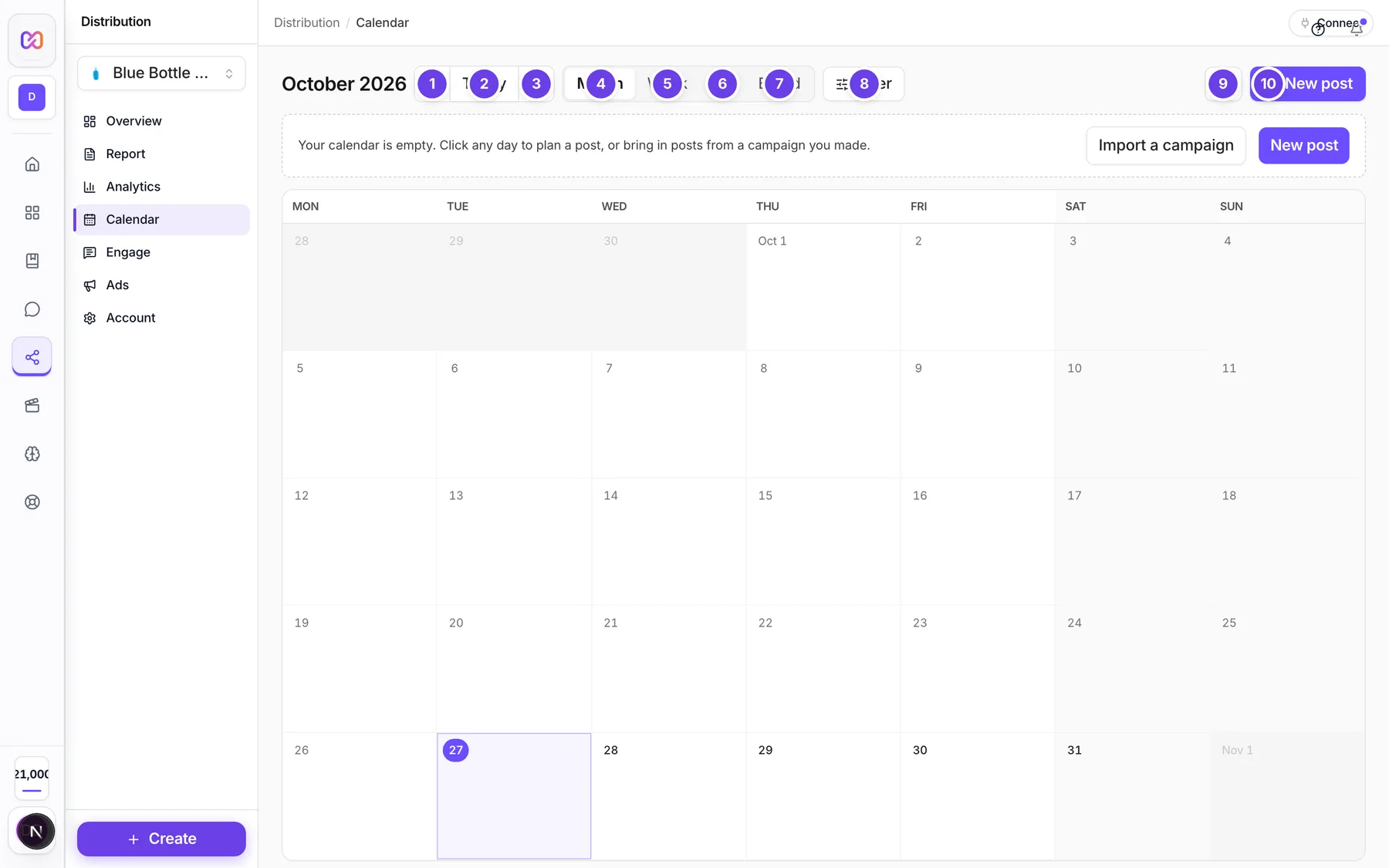
| # | Name in the app | What it does | Plan |
|---|---|---|---|
| Month or week title | The title at the top left. In Month and Week it shows the month or week you are looking at. In List and Board it says All posts. | Both | |
| 1 | Previous month | Goes back one month (says Previous week in Week view). Shows in Month and Week only. | Both |
| 2 | Today | Jumps to today. Shows in Month and Week only. | Both |
| 3 | Next month | Goes forward one month (says Next week in Week view). Shows in Month and Week only. | Both |
| 4 | Month | Shows the whole month as a grid. Not available on a phone. | Both |
| 5 | Week | Shows one week, hour by hour. Not available on a phone. | Both |
| 6 | List | A list of posts. | Both |
| 7 | Board | Four columns: Drafts, Scheduled, Posted and Failed. Drag a post between Drafts and Scheduled to change its state. | Both |
| 8 | Filter | Opens the filters. A number next to it counts how many are on. | Both |
| 9 | More | Opens the extra tools: Time zone and clock, Share calendar, Import a campaign, Evergreen queue, Turn on reminders, Brand calendar settings and Learn. | Both |
| 10 | New post | Opens the post composer. Hidden for view-only roles. | Both |
| Needs attention | A red button with a count. It shows only when posts failed or missed their time. It opens a side panel where each post has a Fix button. On narrow screens it says To fix. | Both | |
| Today | A thin bar under the header with how many of today's posts are posted. Hide today closes it. It shows only when something is due today, in Month and Week views. | Both |
Inside Filter: Brand (not shown inside Distribution, the hub brand is used), Show, Platform, Status and Source, and Clear all filters when any is on.
Inside the composer. Click New post, or click a post, to open it. The numbers on screen are 1 Where, 2 Caption, 3 Image or video and 4 When.
| Name in the app | What it does | Plan |
|---|---|---|
| Post / Ad | A switch at the top of a new post. Ad opens the new ad form. See Paid ads. | Both |
| Brand | Picks the brand for the post. Shows when you have brands. | Both |
| Instagram, Facebook, LinkedIn, X, TikTok, YouTube, Pinterest, Threads | One button per platform. Click to add or remove it. Each shows Posts by itself, Connect first or We remind you. | Both |
| + Connect more accounts | Opens Account > Accounts. | Both |
| Write once for all | A switch. On: one caption for every platform. Off: a caption box per platform. It shows when two or more platforms are picked. | Both |
| Shared caption | The one caption box. Small counters show how many characters you used for each platform. | Both |
| (Platform) caption | The caption box for one platform when the switch is off. It shows Customized once it differs from the shared text. | Both |
| Restore | Puts the shared caption back on one platform. | Both |
| Same as | Copies another platform's caption into this one. | Both |
| Add image or video | Opens Upload media. | Both |
| Choose files | In Upload media: pick files from your device. You can also drag files in. | Both |
| Add it / Add all (number) | Adds the uploaded files to the post. | Both |
| Move left, Move right | Changes the order of media. The first item is the cover. | Both |
| Remove (file) | Takes a file off the post. | Both |
| Date and time | When the post should go out, in the brand's time zone. | Both |
| More options | Opens Name (only you see it), the Publishing box and First comment. | Both |
| Publishing | Lists each platform with Auto, Connect or Reminder. | Both |
| First comment | An optional comment posted right after the post. For Instagram, Facebook, LinkedIn and YouTube, when the platform posts by itself. | Both |
| Preview | A live preview on the right (under the form on a phone). | Both |
| Delete | Deletes the post for good. It asks you to confirm with Delete post. | Both |
| Cancel | Closes the composer without saving. | Both |
| Save draft | Saves the post as a draft. It will not publish by itself. Only on a new post. | Both |
| Schedule for (date) | Schedules the post for the date you picked. Says only Schedule until you pick a date. On a saved post this button says Save. | Both |
| Publish now | Sends the post right now. Shows on a saved post when at least one platform is Auto. | Both |
| Retry failed | Tries again. Shows on a post that failed. | Both |
| Boost post | Shows on a post that is already posted. See Boost a post. | Both |
| Share with client | On a saved post: makes a link anyone can open to see the post and comment, without logging in. | Both |
| Comment | Adds a team comment to the post. | Both |
#How to save a draft
- Click New post.
- Pick one or more platforms.
- Write the caption and add media.
- Click Save draft. You do not need a date.
A draft sits on the calendar if you gave it a date, but it will not publish by itself.
#How to schedule a post
- Click New post.
- In Where, pick the platforms. Look at the badge on each one.
- In Caption, write the text. Switch Write once for all off to change it per platform.
- In Image or video, click Add image or video, then Choose files, then Add it.
- In When, pick Date and time. Scheduling needs a date.
- Click Schedule for (your date).
The post turns Scheduled. At that time, Auto platforms publish by themselves. For the rest, you get a reminder.
If the button is greyed out, the reason shows just above it, for example a platform that needs an image or video.
#How to post right now
- Open the post.
- Click Publish now.
#How to fix a post that did not go out
- Click Needs attention, or open the post.
- Click Fix. The date field is ready to change.
- Read the reason shown on the card, fix it (add media, shorten the caption, reconnect the account), and pick a new date.
- Click Save or Retry failed.
#How to move a post to another day
Drag it to a new day in Month or Week. The time stays the same. A missed or due post moves back to Scheduled.
#Options explained
Statuses. Idea, Draft (not yet scheduled), Scheduled (will go out), Due (its time has come), Publishing (being sent), Posted (live), Failed (a platform refused it), Missed (its time passed and nothing went out) and Skipped. Removed posts sit in Removed & skipped for 24 hours, then they are deleted.
Auto, Connect, Reminder.
- Auto: the account is connected and active. The post is published for you.
- Connect: no active account for this platform. Connect one, or you get a reminder.
- Reminder: you get a notification and post it yourself. X is always a reminder.
Filters. Show (Posts and ads, Posts only, Ads only), Platform, Status and Source (Manual, Image Studio, Library, Campaign, Chat).
Time zone and clock (More). Pick the time zone to see times in, and 12 hour (3:30 PM) or 24 hour (15:30).
Brand calendar settings (More). The brand's time zone and the missed grace period: how long after its time a post waits before it shows as Missed. It is between 15 and 1,440 minutes.
Reminders. Turn on reminders in More to get a browser pop up when it is time to post. If your browser blocks notifications, the item is greyed out and says so.
Share calendar (More). Makes a view-only link for a brand or all brands. Pick how long it lasts, up to 90 days. Copy it right away, because it is shown once. Revoke turns it off.
Import a campaign (More). Adds a campaign's posts to the calendar as drafts. Campaign docs are coming soon.
#Limits
- One post holds up to 20 files. Each platform also has its own limit, see Caption limits.
- Each uploaded file can be up to 25 MB in the upload window.
- A scheduled time must be at least 30 seconds ahead.
- First comment: up to 2,200 characters.
- Comments on a post: up to 4,000 characters.
- The calendar shows up to 400 days at a time.
- A failed send is tried again up to 3 times before the post shows as Failed.
#When something goes wrong
| Message in the app | What it means | What to do |
|---|---|---|
| Choose at least one social platform. | No platform is picked. | Click a platform. |
| That date and time is not valid. | The date field is not a real date. | Pick the date again. |
| Pick a date and time to schedule this post, or use Save draft to plan it later. | You clicked Schedule without a date. | Pick a date, or click Save draft. |
| That time has already passed. Pick a future time, or use Publish now. | The date is in the past. | Pick a later time, or click Publish now. |
| Schedule at least 30 seconds ahead, or use Publish now. | The time is too close to now. | Pick a later time. |
| (Platform) needs an image or video. Add one, or Save draft for now. | A picked platform cannot publish text on its own. | Add media, or save a draft. |
| A post holds up to 20 files. Remove (number). | You added too many files. | Remove the extra files. |
| (File) is over 25 MB, skipped. | The file is bigger than the upload window accepts. | Use a smaller file. |
| That post is no longer on this calendar. | A link opened a post that was deleted. | Go back to the calendar. |
| Could not save the post. | The save failed. | Read the reason that follows, fix it and try again. |
| Could not move the post. It was put back. | The drag failed. | Try again. |
| Notifications are blocked for this site in your browser settings. | Your browser blocks reminders. | Allow notifications for this site in your browser. |
#Questions
#What is the difference between Save draft and Schedule?
Save draft keeps the post as a draft. It never publishes by itself, and it does not need a date. Schedule commits the post to a date and time, so it needs a date. At that time, platforms marked Auto publish by themselves.
#Why does my platform say "We remind you"?
It is a reminder platform, or no account is connected for it. Connect an account to change it to Posts by itself.
#Can I post to several platforms at once?
Yes. Pick all of them. Write one caption for all, or switch Write once for all off to write one per platform.
#Why is Schedule greyed out?
Look just above the button. It shows the reason, for example a platform needs an image or video, a caption is too long for one platform, or you have too many files.
#Can I change a scheduled post?
Yes. Click it, change what you need and click Save. Drag it to move it to another day.
#What is Boost post?
It turns a post that is already live into a paid ad. See Boost a post.
Last checked against the app on . View as Markdown