
Send broadcasts and message sequences
Send one direct message to many people with a broadcast, or run a timed drip of messages with a sequence. Everything starts as a draft.
#What it is
Broadcasts and sequences send direct messages from one of your connected accounts. A broadcast is one message to your audience. A sequence is a short series of messages with a delay between each step, sent to one contact at a time.
Both are created as drafts. Nothing is sent until you click Send now, Schedule or Activate.
#Who can use it
Free and Pro accounts both see the Broadcasts tab. The code has no plan check on broadcasts or sequences.
You need a connected account to create one. Connecting accounts is a Pro feature, so a Free account without a connected account sees the tab but cannot create anything. Accounts that were already connected stay connected.
Broadcasts and sequences work with Instagram, Facebook, WhatsApp, Telegram, LinkedIn, X (Twitter), Threads, Reddit and Bluesky in the platform list. Each campaign is tied to one connected account for the brand you have selected.
#Cost
Free, no credits. The Broadcasts tab does not show a price and does not ask you to confirm one, and the app code does not take credits when you send.
Connected accounts themselves are not free after the first 2: from the next account on, each account uses 300 credits a month. See Connect your social accounts.
#Where to find it
Open Distribution, then Account, then the Broadcasts tab. The address is /distribution/settings?tab=broadcasts. The other tabs in Account are Accounts, Automations and Webhooks.
Pick the brand you want in the brand switcher at the top of the left menu first. Campaigns belong to one brand.
#Buttons and controls
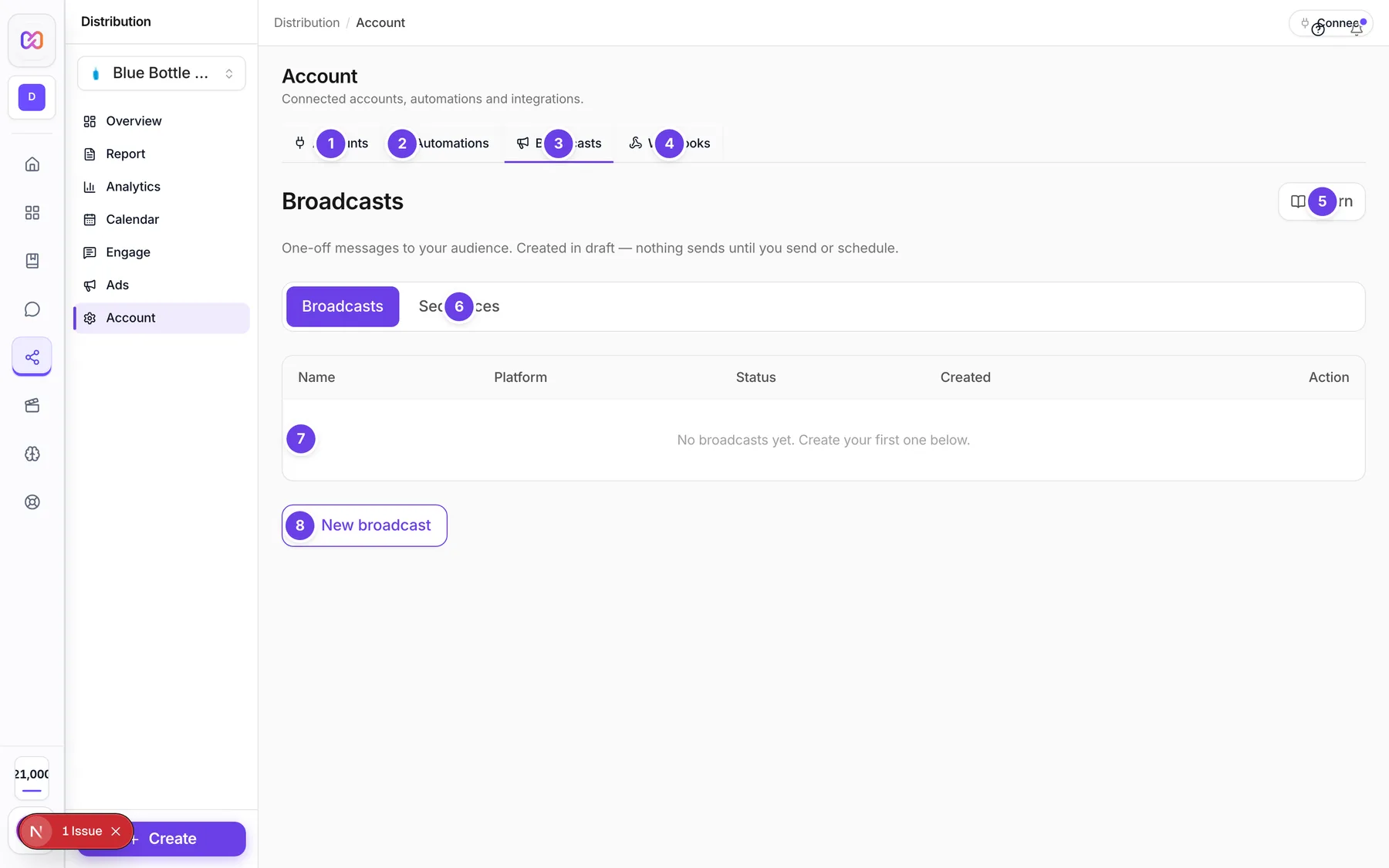
| # | Name in the app | What it does | Plan |
|---|---|---|---|
| 1 | Accounts | Opens the tab for connecting social and ad accounts. | Both |
| 2 | Automations | Opens the tab for automatic replies. See Automations. | Both |
| 3 | Broadcasts | The tab you are on. | Both |
| 4 | Webhooks | Opens the tab that sends leads, posts and messages to your other tools. | Both |
| 5 | Learn | Opens a short guide with examples: How to use Campaigns. Press Escape or Close to leave it. | Both |
| Broadcasts (switch) | The switch under the title that shows broadcasts. It sits next to Sequences. | Both | |
| 6 | Sequences | The switch that shows sequences. | Both |
| 7 | No broadcasts yet. Create your first one below. | The empty list message. It says No sequences yet. on the Sequences switch. | Both |
| 8 | New broadcast | Opens the create form. On the Sequences switch it says New sequence. | Both |
| Campaign name | Required. A short name for the list. | Both | |
| Description | Optional note. | Both | |
| Platform | The platform of the message. | Both | |
| Connected account | The account that sends the message. | Both | |
| Message | The text to send. Required for a broadcast. | Both | |
| Send now / schedule | A choice of Send now or Schedule for later. See the note under Options. | Both | |
| Scheduled time (ISO) | A date and time box. See the note under Options. | Both | |
| Create broadcast (draft) | Saves the broadcast as a draft. | Both | |
| Steps (message + delay between each) | Sequence form only. One row per step, with a message and a delay in minutes. | Both | |
| + Add another step | Sequence form only. Adds a step row. | Both | |
| Stop the sequence if the contact replies | Sequence form only. Ends the sequence for a contact who answers. | Both | |
| Stop if they unsubscribe | Sequence form only. Ends the sequence for a contact who unsubscribes. | Both | |
| Create sequence (draft) | Saves the sequence as a draft. | Both | |
| Cancel | Closes the create form without saving. | Both | |
| Send now | Shows on a draft broadcast. Sends it right away. | Both | |
| Schedule | Shows on a draft broadcast. Asks you for a time. | Both | |
| Cancel (red) | Shows on a scheduled or active broadcast. Stops it. | Both | |
| Activate | Shows on a draft sequence. Starts it. | Both | |
| Pause | Shows on an active sequence. Stops it for now. | Both | |
| Enroll contact | Shows on a draft, active or paused sequence. Adds one contact. | Both | |
| Delete | Asks you to confirm, then removes the broadcast. It does not remove sequences. | Both |
#How to send a broadcast
- Open Distribution, then Account, then Broadcasts.
- Choose New broadcast.
- Fill in Campaign name. Choose the Platform and the Connected account.
- Write the text in Message.
- Choose Create broadcast (draft). A note tells you the broadcast is in draft and nothing was sent.
- Click the broadcast name in the list to open it.
- Choose Send now to send it, or Schedule to send it later.
When you choose Schedule, your browser asks for a time. Type it as an ISO timestamp, for example 2026-10-20T14:00:00Z. The time must be in the future.
To stop a scheduled broadcast before it goes out, open it and choose Cancel.
Replies to a broadcast arrive in Engage, then Messages. See Reply to messages in the inbox.
#How to run a sequence
- Open Distribution, then Account, then Broadcasts.
- Switch to Sequences, then choose New sequence.
- Fill in Campaign name, Platform and Connected account.
- Write a message for each step. The first step row is required. Every row you add needs a message too, or the create fails.
- Tick Stop the sequence if the contact replies if you want it to end when someone answers.
- Choose Create sequence (draft).
- Open the sequence in the list and choose Activate.
- Choose Enroll contact and enter the contact ID when your browser asks for it. Enroll one contact at a time. See Contacts.
- To stop a running sequence, open it and choose Pause.
Known issue: under Sequences the list currently shows the same rows as Broadcasts, so a sequence you just created may not appear there.
#Options explained
Broadcast is a one time message to an audience. Use it for launches, offers, event invitations and price alerts.
Sequence is a drip of messages for people you picked by hand, such as warm leads. Each step has a delay in minutes after the one before. The step rows start with 60 and 1440 minutes.
Send now / schedule and Scheduled time (ISO) sit in the create form, but the broadcast is always created as a draft. Use Send now or Schedule on the saved broadcast to send it.
Status shows in the list as a coloured label:
| Status | Meaning |
|---|---|
| draft | Saved. Nothing sent. |
| scheduled | Waiting for its time. You can cancel it. |
| active | Sending or running. |
| paused | A sequence you paused. |
| completed | Finished. |
| cancelled | You stopped it. |
| failed | It could not run. |
Guardrails: every campaign starts as a draft, sending is always an explicit click, sequences can be paused and scheduled broadcasts can be cancelled.
#Limits
- Campaign name: up to 120 characters.
- Broadcast message: up to 3,000 characters.
- A sequence has up to 12 steps.
- A step delay is between 5 and 43,200 minutes.
- Each campaign uses one connected account for the selected brand.
- No lookalike or retargeting audiences. You message people you choose.
- On a team, Viewer and Commenter roles can look but cannot change anything.
#When something goes wrong
| Message in the app | What it means | What to do |
|---|---|---|
| Campaigns need a connected account for this brand. Connect one in Accounts first. | The brand has no connected account that can send. | Connect an account in the Accounts tab, then try again. This needs Pro. |
| A broadcast needs a name. | The name box is empty. | Fill in Campaign name. |
| A broadcast needs a message or at least one attachment. | The message box is empty. | Write the text in Message. |
| A sequence needs a name. | The name box is empty. | Fill in Campaign name. |
| Each step needs a message or an attachment. | One step row has no text. | Fill in every step row. |
| Step delay must be 5-43200 minutes. | A delay is outside the allowed range. | Use a delay inside the limits above. |
| scheduledAt must be a future ISO timestamp. | The schedule time is not valid or is in the past. | Choose Schedule again and type a future time like 2026-10-20T14:00:00Z. |
| Campaign not found | The campaign is gone or belongs to another brand. | Switch to the right brand and reload the page. |
| Failed to create campaign | The action did not go through and the server gave no detail. This text also shows when a send, schedule, cancel, activate, pause or enroll fails. | Try again. If it keeps failing, check that the account is still connected. |
| Failed to delete campaign | The delete did not go through. | Try again. |
#Questions
#Does a broadcast send as soon as I create it?
No. It is saved as a draft. It only goes out when you open it and choose Send now, or at the time you set with Schedule.
#Can I pick which contacts get a broadcast?
Not in this screen. A broadcast goes to the audience of the connected account you choose. For hand picked contacts, use a sequence and enroll them one at a time.
#How do I stop a sequence when someone replies?
Tick Stop the sequence if the contact replies when you create it. You can also open the sequence and choose Pause after you take over the chat in Messages.
#Why does my new sequence not show in the list?
The Sequences list currently reads the same list as Broadcasts, so a new sequence may not appear. It is still created as a draft and nothing is sent until it is activated.
#Can I send pictures or files in a broadcast?
The create form only has a text box. Write your message in Message.
#Do broadcasts cost credits?
The Broadcasts tab does not charge or show credits. Credits apply to connected accounts after the free ones. See Settings and questions.
#How do I reply to someone who answers a broadcast?
Open Engage, then Messages. Replies land there like any other direct message.
Last checked against the app on . View as Markdown