
Create an image from a prompt
Describe a picture in the composer on Home or in a Studio project and Infinall AI makes it on your canvas.
#What it is
You type what you want to see and Infinall AI makes the picture. The result lands on the canvas of a Studio project, where you can edit, extend or upscale it.
#Who can use it
Everyone. Free and Pro accounts can both make images. In the image model menu, some engines carry a Pro badge. On Free they are locked and you cannot pick them, and the server refuses them too.
On a team, making images needs the Editor role or higher.
#Cost
Uses credits. Every image that is made is charged, at the quality you chose. Nothing is charged if the request fails before an image is made, or if Infinall AI refuses it for safety reasons.
A brand new image does not show a price chip before you send. Edits do, see edit by describing and price before you confirm.
#Where to find it
There are two places.
- Home: choose the Image tab above the prompt box. When you send, Infinall creates a Studio project and opens it, and the images start to appear there.
- A Studio project: open Projects, then a Studio project. The prompt box is at the bottom of the chat panel on the right.
#Buttons and controls
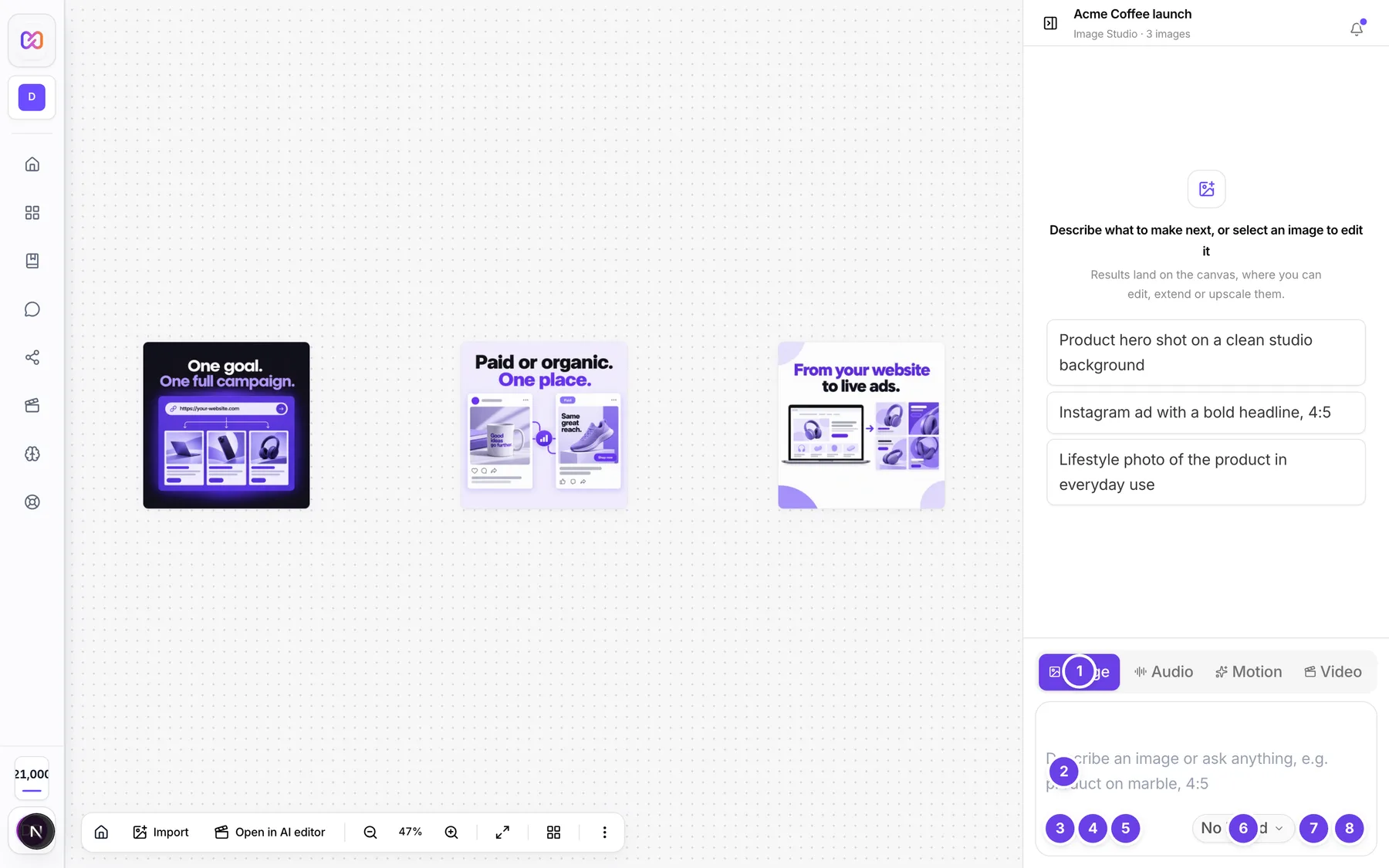
This table follows the composer in the Studio chat panel, from top to bottom.
| # | Name in the app | What it does | Plan |
|---|---|---|---|
| 1 | What to make | Switches the composer between Image, Audio, Motion and Video. Leave it on Image. | Both |
| 2 | Describe an image (subject, lighting, style, aspect, any text) or ask anything, e.g. product on marble, soft top light, 4:5 | The prompt box. On a narrow panel it shows a shorter hint: Describe an image or ask anything, e.g. product on marble, 4:5. Press Enter to send, or Shift and Enter for a new line. | Both |
| 3 | Attach a reference image for the AI to use (not added to the canvas) | The paperclip. Adds up to 6 pictures that Infinall AI looks at. See references and uploads. | Both |
| 4 | Image settings | Opens one panel with Quality, Aspect ratio and Generations. | Both |
| 5 | Image model: (current engine name) | Opens the list of image engines. The button shows only an icon. Pro engines show a Pro badge and a lock on Free. | Both |
| 6 | Select brand | Pins a brand to this project. It shows No brand or the brand name once you choose. See use your brand. | Both |
| 7 | Voice typing | Turns your speech into text in the prompt box. | Both |
| 8 | Send | Starts the image. It is greyed out until you type something. | Both |
| Describe your first image | The empty chat panel title on a new canvas. A canvas that already has items says: Describe what to make next, or select an image to edit it. | Both | |
| Product hero shot on a clean studio background | One of three example prompts in the empty chat panel. Click one to put it in the prompt box. The others are Instagram ad with a bold headline, 4:5 and Lifestyle photo of the product in everyday use. | Both | |
| Editing this image | A chip above the prompt box while an image is selected. Your next message edits that image instead of making a new one. See edit by describing. | Both | |
| Copy | Under a message in the chat. Copies the text. | Both | |
| Edit & resend | Under your own message. Puts the text back in the prompt box. | Both | |
| Reuse prompt | Under a finished image message. Puts that prompt back in the prompt box. | Both | |
| Retry | Under the latest message when it failed. Sends it again. | Both | |
| Add files | On Home only. The paperclip in the Image composer. | Both | |
| Image generation model | On Home only. The engine list in the Image composer, next to Send. | Both | |
| Start campaign | On Home only. This is the name the app gives the send button, even in Image mode. It sends your image prompt. | Both |
#How to make an image in a Studio project
- Open a Studio project from Projects.
- Make sure What to make is on Image.
- Type your prompt in the prompt box. Say the subject, the light, the style, any text, and the shape you want, for example 4:5.
- Optional: open Image settings to choose Quality, Aspect ratio and Generations.
- Optional: choose Attach a reference image for the AI to use (not added to the canvas) to add pictures, or Select brand to use a brand.
- Choose Send. A placeholder card shows while the image is made, then the picture appears on the canvas.
#How to make an image from Home
- Open Home and choose the Image tab.
- Type your prompt.
- Optional: use Add files, the brand selector, Image settings and Image generation model.
- Send it. Infinall opens a new Studio project and the images appear on its canvas.
#Options explained
Quality is Low, Medium or High. New images start on High. See quality levels.
Aspect ratio is Auto or one of nine shapes. See sizes and aspect ratios.
Generations is how many images one send makes. See number of images.
Image model chooses the engine. Pro engines are locked on Free.
#Limits
- One send makes up to 4 images.
- You can attach up to 6 reference pictures.
- Each picture you upload can be up to 10 MB.
#When something goes wrong
| Message in the app | What it means | What to do |
|---|---|---|
| Couldn't generate images. | The request failed and the app has no more detail. | Choose Retry. Nothing is charged for an image that was not made. |
| This image quality is a Pro feature. Upgrade to Pro to use it. | You picked a Pro engine on a Free account. | Pick another engine, or upgrade to Pro in Settings > Billing. |
| The image service refused this for safety reasons. Nothing was charged. | The safety system refused your prompt or picture. | Reword the prompt or use a different picture. |
| Insufficient credits. Purchase more to continue. | Your balance is too low. | On Pro, buy a credit pack. On Free, wait for the monthly reset or upgrade. |
| Image Studio isn't available yet. It's coming soon. | Image Studio is not switched on for your account. | Nothing you can change. Check back later. |
More messages are in image problems.
#Questions
#Do I need a brand to make an image?
No. Image works without a brand. A brand only adds your logo, colours and voice to the result.
#Where do my images go?
They land on the canvas of the Studio project. From Home, Infinall opens a new project for you. You can download them from the image menu, see download and export.
#Am I charged if the image fails?
No. If the request fails before an image is made, nothing is charged. Refusals for safety reasons are free too. See what is free.
#Can I choose the size of the picture?
You choose an aspect ratio, not a custom size. See sizes and aspect ratios.
#Can I change an image after it is made?
Yes. Select it and describe the change, or use the edit toolbar. See edit by describing.
#How do I move around the canvas?
Last checked against the app on . View as Markdown