
Use the AI tools
Ask the AI to edit in chat, make or change a picture, and use free tools that cut silence, find highlights, reframe, remove backgrounds and cut to the beat.
#What it is
The AI Editor is the video editor in your browser at /ai-editor. You cut clips on a timeline, add text and captions, effects, transitions, colour grading and audio, and export a finished video. It works on a computer only: phones and tablets see a message to use a computer, and the screen must be at least 1,024 pixels wide. Its AI tools are the AI Editor chat, which makes edits from your description, and AI Gen, which makes a picture from a description. It also has free tools that run in your browser: Auto Cut Silence, Local Highlights, Beat-Synced Auto-Edit, Auto Reframe, Background Removal and Quick Actions. See open the editor.
#Who can use it
Everyone. The app does not check your plan for the chat or for the free tools, so Free and Pro see the same controls. On a team, a paid AI action needs the Editor role or higher. A Viewer cannot spend credits.
One plan rule exists, in the picture maker. One picture model is marked (Pro). A Free account that picks it gets "This picture model needs a Pro plan." The other models are open to everyone.
#Cost
Mixed.
- Chat and Picture use credits. You pay for what the AI really used. The credits are held first and anything not used is given back. If the call fails you are not charged. See what is a credit.
- Picture shows an estimate on its button, for example "Generate image" followed by "about N credits". See price before you confirm.
- Chat shows no price before you send. Instead, one chat request stops after 100 credits.
- Editing, saving, exporting and every free tool below never use credits.
#Where to find it
- Chat: in the strip named Editor sections at the far right, choose AI Editor. It opens in the same panel as Media.
- Picture: in Editor sections, choose AI Gen, then Picture. For a picture you already have, hover it in Media and choose Edit with AI.
- Auto Cut Silence: select a clip with sound, stay on the Edit view and open Auto Cut Silence.
- Background Removal: select a video clip, open the Effects view and open Background Removal.
- Auto Reframe, Beat-Synced Auto-Edit, Local Highlights, Quick Actions: select a clip, open the Effects view and look in its AI part.
- Beat Sync: see audio.
#Buttons and controls
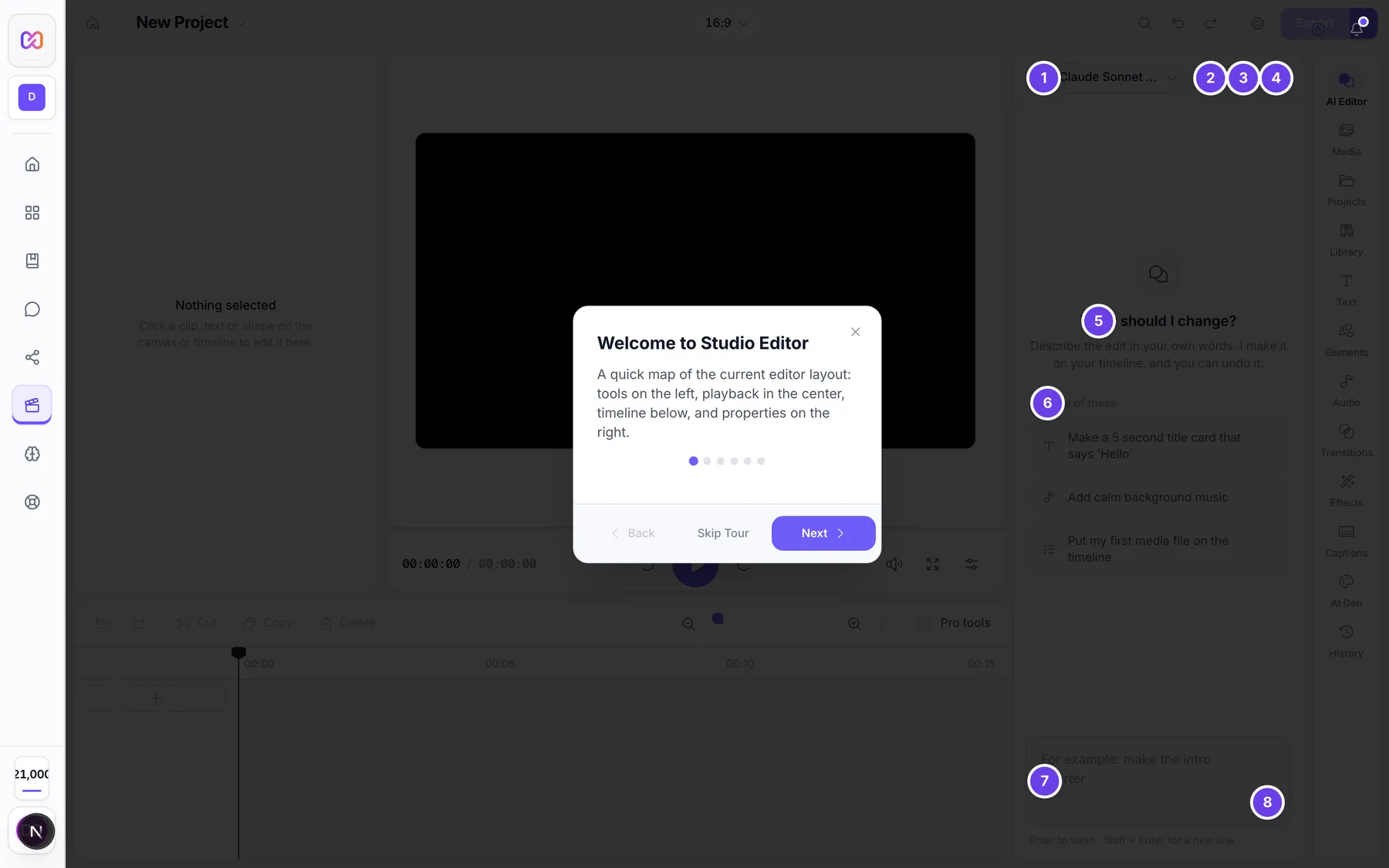
The numbered rows are the chat panel in the screenshot.
| # | Name in the app | What it does | Plan |
|---|---|---|---|
| 1 | AI model | A menu to choose the AI that does your edits. Auto is first. A Default tag marks the one the editor starts with. The menu hover text is "Choose ai model". It is greyed out while the AI is working. | Both |
| 2 | Past chats | Opens the list of your earlier chats. Greyed out while the AI is working. | Both |
| 3 | AI settings | Opens a small menu with two switches: Explain first and Don't ask before deleting. A dot shows on the button when one is on. | Both |
| 4 | New chat | Starts an empty chat. Greyed out while the AI is working or when the chat is already empty. | Both |
| 5 | What should I change? | The heading of an empty chat. Under it: "Describe the edit in your own words. I make it on your timeline, and you can undo it." | Both |
| 6 | Try one of these | Suggestion buttons. Click one to send it. With clips on the timeline they are edits such as "Add captions to my video". On an empty timeline they are starters such as "Add calm background music". | Both |
| 7 | For example: make the intro shorter | The message box. Its name for screen readers is "What should the AI change?". | Both |
| 8 | Send | Sends your message. It is greyed out while the box is empty. | Both |
| Stop | Replaces Send while the AI works. Ends the request. | Both | |
| Working | A small tag in the header while the AI works. | Both | |
| Undo | Shows in the header after the AI changed something. Its hover text is "Undo what the AI just did". | Both |
Cards in the chat.
| # | Name in the app | What it does | Plan |
|---|---|---|---|
| Okay to do this? | A card that appears before the AI removes or deletes something. It says "You can undo it afterwards." | Both | |
| Yes, do it | Lets the AI do this one step. | Both | |
| Yes to all | Lets the AI do every step of this request without asking again. | Both | |
| No | Skips the step. The step shows Skipped. | Both | |
| Working, Done, Didn't work, Skipped | The status on each step card the AI shows while it edits. Click a card to see its details. | Both | |
| Close message | On an error card. Clears the error. | Both |
Picture (AI Gen).
| # | Name in the app | What it does | Plan |
|---|---|---|---|
| Make with AI | The group on the AI Gen screen that holds Voice-over and Picture. | Both | |
| Picture | Opens the picture maker. Its hint reads "Describe a picture and AI draws it for you". | Both | |
| Generate image | The panel title when you make a new picture. | Both | |
| Model | A menu of five picture models. Its name is "Picture model". One is marked (Pro). | Both. One model is Pro. | |
| Size | A menu with Square (1:1), Landscape (3:2) and Portrait (2:3). | Both | |
| Prompt | The box for your description. It shows a count against the limit. | Both | |
| Generate image (with the estimate after it) | The button. While it works it reads Generating.... | Both | |
| Generated result | The picture that appears under the button, with the line "Added to your media" and the model name. | Both | |
| All tools | The back link, to return from Picture to the AI Gen list. | Both |
Free tools in the inspector.
| # | Name in the app | What it does | Plan |
|---|---|---|---|
| Auto Cut Silence | Finds quiet gaps in a clip's sound and cuts them out. Buttons: Analyze, then Cut N. | Both | |
| Beat-Synced Auto-Edit | Cuts your video to the beat of a music clip. Buttons: Generate Auto-Edit, then Apply Auto-Edit. | Both | |
| Local Highlights | Finds the most energetic moments in a clip. Buttons: Find Highlights, then Apply N Highlights. | Both | |
| Auto Reframe | Changes the project to a new shape. Button: Analyze & Reframe. Video clips only. | Both | |
| Background Removal | Hides or replaces the background behind a person. Video clips only. | Both | |
| Quick Actions | Three one click buttons: Remove Background, Quick Dialogue Cleanup and Auto-Color. | Both |
#How to ask the AI to edit
- In Editor sections, choose AI Editor.
- Open or start a project first. With no project open the panel says "Open or start a project first, then tell me what to change."
- Optional: pick a model in AI model. Auto picks a lighter model for simple edits and a stronger one for bigger jobs.
- Type what you want, for example "Trim 2 seconds off the end of the first clip". Press Enter or click Send. Shift and Enter start a new line.
- Watch the step cards. If the AI wants to remove something, answer the Okay to do this? card.
- When it is done, check the timeline. To take the change back, click Undo in the chat header.
If a request hits the limit it says "This request used 100 credits and stopped. Say continue to keep going." Type continue to carry on.
#How to see what the AI would do first
- Click AI settings.
- Turn on Explain first. The hint says "Tell me the plan without changing anything."
- Send your message. The AI tells you its plan and changes nothing.
- Turn the switch off again when you want it to make the edit.
#How to make a picture
- In Editor sections, choose AI Gen, then Picture.
- Pick a Model and a Size.
- Type what you want in Prompt. Be specific about the subject and the light.
- Check the estimate on the button. Click Generate image.
- Wait. The panel says "Images usually take 20 to 60 seconds."
- The picture is added to Media. Drag it onto the timeline.
#How to change a picture with AI
- In Media, hover a photo and click Edit with AI.
- In the Edit image with AI window, pick a Model and Size.
- In What should change? describe the change, for example "replace the background with a sunset beach".
- Click Edit image. The result is added to Media as a new file. Your original stays.
#How to cut silence
- Select a video or audio clip and open Auto Cut Silence.
- Move Silence Threshold and Min Duration if you need to. The note says "Lower values detect more silence".
- Click Analyze. You see Silent Sections Found and Total Silence.
- Click Cut N. You see "Silence Removed".
- To undo every cut at once, press Ctrl+Z. On a Mac use Command+Z.
#How to find highlights
- Select a clip with sound and open Local Highlights.
- Set Clips (how many you want) and Max duration (in seconds).
- Click Find Highlights. Each moment has a score, a title, a time range and a reason.
- Click a moment to include or leave it out. Click Preview highlight to move the playhead there.
- Click Apply N Highlights. The clip is split and the parts you did not pick are removed.
#How to cut video to the beat
Two tools do this. Beat Sync is in the Edit view when you select an audio clip. See audio.
Beat-Synced Auto-Edit works like this:
- Put at least one music or sound clip and one video clip on the timeline. With no sound the panel says "Add an audio track to use auto-edit".
- Select a clip and open Beat-Synced Auto-Edit.
- Choose the sound in Audio Source.
- Choose a Cut Mode: beats, downbeats or segments.
- Set Sensitivity and Min Clip Duration.
- Click Generate Auto-Edit. You see Preview with the number of Cuts and the Duration.
- Click Apply Auto-Edit. The video row is replaced by the cut clips.
#How to reframe for another shape
- Select a video clip and open Auto Reframe.
- Click a platform under Platform Presets, or a shape under Aspect Ratio.
- Click Analyze & Reframe. You see "Auto Reframe Applied" and the new size.
#How to remove or replace a background
- Select a video clip, open the Effects view and open Background Removal.
- Click Off to turn it On. The first time, the app loads its picture model, so allow a moment. You see "Background Removal Ready".
- Under Background Mode, choose Blur, Color, Image or Transparent.
- Adjust Blur Amount, pick a colour, or click Choose Image for your own picture.
- Use Edge Smoothing and Detection Threshold to tidy the edge.
#Options explained
Chat models. The menu groups models by the company that makes them. Auto chooses for you: a short, simple request goes to a lighter model, and a long request, a long chat or a big job such as "build", "montage" or "captions for" goes to a stronger one. Every model is billed in credits for what it really used.
AI settings.
| Switch | What it does |
|---|---|
| Explain first | The AI tells you the plan and changes nothing. |
| Don't ask before deleting | The AI removes or replaces things without showing Okay to do this?. |
What asks first. The AI asks before steps that remove things: removing a clip, a row, a caption or a media file, and ripple delete. Looking at your timeline never asks.
Picture models. Five models are offered. Four are open to everyone. One is marked (Pro). The editor picks the quality for you, so there is no quality menu. The model that answered is named under the result.
Picture sizes.
| Choice | Pixels |
|---|---|
| Square (1:1) | 1,024 x 1,024 |
| Landscape (3:2) | 1,536 x 1,024 |
| Portrait (2:3) | 1,024 x 1,536 |
Auto Cut Silence. Silence Threshold runs from -80 to -20 dB and starts at -40 dB. Min Duration runs from 0.1 to 2 seconds and starts at 0.5 second. Pad Before and Pad After each run from 0 to 2 seconds and start at 0.1 second. Padding leaves a little quiet at each side of a cut so it does not sound clipped.
Cut Mode (Beat-Synced Auto-Edit). beats cuts on every beat. downbeats cuts only on the strong first beat of each bar. segments cuts on every few beats, so you get longer clips. Sensitivity goes from 0 to 100 percent and starts at 50. A higher value keeps weaker beats, so you get more cuts. Min Clip Duration goes from 0.1 to 3 seconds and starts at 0.5.
Local Highlights. Clips goes from 1 to 20 and starts at 5. Max duration goes from 1 to 300 seconds and starts at 60. The score colour is green for 8 and up, yellow for 5 to 7, and grey below that. The work happens in your browser and finds loud, lively moments. It does not read what is said.
Auto Reframe.
| Group | Choices |
|---|---|
| Platform Presets | YouTube, TikTok, Instagram Reels, Instagram Feed, Instagram Stories, YouTube Shorts, Facebook, Twitter/X and LinkedIn. |
| Aspect Ratio | 16:9, 9:16, 1:1, 4:5, 4:3 and 21:9. |
| Sliders | Tracking Speed, Smoothing and Center Bias, and a Follow Subject switch. |
Choosing a platform also chooses its shape. In this version Analyze & Reframe resizes the whole project to the size you picked. The size line under the button shows the new width and height. The tracking sliders and Follow Subject do not change the result yet, so do not rely on them.
Background Removal modes. Blur blurs the background, with Blur Amount up to 50 pixels and a start value of 15. Color fills it with one colour from eight swatches or your own. Image uses a picture from your computer. Transparent leaves it empty. Edge Smoothing goes up to 10 and starts at 3. Detection Threshold is a percentage.
Quick Actions. Remove Background switches on a green screen key: it removes green from the picture. It is not the same as Background Removal, which finds a person. Quick Dialogue Cleanup turns on the Speech Focus noise cleanup. Auto-Color adds a small lift to saturation, contrast and brightness.
#Limits
- One chat request stops after 100 credits. Say continue to keep going.
- A picture you send for an AI edit can be up to 25 MB.
- A picture description can be up to 4,000 characters.
- Picture sizes are fixed at the three choices above.
- A single media file can be up to 500 MB when you bring it in.
- Auto Cut Silence only shows for a clip that has sound.
- Auto Reframe, Background Removal and Remove Background only show for a video clip.
#When something goes wrong
| Message in the app | What it means | What to do |
|---|---|---|
| Request limit reached | This request used 100 credits and stopped. | Type continue to carry on. |
| Out of credits | You don't have enough credits for this AI request. Top up to keep using AI. Editing, saving and export stay free. | Click Top up credits. |
| Couldn't reach the AI service | Check your internet connection and try again. | Click Try again. |
| Rate limit reached | The AI service is busy. | Wait a moment and click Try again. |
| Conversation is too long | This model cannot fit the full conversation. Start a new chat and continue there. | Click Start new chat. |
| Model unavailable | The model you picked is not available right now. | Choose another model and try again. |
| AI request failed | The AI could not finish. The card shows the reason. | Click Try again, or change your wording. |
| The AI request was stopped. | You pressed Stop, or closed the tab. | Send the message again. |
| This picture model needs a Pro plan. | A Free account picked the model marked (Pro). | Pick another model, or upgrade in Settings > Billing. |
| A prompt is required. | The picture box was empty. | Describe the picture first. |
| The prompt is too long. | The description is over the limit. | Shorten it. |
| Could not add the image to your media. | The picture was made but could not be saved. | Try again. |
| Image generation failed. | The picture could not be made and the app has no more detail. | Try again. |
| No Silence Detected | Auto Cut Silence found nothing at these settings. The note says "No silent sections found with current settings. Try lowering the threshold." | Move Silence Threshold toward -80. |
| Cut Failed | The cuts could not be made. | Click Analyze and try again. |
| Add an audio track to use auto-edit | Beat-Synced Auto-Edit has no sound clip to follow. | Add music first. |
| Audio file not loaded | The sound file is not ready in the browser. | Wait, or re-add the file. |
| Auto Reframe Failed | The reframe could not finish. | Try again. |
| Processing Failed | The background model could not start. The note says "Could not enable background removal". | Check your connection and click On again. |
| Could not clean up audio | Quick Dialogue Cleanup failed on this clip. | Open Background Noise Removal and pick a card there. |
#Questions
#Does the AI chat cost credits every time I send a message?
Yes. Each message uses credits for what the AI really used. A small edit costs little. A big job costs more. The chat does not show the price first, but a request stops after 100 credits, and unused credits are given back.
#Can I undo what the AI did?
Yes. Click Undo in the chat header right after the change. The same Undo in the top bar also works. If you made another edit by hand since then, the chat Undo button goes away so it cannot undo the wrong thing.
#Are my chats saved?
Yes, on this device. Click Past chats to search them, open one to keep going, or delete one. The list says "Saved on this device".
#Which tools are free?
Everything except the chat and Picture (and Voice-over, see audio). Auto Cut Silence, Local Highlights, Beat-Synced Auto-Edit, Auto Reframe and Background Removal all run in your browser and use no credits.
#Does Free get fewer picture models?
Four of the five are open to Free. The one marked (Pro) needs a Pro plan.
#Can the AI make colour looks or captions?
Colour looks are in AI Gen, see colour grading. Captions are in the Captions panel, see text and captions. Both are separate from the chat.
Last checked against the app on . View as Markdown