
Create an account and sign in
Sign in with an email code, Google or a password, reset a forgotten password and reactivate a deactivated account.
#What it is
There is one sign in screen for new and returning people. Enter your email and Infinall sends you a code, or you continue with Google. If the email is new, an account is created for you.
#Who can use it
Everyone. Every new account starts on the Free plan.
#Cost
Free, no credits. A new account starts with 1,000 credits.
#Where to find it
Go to infinall.ai. The pages /signin and /signup both send you to the same sign in screen. If you are already signed in, the app takes you straight in.
#Buttons and controls
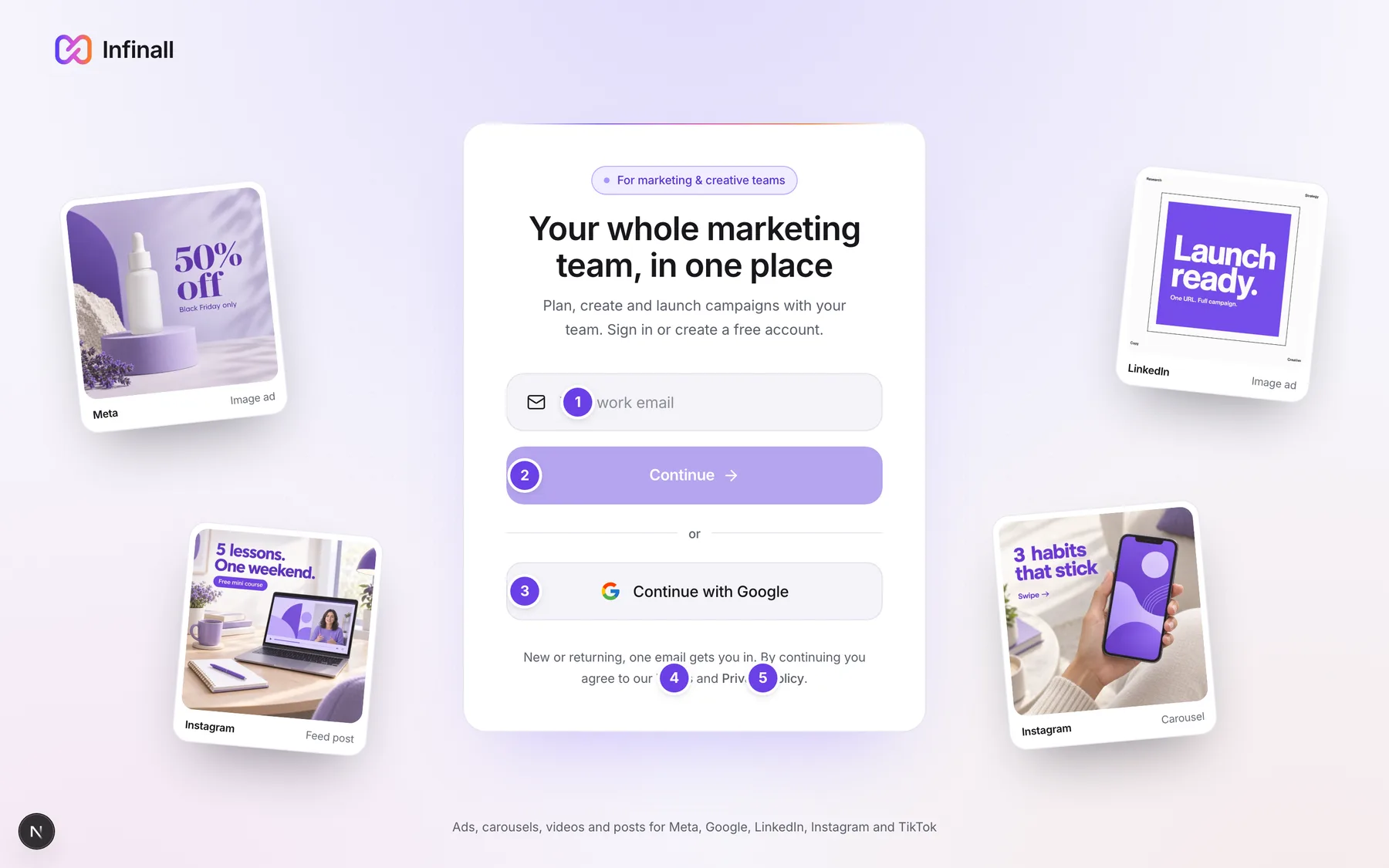
| # | Name in the app | What it does | Plan |
|---|---|---|---|
| 1 | Your work email | The email box (named Work email for screen readers). Type the email you want to use. | Both |
| 2 | Continue | Checks your email and moves to the next step. It stays off until the box holds an email address. | Both |
| 3 | Continue with Google | Signs you in with your Google account in a popup. | Both |
| 4 | Terms | Opens the Terms in a new tab. The Google sign-in window links the same page as Terms of Service. | Both |
| 5 | Privacy Policy | Opens the Privacy Policy in a new tab. | Both |
| Continue with email code | Sends a 6 digit code to your email. Shows when your account can use more than one method. | Both | |
| Continue with password | Lets you type your existing password. Shows only if your account has a password. | Both | |
| Use a different email | Goes back to the email box. | Both | |
| Resend code | Sends a new code. It replaces the countdown "Resend in" once the wait is over. | Both | |
| Forgot password? | Starts a password reset by email. Shows on the password step. | Both | |
| Try email code instead | Switches from password to an email code. | Both | |
| Back | Goes one step back. It has a left arrow in front of it. | Both |
#How to create an account and sign in with an email code
- Open infinall.ai.
- Type your email in Your work email and choose Continue.
- If Infinall offers a choice, choose Continue with email code. If your email is new, the code is sent straight away.
- Open your email and find the 6 digit code.
- Type the code into the boxes. You can paste it. It sends itself when the last digit is in.
- You land on Home. New accounts see a first-run box asking for your website. Paste it to build your first Brand Brain, or choose Skip, I don't have a website.
#How to sign in with Google
- On the sign in screen, choose Continue with Google.
- Pick your Google account in the popup.
- You land on Home.
Google sign in needs a verified Google email.
#How to sign in with a password
- Type your email and choose Continue.
- Choose Continue with password.
- Type your password and choose Sign in.
You do not need a password. You can sign in with an email code or Google and add a password later in your security settings.
#How to reset a forgotten password
- Type your email, choose Continue, then Continue with password.
- Choose Forgot password?. A reset code is sent to your email.
- Type the code and choose Next.
- On Set a new password, type a new password in New password and again in Confirm password. A checklist shows which rules you meet.
- Choose Reset password. You return to the password step with the note "Password updated. Sign in with your new password below."
- Type your new password and choose Sign in.
The reset also signs you out of all your devices.
There is also a separate page at /forgot-password. Type your email, choose Send reset code, enter the 6-digit code in Reset Code and a new password, then choose Reset password.
#How to reactivate a deactivated account
- Go to /reactivate. The page is titled Reactivate account.
- Type your email and your password.
- Choose Reactivate. You see "Account reactivated!" and go back to sign in.
You have 30 days after deactivating. After that the account is deleted for good. If you signed up with Google, contact support to reactivate.
#Options explained
Email code. A 6 digit code sent to your email. It works for sign in and for creating an account.
Google. One click sign in with a verified Google email.
Password. Optional. Needed only if you want to sign in with a password.
New password rules. At least 8 characters, 1 uppercase letter, 1 number and 1 special character from !@#$%^&*.
Staying signed in. You stay signed in for up to 180 days on a device.
#Limits
- A sign in code lasts 10 minutes.
- You get 5 wrong code attempts, then you need a new code.
- You can ask for a new code 30 seconds after the last one, and resend 3 times per hour.
- You can request 5 sign in codes per 15 minutes.
- After 5 failed password sign ins in 15 minutes you must wait.
- After 10 failed password attempts your account locks for 30 minutes.
- You can request 3 password resets per hour.
#When something goes wrong
| Message in the app | What it means | What to do |
|---|---|---|
| Incorrect code. Try again. | The code is wrong. | Check the digits and type them again. |
| Code expired. Request a new one. | The sign in code is too old. | Choose Resend code and use the new code. |
| Code has expired. Request a new reset email. | The reset code is too old. | Start Forgot password? again. |
| Reset request is invalid or has expired. | The reset can no longer be used. | Start Forgot password? again. |
| Password doesn't meet the requirements below. | The new password breaks a rule. | Check the list under the box and fix what is not ticked. |
| Passwords do not match. | The two new passwords differ. | Type the same password in both boxes. |
| Incorrect password. | The password is wrong. | Try again, or choose Try email code instead. |
| Account locked. Try again later. | Too many wrong password attempts. | Wait 30 minutes, or sign in with an email code. |
| Too many login attempts. Please try again later. | Too many failed password sign ins. | Wait up to 15 minutes. |
| Too many identify attempts. Please try again later. | Too many code requests. | Wait up to 15 minutes. |
| OTP resend limit reached. Try again after 1 hour. | You asked for too many codes. | Wait an hour. |
| Too many reset requests. Please try again later. | Too many password resets. | Wait an hour. |
| Could not resend. | The new code could not be sent. | Wait a moment and try again. |
| Google account email is not verified | Your Google email is not verified. | Verify it with Google, then try again. |
| A different Google account is already linked to this email | Another Google account is tied to this email. | Use the Google account that was linked first. |
| Email or password is incorrect. | The reactivate page did not accept your details. | Check both and try again. |
| No deactivated account found with this email. | No deactivated account matches. | Check the email, or sign in normally. |
| The 30-day reactivation window has passed. Account is permanently deleted. | You waited too long. | Create a new account. |
| Can't reach our servers right now. Check your connection and try again. | Your device could not reach Infinall. | Check your connection and try again. |
#Questions
#Is there a separate sign up page?
No. The screen says "New or returning, one email gets you in." Enter your email and the account is created when you confirm the code.
#I did not get my code. What now?
Check spam. Wait for the countdown to finish, then choose Resend code. You can resend 3 times per hour.
#Do I need a password?
No. An email code or Google is enough. A password is optional.
#Does changing my password sign me out?
Yes. Changing or resetting your password signs you out of every device.
#How long am I signed in?
Up to 180 days on a device.
#Can I reactivate a Google account on my own?
No. Accounts that use Google sign in must contact support to reactivate.
Last checked against the app on . View as Markdown