
Choose your notifications
Pick which alerts reach you in the app, by email or in your browser, and turn product emails on or off.
#What it is
Notifications tells you when your work finishes, fails or needs you. Each kind of alert has three switches: In-app (the bell), Email and Browser (a pop-up from your browser). You can also turn product emails on or off.
#Who can use it
Everyone. Free and Pro accounts get the same screen. The code puts no plan limit on it. Billing and Security alerts are always on for everyone.
#Cost
Free, no credits. Changing a switch never uses credits.
#Where to find it
Open Settings, then Notifications. You can also search the Settings menu for "push", "alerts" or "browser".
#Buttons and controls
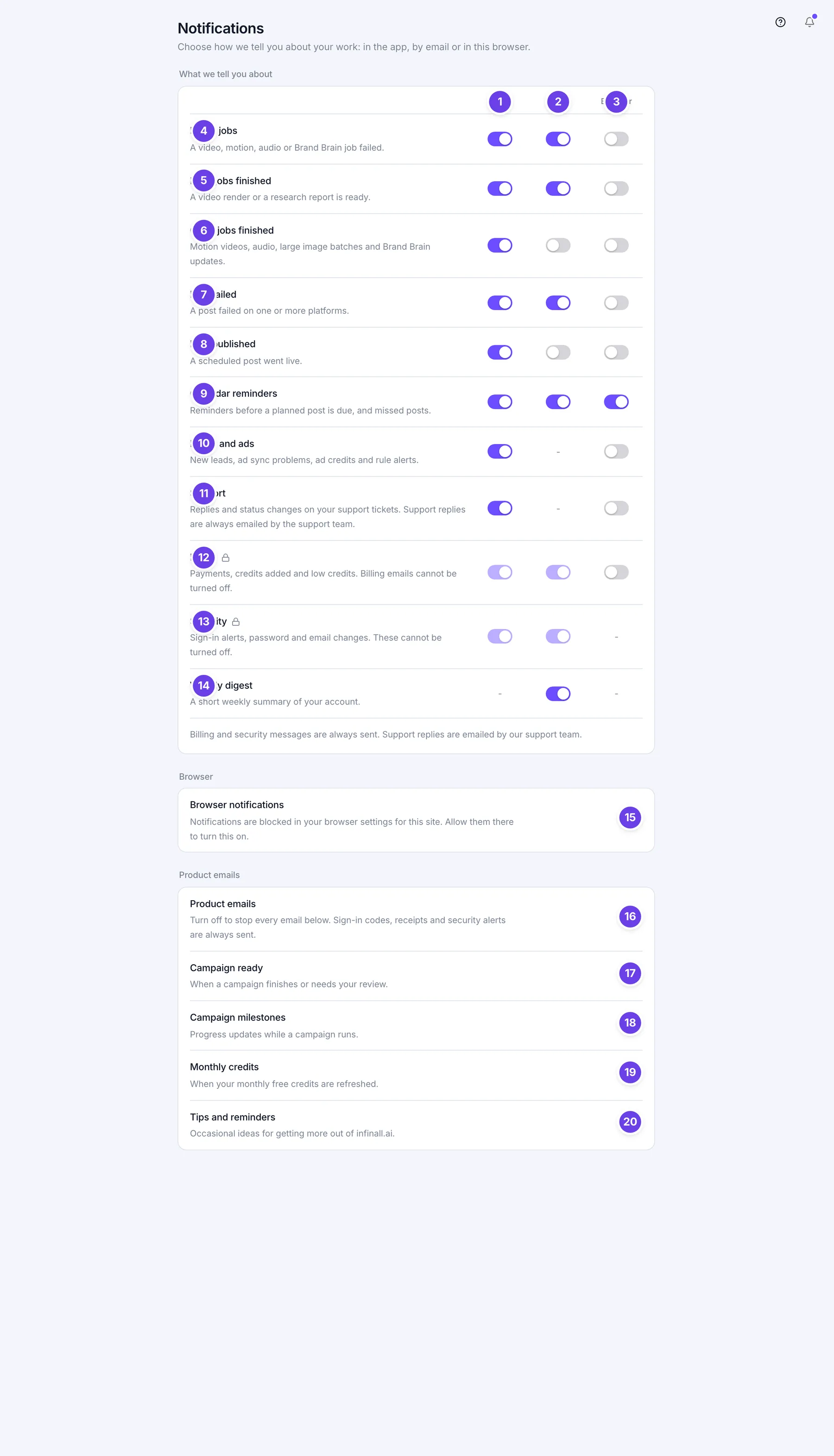
| # | Name in the app | What it does | Plan |
|---|---|---|---|
| 1 | In-app | Column heading. The switches under it control alerts in the app. | Both |
| 2 | Column heading. The switches under it control emails. | Both | |
| 3 | Browser | Column heading. The switches under it control browser pop-ups. | Both |
| 4 | Failed jobs | A video, motion, audio or Brand Brain job failed. Has an In-app, Email and Browser switch. | Both |
| 5 | Long jobs finished | A video render or a research report is ready. | Both |
| 6 | Other jobs finished | Motion videos, audio, large image batches and Brand Brain updates are ready. | Both |
| 7 | Post failed | A post failed on one or more platforms. | Both |
| 8 | Post published | A scheduled post went live. | Both |
| 9 | Calendar reminders | Reminders before a planned post is due, and missed posts. | Both |
| 10 | Leads and ads | New leads, ad sync problems, ad credits and rule alerts. Has In-app and Browser only. | Both |
| 11 | Support | Replies and status changes on your support tickets. Has In-app and Browser only. | Both |
| 12 | Billing | Payments, credits added and low credits. A lock marks it Always on. The In-app and Email switches are locked on. | Both |
| 13 | Security | Sign-in alerts, password and email changes. A lock marks it Always on. Has In-app and Email, both locked on. | Both |
| 14 | Weekly digest | A short weekly summary of your account. Has an Email switch only. | Both |
| 15 | Browser notifications | One switch that allows this browser to show pop-ups. Needed before any Browser switch does anything. | Both |
| 16 | Product emails | The master switch for the product emails below it. | Both |
| 17 | Campaign ready | When a campaign finishes or needs your review. | Both |
| 18 | Campaign milestones | Progress updates while a campaign runs. | Both |
| 19 | Monthly credits | When your monthly free credits are refreshed. | Both |
| 20 | Tips and reminders | Occasional ideas for getting more out of infinall.ai. | Both |
| Always on (lock icon) | Shows next to Billing and Security. Their switches are greyed out and cannot be turned off. | Both | |
| - (dash) | Shows in place of a switch when a kind of alert has no In-app, Email or Browser version. | Both |
Each switch is named after its row and column, for example "Failed jobs: Email". The locked ones read "Billing: In-app (always on)" and so on.
#How to change an alert
- Open Settings, then Notifications.
- Find the kind of alert in What we tell you about.
- Click the switch in the In-app, Email or Browser column.
- The change saves at once. If it cannot save, the switch goes back and a red message shows at the top.
#How to turn on browser pop-ups
- Open Settings, then Notifications.
- Under Browser, click the Browser notifications switch.
- Your browser asks for permission. Choose to allow it.
- Now turn on the Browser switch for each kind of alert you want as a pop-up.
To stop pop-ups in this browser, switch Browser notifications off again.
#How to stop product emails
- Open Settings, then Notifications.
- Under Product emails, switch Product emails off.
- The four switches below it turn off and cannot be changed until you switch Product emails on again.
To keep some of them, leave Product emails on and switch off only Campaign ready, Campaign milestones, Monthly credits or Tips and reminders.
#Options explained
Where each alert is on by default
| Alert | In-app | Browser | |
|---|---|---|---|
| Failed jobs | On | On | Off |
| Long jobs finished | On | On | Off |
| Other jobs finished | On | Off | Off |
| Post failed | On | On | Off |
| Post published | On | Off | Off |
| Calendar reminders | On | On | On |
| Leads and ads | On | none | Off |
| Support | On | none | Off |
| Billing | On, locked | On, locked | Off |
| Security | On, locked | On, locked | none |
| Weekly digest | none | On | none |
"none" means that kind of alert has no switch in that column.
Browser notifications switch states. The text under the switch tells you the state:
- On: "This browser will show notifications from infinall.ai."
- Off: "Allow this browser to show the alerts you switch on under Browser."
- Blocked: "Notifications are blocked in your browser settings for this site. Allow them there to turn this on." The switch is greyed out.
- Not supported: "This browser does not support web notifications." The switch is greyed out.
- Not set up: "Browser notifications are not available yet." The switch is greyed out.
Always sent. Sign-in codes, receipts and security alerts are always sent, even when Product emails is off. Support replies are emailed by the support team.
#Limits
- Browser notifications work only in a browser that supports them, and only after you allow them for infinall.ai.
- Sign-in codes, receipts and security alerts are always sent. You cannot turn them off.
#When something goes wrong
| Message in the app | What it means | What to do |
|---|---|---|
| Could not save that change. | A switch change did not save. The switch goes back to where it was. | Check your connection and try again. |
| Could not load your notification settings. Refresh to try again. | The alert switches did not load. | Refresh the page. |
| Could not load your email preferences. Refresh to try again. | The Product emails switches did not load. | Refresh the page. |
| Could not change browser notifications. | Turning the Browser notifications switch on or off failed. | Try again. If it keeps failing, check your browser's notification settings for this site. |
#Questions
#Why can I not turn off Billing and Security?
They cover payments, credits and the safety of your account. The screen says "Billing and security messages are always sent."
#I switched on Browser for an alert but I get no pop-ups. Why?
The Browser switches only work after you switch on Browser notifications and allow it in your browser. If your browser blocks notifications for this site, allow them in the browser settings first.
#Do these settings follow me to other browsers?
The alert switches and Product emails are saved to your account. Browser notifications is per browser. Switch it on in each browser you use.
#Will I still get emails if I switch off Product emails?
Yes, for important ones. Sign-in codes, receipts and security alerts are always sent.
#Where do I read my in-app alerts?
In the bell in the app. The In-app switch controls what shows there.
Last checked against the app on . View as Markdown