
Create a video
Describe your video, pick a format and settings, then press Create video. You see the price before anything renders.
#What it is
The video composer is the box where you describe a video and choose how it is made. Press Create video and Infinall plans the video, then shows a price. Nothing renders until you press Approve & render.
#Who can use it
Video is part of the Pro plan. The backend checks your plan on every step that starts video work: planning, reading a change, approving a script and approving a render. A Free account is refused at each of them.
Models marked Pro in the model list are checked again when you press Approve & render, and only the Pro plan passes that check.
On Free, the Video tab on Home shows a lock and opens an upgrade prompt. In a Studio project, the composer shows "Video is part of the Pro plan. Upgrade to Pro to make videos." with an Upgrade button, and Create video stays off.
#Cost
Uses credits. You see the exact price before you confirm.
While your plan is being written, a small hold is taken and only AI work that actually ran is charged. The price of the render itself shows on the price card, and nothing is charged for the render until you press Approve & render. See Price before you confirm.
#Where to find it
On Home, choose the Video tab. In a Studio project, use the What to make bar and choose Video. Send from Home opens a new Studio project in Video mode and creates your video there.
#Buttons and controls
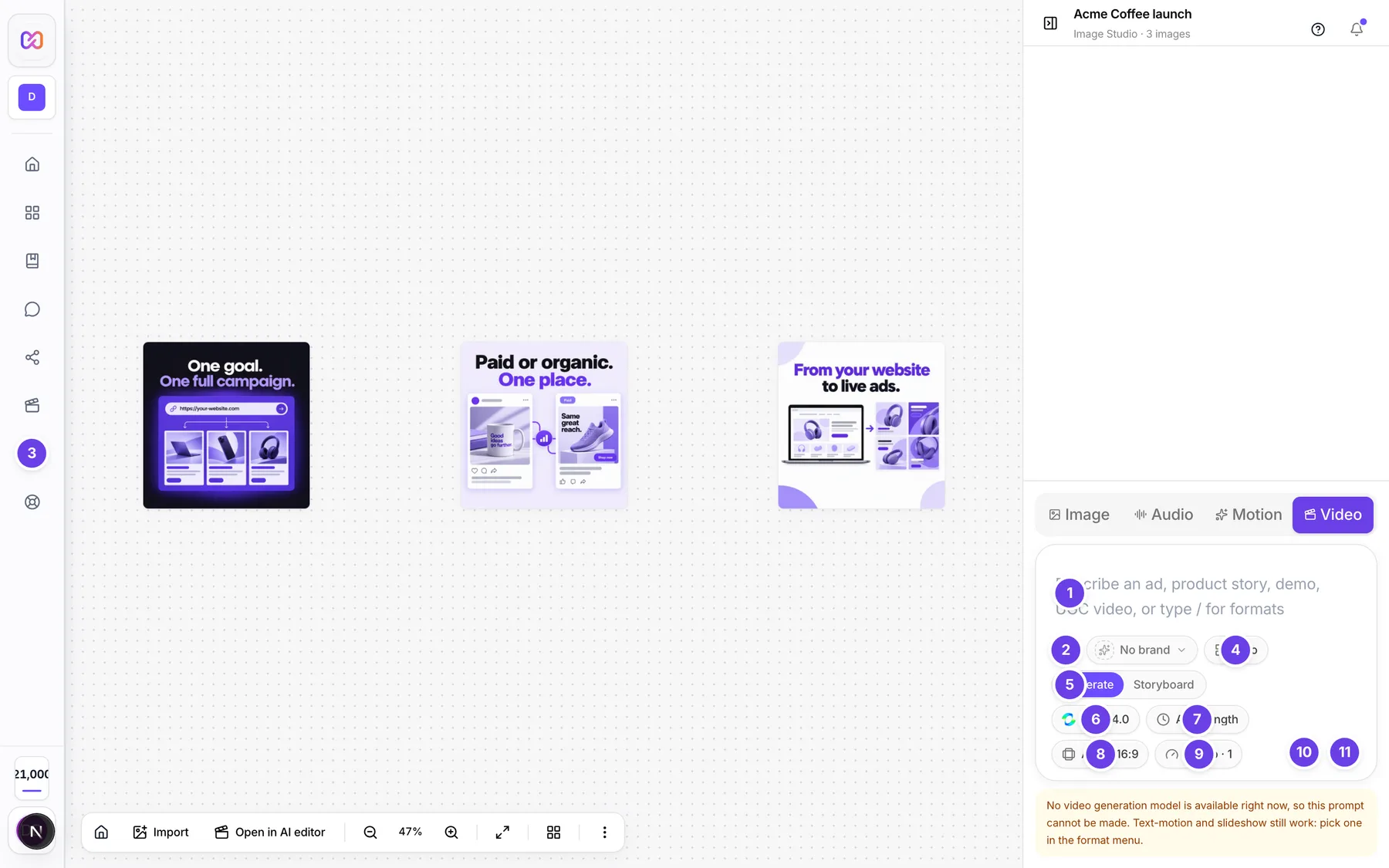
| # | Name in the app | What it does | Plan |
|---|---|---|---|
| 1 | Describe an ad, product story, demo, UGC video, or type / for formats | The prompt box. Type your brief. Type / first to open the list of formats. Enter sends, Shift+Enter adds a new line. | Pro |
| 2 | Add files and advanced video settings | The plus button. Opens a menu to add files, pick an avatar, pick a platform, set the length in seconds and set the frame rate. A dot shows when an avatar or an A/B set is active. | Pro |
| 3 | Brand: (your brand name) | Picks the brand to ground the video in. Shows Select brand or No brand when none is chosen. See Use your brand. | Pro |
| 4 | Video format: (format name) | Opens the format gallery. Shows auto until you pick one. See Video formats. | Pro |
| 5 | Generation mode | A two way switch: Generate or Storyboard. See The storyboard. | Pro |
| 6 | Video generation model | Picks the model that makes the footage. Models marked Pro need a Pro account. | Pro |
| 7 | Video length | Opens the length menu. Shows Auto length or a length such as 15 s. | Pro |
| 8 | Video aspect ratio | Opens the shape menu: Auto, 9:16, 16:9, 1:1, 4:5, 2:1 or Custom. | Pro |
| 9 | Video quality and outputs | One button for quality and for how many versions to make. Shows a label such as 1080p - 1. | Pro |
| 10 | Voice typing | Speak your brief instead of typing it. | Pro |
| 11 | Create video | Sends your brief and starts planning. It is grey until the brief is ready to send. | Pro |
| Avatar: (name) | Shows beside the plus button after you pick an avatar. Its x (Remove avatar) clears it. See Avatars. | Pro | |
| Lip sync | Shows only when an avatar is picked and the chosen model can speak in your voice. See Voice. | Pro | |
| Role for (file name) | Shows on each attached file. Sets how the file is used. | Pro | |
| Remove (file name) | Shows on each attached file. Takes it off the video. | Pro | |
| I have the rights and consent to use the uploaded files, people, voices and brand assets. | The tick box that shows once you attach a file. You must tick it to send. | Pro | |
| Upgrade | Shows next to the Pro plan message on Free. Opens Billing. | Free | |
| Undo | Shows after the app switched your model for an avatar. Puts your model back and clears the avatar. | Pro |
#How to make a video
- Open Home and choose Video. Or open a Studio project and choose Video in the What to make bar.
- Type what you want in the prompt box. Say who it is for, what it shows and what it should say.
- Optional: pick a brand, a format, a length, a shape and a quality. Every one has a sensible default, so you can skip them.
- Press Create video. A video card appears on the canvas and reads Planning.
- Wait for the plan. The panel says "Preparing your video. This can take a minute."
- Read the price on the price card. It shows the credits, the length and the number of clips, and counts down how long the price holds.
- Press Approve & render. The card shows progress until it reads Ready.
- Save the finished video. See Download and save your finished video.
If you chose Storyboard in step 3, a Storyboard panel opens first so you can read the script before the price. See The storyboard.
#How to attach files
- Press the plus button (Add files and advanced video settings).
- Choose Add photos & files.
- Pick your files. You can add images, video, audio, PDF, DOCX, TXT or PPT files.
- For each file, use Role for (file name) to say how it is used.
- Tick the rights and consent box. Create video stays off until you do.
Some formats need a file before they can start. A message under the composer tells you which one, for example that the format needs a source video or source images.
#How to make several versions
- Open Video quality and outputs.
- Under Outputs, press a number. Press 1 for a single video, or a larger number for an A/B set.
- Press Create video. Each version is planned on its own. Pick between them with the Variant buttons in the video panel.
#Options explained
Generate vs Storyboard. Generate goes straight to the price. Storyboard lets you read and edit the spoken script first.
Role for a file. The roles you can pick depend on the file type. Images: product_visual, style_reference, presenter. Video: style_reference, clone_source. Audio: narration, music_bed, voice_sample, script_source. Documents: brand_document, script_source. The app picks a role for you when you add a file.
Format, length, shape, quality. Each has its own page. See Video formats and Length, aspect and outputs.
The model list. The list shows a name for each model that is available right now, and the model you picked is used for the footage. With an avatar picked, the list splits into models that work with your avatar and models that cannot use a real face.
#Limits
- Your brief must be 5 to 5,000 characters.
- You can attach up to 10 files to one video, each up to 100 MB.
- A video can be 1 to 180 seconds long.
- You can make 1 to 20 versions at once.
- A price holds for 10 minutes.
#When something goes wrong
| Message in the app | What it means | What to do |
|---|---|---|
| Video is part of the Pro plan. Upgrade to Pro to make videos. | Your account is not on Pro. | Choose Upgrade. |
| Out of credits. Add credits in Settings > Credits to make videos. | Your balance is too low. | Add credits. See Your credit balance. |
| This video model is part of the Pro plan. Upgrade to use it. | The model you picked is a Pro model and your plan is not Pro. | Upgrade, or pick another model. |
| Video is unavailable right now. | The list of formats and models did not load. | Reload the page and try again. |
| Could not create the video. | Planning failed. Nothing was made and the card is removed. | Press Create video again. |
| Brief must contain 5 to 5,000 characters. | Your brief is too short or too long. | Shorten it or add detail. |
| (format) needs a source video. Add it with the + button. | The format works on a video you supply. | Attach one with the plus button. |
| (format) needs one or more source images. Add it with the + button. | The format works on images you supply. | Attach images with the plus button. |
| No video generation model is available right now, so this prompt cannot be made. Text-motion and slideshow still work: pick one in the format menu. | No footage model is available. | Pick text-motion or slideshow, or try later. |
#Questions
#Do I pay when I press Create video?
Planning can use a small amount of credits for the AI work that ran. The render is only charged after you press Approve & render, and the exact price shows first.
#Can I change the format after I press Create video?
Not on the same video. Start a new one with the format you want, or send a change in the chat. See Edit a finished video.
#Why is Create video grey?
It is grey until the brief is typed and the lists have loaded. It also stays grey if you attached files and have not ticked the rights box, if a format that needs a file has none, or if your account is not on Pro.
#Where does my video go?
Onto your Studio canvas as a video card, in the project you made it in. You can save it from there.
#Can my brand shape the video?
Yes. Pick a brand with the brand button. The plan is then written with your brand in mind. See Use your brand.
Last checked against the app on . View as Markdown