
Find and open your projects
See everything you have made in one list, search and filter it, and open any project.
#What it is
The Projects screen lists your work in one place: campaigns, studio projects (image, audio, motion and video) and AI Editor projects. You search, filter and open from here. Campaign docs are coming soon.
#Who can use it
Everyone. Free and Pro accounts see the same list. On a team, every role can open and read projects. Changing or removing things in a project needs the Editor role or higher.
#Cost
Free, no credits. Looking at, searching and opening projects never uses credits.
#Where to find it
Click Projects in the left menu. The heading on this screen reads Campaigns, because campaigns share the list with your studio and editor projects.
#Buttons and controls
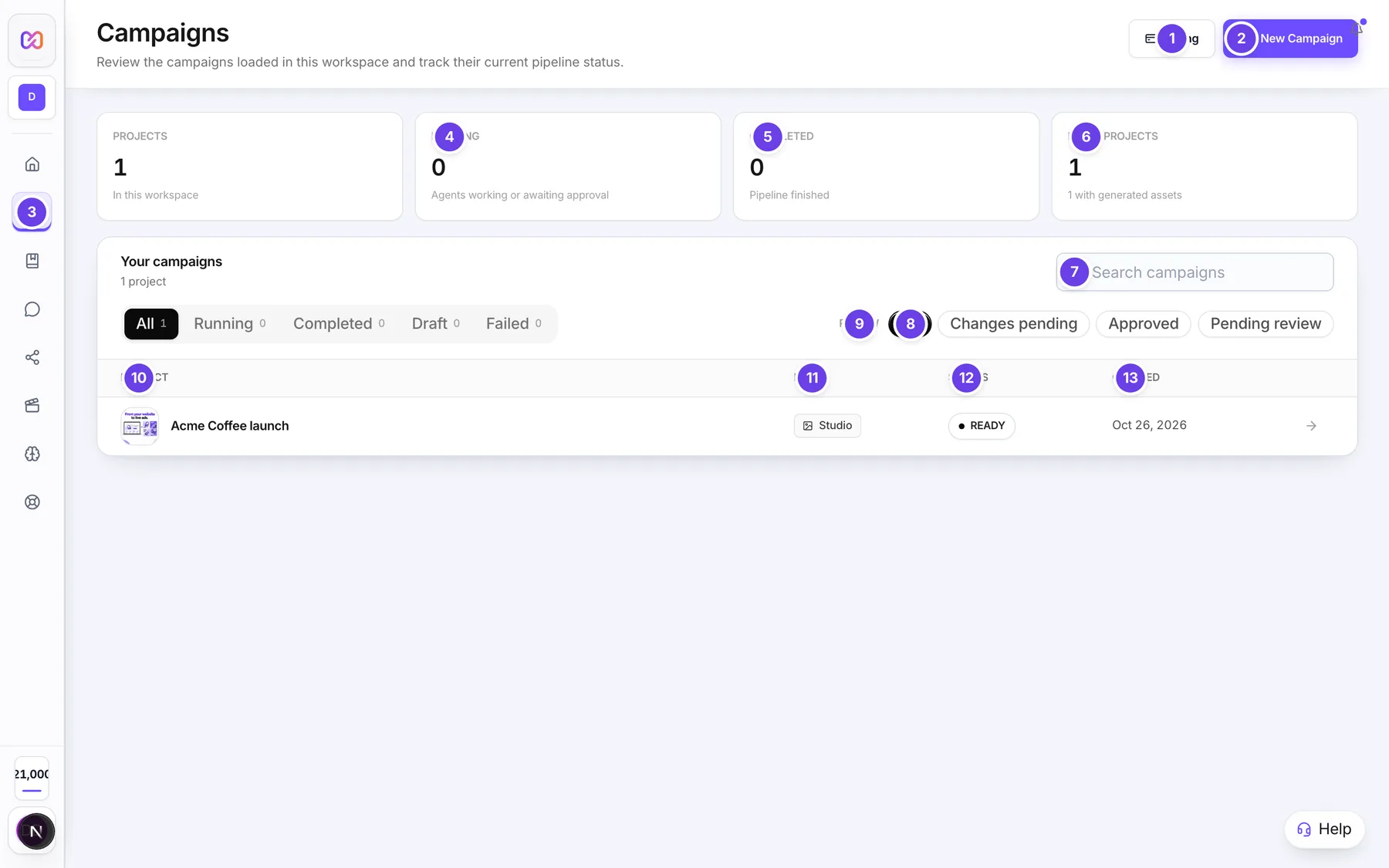
| # | Name in the app | What it does | Plan |
|---|---|---|---|
| 1 | Billing | Opens your billing settings. | Both |
| 2 | New Campaign | Takes you to Home, where you start something new. | Both |
| 3 | Projects | Summary box with the number of projects in this workspace. A plus sign after the number means older campaigns are not loaded yet. | Both |
| 4 | Running | Summary box with the campaigns that are working or waiting for your approval. | Both |
| 5 | Completed | Summary box with the campaigns whose pipeline has finished. | Both |
| 6 | Image projects | Summary box with the number of studio projects, and how many of them already have something made. | Both |
| 7 | Search campaigns | Filters the list by project title as you type. It searches every kind of project. | Both |
| 8 | Filter by pipeline status | A row of buttons: All, Running, Completed, Draft and Failed, each with a count. | Both |
| 9 | Review | Buttons that narrow the campaigns in the list by client review state: All, Changes pending, Approved and Pending review. | Both |
| 10 | Project | Column with the project name and a small picture. Click a row to open it. The column headers show on wide screens. | Both |
| 11 | Mode | Column that says Campaign, Studio or Editor. | Both |
| 12 | Status | Column with the state of the project. | Both |
| 13 | Created | Column with the date. | Both |
| 14 | Show all projects | Loads and shows the full list. When the list is open the button changes to Show last 5 only. | Both |
| Start something new | Shows only when you have no projects. Takes you to Home. | Both | |
| No projects match your filters. | Shows when the search or filter finds nothing. | Both |
#How to open a project
- Click Projects in the left menu.
- Find the project. Type part of its name in Search campaigns if the list is long.
- Click the row. A Studio project opens on the canvas, in the mode it was made in (image, audio, motion or video). An Editor project opens in the AI Editor.
#How to narrow the list
- Click a status button such as Completed in Filter by pipeline status.
- Optionally click a Review button such as Approved.
- Click All to see everything again.
#Options explained
Mode tells you where the project lives.
- Campaign: a campaign.
- Studio: anything made on the studio canvas. Image, audio, motion and video projects all show Studio.
- Editor: a project in the AI Editor.
Status depends on the mode.
- Campaigns show Draft, Running, Paused, Completed or Failed.
- Studio and Editor projects show Ready when something has been made in them, and Empty when nothing has. A dash means the check has not finished yet.
Status buttons (Running, Completed, Draft, Failed) are about campaigns. When you pick one of them, studio and editor projects are hidden. Pick All to bring them back. The search box works with every button.
Review buttons change which campaigns are loaded. They do not hide or show studio projects by themselves.
#Limits
- The list shows your newest 5 projects until you click Show all projects.
- The list is sorted by date, newest first, with all kinds of projects mixed together.
#When something goes wrong
| Message in the app | What it means | What to do |
|---|---|---|
| Image projects couldn't be loaded. Campaigns still shown below. | The studio projects did not load. | Reload the page. |
| Campaigns couldn't be loaded. Image projects still shown below. | The campaigns did not load. | Reload the page. |
| AI Editor projects couldn't be loaded. Your other projects are still shown below. | The editor projects did not load. | Reload the page. |
| Image project not found | The project was removed, or it belongs to a different workspace. | Go Home and open it from the list. |
| Couldn't load this project | The project failed to open. | Click the retry button on the screen. |
#Questions
#Why does the page say Campaigns when the menu says Projects?
The menu item is Projects and the heading is Campaigns. It is the same screen. Campaigns, studio projects and editor projects all appear in it.
#Can I duplicate a project from this list?
No. The list has no Duplicate button. On the canvas you can duplicate a single image, see the canvas page.
#Why are my studio projects missing when I pick Running?
Running, Completed, Draft and Failed describe campaigns. Studio and editor projects have no such state, so they are hidden when you pick one. Click All to see them.
#Where do I remove a project?
Not in the list. Open the project and see rename and delete.
#Does opening a project cost credits?
No. Opening, searching and filtering are free.
Last checked against the app on . View as Markdown