
Length, shape, quality and versions
Set how long the video is, its shape, its quality and frame rate, and how many versions to make. Pick a platform to start from a preset.
#What it is
These controls decide how long your video runs, what shape it is, how sharp it looks and how many versions you get. Every one has a default, so you only change what you care about.
#Who can use it
Video is part of the Pro plan. Free accounts see an upgrade prompt. All of these controls are open to every Pro account.
#Cost
Uses credits. You see the exact price before you confirm. The price follows your length, your quality and the number of versions, so change them first and read the price card after.
#Where to find it
In the video composer, under the prompt box. The length, shape and quality buttons sit in the row of buttons. The platform and frame rate settings are in the plus menu, Add files and advanced video settings.
#Buttons and controls
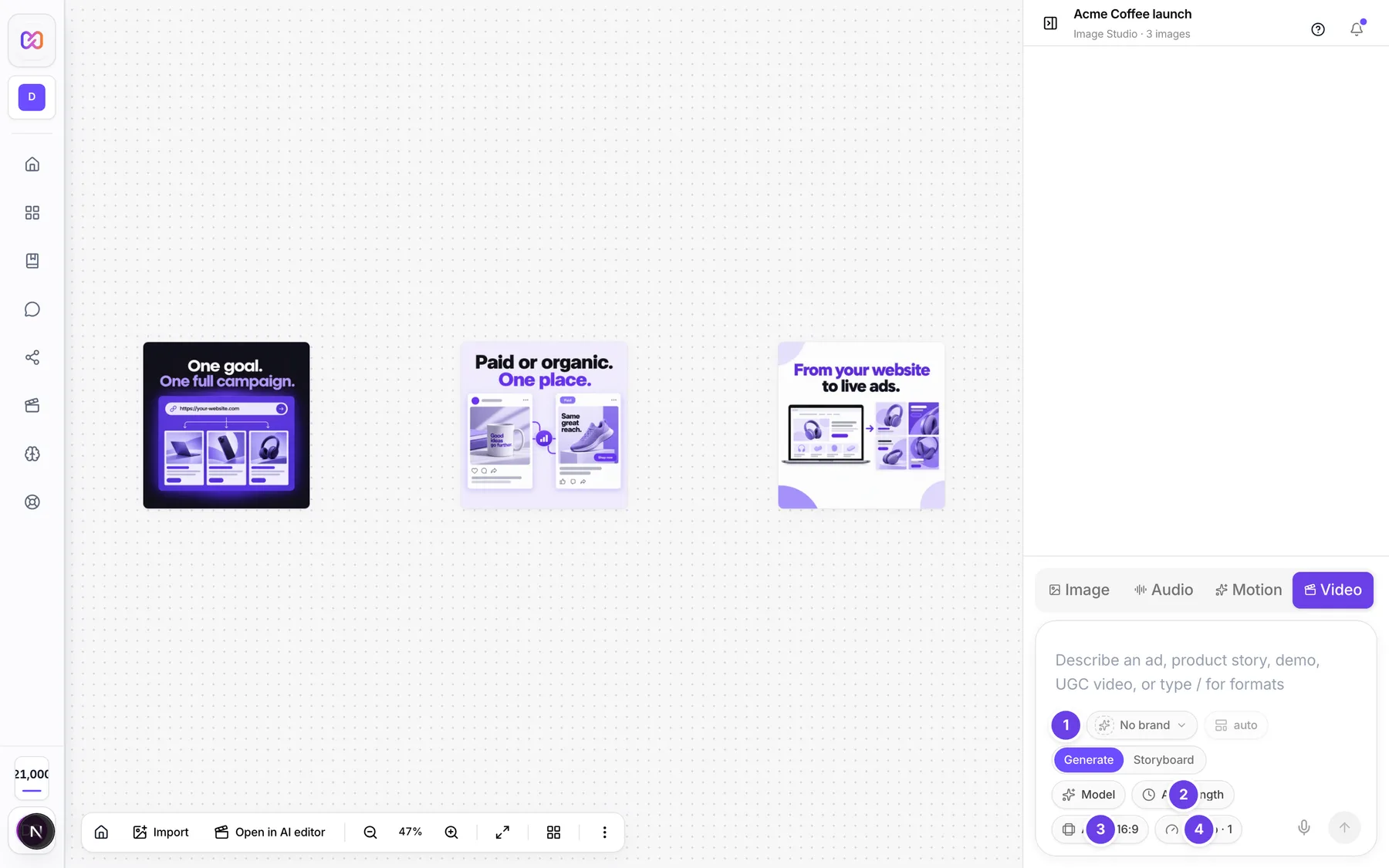
| # | Name in the app | What it does | Plan |
|---|---|---|---|
| 1 | Add files and advanced video settings | The plus button. Its menu holds Platform preset, Duration in seconds and Frame rate. | Pro |
| 2 | Video length | Opens the length menu. Shows Auto length or a length such as 15 s. | Pro |
| 3 | Video aspect ratio | Opens the shape menu. Shows Auto or the ratio you chose. | Pro |
| 4 | Video quality and outputs | Opens one menu for quality and for the number of versions. Shows a label such as 1080p - 1. | Pro |
| Auto | In the length menu. Takes the length from your brief, or the format default. | Pro | |
| Video length in seconds | The slider in the length menu. Moving it turns Auto off and sets an exact length. | Pro | |
| Custom ratio width | Shows after you press Custom in the shape menu. | Pro | |
| Custom ratio height | Shows next to the width box. | Pro | |
| Set | Applies your custom ratio. | Pro | |
| Quality | The first part of the quality menu. Lists the quality choices for the model you picked. | Pro | |
| Outputs | The second part of the quality menu. A row of numbers for how many versions to make. | Pro | |
| Platform preset | In the plus menu. Fills in the shape for a platform. | Pro | |
| Duration in seconds | In the plus menu. A number box. See the note under Options explained. | Pro | |
| Frame rate | In the plus menu. A drop down with 24, 30 and 60. | Pro |
#How to set the length
- Press Video length.
- Choose Auto to let your brief decide. Say it in the brief, for example "a 30 second ad" or "1.5 min".
- Or move the slider to set an exact length. Auto turns off.
- Read the price card after the plan is made. It shows the length and the number of clips.
#How to change the shape
- Press Video aspect ratio.
- Choose a shape from the list. For another shape, choose Custom, type a width and a height, then press Set.
- The video card on the canvas changes to the shape the plan uses.
#How to start from a platform
- Press the plus button, Add files and advanced video settings.
- Under Generation, open Platform preset and pick a platform.
- The shape is taken from the platform when your shape is on Auto.
- To use the platform's usual length too, set the length yourself with the slider.
#How to make several versions
- Press Video quality and outputs.
- Under Outputs, press a number. 1 makes one video. A larger number makes an A/B set.
- Press Create video. Each version is planned on its own.
- Switch between versions with the Variant buttons in the video panel.
#Options explained
Length. Auto reads your brief for a length such as "30 second ad", and otherwise uses the format's default. If neither gives a length, it uses 15 seconds. The slider runs from 5 seconds to 180 seconds in one second steps.
Scenes. Each scene is at most 8 seconds. A longer video is made from several scenes, and the price card shows the number of clips.
Shape (aspect ratio).
| Choice | What it is for |
|---|---|
| Auto | Uses the format's own shape, or the platform's, or one the brief points to. |
| 9:16 | Vertical video for Reels, Shorts and TikTok. |
| 16:9 | Widescreen video for the web and YouTube. |
| 1:1 | Square social video. |
| 4:5 | Portrait feed video. |
| 2:1 | Extra wide cinematic video. |
| Custom | A width and height you type. It can be no wider than 4 times its height, and no taller than 4 times its width. |
With Auto, the shape comes from the format first (a story ad is always 9:16), then the platform you picked, then words in your brief such as TikTok, Reels, YouTube or LinkedIn. With none of those, it is 9:16. The button may read Auto - 16:9 before you send. The real shape is chosen when the plan is made, and the card then changes to match.
Platform presets. Each sets a shape and a usual length.
| Platform | Shape | Usual length |
|---|---|---|
| Meta Feed | 4:5 | 15 seconds |
| Meta Stories | 9:16 | 15 seconds |
| 16:9 | 30 seconds | |
| TikTok | 9:16 | 15 seconds |
| YouTube Shorts | 9:16 | 30 seconds |
| YouTube Standard | 16:9 | 60 seconds |
Duration in seconds (plus menu). This box only takes effect when Auto length is off. To fix a length, use the slider in Video length.
Quality. The choices come from the model you picked: 720p (Fast HD), 1080p (Full HD), 2K and 4K (Ultra HD). A new video starts at 1080p. A choice says either "Generated at this size" or "Upscaled from" the size the model makes. Sizes above what the model makes are enlarged, which adds size but not new detail.
Frame rate. 24 - filmic, 30 - standard or 60 - smooth. A new video starts at 30 frames per second. A rate the model does not make is converted on export.
Outputs. 1 makes one video. 2 or more makes an A/B set. The menu warns that each version is planned and billed separately, and the exact total shows on the price card. While an A/B set is on, the plus menu says "A/B creative set is active".
#Limits
- A video can be 1 to 180 seconds long. The slider starts at 5 seconds.
- Each scene is at most 8 seconds.
- You can make 1 to 20 versions at once.
- A new video starts at 30 frames per second.
- A price holds for 10 minutes.
- A hook is 3 to 5 seconds. A short explainer is 30 seconds or less. A story ad is always 9:16.
#When something goes wrong
| Message in the app | What it means | What to do |
|---|---|---|
| Duration must be an integer from 1 to 180 seconds. | The length is not a whole number in range. | Set a whole number of seconds in range. |
| Ratio must be Auto or positive width:height values. | A custom ratio is not valid. | Type whole numbers above zero. |
| Aspect ratio must be between 1:4 and 4:1. | The custom shape is too wide or too tall. | Use a shape closer to square. |
| Story ads use full-screen 9:16 portrait. Select Auto or 9:16, or choose a different video type. | A story ad needs a tall shape. | Set the shape to Auto or 9:16. |
| A hook must be 3 to 5 seconds. | The hook length is out of range. | Set a length in range. |
| Short explainers must be 30 seconds or less. | The length is too long for a short explainer. | Shorten it, or pick explanation. |
| Choose 1 to 20 variants. | The number of versions is out of range. | Pick a number from 1 to 20. |
| This quality and custom ratio exceed the maximum export dimension of 7680 pixels. | The custom shape at this quality is too large. | Pick a lower quality or a less extreme shape. |
#Questions
#Why did my length ignore the number I typed in the plus menu?
That box only works when Auto length is off. Open Video length and move the slider, or say the length in your brief.
#Does a longer video cost more?
Yes. The price follows the length, the quality and the number of versions. Read the price card before you press Approve & render.
#What does A/B mean here?
It means more than one version of the same brief. Each one is a separate video with its own price, so 3 versions is three videos.
#Can I get 4K?
You pick the quality in Video quality and outputs. The choices depend on the model. Sizes above what the model makes are enlarged.
#Which shape should I use?
Use 9:16 for Reels, Shorts and TikTok, 16:9 for YouTube and the web, 1:1 or 4:5 for feed posts. Or choose a platform preset.
Last checked against the app on . View as Markdown