
References and uploads
Attach reference pictures for the AI to look at, or import a picture onto the canvas to edit it.
#What it is
There are two different ways to bring your own picture in. A reference is shown to Infinall AI to guide a new image or an edit, and it does not land on the canvas. An import puts a picture on the canvas as a new item that you can edit.
#Who can use it
Everyone. Free and Pro have the same limits. On a team, importing needs the Editor role or higher.
#Cost
Free, no credits. Attaching and importing never use credits. The image or edit you make with the reference uses credits as usual.
#Where to find it
- Reference: the paperclip in the composer. On Home it is named Add files. In the Studio chat panel it is named Attach reference image.
- Import: the Import image to canvas button on the canvas dock, at the bottom left. On a wide window it also says Import.
- Picture for one edit: inside the edit toolbar, in Markup and in Comment pins.
#Buttons and controls
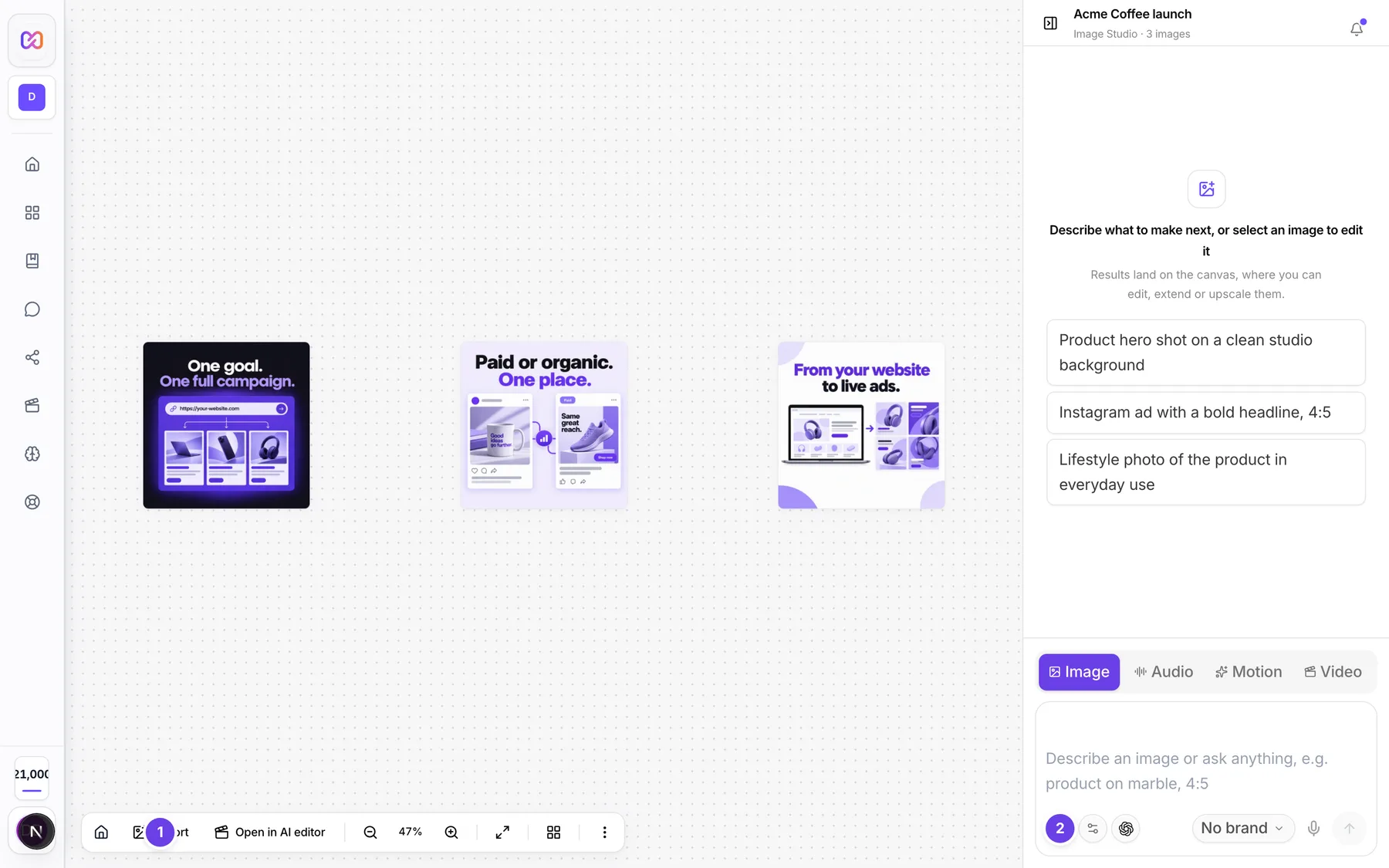
| # | Name in the app | What it does | Plan |
|---|---|---|---|
| 1 | Import image to canvas | Adds a picture from your computer as a new item on the canvas. | Both |
| 2 | Attach a reference image for the AI to use (not added to the canvas) | The paperclip in the Studio composer. Its accessible name is Attach reference image. Opens your file picker and allows several files. | Both |
| 3 | Preview | On a reference pill. Shows the picture larger. The accessible name includes the file name. | Both |
| 4 | Remove | On a reference pill. Takes the reference off. The accessible name includes the file name. | Both |
| Close preview | The button in the large preview. | Both | |
| Add files | On Home only. The paperclip in the Image composer. | Both | |
| At most 6 files | On Home only. The paperclip gets this name once you have six references and is then disabled. | Both | |
| Attach a picture to this edit | In the Markup panel. Adds one picture to that brush edit, for example a logo to place. | Both | |
| Attach a picture to this note | In a Comment pin note. Adds a picture to that pin. | Both | |
| Remove attached picture | The X on a picture attached to an edit or a note. | Both |
#How to attach a reference
- Choose the paperclip in the composer.
- Pick one or more pictures. A pill with a small thumbnail shows above the prompt box for each one.
- Write your prompt, for example "put this mug on a marble counter".
- Send. Infinall AI looks at your pictures while it works.
Use this for product photos, a layout you like, or a logo you want placed.
#How to import a picture onto the canvas
- Choose Import image to canvas on the canvas dock.
- Pick a picture from your computer.
- It appears as a new item. Select it to edit it, see edit by describing.
#How to use a picture for one edit
- Select an image and choose Edit, then Markup.
- Choose Attach a picture to this edit and pick the picture.
- Brush the area, describe the change, and choose Apply.
#Options explained
Reference or import? A reference helps Infinall AI make something new and stays off the canvas. An import is a picture you want to see and edit on the canvas.
Accepted types. JPEG, PNG and WebP. An SVG is turned into a PNG when you upload it. GIF and other formats are not accepted.
References in edits. When an image is selected and you attach references, your message edits that image using them. With nothing selected, the references go into a new image.
Clone from Library. An image you clone from Library > Discover opens in the studio as a reference. You then write your own prompt.
#Limits
- Up to 6 reference pictures per request.
- Each picture can be up to 10 MB.
#When something goes wrong
| Message in the app | What it means | What to do |
|---|---|---|
| Couldn't upload one of your reference images. | A reference failed to upload from Home. | Try again, or attach a smaller picture. |
| Could not upload that picture. | A picture for a Markup edit or a pin note failed to upload. | Try again with a JPEG, PNG or WebP. |
| Couldn't import that image. | The import failed. | Try again. |
| Upload exceeds | The file is over the size limit. | Use a picture under 10 MB. |
| Unsupported image format | The file is not JPEG, PNG or WebP. | Convert it and upload again. |
| Not a decodable image | The file is not a readable image. | Use a different file. |
| Empty upload | The file has no data. | Choose a real image file. |
| Invalid image dimensions | The picture has no usable width or height. | Use a different file. |
| An edit can use at most 6 extra pictures. | An edit has more extra pictures than the limit. | Remove some pictures. |
| Reference image | A reference picture no longer exists. | Remove it and attach it again. |
#Questions
#Why is my reference not on the canvas?
By design. A reference is only shown to the AI. Use Import image to canvas if you want it on the canvas.
#Can I upload a GIF?
No. Use JPEG, PNG or WebP. SVG files are converted to PNG.
#Can I use my logo as a reference?
Yes. Attach it, or pin a brand that has your logo and ask for the logo in your prompt. See use your brand.
#How many references can I use?
Up to 6 at a time.
#Does importing cost credits?
No. Importing and attaching are free. See move around the canvas.
Last checked against the app on . View as Markdown