
The sidebar
Every sidebar item explained: workspace switcher, Home, Projects, Library, Infinall Chat, Distribution, AI Editor, Brand Brain, credits and your account menu.
#What it is
The sidebar is the menu on the left of every screen. It holds your workspace switcher, the main screens, a live credits card and your account menu.
#Who can use it
Everyone. Two things depend on your role in the account: Billing and Refer & earn in the account menu, and the Top up or Upgrade link on the credits card, are only shown to the account Owner. Teammates see an "Account balance" note instead.
#Cost
Free, no credits. Opening any sidebar item never uses credits.
#Where to find it
It is on the left of every screen. Use the panel button at the top to fold it down to icons, and click the Infinall icon to open it again. On a phone it is a drawer. Open it with the menu button in the top bar. It closes when you tap an item.
#Buttons and controls
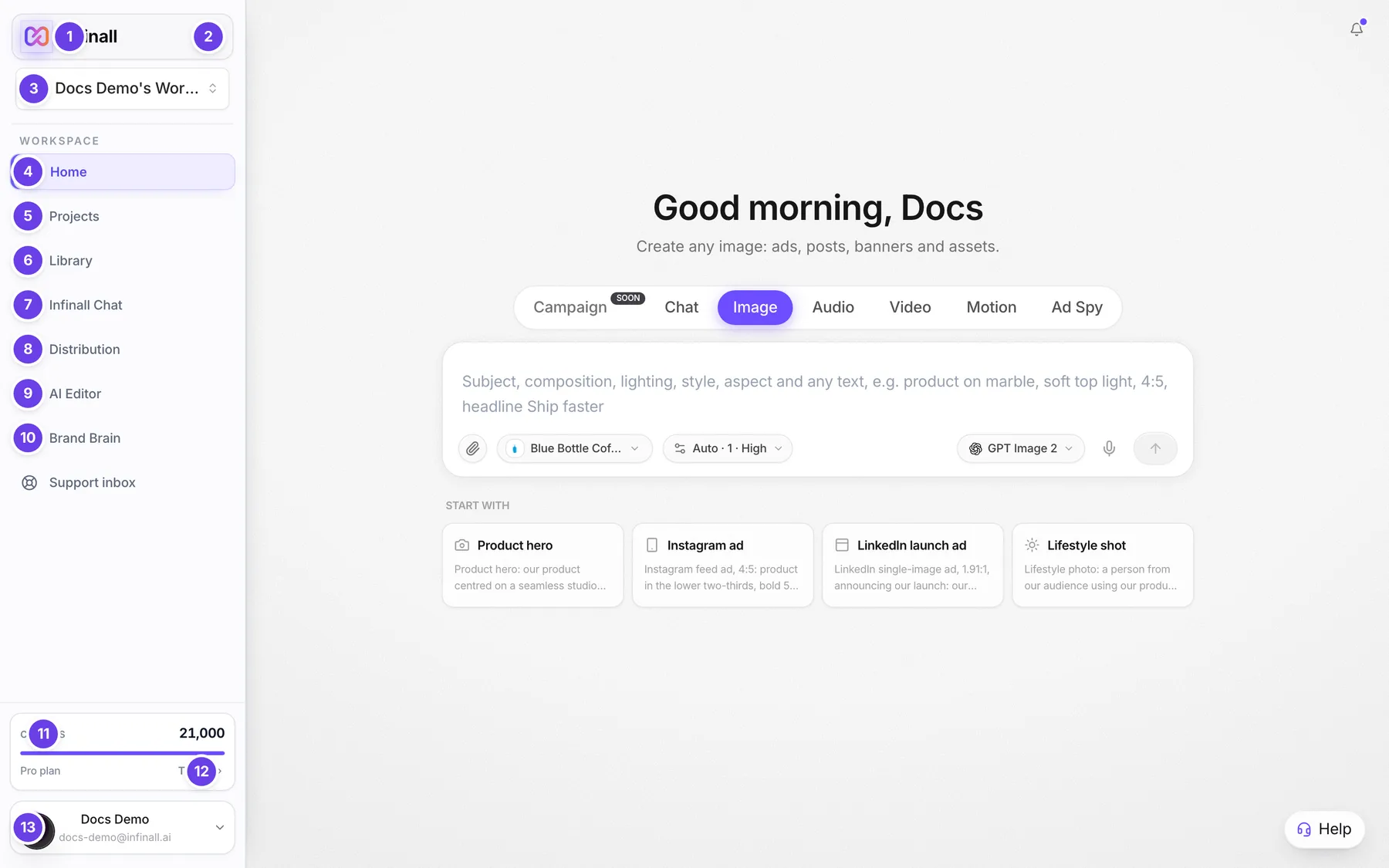
| # | Name in the app | What it does | Plan |
|---|---|---|---|
| 1 | Infinall | The logo. Takes you to Home. | Both |
| 2 | Collapse sidebar | Folds the sidebar down to icons. Once folded, Expand sidebar opens it. | Both |
| 3 | Switch workspace | Shows your current workspace. Opens the list of workspaces. | Both |
| 4 | Home | The prompt box and mode tabs. | Both |
| 5 | Projects | Everything you have made, in one list. | Both |
| 6 | Library | Real ads to browse, save and clone. | Both |
| 7 | Infinall Chat | The full chat screen. | Both |
| 8 | Distribution | Plan and publish posts and ads. A red badge shows unread messages. | Both |
| 9 | AI Editor | Edit videos on a timeline. | Both |
| 10 | Brand Brain | Your saved brands. | Both |
| 11 | Credits | The credits card. Click it to see your credit history. | Both |
| 12 | Top up | On the credits card. Hover to see it. Opens the credit packs. Shows for the Owner on Pro. | Pro |
| Upgrade | Same place as Top up, but for the Owner on Free. Opens Billing. | Free | |
| 13 | Open account menu | Your picture, name and email. Opens the Account menu with your account links. | Both |
| Support | Support tickets and chat. Shows only for support staff as an admin link. | Staff |
#The account menu
Click Open account menu. A menu opens upward.
| Name in the app | What it does | Who sees it |
|---|---|---|
| Credits | Opens Settings, Credits. | Everyone |
| Refer & earn | Opens your referral page. | Owner |
| Billing | Opens Settings, Billing. | Owner |
| Settings | Opens Settings. | Everyone |
| Help & docs | Opens these docs in a new tab. | Everyone |
| Support | Opens the Support page. | Everyone |
| Report a bug | Opens the bug report box. | Everyone |
| Log out | Signs you out. | Everyone |
#How to switch workspace
- Click Switch workspace under the logo.
- In the Workspaces list, click the workspace you want.
- The screen reloads with that workspace's work.
#How to create a workspace
- Click Switch workspace.
- Choose New workspace.
- Type a name in Workspace name.
- Choose Create, or Cancel to back out.
#How to delete a workspace
- Click Switch workspace.
- Click the delete icon on the workspace row.
- In Delete workspace?, choose Delete workspace, or Cancel.
Your default workspace has no delete icon. It cannot be deleted.
#How to check your credits
- Look at the card above your name. It shows your balance, a bar split into Free and Pro credits and your plan.
- Click the card to open Settings, Credits.
- When you spend credits, the number counts down and a short minus amount flashes.
For an owner the card is labelled Credits. For a teammate it is labelled Team credits, with the note "Shared account balance. Campaigns you run are billed to the account Owner."
#How to open the sidebar on a phone
- Tap the menu button at the top left.
- Tap an item. The drawer closes and the screen opens.
On Home, a credits chip also shows in the top bar.
#Options explained
Folded sidebar. Items show only their icons. When your pointer rests on the folded rail on a laptop it opens by itself and folds again when you move away. Click Collapse sidebar to keep it folded.
Workspace. A workspace keeps its own work. Your default workspace is the one you started with.
Low balance. The credits card turns amber when your balance falls under 20 credits.
Badge on Distribution. A red number shows unread social messages. It is a dot when the sidebar is folded.
Bell. The bell at the top right of every page shows your notifications. It is not part of the sidebar.
Help button. The ? button next to the bell opens the docs page for the screen you are on, in a new tab. If a screen has no page of its own, it opens the docs home.
#Limits
- Free accounts: 2 workspaces.
- Pro accounts: unlimited workspaces.
- The credits card turns amber under 20 credits.
#When something goes wrong
| Message in the app | What it means | What to do |
|---|---|---|
| Oops, something went wrong | The app hit an error while loading. | Reload the page. If it stays, use Report a bug. |
| Can't reach our servers right now. Check your connection and try again. | Your device could not reach Infinall. | Check your connection and try again. |
#Questions
#Why can't I see Billing?
Billing and Refer & earn are only for the account Owner. Ask the Owner, or see the Team and account section.
#Why does my credits card say Team credits?
You are a teammate. Work you start is billed to the Owner's balance, so the card shows the shared balance with no top up link.
#How do I get more credits?
On Pro, hover the credits card and click Top up. On Free, the link reads Upgrade and opens Billing. See Your credit balance.
#Can I delete my default workspace?
No. It has no delete icon.
#Where did my Studio items go?
Everything you make is under Projects.
Last checked against the app on . View as Markdown