
Theme and motion settings
Switch between light, dark and system themes and turn on reduced motion. Also shows how the Settings menu is laid out.
#What it is
General has two switches that change how infinall.ai looks and moves: Theme and Motion. It is also the first stop in the Settings menu, so this page explains the menu too.
#Who can use it
Everyone. Free and Pro accounts have the same General screen. The code puts no plan limit on it.
#Cost
Free, no credits. Changing the theme or the motion setting never uses credits.
#Where to find it
Open Settings from the account menu at the bottom of the sidebar, then click General. You can also go straight to the Settings menu and type "theme", "dark", "light", "motion" or "animation" in Search settings.
#Buttons and controls
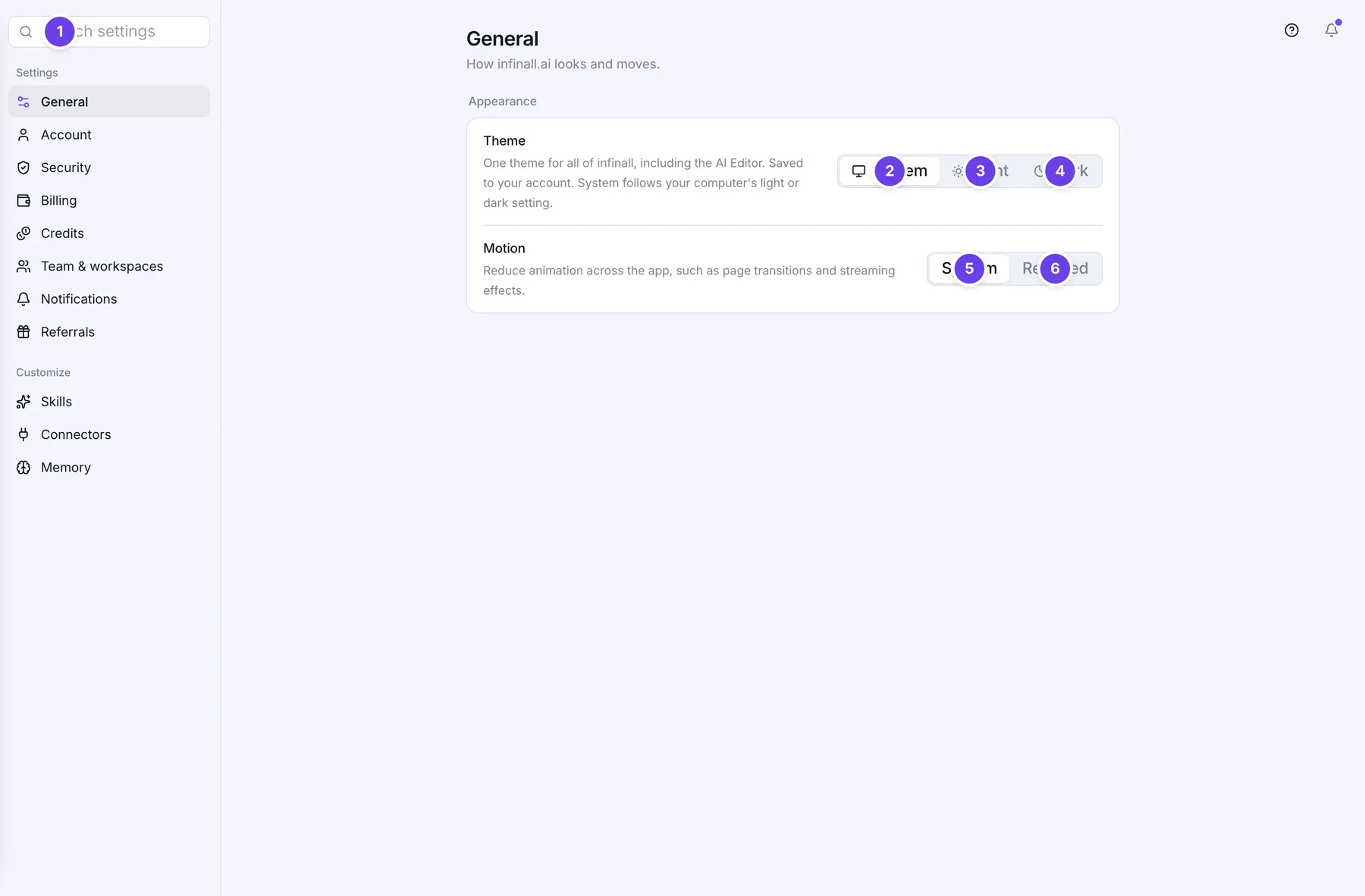
| # | Name in the app | What it does | Plan |
|---|---|---|---|
| 1 | Search settings | A search box above the Settings menu. It matches the names of the sections and a few related words, so "password" finds Security. | Both |
| 2 | System (under Theme) | Follows your computer's light or dark setting. | Both |
| 3 | Light | Uses the light theme everywhere. | Both |
| 4 | Dark | Uses the dark theme everywhere. | Both |
| 5 | System (under Motion) | Uses the animation level your computer asks for. | Both |
| 6 | Reduced | Cuts back animation across the app, such as page changes and the effects while a reply is written. | Both |
| Back to settings | An arrow at the top left of a Settings screen. It shows on a phone only and takes you back to the Settings menu. | Both |
The Settings menu itself has two groups. Under Settings you see General, Account, Security, Billing, Credits, Team & workspaces, Notifications and Referrals. Under Customize you see Skills, Connectors and Memory. Billing and Referrals show only to the account Owner.
#How to change the theme
- Open Settings, then General.
- Under Theme, click System, Light or Dark.
- The whole app changes at once, including the AI Editor.
#How to turn on reduced motion
- Open Settings, then General.
- Under Motion, click Reduced.
- To go back, click System.
#Options explained
Theme
| Value | What you get |
|---|---|
| System | The app is light when your computer is light and dark when your computer is dark. It follows the change by itself. |
| Light | Always light. |
| Dark | Always dark. |
Your theme is saved to your account, so it follows you to other browsers and devices.
Motion
| Value | What you get |
|---|---|
| System | Normal animation, or less if your computer is set to reduce motion. |
| Reduced | Less animation across the app, whatever your computer says. |
Motion is saved in the browser you are using, not on your account. If you use another browser or another computer, set it there too.
#Limits
- There are three theme choices and two motion choices.
- The theme is saved to your account. Motion is saved only in the browser you are using.
#When something goes wrong
| Message in the app | What it means | What to do |
|---|---|---|
| Applied here, but it could not be saved to your account. Try again. | The theme changed on this screen, but the save to your account did not go through. | Check your connection and click the theme again. |
#Questions
#Does the theme apply to the AI Editor too?
Yes. The screen says it is one theme for all of infinall, including the AI Editor.
#Will my theme follow me to another computer?
Yes. The theme is saved to your account. The Motion setting is not. It stays in the browser where you set it.
#What does System do for the theme?
It matches your computer. When your computer switches between light and dark, infinall.ai switches with it.
#Why do I not see Billing or Referrals in the menu?
Those two sections show only to the account Owner. Teammates do not see them.
#Is there a setting for language or time zone here?
No. General has only Theme and Motion.
Last checked against the app on . View as Markdown