
The Home screen
Pick a mode, describe what you want in the prompt box, choose a brand and send it. Starter cards fill the box for you.
#What it is
Home is the first screen after you sign in. A greeting, a row of mode tabs and one prompt box. You pick what to make, type a short description and send it.
Sending in Image, Audio or Motion mode opens a new project with your work started. Chat opens Infinall Chat with your message.
#Who can use it
Everyone can open Home. Some mode tabs show a lock on a Free account. Click a locked tab and an upgrade dialog opens. It says "
#Cost
Opening Home, switching modes, choosing a brand and filling the box with a starter are free. Sending a request that makes something uses credits. You see the exact price before you confirm, in the project that opens. The Credits card in the sidebar shows your balance.
#Where to find it
Choose Home in the sidebar, or click the Infinall logo at the top of the sidebar.
#Buttons and controls
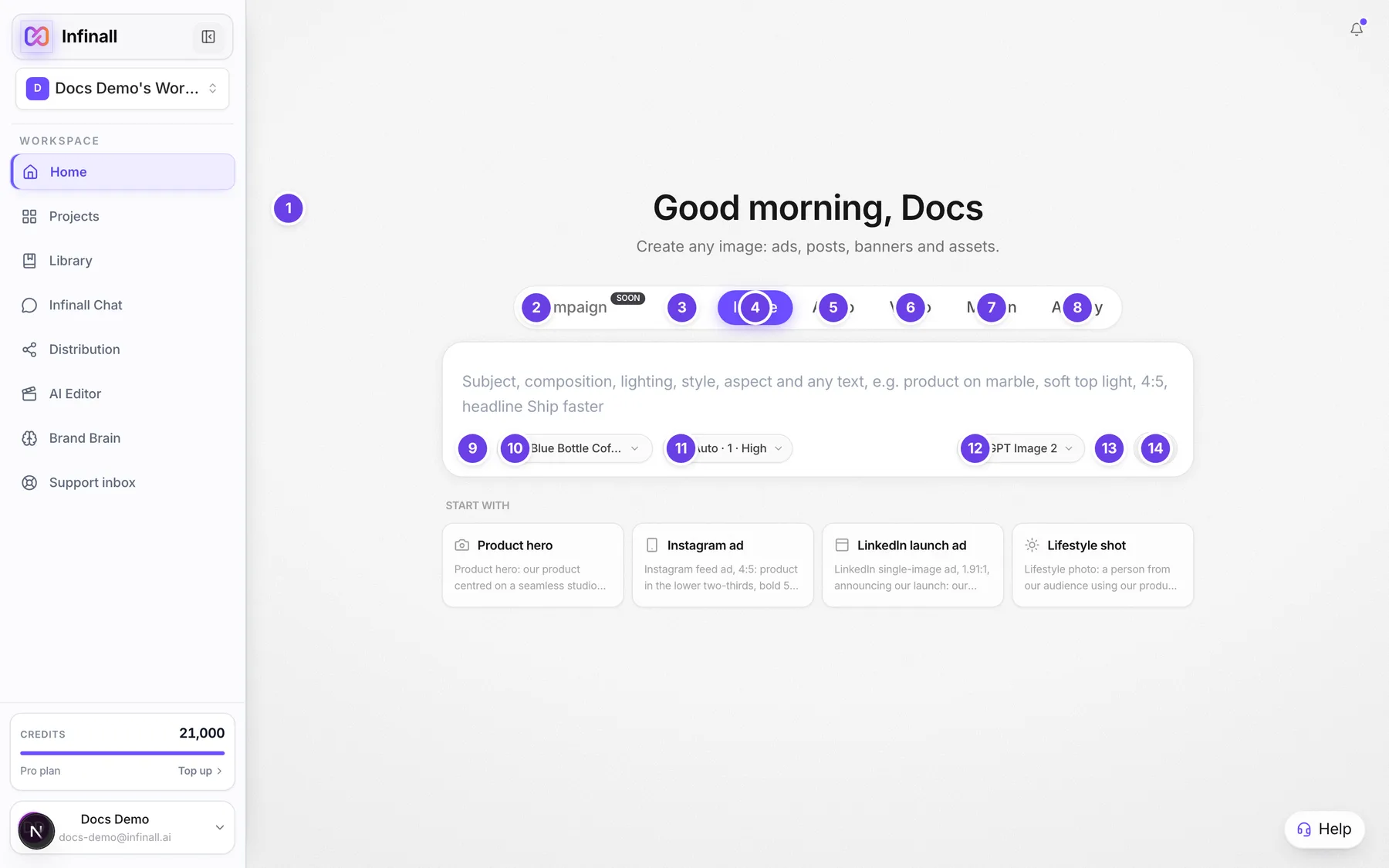
| # | Name in the app | What it does | Plan |
|---|---|---|---|
| 1 | Good morning, (your name) | The greeting. It says morning, afternoon or evening. The line under it changes with the mode you picked. | Both |
| 2 | Campaign | The first of the mode tabs (the row is labelled Choose what to create for screen readers). A mode tab. Campaign docs are coming soon. | See the tab |
| 3 | Chat | Opens Infinall Chat. Your message and brand go with you. | Both |
| 4 | Image | Create images, ads and design assets. This is the mode Home opens in. | Both |
| 5 | Audio | Create voiceovers, scripts and captions. | Both |
| 6 | Video | Create videos from a prompt. A lock shows on Free. | Pro |
| 7 | Motion | Create motion graphics and short videos from a prompt. Open on every plan; each video uses credits. | Both |
| 8 | Ad Spy | See the ads any brand is running right now. It swaps the prompt box for an Ad Spy search. | Both |
| 9 | Add files | The paperclip in Image mode. Attaches reference images. | Both |
| 10 | Select brand | The Brand chip. Shows Select brand until you pick one, then the brand name (its screen-reader name becomes Switch Brand Brain). Opens the brand list. | Both |
| 11 | Image settings | Opens Quality, Aspect ratio and Generations. Shows only in Image mode. | Both |
| 12 | Model | Picks the image model in Image and Chat. In Motion the chip shows Standard, Pro or Max. | Both |
| 13 | Voice typing | Speak instead of typing. Click again to stop. | Both |
| 14 | Start campaign | The round arrow button that sends your request. Grey until the box has text. | Both |
| Start with | A row of four cards under the box. Shows in Chat, Image, Audio, Motion and Video. | Both | |
| Editing this image | A chip over the box when your next prompt will edit your last image. | Both | |
| Stop editing this image | The small x on that chip. | Both | |
| Continue editing | A card that offers to edit your last image. Clicking its picture (Continue editing this image) makes your next prompt edit that image. | Both | |
| Hide this suggestion | The small x on that card. | Both | |
| Analyze | The button for a website address. Shows when Home asks for a website, for example after Add brand. | Both | |
| Cancel | Closes the New brand box and goes back to the prompt. | Both | |
| Welcome to Infinall | The first-run box a new account sees, titled "Build your first Brand Brain". Paste your website and click Analyze. | Both | |
| Skip, I don't have a website | On the first-run box. Closes it and lands you in Image mode. | Both | |
| Remove file | The small x on a file you attached. Removes it before you send. | Both |
Tab names are the same on a phone, but only the active tab shows its name. The others show an icon.
#How to make something from Home
- Choose a mode tab: Image, Audio, Motion or Video.
- Click the Select brand chip and pick a brand, or choose No brand.
- Type what you want in the prompt box. Or click a card under Start with to fill the box, then edit it.
- Press Enter, or click Start campaign. Shift and Enter adds a new line.
- Your project opens. Check the price, confirm if asked, and wait for the result.
Starter cards fill the box. They never send anything on their own, except in Chat, where a card opens Infinall Chat with that text.
#How to add a brand from Home
- Click the brand chip, then Add brand.
- Type your website address and click Analyze.
- Follow the steps to review and confirm. Brand Brain docs cover this in full.
#How to attach reference images
- In Image mode, click Add files.
- Choose up to 6 images.
When the limit is reached the button reads "At most 6 files" and turns off.
#How to edit your last image from Home
- Look for the Continue editing card above the box.
- Click Continue editing. The Editing this image chip appears.
- Describe the change and send it.
Click Stop editing this image to go back to making a new image. Click Hide this suggestion to remove the card.
#Options explained
Modes. Each tab changes the prompt box and the controls under it.
| Mode | What it makes | Controls you see |
|---|---|---|
| Campaign | Docs are coming soon. | |
| Chat | Plans, research and copy. | Brand chip, Model |
| Image | Images, ads and design assets. | Add files, Brand chip, Image settings, Model |
| Audio | Voiceovers, scripts and captions. | Audio type picker, Brand chip, voice controls |
| Video | Videos from a prompt. | The video controls. The studio shows the price and waits for your approval. |
| Motion | Motion graphics and short videos. | Brand chip, aspect buttons, Standard, Pro or Max |
| Ad Spy | Search the ads a brand runs. | Ad Spy search, Search ads |
Image settings.
- Quality: Low, Medium or High. High is the default. On some models the buttons show size names instead.
- Aspect ratio: Auto, 1:1, 4:5, 9:16, 2:3, 16:9, 3:2, 4:3, 3:4 and 1.91:1. With Auto, Infinall picks a size from your words.
- Generations: 1, 2, 3 or 4 images per request. 1 is the default.
Motion aspect buttons: Auto, 16:9, 1:1, 9:16 and 4:5.
Motion tiers: Standard, Pro and Max. Pro is the default. The chip shows a usage based price estimate.
Model. Some image models carry a Pro badge and a lock on Free. Clicking one opens the upgrade dialog.
Brand chip. Lists your brands with a Search box. The list has No brand (in modes where a brand is optional), Add brand and Manage all. The pencil beside a brand edits it.
Manage all. Opens a search box called Search your saved websites. Each brand has an edit pencil and a hide icon. Hiding only removes it from this list on this device. Hidden brands show under Hidden on this device, with Restore and Restore all.
Start with cards. Chat: Ad headlines, Launch plan, Pick channels, Study rivals. Image: Product hero, Instagram ad, LinkedIn launch ad, Lifestyle shot. Audio: Product voiceover, Launch promo, Offer read, Explainer. Motion: Product reveal, Promo, Logo sting, Ad bumper. Video: Short ad, Product showcase, UGC testimonial, Kinetic text.
Recent projects. Home has no recent projects list. Your work is under Projects in the sidebar.
#Limits
- Image references: up to 6 files.
- Generations: up to 4 images per request.
- Voice typing stops by itself after a pause. A single recording can run up to 2 minutes.
#When something goes wrong
| Message in the app | What it means | What to do |
|---|---|---|
| Add a short description to name your image project. | You sent an empty box in Image mode. | Type a description first. |
| Add a short description for your motion project. | You sent an empty box in Motion mode. | Type a description first. |
| Write or describe the voiceover you want. | You sent an empty box in Audio mode. | Type what you want first. |
| Upload an audio file first. | The audio type you picked needs a file. | Attach a file, then send. |
| Failed to create image project. | The project could not be created. | Try again in a moment. |
| Failed to create motion project. | The project could not be created. | Try again in a moment. |
| Couldn't upload one of your reference images. | One attached image failed to upload. | Remove it or pick another, then send again. |
| Insufficient credits. Purchase more to continue. | Your balance is too low. | On Pro, buy a credit pack. On Free, wait for the 1st or upgrade. |
| Video is a Pro feature. Upgrade to Pro to use Video mode. Your credits, brands and saved work stay exactly as they are. | You clicked a locked tab. The dialog title is "Video is a Pro feature" (or the name of the mode you clicked). | Choose Upgrade Now, or Not now to stay where you were. |
#Questions
#Why does Home open in Image mode?
Image needs no brand, so it works for a new account. Brand Brain is optional for Image, Audio and Motion.
#Do I have to pick a brand?
No. Choose No brand in the brand chip where it is offered.
#What does the lock on a tab mean?
Your plan does not include that mode. Click it to see the upgrade dialog.
#Does clicking a Start with card cost credits?
No. It only fills the box. In Chat it opens Infinall Chat with the text.
#Why is the send button grey?
The box is empty. It turns purple when you type.
#Where did my last project go?
Open Projects in the sidebar.
Last checked against the app on . View as Markdown