
Profile and appearance
Change your photo, display name, username and sign-in email, and find the theme and motion switches.
#What it is
The Account screen holds your profile: your photo, display name, username and sign-in email. How the app looks (theme and motion) lives on the General screen.
#Who can use it
Everyone. Free and Pro accounts have the same Account screen. The code puts no plan limit on it.
#Cost
Free, no credits. Changing your profile never uses credits.
#Where to find it
Open Settings from the account menu at the bottom of the sidebar, then Account. For the theme, open Settings, then General.
#Buttons and controls
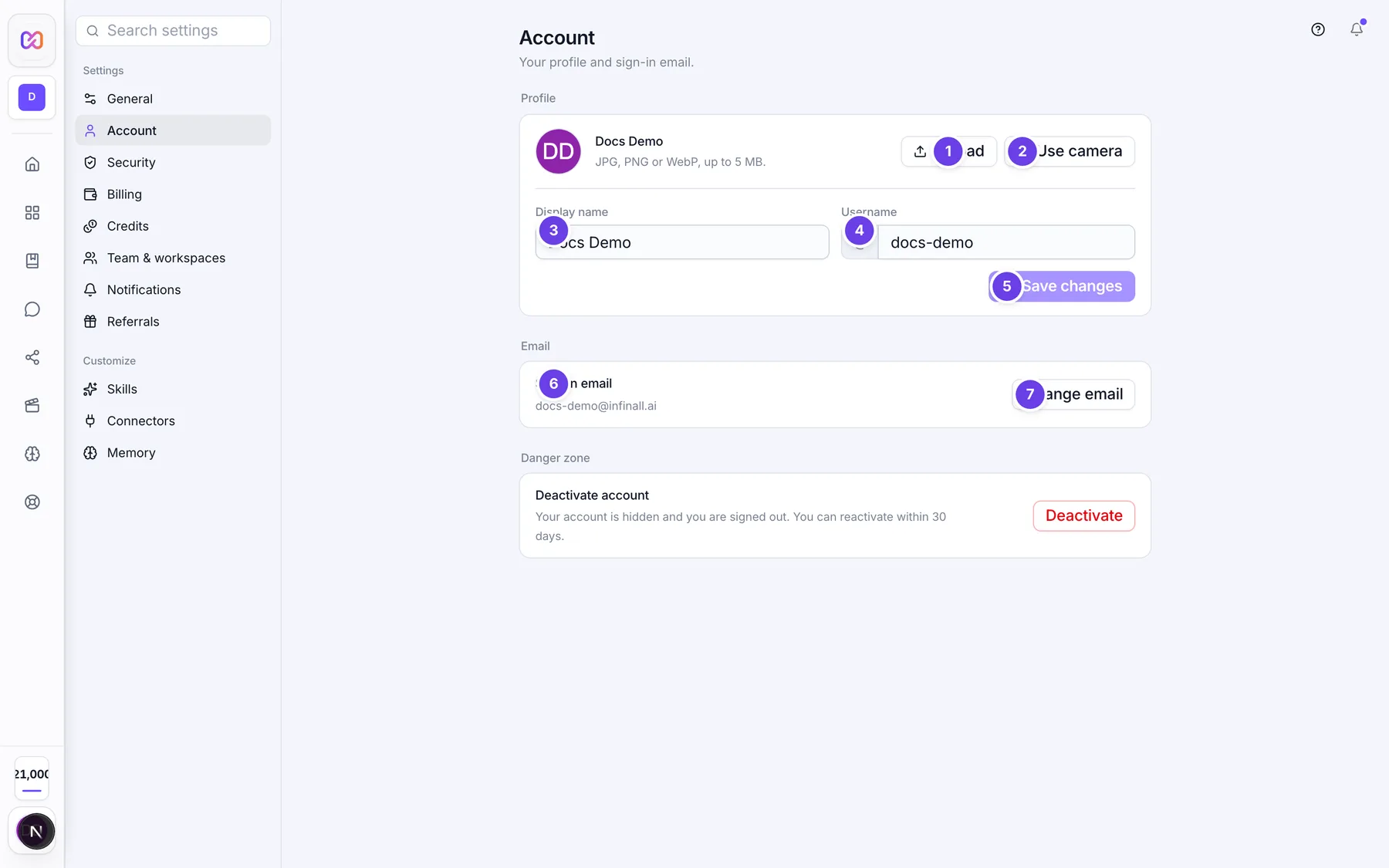
| # | Name in the app | What it does | Plan |
|---|---|---|---|
| 1 | Profile photo | Your photo. With no photo it shows your initials. A hint reads "JPG, PNG or WebP, up to 5 MB." | Both |
| 2 | Upload | Opens a file picker so you can choose an image. | Both |
| 3 | Use camera | Opens your camera. Your browser asks for permission. | Both |
| Take photo | Takes the picture. Shows while the camera is on. | Both | |
| Cancel (camera) | Turns the camera off. Shows while the camera is on. | Both | |
| Save photo | Saves the chosen or taken photo. It shows only after you pick or take one, and reads "Saving..." while it works. | Both | |
| 4 | Display name | The name shown for you. | Both |
| 5 | Username | Your handle, shown with an @ in front. It is switched off when you have no changes left. | Both |
| You changed this recently. Try again later. | A note under Username when you cannot change it now. | Both | |
| 6 | Save changes | Saves the name and the username together. It stays off until something changed. | Both |
| 7 | Sign-in email | Shows your current email. | Both |
| 8 | Change email | Opens the change form. | Both |
| New email | The address you want to use. | Both | |
| Current password | Your password. Needed to change your email. | Both | |
| Send code | Sends a code to the new address. | Both | |
| Code sent to (your new email) | The code box. It takes digits only. | Both | |
| Confirm | Checks the code and saves the new email. | Both | |
| Cancel (email) | Closes the email form. | Both |
The Danger zone group at the bottom has Deactivate account. It has its own page: Deactivate or delete your account.
#How to change your photo
- Open Settings, then Account.
- Choose Upload and pick a picture, or choose Use camera and then Take photo.
- Choose Save photo. You see "Profile photo updated."
#How to change your display name or username
- Open Settings, then Account.
- Edit Display name, Username, or both.
- Choose Save changes. You see "Profile saved."
#How to change your sign-in email
- Open Settings, then Account.
- Next to Sign-in email, choose Change email.
- Type the New email and your Current password, then choose Send code.
- Open the email on the new address and copy the 6 digit code.
- Type it in the code box and choose Confirm. You see "Email updated."
If you signed up without a password, set one first in Settings > Security. The form tells you this.
#How to change the theme
- Open Settings, then General.
- Under Theme, choose System, Light or Dark.
- Under Motion, choose System or Reduced to cut back animation.
The theme is saved to your account. The Motion setting is saved only in the browser you use, so set it again on another browser.
#Options explained
Username: letters, numbers, underscores and hyphens only. Capital letters are turned into lowercase. Usernames are unique across Infinall.
Display name: the name the app shows for you in the account menu and on your profile.
Theme: System follows your computer. Light and Dark are fixed.
Motion: System follows what your computer asks for. Reduced cuts back page changes and the effects while a reply is written.
#Limits
- A photo must be an image file, up to 5 MB.
- A display name can be up to 100 characters.
- A username has 3 to 30 characters.
- You can change your username 2 times in any 90 day window. After that the field is switched off until the oldest change is 90 days old.
- The email code works for 60 minutes.
#When something goes wrong
| Message in the app | What it means | What to do |
|---|---|---|
| Choose an image file. | The file you picked is not an image. | Pick a JPG, PNG or WebP. |
| Image must be under 5 MB. | The photo is too big. | Pick a smaller one. |
| Camera access was blocked. Allow camera permission in your browser. | Your browser refused the camera. | Allow the camera for this site and try again. |
| Could not upload the photo. | The photo did not save. | Try again, or try another image. |
| This username is already taken. | Someone else has it. | Pick another. |
| You can only change your username once every 90 days. | You used up your username changes. The message says "once" but the app really allows 2 in the window. | Wait until the field is switched on again. |
| Username must be 3-30 characters and contain only letters, numbers, underscores, and hyphens | The username has a wrong character or length. | Fix it and save again. |
| New username is the same as your current username | You did not change it. | Type a different one. |
| Please set a password before changing your email. Use the forgot password flow. | Your account has no password yet. | Set a password in Settings > Security. |
| Current password is incorrect | The password in the email form is wrong. | Check it and try again. |
| An account with this email already exists. | The new address belongs to another account. | Use a different address. |
| New email is the same as your current email | You typed your current address. | Type the new one. |
| Incorrect code. Try again. | The code is wrong. | Check the code and try again. |
| Code expired. Request a new one. | The code is too old or was never sent. | Choose Change email and start again. |
| Could not start the email change. | Sending the code failed. | Try again. |
#Questions
#Why can I not change my username?
You have used all your changes for the current 90 day window. The field is switched off and says "You changed this recently. Try again later."
#Does my email change right away?
Only after you confirm the code. The old address also gets a note that the email changed. You may be asked to sign in again afterwards.
#Where is dark mode?
In Settings > General, under Theme.
#Does the theme follow me to another device?
Yes. It is saved to your account. The Motion setting is not. It stays in the browser.
#Can I use my Google photo?
New accounts get a generated picture, and Google sign-ups may get their Google photo. Save a new photo to replace it.
Last checked against the app on . View as Markdown