
Text, text animations and captions
Add styled text to your video, animate it, and make automatic captions from speech in six animated looks. Then edit the caption text.
#What it is
The AI Editor lets you put text on your video, style it, and make it move. It can also listen to a clip and turn the speech into timed captions in one of six animated looks. Every caption becomes a normal text clip you can edit.
#Who can use it
Everyone, on Free and Pro. The app does not check your plan for text, text animations, captions or the caption editor. The AI Editor opens on a laptop or desktop.
#Cost
- Text, styles, text animations and the caption editor are free. No credits.
- Make subtitles runs on your computer and is free. Your audio is not uploaded.
- The Let AI pick the look switch is a paid step. The switch shows its approximate price before you use it. Turn it off to keep captions free.
- Importing an SRT or VTT file is free.
#Where to find it
- Add text: in the left bar named Editor sections, choose Text.
- Make captions: choose Captions in the same bar. You can also select a video or sound clip, open the Effects view of the inspector, then open Local Auto-Captions and Editable Captions (they are in the AI part of that view).
- Change text you already added: click the text clip on the timeline. In the inspector, the Edit view shows Text Properties. The Motion view shows Text Animation.
#Buttons and controls
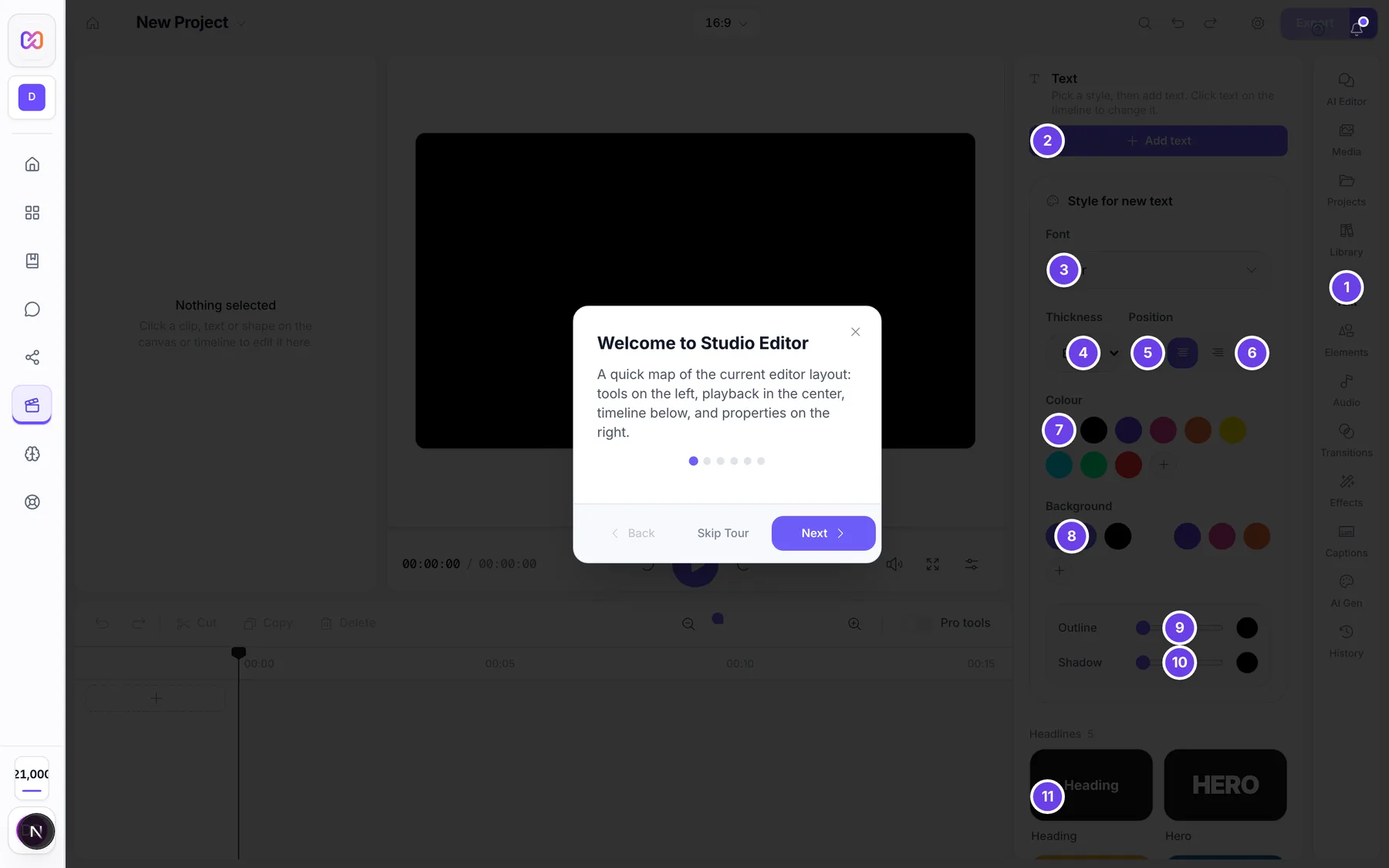
The Text panel in the left bar:
| # | Name in the app | What it does | Plan |
|---|---|---|---|
| 1 | Text | The tab in the Editor sections bar. Opens the panel. | Both |
| 2 | Add text | Adds a text clip at the playhead on a new text row. It says "Add text here" (or "ADD TEXT HERE" if All capitals is on) and lasts 5 seconds. | Both |
| 3 | Choose font | Opens the font list. You can search it with Search fonts. | Both |
| 4 | Font thickness | A list: Light, Regular, Medium, Semibold, Bold, Black. | Both |
| 5 | Align left, Align center, Align right | Three buttons in the Text position group. | Both |
| 6 | All capitals | Turns on capital letters for new text. | Both |
| 7 | Text color | A row of colour swatches. The plus swatch (Custom text color) opens any colour. | Both |
| 8 | No background | Shown as None. The swatches after it set a background colour. Custom background color opens any colour. | Both |
| 9 | Outline width | A slider. Outline color sets the colour. | Both |
| 10 | Shadow strength | A slider. Shadow color sets the colour. | Both |
| 11 | Add Heading text | One of the ready-made text style tiles. Each tile is named Add plus its name plus text. | Both |
The panel hint says "Pick a style, then add text. Click text on the timeline to change it." When a text clip is selected it says "You are changing the selected text. Changes show right away." and the card is titled Style of selected text. Otherwise it is titled Style for new text.
Text Properties in the inspector (select a text clip, Edit view):
| # | Name in the app | What it does | Plan |
|---|---|---|---|
| Text Content | The words. Placeholder "Enter text...". | Both | |
| Font, Search fonts | Font picker with a search box. | Both | |
| Custom Font | Upload your own font (placeholder "Upload custom font"). Accepts .ttf, .otf, .woff and .woff2. | Both | |
| Size | Font size in px, from 8 to 500. | Both | |
| Bold, Italic, Underline | Three toggle buttons next to Style. | Both | |
| Text Align | Left, Center, Right. | Both | |
| Center Horizontally, Center Vertically, Center Both | Under Position on Canvas. Moves the text to the middle of the video. | Both | |
| Text Color, Background | Colour fields. Background can be transparent and has opacity. | Both | |
| Stroke: Color, Width | The outline. Width goes up to 20 px. | Both | |
| Shadow: Color, Offset X, Offset Y, Blur | Offsets go from -50 to 50 px. Blur goes up to 50 px. | Both | |
| Line Height | From 0.5 to 3. | Both | |
| Letter Spacing | From -10 to 50 px. | Both | |
| Text Material | A list of materials with previews, starting with None. When one is chosen, Progress and the material's own settings appear. | Both | |
| 3D Text | A switch. When on, you get Depth, Bevel Thickness, Bevel Size, Bevel Segments and a Material list (Basic or Physical). Physical also has Metalness and Roughness. | Both |
If you select several text clips, the inspector says "Applying the full Text inspector to N selected clips. Caption content and timing stay unchanged." and your changes apply to all of them.
Text Animation in the inspector (Motion view, closed at first):
| # | Name in the app | What it does | Plan |
|---|---|---|---|
| Animation Preset | A list of animations. Under it, a grid named Text animation previews. Hover a card to see it play. Click to apply. | Both | |
| In Duration, Out Duration | How long the text takes to come in and to go out, in seconds. Shown once an animation is chosen. | Both | |
| Easing | Linear, Ease In, Ease Out, Ease In Out. | Both |
Emphasis Animation in the inspector (Motion view): see Options explained.
Captions, in the Captions panel or in Local Auto-Captions:
| # | Name in the app | What it does | Plan |
|---|---|---|---|
| Clip | Step one. Says "Click a video or sound clip on the timeline." until a clip is selected, then "Clip selected. Ready to listen." | Both | |
| Spoken language: English | A list of spoken languages. The name changes with your choice. | Both | |
| Let AI pick the look | A switch, on at first. Places and styles the subtitles to suit your video. Only used for video clips. | Both | |
| Punch, Blaze, Wave, Clean, Pop, Bold | Six looks. Hover for what each is best for. | Both | |
| Make subtitles | Listens to the clip. While it works it reads Listening... with a percent. | Both | |
| Add subtitles to video | Shown after listening. The button shows the number, for example Add 12 subtitles to video. | Both | |
| Import SRT / VTT as Text | Opens a file picker for a subtitle file. Only in Local Auto-Captions. | Both | |
| Single-line captions | Card in Editable Captions. "Split each cue into timed clips for vertical video." | Both | |
| Maximum words per caption | A list in Single-line captions. | Both | |
| Make all single-line, Make selected single-line | Splits captions into short timed clips. The button shows the count, for example Make 3 selected single-line. It is off when there are no captions. | Both | |
| Select all, Clear selection | Picks or clears all captions in the list. | Both | |
| Caption 1 text | A box for each caption. Your edit is saved when you click out of the box. | Both |
#How to add text
- Move the playhead to where the text should start.
- In Editor sections, choose Text.
- Pick the look first: choose a font, thickness, alignment, colour, background, outline and shadow under Style for new text.
- Choose Add text, or click one of the style tiles such as Add Heading text.
- The text appears on the video and is selected. Change the words in Text Content in the inspector.
#How to change text you already added
- Click the text clip on the timeline.
- Open the Edit view in the inspector and find Text Properties.
- Change what you need. The video updates as you go.
You can also click the clip and use the Text panel. Its card is now Style of selected text.
#How to animate text
- Select the text clip and open the Motion view.
- Open Text Animation.
- Pick a card under Text animation previews, or use Animation Preset.
- Set In Duration and Out Duration, and pick an Easing.
- Use the extra sliders that appear for some animations, for example Distance for the slides.
#How to make captions
- Click a video or sound clip on the timeline.
- Choose Captions in Editor sections.
- Pick the Spoken language.
- Leave Let AI pick the look on, or turn it off and tap one of the six looks yourself.
- Choose Make subtitles and wait for the progress to finish.
- Read the list ("Here is what we heard. Check it, then add it to your video.") and choose Add subtitles to video.
- Each caption becomes a text clip on the Captions row of the timeline.
#How to edit captions
- Select a video or sound clip, open the Effects view, and open Editable Captions.
- Click inside a caption's box and fix the words. Click out of the box to save.
- To style a caption, click it on the timeline and use Text Properties. If you select many captions, one change applies to all of them. The words and timing stay as they are.
- For one short line at a time (good for vertical video), choose how many words you want in Maximum words per caption, tick the captions, then choose Make N selected single-line. With none ticked the button reads Make all N single-line.
#How to import a subtitle file
- Select a video or sound clip and open Local Auto-Captions.
- Choose Import SRT / VTT as Text.
- Pick a
.srtor.vttfile. You see "Captions imported". Each caption is an editable text clip on the Captions row.
#Options explained
The six caption looks. Each look has a best use. Punch: talking head and business. Blaze: gaming and entertainment. Wave: music and sing-along. Clean: professional and minimal. Pop: fun and energetic. Bold: viral and high impact. Looks that animate highlight each word as it is spoken. Wave lights words like a sing-along, Clean brings words in one by one, and Pop makes them bounce.
Let AI pick the look. When it is on and the clip is video, the app looks at your footage and chooses where the captions sit (top, centre or bottom) and which look suits it. A note then reads "AI chose: " with the place, the look and a short reason. You can still tap another look. If the AI step does not work, the app falls back to a simple check on your own computer, so captions are never blocked.
Spoken languages. English, French, German, Spanish, Italian, Portuguese, Hindi, Japanese, Korean, Chinese, Russian, Turkish, Polish and Vietnamese.
Maximum words per caption. A list of 10 choices, starting at 2 words. In the inspector it starts at 5. The Captions panel in the left bar uses its own fixed setting and has no list.
Text style tiles. Four groups: Headlines (Heading, Hero, Outline, Title Card, Kicker), Lower thirds (Lower Third, Speaker, Job Title), Phrases (Subtitle, Caption, Quote, Stat) and Calls to action (Badge, Subscribe, Link In Bio). Your font, colour and other choices in Style for new text are applied to every tile you add.
Text animation presets. None, Typewriter, Fade In, Slide Up, Slide Down, Slide Left, Slide Right, Scale In, Blur In, Bounce, Rotate In, Pop, Flip, Split, Word by Word, Rise, Drop, Elastic, Swing, Zoom Blur, Cascade, Wave, Shake, Glitch and Rainbow. In and out time start at 0.5 seconds and go up to 5 seconds. Some presets add their own sliders: Start Opacity and End Opacity (Fade In), Distance (the four slides), Scale From and Scale To (Scale In), Height and Bounces (Bounce), Angle (Rotate In), Amplitude and Frequency (Wave), Intensity and Speed (Shake and Glitch), Overshoot (Pop).
Emphasis Animation. Works on text and other clips. It plays while the clip is visible, not during the entry and exit. Pick None, or one of: Attention (Pulse, Heartbeat, Flash, Glow, Breathe), Movement (Shake, Bounce, Float, Vibrate, Wave), Rotation (Spin, Swing, Wobble, Tilt, Tada), Distortion (Jello, Rubber Band, Flicker) or Zoom & Pan (Zoom Pulse, Focus Zoom, Ken Burns, Pan Left, Pan Right, Pan Up, Pan Down). Then set Speed, Intensity, Loop Animation, Start Time and Duration (use Reset to full clip to go back). Reset clears the animation settings. Focus Zoom adds Zoom Scale and a nine-point grid (Focus TL to Focus BR) for where to zoom.
#Limits
- Text starts at 5 seconds long. Change it by trimming the clip on the timeline.
- Font size goes from 8 to 500 px.
- The first time you make captions, the editor downloads a small speech model of about 40 MB. After that it is kept by your browser.
- Captions are made on your computer, so the panel has no upload size limit.
- Captions need a clip with speech in it. The AI Editor needs a computer.
#When something goes wrong
| Message in the app | What it means | What to do |
|---|---|---|
| Click a video or sound clip on the timeline. | No clip is selected, so Make subtitles is off. | Click a clip on the timeline. |
| No speech was detected in the selected clip. | The clip has no speech the app could hear. | Pick a clip with clear speech, or change Spoken language. |
| No speech was detected inside the selected clip. | The speech is outside the part of the clip you kept. | Widen the clip on the timeline and try again. |
| The selected clip audio could not be decoded. | The audio in the clip could not be read. | Re-import the media and try again. |
| Reconnect the source media before creating captions. | The source file is no longer connected to the project. | Add the media again, then try again. |
| Transcription failed. | The speech step stopped and gave no reason. | Try again. |
| Local transcription failed. | The speech step reported a problem. | Try again. If it keeps happening, reload the editor. |
| Captions imported with warnings | Some caption lines in the file were skipped. | Check the file for bad time codes. |
| Caption import failed | The file had no valid captions or could not be read. | Check that it is a valid .srt or .vtt file. |
| Font upload failed | Your font file was not accepted. | Use a .ttf, .otf, .woff or .woff2 file. |
| Import SRT/VTT or transcribe the selected clip to create editable caption text. | Editable Captions has nothing to show yet. | Make or import captions first. |
#Questions
#Are the captions private?
Yes. The panel says "Runs on your computer. Your audio is not uploaded." Only the optional Let AI pick the look step sends a few pictures from your video.
#Does making captions cost credits?
Making subtitles from a clip does not. The Let AI pick the look switch does, and it shows its approximate price. Turn it off to stay free. See captions and transcription for the Transcribe tool on the Audio tab.
#Can I change how the captions look afterwards?
Yes. Each caption is a text clip. Click it and use Text Properties, or select many and change them together. Use Text Animation to change how they move.
#Why is the caption box not showing my clip?
Local Auto-Captions and Editable Captions show only for a video clip or a sound clip. They do not show for an image or a text clip.
#Can I use my own font?
Yes. In Text Properties, use Custom Font to upload a .ttf, .otf, .woff or .woff2 file. You see "Custom font uploaded" when it is ready.
#Can I add a caption by typing?
Yes. Add a text clip with Add text and place it where you want. For a whole subtitle file, use Import SRT / VTT as Text.
Last checked against the app on . View as Markdown