
Quality levels
Choose Low, Medium or High for an image, see the default for each tool, and learn what Free and Pro can pick.
#What it is
Quality sets how much work goes into an image. There are three levels: Low, Medium and High. Higher levels give a more finished picture and use more credits.
#Who can use it
Everyone. Free and Pro accounts can both choose all three levels, because the code does not gate them by plan.
What Free cannot do is pick Pro engines. In the image model list, those engines carry a Pro badge and a lock on Free, and the server refuses them. Which engines are Pro can change over time.
#Cost
Uses credits. Higher quality costs more per image. Edits show the approximate price next to Apply before you send. Changing the quality changes that price. Changing quality never changes the pixel size of the picture. See price before you confirm.
#Where to find it
- Image settings in the composer, then Quality. This is for new images.
- The Quality row inside the edit toolbar panels for Markup, Erase, Comment and Remove BG. This is for edits of one area.
#Buttons and controls
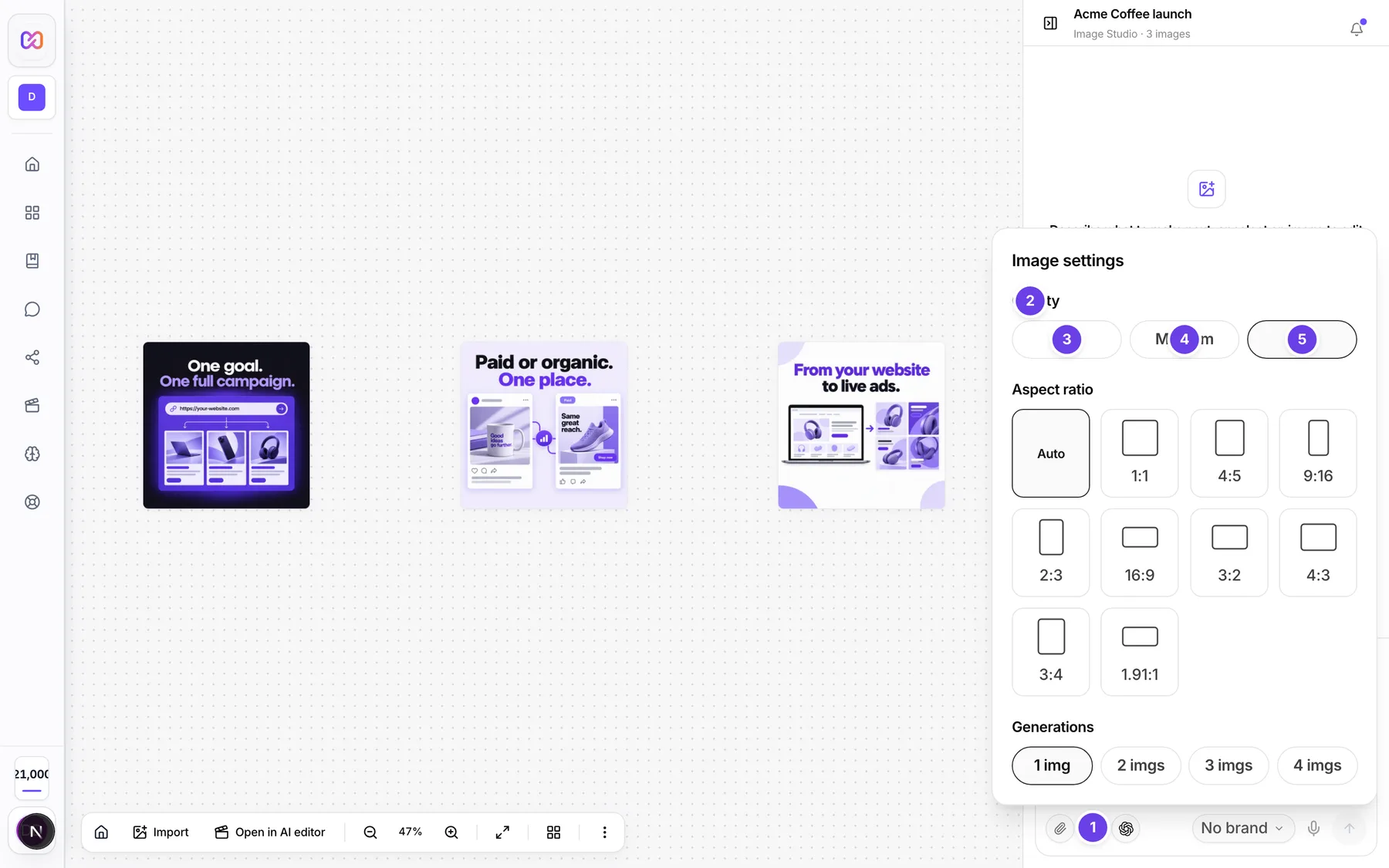
| # | Name in the app | What it does | Plan |
|---|---|---|---|
| 1 | Image settings | Opens the settings panel. | Both |
| 2 | Quality | The row of quality buttons in the settings panel. | Both |
| 3 | Low | The lightest and cheapest level. | Both |
| 4 | Medium | A middle level. | Both |
| 5 | High | The most finished level and the highest price. | Both |
| Quality (edit toolbar) | A row of Low, Medium and High inside the Markup, Erase, Comment and Remove BG panels. | Both |
#How to choose the quality of a new image
- Open Image settings in the composer.
- Under Quality, choose Low, Medium or High.
- Send your prompt.
#How to choose the quality of an edit
- Select an image and choose Edit to open the edit toolbar.
- Choose Markup, Erase, Comment or Remove BG.
- In the panel, choose Low, Medium or High in the Quality row.
- Read the price chip, then choose Apply or Send All.
#Options explained
New images start on High. Full-image edits that you describe in words also start on High.
Markup, Erase, Comment pins and Remove BG start on Medium. You can still pick Low or High for each edit.
Quality does not change the size. The picture has the same number of pixels at every level. Only the level of finish changes. To change the size, see sizes and aspect ratios.
Size names on some engines. A few Pro engines have no Low, Medium and High of their own. They use output sizes instead, so the three buttons read 1K, 2K and 4K. The buttons still map to the same three positions.
Free and Pro. The levels are the same on both plans. The plan only decides which engines you can pick.
#Limits
- One edit request can cost at most 100 credits. If the price chip turns red, pick fewer images or a lower quality.
#When something goes wrong
| Message in the app | What it means | What to do |
|---|---|---|
| This image quality is a Pro feature. Upgrade to Pro to use it. | The engine you picked is Pro only and you are on Free. | Pick another engine, or upgrade in Settings > Billing. |
| That model is Pro-only. Upgrade to use it. | Same reason, shown in the edit toolbar. | Pick another engine or upgrade. |
| Over the 100 credit limit at this quality | A count button is greyed out because it would pass the limit for one request. | Choose a lower quality or fewer images. |
| Insufficient credits. Purchase more to continue. | Your balance is too low. | Buy credits on Pro, or wait for the monthly reset on Free. |
#Questions
#Which quality should I use?
Start on the default. Use Low to try ideas cheaply and High when you want the final picture.
#Does High make a bigger image?
No. Every level gives the same pixel size. High gives a more finished picture.
#Does Free get lower quality than Pro?
Not by level. Free can choose Low, Medium and High. Free cannot use engines marked Pro.
#Why does my edit start on Medium?
The Markup, Erase, Comment and Remove BG tools default to Medium to keep small edits cheaper. You can change it for each edit.
#Why do my buttons say 1K, 2K and 4K?
You picked an engine that works in output sizes. The three buttons are its low, medium and high steps.
Last checked against the app on . View as Markdown